
TimeFiler Mobile App guide
Installing the Mobile App
It is quick and simple to install the App on your mobile device:
-
Access the TimeFiler web link logon page from your mobile device (e.g. and download the applicable App using one of the black icons at the bottom
-
Open the App and the Wizard will step you through entering your logon credentials. You will be requested to create a PIN to secure your logon (this is useful if more than one person share the same mobile device, however the mobile App is designed for single users preferably).
Using the Mobile App
The App is simple and intuitive and users will navigate rosters, leave and timesheets in a similar way as they do when using the web application.
Useful features of the Mobile App are:
-
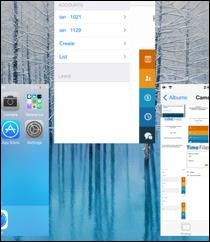



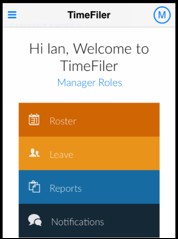
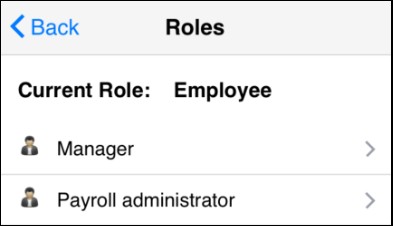
Employees who have multiple TimeFiler roles can switch between them by simply tapping on the role name on the home screen. For example:
-
Managers can switch between being an employee and a manager
-
Payroll Administrators can switch between being an employee and an Administrator (refer page 3).
-
Employees can share a mobile device by having more than one logon profile on the device (e.g. a shared iPad in the office)
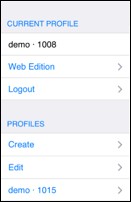
To do this, click on the symbol and create an additional profile. The Wizard will step you through establishing the additional logon credentials and a PIN.

A list of user profiles will appear under Profiles. Each user will access their profile using their PIN.
-
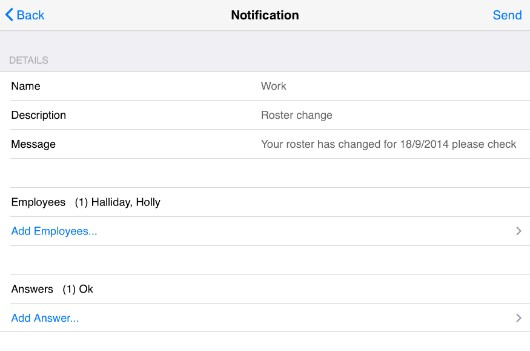
Sending notifications to employees devices is simple:
-
Name/label your message e.g. Work
-
Add Description e.g. Roster change
-
Type a message e.g. Your roster has changed…
-
Select employees to send message to
-
Add the choice of answers you’d like back e.g. Ok, No thanks, Maybe ring me
Basic troubleshooting
-
Want to delete the TimeFiler App and start again?
-
Simply hold your finger on the App icon and then tap ‘X’
-
Want to ‘kill’ an App if it seems to have crashed or frozen?
-
Simply double tap the device’s home button and ‘swipe up’ the TimeFiler App screen
-
One employee (on a shared device) has forgotten their PIN
-
The App will need to be deleted and reloaded and all sharing employees reloaded
-
I have forgotten my password, who do I contact?
-
Contact your Payroll Administrator who can re-set it for you
Administrator access
Payroll Administrators are able to access the TimeFiler Actions via the Mobile App, provided they are an employee in the database and have an Admin Role assigned to them. ‘Rolebased’ employees need to be specifically configured in your TimeFiler database
-
Note, traditional set-up for Administrators is they have a separate URL and separate logon credentials (e.g. ADMIN) to access TimeFiler, meaning they do not have to be an employee within that database i.e. they could be an employee in a different database, or a contractor, or business owner. For Administrators to use the Mobile App for Admin tasks, this would be turned off and Administrators would need to be employees within the TimeFiler database and have an ‘Admin Role’ assigned. If an Administrator is configured within TimeFiler to access Actions from the Mobile App, it will look like this:
-
The employee/administrator would be able to swap between being an employee and Administrator on their mobile device
-
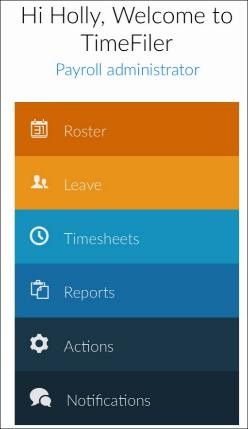
When acting as the Administrator, they will see Actions in their menu list o Note, the Administrator will be able to do all other functions as well, such as enter leave requests and timesheets on behalf of employees; approve leave requests and timesheets on behalf of managers; edit/view rosters, send Notifications, and run reports
-
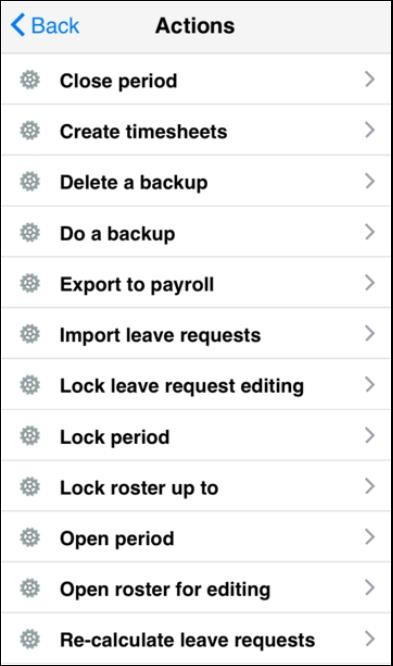
When selecting Actions, a list of the Admin functions is available to run directly from their mobile device. The functions work exactly the same as if the
Administrator was running them on their PC at work
-
The benefit of this is the Administrator does not have to be in the office, or have to access the URL via the internet, to be able to do TimeFiler functions.
Order customisation
If this feature would be of benefit to you, please contact TimeFiler Support at support@timefiler.com to arrange to have Administrator access via a mobile device. Costing will be advised. Some organisations may already have ‘Roles’ configuration in their TimeFiler database which means the cost will be minimised.