
IMS Online – Adding a New Administrator User
Understanding Administrator Users
When IMS Online is originally set up from IMS Payroll, a single Administrator user is created for your IMS Online website.
You can add further Administrator users (for example, to allow HR to access your IMS Online website).
Administrator users may log into the IMS Online website in two ways:
-
By clicking the ‘Log into IMS Online’ menu option in the IMS Online Synchronisation Tool. This requires access to IMS Payroll Partner;
-
Or, by using the special Administrator link to log directly into your IMS Online website.
The original Administrator user has access to the IMS Online Synchronisation Tool, via IMS Payroll.
If additional Administrator users are required to have access to this tool, they must also have IMS Payroll installed on their computer.
IMS User tasks
Via the IMS Online Synchronisation Tool, IMS Users have the ability to:
-
Log into IMS Online, as well as update IMS Online
-
Export payment file to IMS Payroll
-
Manage documents
-
Reset passwords
IMS Online Administrator tasks
Within your IMS Online website, an Administrator user may:
-
View employee masterfile data and work area (pay point) data
-
Modify employee permanent rosters
-
Access to all employee leave requests and timesheets
-
Configure My Details, Leave Request form and KPI report settings
-
Determine available Leave Request reasons
-
Maintain Administrator users and e-mail settings
As noted above, the IMS Administrator user may only carry out the tasks within the Synchronisation Tool if they also have access to IMS Payroll on their computer.
Adding a new Administrator user
-
Log into IMS Online.
-
Click on the Masterfiles tab page, and then click on Administrator users:
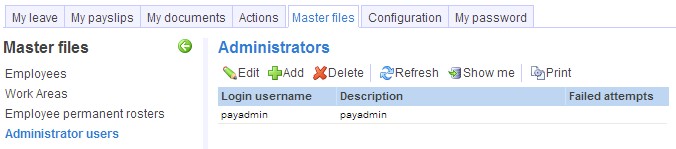
3. Click the Add button:

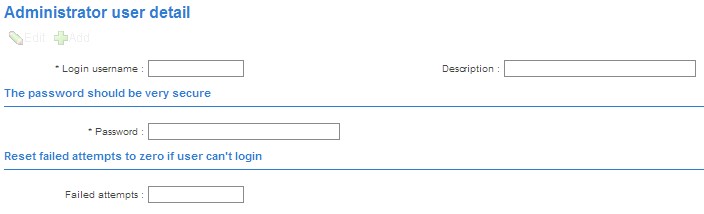
The following screen will be presented:
Fill in the Administrator user details as follows:
|
Field |
Explanation |
|---|---|
|
Login username |
Type in the Administrator’s user name, for example, a user name for Mollie Smith may be smithm or mollie.smith. |
|
Description |
Enter the Administrator’s name, for example, Mollie Smith. |
|
Password |
Enter a secure password; ideally it should include characters and numbers, and should be at least 5 characters long. Note that the password is case-sensitive. |
Press Save.
It is strongly recommended that serious consideration be given to new
Administrator users. Given they have full access to the system, this level of access should be given out only when necessary.
Administrator access to IMS Online
If the new Administrator user does not have access to IMS Payroll, and therefore does not have access to the IMS Online Synchronisation Tool in order to be able to log into IMS Online, they need to log in via a slightly different URL than what is used for employees and managers.
This type of user may be used to allow HR Managers full access to IMS Online. It is expected that payroll backup staff would also have access to IMS Payroll, and would therefore have access to the Synchronisation Tool.
Let’s say your company URL name was set up as “payrollexperts”.
The normal URL used for employees and managers would be:
http://payrollexperts.imsonline.co.nz
For an Administrator to log into this system (if not accessing IMS Online via the Synchronisation Tool, the URL is:
http://payrollexperts.imsonline.co.nz/?role=user
If the Administrator is logging in to IMS Online to create their own Leave Request, or approve Leave Requests, then it is recommended they log in via the employee / manager URL.
Note that the employee login details will not work using the “?role=user” URL, and nor will the Administrator login details work using the employee / manager URL.
Multiple IMS Payroll installations
Usually, the IMS Payroll application is installed on the system network if multiple users access it.
However, there are times when although the data is held in a networked location, the application is installed on local computers for multiple users. If this is the case, correct sync.dll files need to also be installed on each of those local computers.
Please contact IMS Support on 06 876 8959 if you require assistance with this.
Reset Administrator password
Two main tasks are required when resetting an Administrator password (in the event the Administrator has forgotten their password):
-
Reset password details for the Administrator in your IMS Online website
-
Align password details for the original Administrator in the IMS Online Synchronisation Tool, if required.
Password details ONLY need to be changed in the Synchronisation Tool if the password details have changed in IMS Online for the original IMS Administrator.
Reset password in IMS Online website
-
Log into IMS Online.
-
Click on the Masterfiles tab page, and then click on Administrator users:
-
Highlight the relevant Administrator, and then click the Edit button:

The following screen will be presented:
Fill in the Administrator user details as follows:
|
Field |
Explanation |
|---|---|
|
Password |
Type in a new password for the Administrator. Enter a secure password; ideally it should include characters and numbers, and should be at least 5 characters long. Note that the password is case-sensitive. |
|
Failed attempts |
Reset this field back to zero (0). |
Press Save.
Align password details in IMS Online Synchronisation Tool
As noted above, this step is ONLY required if the IMS Online website user details have been modified for the original IMS user.
-
Log into the IMS Online Synchronisation Tool.
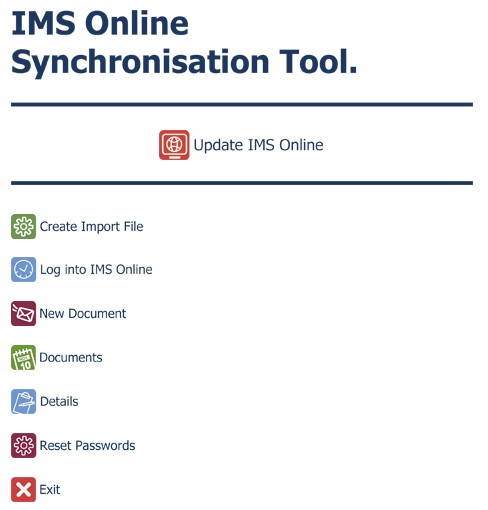
-
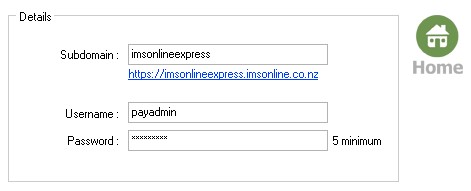
Click on Details. The following screen will be displayed:
-
Type in the password exactly as it was entered into your IMS Online website (remember it is case-sensitive).
IMS Online update: password issues
If the original IMS Administrator password has been modified in your IMS Online website, but not aligned in the IMS Online Synchronisation Tool, then you will receive an error message when trying to run an IMS Online Update from the Synchronisation Tool:
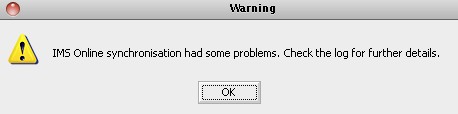
Press OK. The following screen will be displayed:
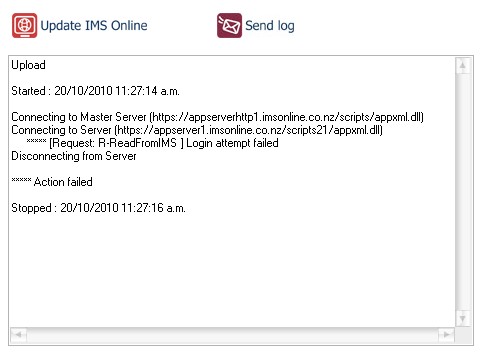
You will need to ensure the Administrator password stored in the Details area of IMS Online Synchronisation Tool is aligned with the same Administrator user password details in your IMS Online website (as per steps noted above).