
IMS Online Synchronisation Tool
Overview
Most commonly, the IMS Online Synchronisation Tool is used to update IMS Online with data from IMS Payroll.
The ‘Update IMS Online’ process should be run after closing each pay period to ensure leave balances and other employee masterfile changes are updated in IMS Online.
However, it is also possible to carry out functions such as:
-
Access IMS Online as an Administrator
-
Send messages (for example, company policies, newsletters etc) to IMS Online to be viewed by employees and managers
-
Change URL and Administrator login details
-
Reset user passwords
The IMS Online Synchronisation Tool is only accessible via the Tools menu in IMS Payroll.
Please note that your IMS Online database must have been successfully created and synchronised with your IMS Payroll database in order to access the IMS Online Synchronisation Tool.
Refer to the “IMS – Installing IMS Online” document for further information, or contact IMS Support on 0800 600 110.
Accessing IMS Online Synchronisation Tool
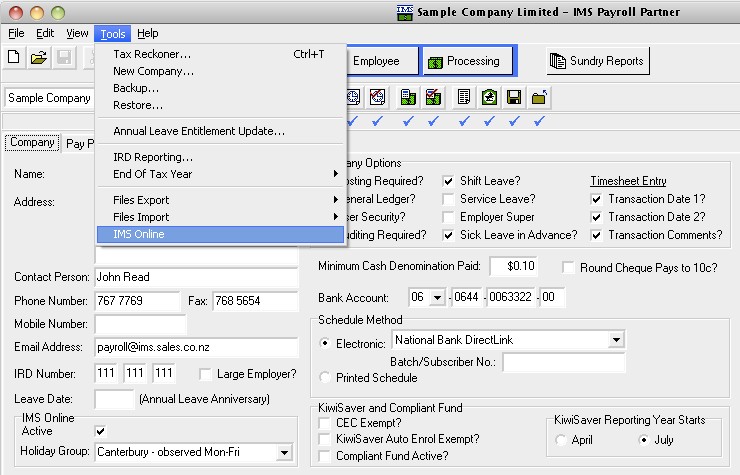
From IMS Payroll, access IMS Online Synchronisation Tools via the Tools menu (IMS Online):
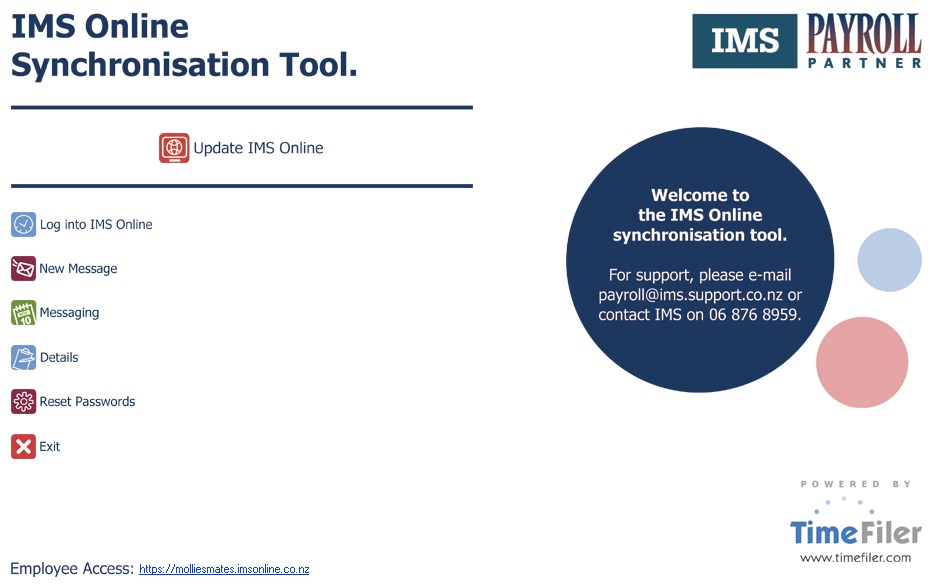
The following screen will be displayed:
Synchronisation Tools
The following tools are available within the IMS Online Synchronisation Tool:
|
Menu Item |
Summary |
|---|---|
|
Update IMS Online |
To ensure IMS Online is up to date: Synchronised with current IMS Payroll data Send files and reports to IMS Online |
|
Log into IMS Online |
To access IMS Online as an Administrator. |
|
New Message |
To send PDF documents to employees to be viewed in IMS Online. |
|
Messaging |
To view payslips and messages that are ready to be sent to IMS Online during the next Update IMS Online process. |
|
Details |
To change URL and Administrator login details. |
|
Reset Passwords |
To reset employee passwords. |
Update IMS Online

Update IMS Online to ensure IMS Online data is completely up to date with data in IMS Payroll.
Run the update after closing pay periods, and after making employee changes in IMS Payroll, etc.
The update also sends payslips and messasges to IMS Online to be viewed by employees and managers.
Log into IMS Online

Click this button to log into IMS Online.
Log in using the same user name and password you specified when you originally created the IMS Online database. Remember that the login name and password are case-sensitive.
It is recommended that you don’t carry out “employee-based” tasks such as leave requests and timesheets when logged in as Administrator.
Leave Request e-mails are not generated when logged in as Administrator, plus normal employee security may not be respected during timesheet entry etc when logged in as Administrator.
New Message

Although it is possible to generate payslips from IMS Payroll to be displayed within IMS Online, it is also possible to send other files to IMS Online such as company policies, etc.
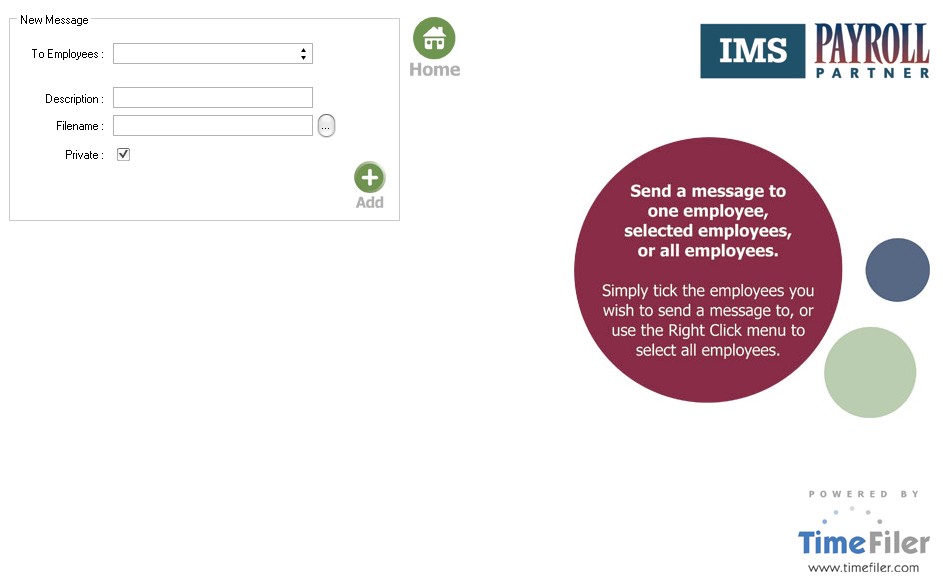
Files may be sent to one employee, a group of employees, or all employees. Click on New Message, and the following screen will be displayed:
|
Item |
Explanation |
|---|---|
|
To Employees |
Click on the dropdown arrow to view all employees in your IMS Payroll database. To select all, right-click, and then select ‘Select All’. To unselect all, right-click, and then select ‘Unselect All’. To select one employee, or a group of employees, use left-click to tick relevant employees. |
|
Description |
Enter a Description for the message. This will be shown to the employee when they log into IMS Online, so make sure it is meaningful. |
|
Filename |
Use the picklist to select a file from your PC. The file should be a PDF type. |
|
Private |
The message may be flagged as Private, which means it is only viewable to employees and Administrators (and not the employee’s Manager or Assistant Manager). |
-
Click on the Add button. You will be advised that the message has been added to the message queue.
-
Click the Home button to return to the main screen.
The message has not yet been sent to IMS Online. Run Update IMS Online to send the file to your IMS Online database, after checking files in Messaging.
Messaging

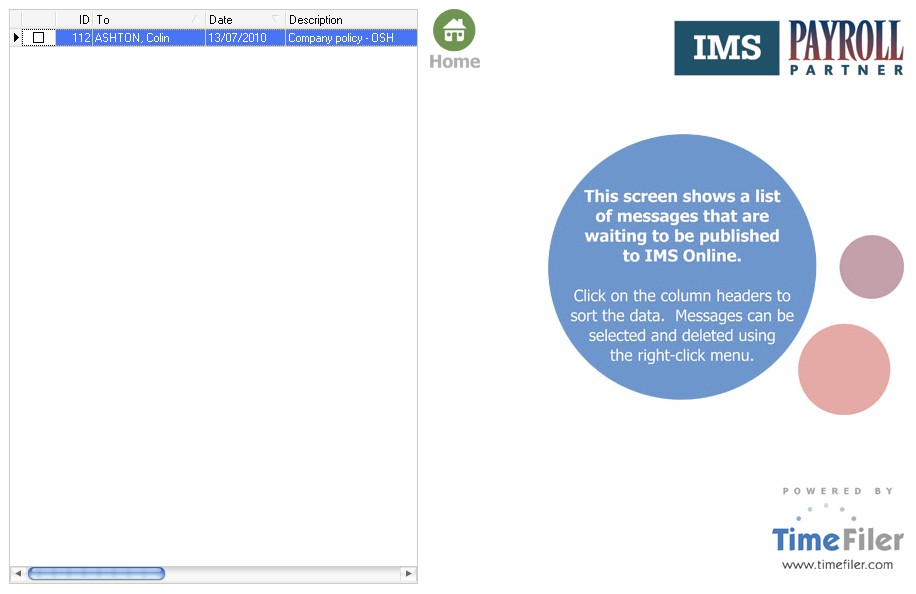
Messaging shows you at a glance files that are waiting to be sent to IMS Online.
Click on Messaging, and the following screen will be displayed:
-
You can click on the column headers to sort the data.
-
Tick the relevant messages you’d like to send to IMS Online.
-
Click the Home button to return to the main screen.
The messages have not yet been sent to IMS Online.
Run Update IMS Online to send the messages to your IMS Online database.
Note that payslips are only sent after the pay period has been closed. Even if payslips are displayed in Messaging and the Update IMS Online tool is subsequently run, payslips will not be sent to IMS Online if the pay period is still open.
Details

If required, you are able to change your company’s URL or user name / password details.
Note that you need to contact IMS Support in the first instance to change your
URL.
Only change login details if you have also changed Administrator user login details in IMS Online.
If login details are changed in IMS Online, but not in the Details tool, then your Update IMS Online process will fail.
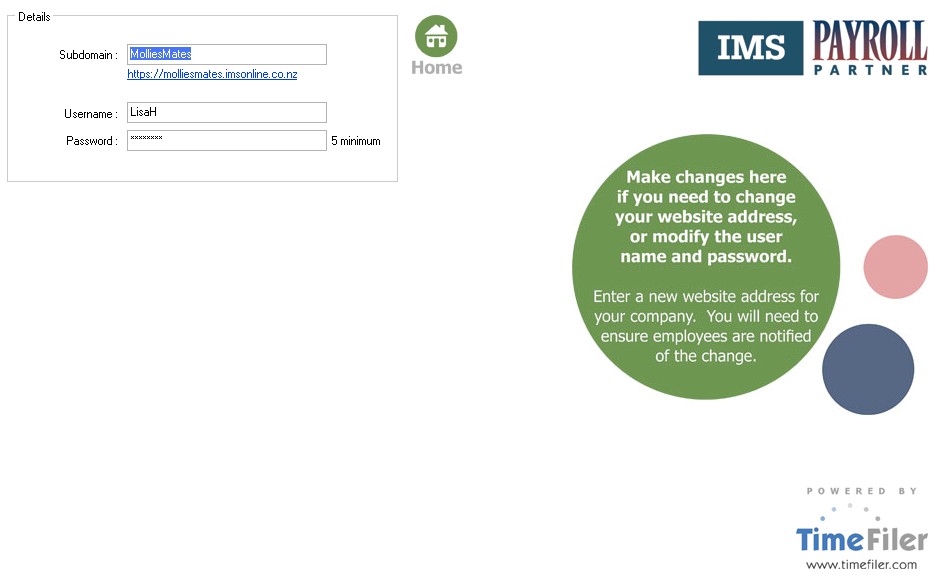
Click on Details, and the following screen will be displayed:
|
Item |
Explanation |
|---|---|
|
Subdomain |
Type in a new website name for your company. The full URL will be displayed as you type underneath. |
|
Username |
Make sure you select a secure user name. It is case sensitive. |
|
Password |
Make sure you enter a strong password, for example, it should include upper and lower case letters, as well as numbers. It is case sensitive. |
• Click the Home button to return to the main screen.
Remember to notify your employees if you change the web address details.
Reset Passwords

If required, you are able to change passwords for one employee, a group of employees or all employees.
Passwords are reset to the original password, ie IRD number as stored in IMS Payroll.
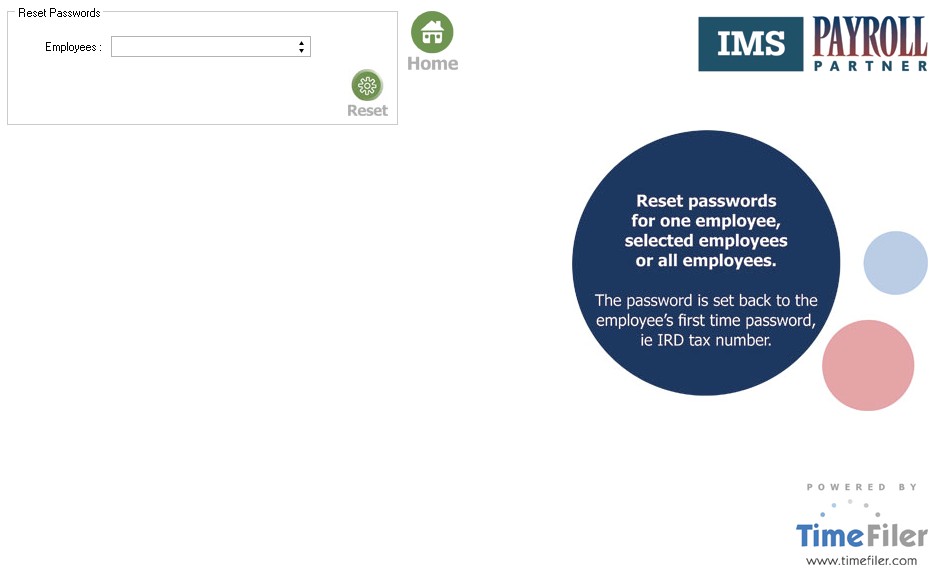
Click on Reset Passwords, and the following screen will be displayed:
|
Item |
Explanation |
|---|---|
|
Employees |
Click on the dropdown arrow to view all employees in your IMS Payroll database. • To select one employee, a group of employees, or all employees, use leftclick to tick relevant employees. |
-
The Employees field will display the number of employees who will have their password reset by running this process.
-
Click on the Reset button. You will be asked to confirm whether you want to proceed with Reset process.
-
If you choose to proceed, the system will take a couple of moments to reset the passwords. A confirmation message will appear at the end of the process.
-
Click the Home button to return to the main screen.
Exit

Press the Exit button to log out of IMS Online Synchronisation Tools, and return to IMS Payroll.