
IMS Online Max – Clocking Settings & Warnings
Introduction
Clock data captures employee actual start and finish times, which can then be snapped and rounded according to a particular organisation’s requirements.
IMS Online Max may be configured to import clocking data from a third party hardware device, for example, electronic timeclock, finger scanners etc.
Please contact Support if you require clocking in the first instance so that IMS Online can be configured to integrate with your clocking device.
Clocking data would normally be managed in IMS Online Max on a daily basis. It is possible to have clock data updated every 15 or 30 minutes in the system so there is always full visibility of who is at work, and who isn’t.
Employee roster data should be as up to date as possible so that valid comparisons may be made against actual clocking data.
Settings
As clock data is updated into TimeFiler from the clocking device, employee timesheets are updated automatically, and will display critical and non-critical validation warnings when exceptions occur.
Clocking rules are handled in Business Rules (Configuration tab page).
Snap & rounding rules
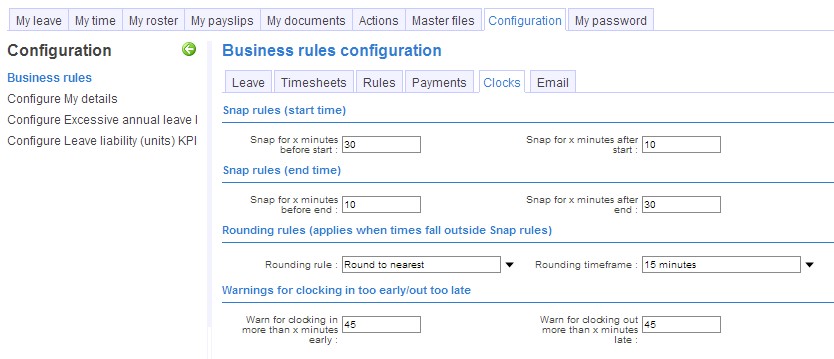
These settings manage how and when clock times are ‘snapped’ to the employee’s roster start and finish times.
|
Snap rules (start time) |
Snap rules (start time) |
|
Field |
Explanation |
|
Snap for x minutes before start |
Enter the number of minutes that will result in the clocked start time being snapped forward to the employee’s rostered start time for the day. For example, the employee is rostered to start at 8.30am. Clocks in at 8.12am – this time is within 30 minutes before the employee’s rostered start time, so the adjusted start time will be snapped forward to 8.30am (therefore not paid from the clocked start time). Clocks in at 7.58am – this time is more than 30 minutes before the employee’s rostered start time, therefore rounding rules will apply (as per the next section). |
|
Snap for x minutes after start |
Enter the number of minutes that will result in the clocked start time being snapped backwards to the employee’s rostered start time for the day. For example, the employee is rostered to start at 8.30am. Clocks in at 8.37am – this time is within 10 minutes after the employee’s rostered start time, so the adjusted start time will be snapped back to 8.30am (therefore will not be penalised for starting late). Clocks in at 8.44am – this time is more than 10 minutes after the employee’s rostered start time, therefore rounding rules will apply (as per the next section). |
|
Snap rules (end time) |
Snap rules (end time) |
|
Field |
Explanation |
|
Snap for x minutes before end |
Enter the number of minutes that will result in the clocked end time being snapped forward to the employee’s rostered end time for the day. For example, the employee is rostered to finish work at 5pm. Clocks out at 4.52pm – this time is within 10 minutes earlier than the employee’s rostered end time, so the adjusted end time will be snapped forward to 5pm (therefore will not be penalised for finishing early). Clocks out at 4.45pm – this time is more than 10 minutes earlier than the employee’s rostered end time, therefore rounding rules will apply (as per the next section). |
|
Snap for x minutes after end |
Enter the number of minutes that will result in the clocked end time being snapped back to the employee’s rostered end time for the day. For example, the employee is rostered to finish work at 5pm. Clocks out at 5.22pm – this time is within 30 minutes after the employee’s rostered end time, so the adjusted end time will be snapped back to 5pm (therefore only paid up until the rostered finish time). Clocks out at 5.17pm – this time is more than 10 minutes past the employee’s rostered end time, therefore rounding rules will apply (as per the next section). |
|
Rounding rules (these rules only apply if times are outside ‘Snap’ parameters |
Rounding rules (these rules only apply if times are outside ‘Snap’ parameters |
|
Field |
Explanation |
|
Rounding rule |
Choose from the following options: Round to nearest • Round back to Round forward to No rounding applied |
|
Rounding timeframe |
Choose the appropriate number of minutes that the rounding rule applies for. Examples: • Round to nearest 15 minutes – 6:07am rounds back to 06:00, 17:24 rounds forward to 17:30 |
Early start / Late finish warnings
These settings manage when warnings are displayed if the employees clocks in early, or if they clock out late.
|
Field |
Explanation |
|---|---|
|
Warn for clocking in more than x minutes early |
Enter the number of minutes that is deemed to be an exception for the employee’s Start Time. A non-critical warning will display if the employee starts more than x minutes before their rostered start time. |
|
Warn for clocking out more than x minutes late |
Enter the number of minutes that is deemed to be an exception for the employee’s End Time. A non-critical warning will display if the employee finishes more than x minutes after their rostered end time. |
Managing clock data on Timesheets
As clock data is updated into TimeFiler from the clocking device, employee timesheets are updated automatically, and will display critical and non-critical validation warnings when exceptions occur.

Clock data is normally updated into TimeFiler every 15 minutes (this may vary on individual site requirements).
Click the Refresh ( ) button to ensure up to date clock data is displayed.
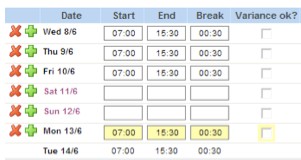
As long as an employee has been set up to ‘Use Clocks’ then timesheet data will be updated on a day-by-day basis:
|
Field |
Explanation |
|---|---|
|
Start time |
Review Start Time for the day. If the employee clocks in and out, the Start Time is updated via the clocking data, otherwise, it is updated by the rostered Start Time for the day. |
|
End time |
Review End Time for the day. If the employee clocks in and out, the End Time is updated via the clocking data, otherwise, it is updated by the rostered End Time for the day. |
You do not have to enter colons when entering Start and End times.
8am can be entered as 8 (you don’t have to put in 08:00 or 0800), and TimeFiler has a best guess at the End time and will work out the 24-hour format time, if required.
Clocking Warnings
A number of warnings may be displayed on the timesheet as it gets filled in.
Warnings will either be critical (red) or non-critical (yellow). You will not be able to save the timesheet, or log out, if critical warnings remain on the timesheet.
If you choose to not deal with warnings immediately, you may click on the Revert button to return the timesheet to it’s last saved state.
Warnings will help you fill the timesheet correctly, so please review all coloured alerts.
Critical Warnings:

|
Scenario |
Explanation |
|---|---|
|
A shift has been generated for a non-rostered day. |
Warning: “Not rostered to work” Action: Tick ‘Variance OK’ to accept the exception; otherwise clear the timeband. |
|
Rostered to be on leave, but the employee has worked on the day |
Warning: “Rostered to be on leave but worked” Action: Tick ‘Variance OK’ to accept the exception; otherwise enter a leave reason for the day. |
|
Rostered to work, but the employee has not clocked in today |
Warning: “Rostered to work <roster start> to <roster end> but did not clock - please enter manually” Action: Tick ‘Variance OK’ to accept the exception; otherwise manually enter the worked shift for the day. |
|
The ‘Variance OK’ field has been ticked, but shift is missing either a start time or end time. |
Warning: “Entries must have Start and End times” Action: Add the missing start or end time. |
|
The employee’s start time is earlier than the rostered start time for the day. |
Warning: “Started earlier than roster” Action: Tick ‘Variance OK’ to accept the exception; otherwise manually modify the start time for the day. |
|
The employee’s start time is later than the rostered start time for the day. |
Warning: “Started later than roster” Action: Tick ‘Variance OK’ to accept the exception; otherwise manually modify the start time for the day. |
|
The employee’s end time is later than the rostered end time for the day. |
Warning: “Finished later than roster” Action: Tick ‘Variance OK’ to accept the exception; otherwise manually modify the end time for the day. |
Non-Critical Warnings:
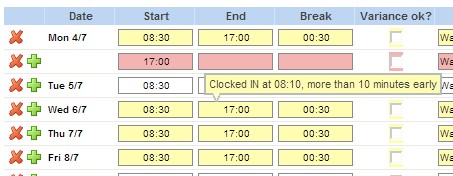
Clocking warnings: Clocking warnings:
|
Scenario |
Explanation |
|---|---|
|
The employee is rostered today, and has missed a clock start or clock end (or both). |
Warning: “Employee missed clocking in or out (or both)” Action: Add the missing start or end time. |
|
The employee has clocked in more than 10 minutes before their rostered start time for the day. |
Warning: “Clocked IN at <actual clock in start time>, more than 10 minutes early” Action: Tick ‘Variance OK’ to accept the exception; otherwise modify the start time. |
|
The employee has clocked out more than 10 minutes after their rostered end time for the day. |
Warning: “Clocked OUT at <actual clock in start time>, more than 10 minutes late” Action: Tick ‘Variance OK’ to accept the exception; otherwise modify the end time. |
|
The employee’s end time is earlier than the rostered end time for the day. |
Warning: “Finished earlier than roster” Action: Tick ‘Variance OK’ to accept the exception; otherwise manually modify the end time for the day. |