
IMS Online Express - Administrators (Importing Leave Payments into IMS Payroll)
Before you Start
Make sure that all Leave Requests have been entered into IMS Online for the pay period date range before importing payments into IMS Payroll.
IMS Online Express creates payment transactions for IMS Payroll for the Leave Requests that are in the system for the pay period date range.
Note that if a Leave Request spans the pay period date range, payment transactions will only be included for dates within the current pay period (remaining days will be paid in the next pay period run).
Ensure that the following tasks have been completed before importing transactions into IMS Payroll from IMS Online:
-
Open the pay period in IMS Payroll (or at least determine the period date to be opened)
-
Ensure all employees have entered Leave Requests into IMS Online for the period
-
Check that Leave Requests have been approved
Note that all Leave Request transactions within the specified date range will be transferred to IMS Payroll. This includes Leave Requests that have not yet
been submitted; not yet approved; and approved.
-
Ensure IMS Online has been updated from IMS Payroll to ensure leave balances etc are up to date.
Log into the IMS Online Synchronisation Tool
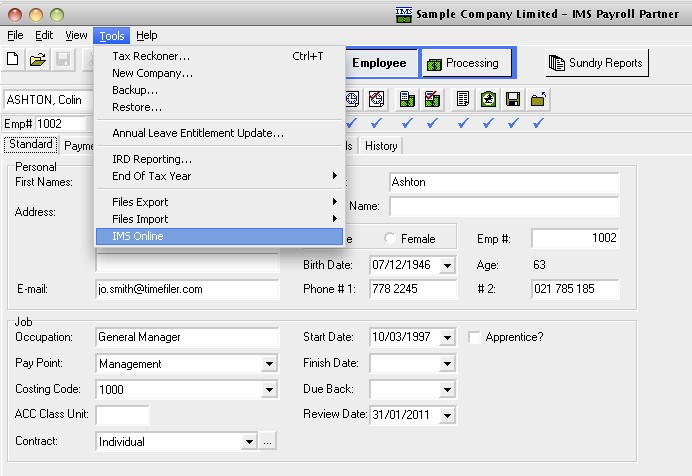
Log into the IMS Online Synchronisation Tool via the IMS Online menu item on the Tools toolbar within IMS Payroll:
You will be presented with the following screen:
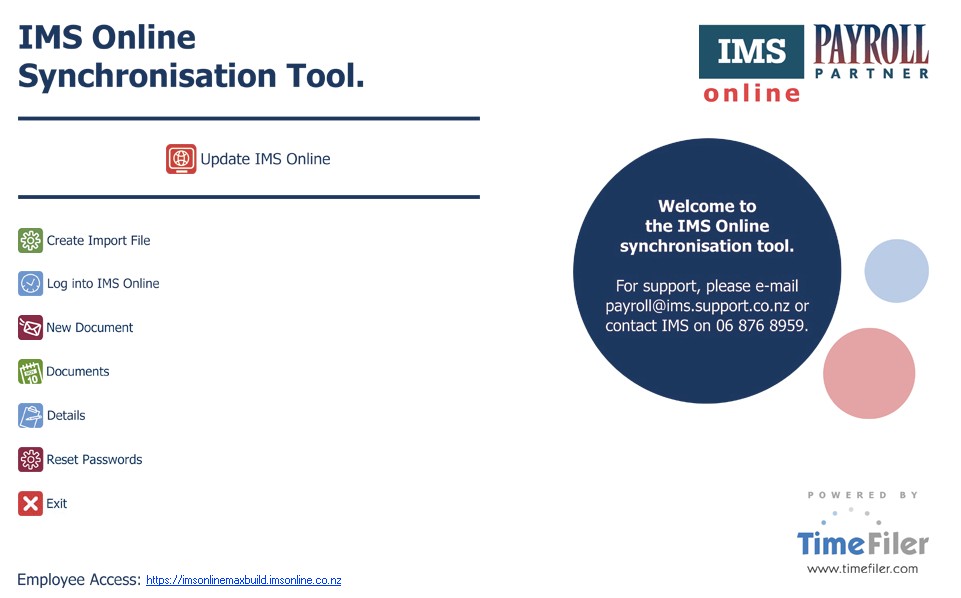
Create Import File
On the IMS Online Synchronisation Tool home screen, click Create Import File. The following screen will be displayed:
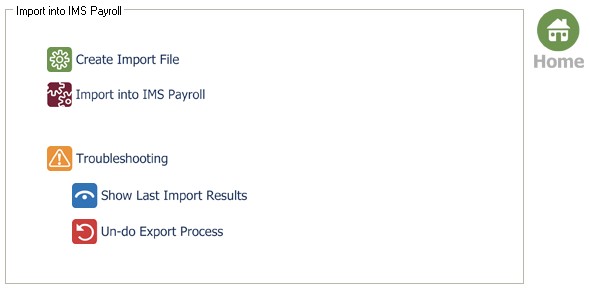
Click Create Import File. A dropdown box will be displayed:

Valid timesheet date ranges will be displayed:
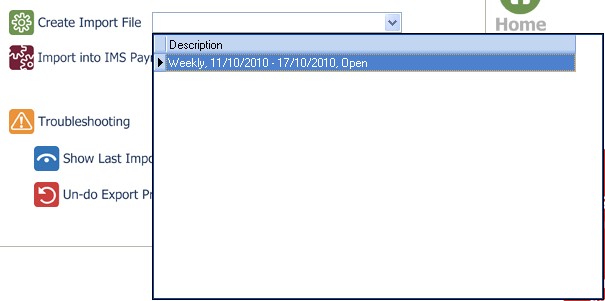
You may only export period data once, so you will not see periods that have already been exported.
If you have created an import file for a period but changes need to be made; please refer to the Troubleshooting section in this document for instructions to
recreate the file.
If you follow the Troubleshooting section, and you’re still not seeing the correct date, please contact IMS Payroll on 06 876 8959 for further information.
Double click the timesheet period range; you will be presented with the following confirmation box:
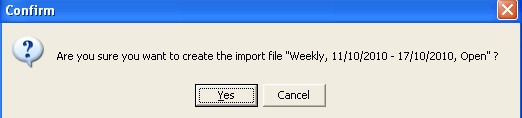
Click Yes to continue.
At the end of the process, a confirmation box will appear:
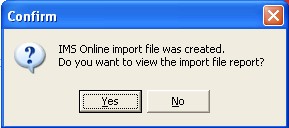
Click Yes to view the import file report.
Two pages are displayed on the report; transactions and validation messages:
Please check both pages of the import file report.
Import file log: transactions
The first page of the Import File Log displays the transactions that have been created ready for import into IMS Payroll:
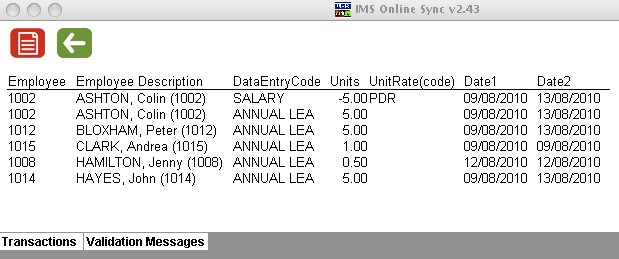
You can click on the red Print button to print the results to your local printer.
Now click on the Validation Messages tab at the bottom of the Import File log.
Import file log: validation messages
The second page of the Import File Log displays the system warnings that have been generated in the system for the Timesheets in the period date range:
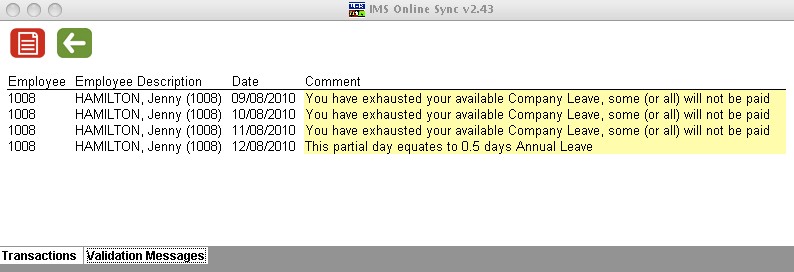
If you are not happy with the Transactions and/or Validation Messages, and need to go back into IMS Online to make changes, you will need to Undo the Export process (as detailed in the Troubleshooting section of this document).
Leave Requests for the period date range have now been locked; data in IMS
Online may not be changed without undoing the export process just completed.
Click the green arrow to go back to the main screen.
Import into IMS Payroll
Click Import into IMS Payroll. A dropdown box will be displayed:

Valid timesheet date ranges will be displayed:
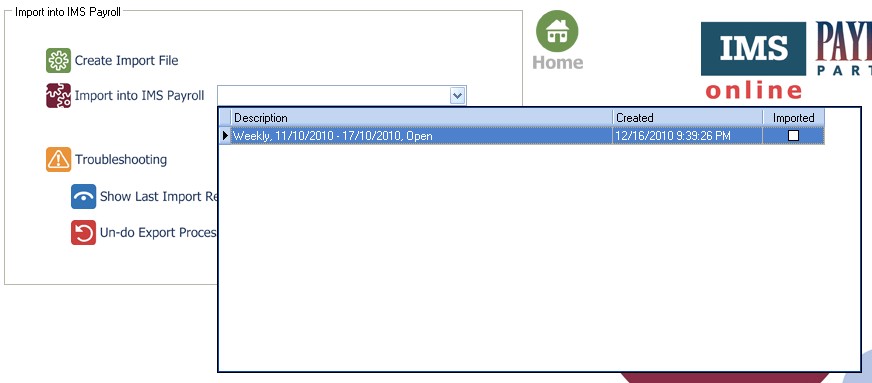
Double click the timesheet period range; you will be presented with the following confirmation box:
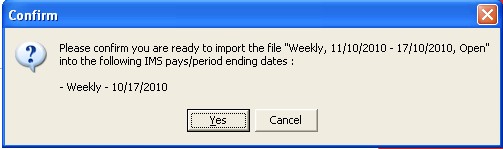
You must have the Time Import Module installed to complete this step. You must also have the pay period open in IMS Payroll.
Click Yes to continue. The Time Import window will display:
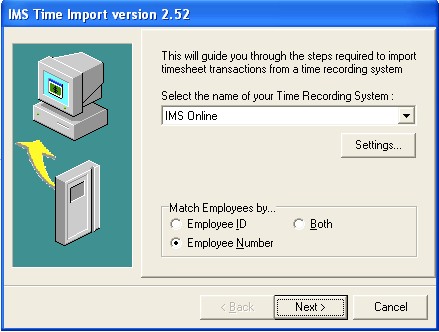
These settings should not be changed.
Click Next to continue.
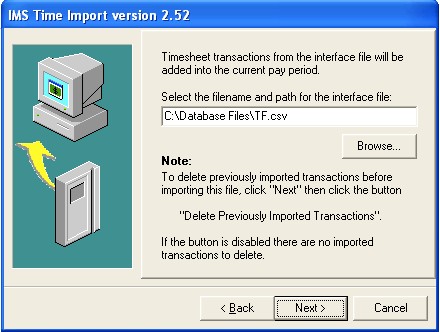
Click Next to continue.
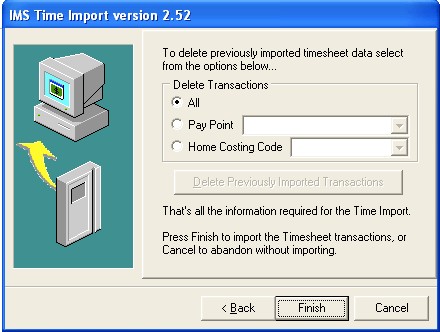
Click Finish to continue.
The IMS Online timesheet transactions will now be imported into the open IMS Payroll period.
Troubleshooting
The Troubleshooting area allows you to:
-
View the last Import File Log (in case you forgot to print it out, or need to take another look at it).
It is not possible to view historical Import File Logs beyond the previous one.
-
Undo the Export process (allows Leave Request data to be adjusted, and then recreated ready for import into IMS Payroll).
Show Last Import Results
Click Show Last Import Results. Import File Logs will be displayed for the last period range:
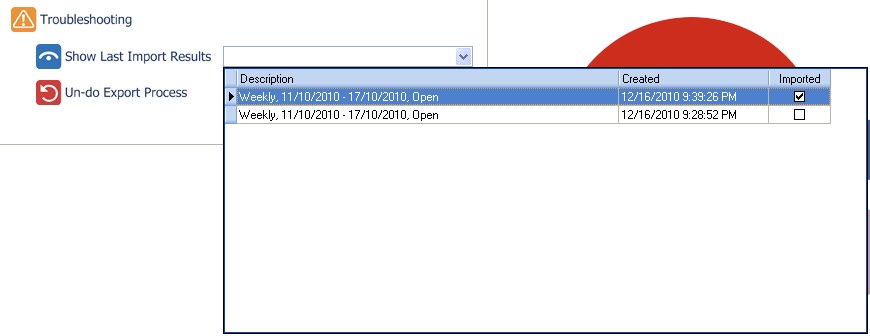
Double click the timesheet period range to view the Import File log.
All attempts at creating the import file are displayed for selection. A tickbox indicates which file was imported into IMS Payroll.
Note that information is displayed on the Transactions tab as well as the Validation Messages tab.
Un-do Export Process
If you discover that the Leave Requests you have just created an import file for are not correct, or you have created the import file in error, it is possible to “un-do” the process so that it can be recreated again in the future.
Remember to make any changes in IMS Online if necessary before recreating the import file.
It is only possible to un-do the export process for the previous imported period.
Click Un-do Export Process. A period range drop down box will be displayed:
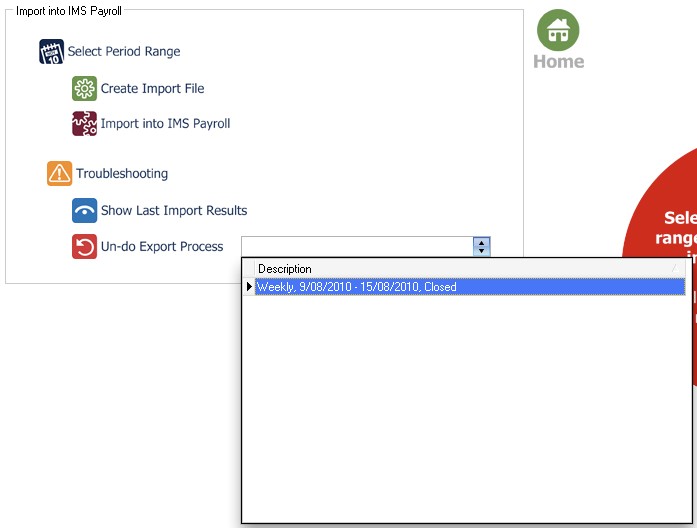
Make sure this is the period range you are planning to un-do the export process for, then click on the period date range.
You will then be asked to confirm whether you want to un-do the export for the selected period range:
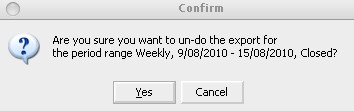
Click Yes to undo; otherwise press Cancel. If you clicked Yes, then IMS Online Sync will proceed to un-do the export process:
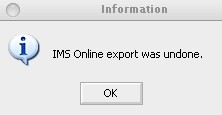
You may now run through the Create Import File process again after making any necessary changes that may be required in IMS Online.