
IMS Online – Understanding Multiple Approvals
What are Multiple Approvals?
Normally a timesheet will require a single approval from the employee’s Manager.
Each employee is attached to a Work Area (same as the IMS Pay Point). Managers and Assistant Managers are then linked to each Work Area.
However, there are times when an employee may work across more than one Work Area, and you may require each Manager to approve that timesheet. Until all relevant Managers have approved the timesheet, the timesheet will show as ‘partially approved’.
The following screenshot shows an example of timesheets that are fully approved, and some that are partially approved:
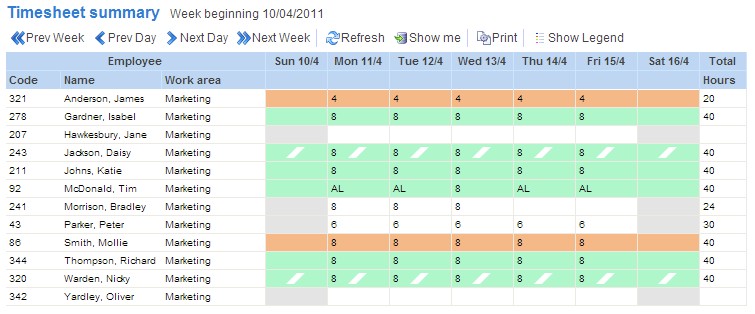
The solid blocks of green indicate that the timesheet is fully approved, while the green and white timesheet lines indicate that the timesheet is only partially approved.
What looks different?
Timesheet Summary screen
As noted above, the Timesheet Summary screen will look different if there are timesheets that have only been partially approved:
-
The Timesheet Summary for the employee will show in solid green if it has been fully approved (either only one Manager is required to approve it, or all Managers have approved it if the employee has worked against multiple Work Areas)
-
The Timesheet Summary for the employee will show as striped green if it has not yet been fully approved (this means it has been approved by at least one Manager, but is awaiting approval from another).
If the timesheet has been approved by any of the Managers, then it will show as normal (for example, orange if Submitted, no colour if not yet submitted by the employee).
Required Approvals
A new section will appear underneath the timesheet if multiple approvals are required:

Controls who Managers see
By default, Managers will just see employees that they are entitled to see by virtue of their Work Area settings (where they are set up as Manager or Assistant Manager).
However, if time has been assigned to their Work Area on an employee’s timesheet who they wouldn’t normally see, they will have access to view this employee’s timesheet.
This access is only available for the current period. If no time has been assigned to this Work Area in the next period, then the Manager will no longer
have access to view this employee’s timesheet.
Frequently asked questions
|
Question |
Answer |
|---|---|
|
We use Timesheet Reminders to e-mail our Managers that they have timesheets that need to be approved. Will the e-mail go to all Managers that are listed for approval on the timesheet? |
No. The e-mail will be sent to the employee’s normal Manager only. |
|
Can Managers enter time against any employee’s timesheet (even if they’re not in their Work Area)? |
No. The entry is initiated by either the employee when filling in their timesheet, or by that employee’s Manager. Only then will the other Manager have access to the timesheet in order to approve the time. |
|
I have employees who work across multiple sites in Auckland – however they sometimes make errors and select Work Areas based in Dunedin. Can I prevent this from happening? |
Yes. We can modify the Business Rules to ensure employees only see Work Areas that you want them to be able to see. Contact support@timefiler.com to discuss your requirements. |
Setting up Multiple Approvals
Multiple approvals are only available in IMS Online Max, since they relate to timesheets only.
They will work automatically as long as the Work Area is being captured on the timesheet. However, you may need to contact us to spend a little bit of time on the configuration to ensure:
-
The Work Area is available for selection on the timesheet.
-
The Work Area is automatically generated from the employee’s default if it is left blank.
-
If, for example, you are capturing other organisational information on the timesheet such as Location or Cost Centre, we may be able to configure the system to generate the Work Area in the background – so you don’t have to show it on the timesheet if prefer.
-
Limit which Work Areas are available for selection on the timesheet.