
IMS Cloud Payroll Browser Support
The IMS Payroll Cloud has been designed to operate using the following Internet Browsers
Microsoft Internet Explorer – Version 10 or later
If you are running an earlier version of Internet Explorer you will get the following notification.

If you get this notification please update your Internet Explorer or use either Firefox or Chrome.
Mozilla Firefox
Google Chrome
Apple Safari on Mac
When accessing the IMS Payroll Cloud via these browsers for the first time you will be asked to download and install the Browser Add-On Control. Each browsers procedure is different. We have documented below the procedure for each, please skip "Browser Add-on Updating" if you are using a particular browser for the first time.
Browser Add-on Updating
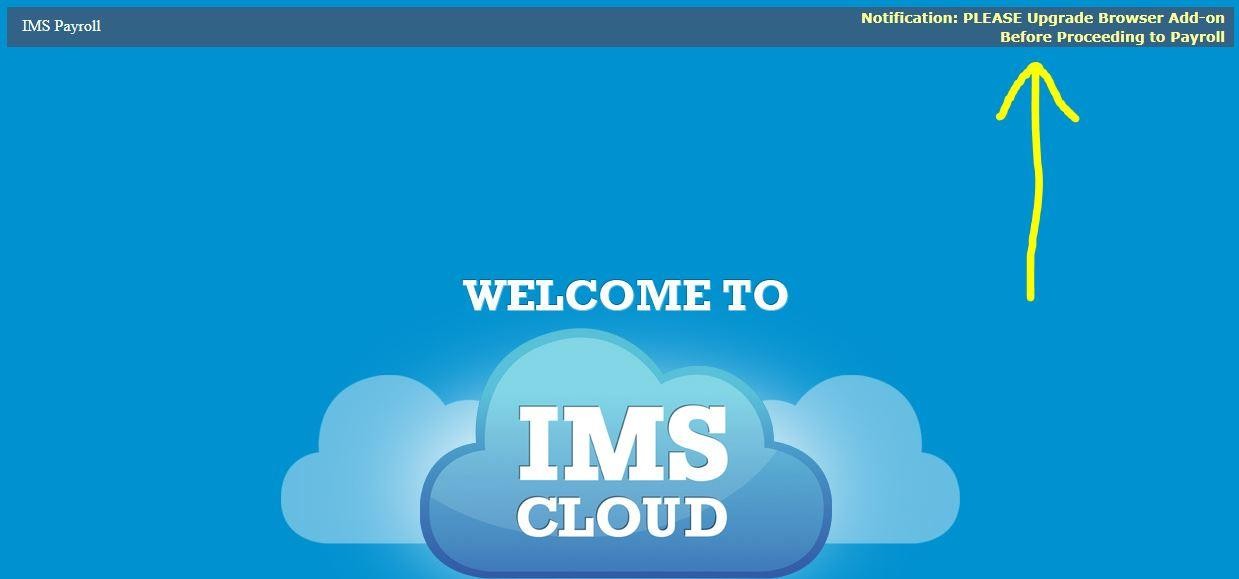
If you have an older plugin/add-on for your browser you will get the following notification displayed. Please ignore any login screens if this notification is displayed, as you will need to upgrade.
-
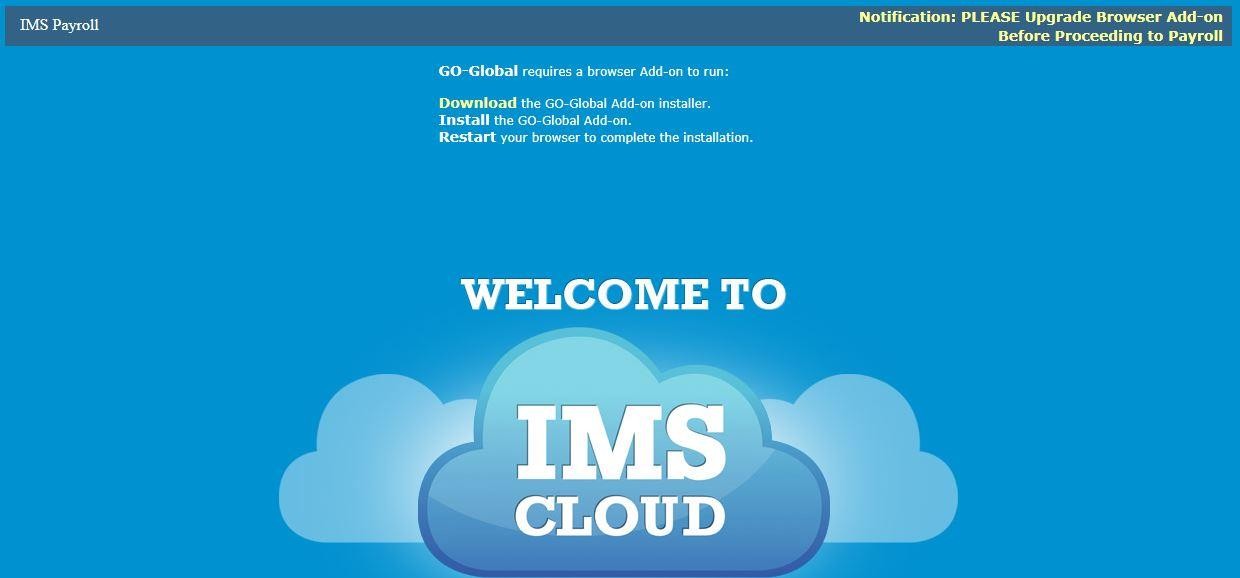
Click on the "Notification: PLEASE Upgrade Browser Add-on Before Proceeding to Payroll" link, this will take you to the following screen.
-
Click on "Download the Go-Global Add-on installer"
-
Click Run and then Run again


-
Install the Graphon add-on, and once you have installed, click Allow

-
After restarting your browser – You will be good to go…

Microsoft Internet Explorer
-
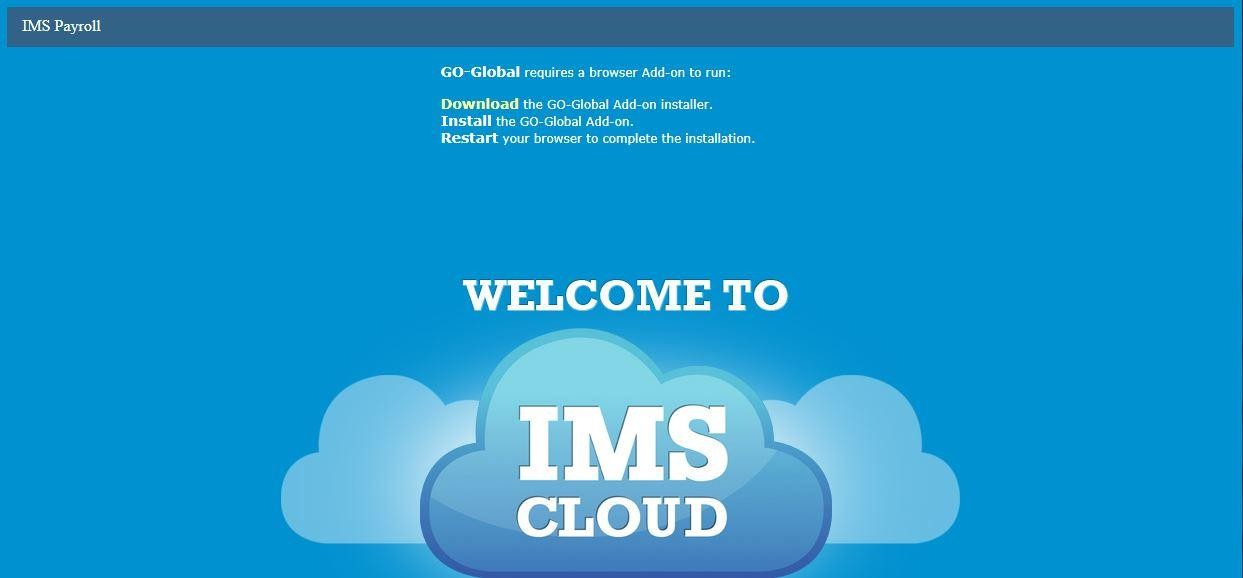
After clicking our IMS Cloud Login - Click Download
GO-Global requires a browser Add-on to run:
Download the GO-Global Add-on installer.
Install the GO-Global Add-on.
Restart your browser to complete the installation.
-
Click Run and then Run again
-
Install the Graphon add-on, and once you have installed, click Allow
-
After restarting your browser – You will be good to go…
If you are unable to install the Go Global and your computer is on Internet
Explorer 11 on Windows 8.1
Diagnosis and fix for Go Global on IE11 on Window 8.1
Issue:
Go Global unable to be installed on Internet Explorer 11. (IE11)
If go Global add on will not install on IE11, this will manifest itself with a message stating that the component will not install.
Remedy:
-
Before installing you will need to run IE11 in Administrator Mode
-
On the keyboard select the "Windows" key and "E" key at the same time, this opens windows explorer. Alternatively right click on your start menu to open windows explorer.
-
Go To the directory "C:\program files\Internet Explorer\"
-
Right click on iexplorer, and select run as Administrator.
-
Install Go Global as per normal.
-
Once finished, restart IE normally.

Mozilla Firefox
-
After clicking our IMS Cloud Login - Click Download
GO-Global requires a browser Add-on to run:
Download the GO-Global Add-on installer.
Install the GO-Global Add-on.
Restart your browser to complete the installation.
-
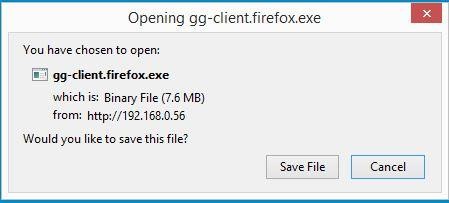
Click Save File
-
Click gg-client.firefox.exe
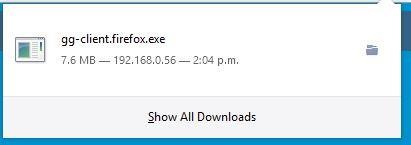
-
Click Allow

-
Click Allow and Remember
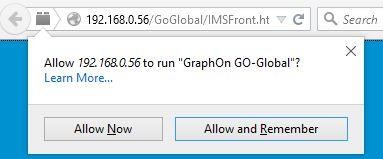
-
After restarting your browser you are good to go….
Google Chrome
-
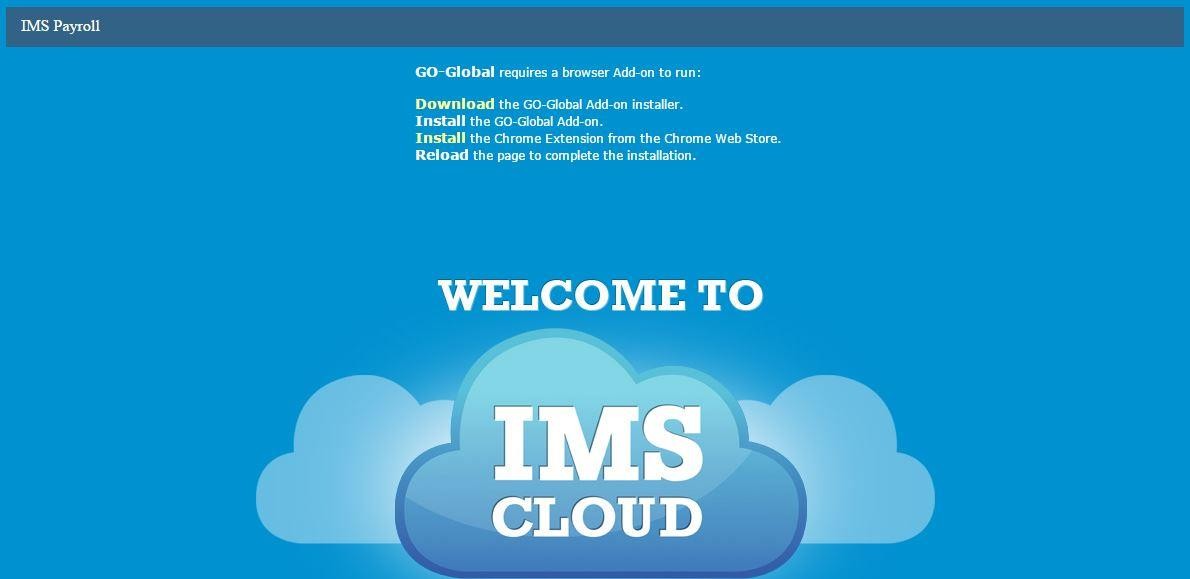
After clicking our IMS Cloud Login - Click Download
GO-Global requires a browser Add-on to run:
Download the GO-Global Add-on installer.
Install the GO-Global Add-on.
Install the Chrome Extension from the Chrome Web Store.
Restart your browser to complete the installation.
-
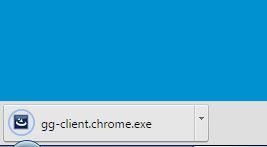
Select to run the downloaded installer gg-client.chrome.exe
-
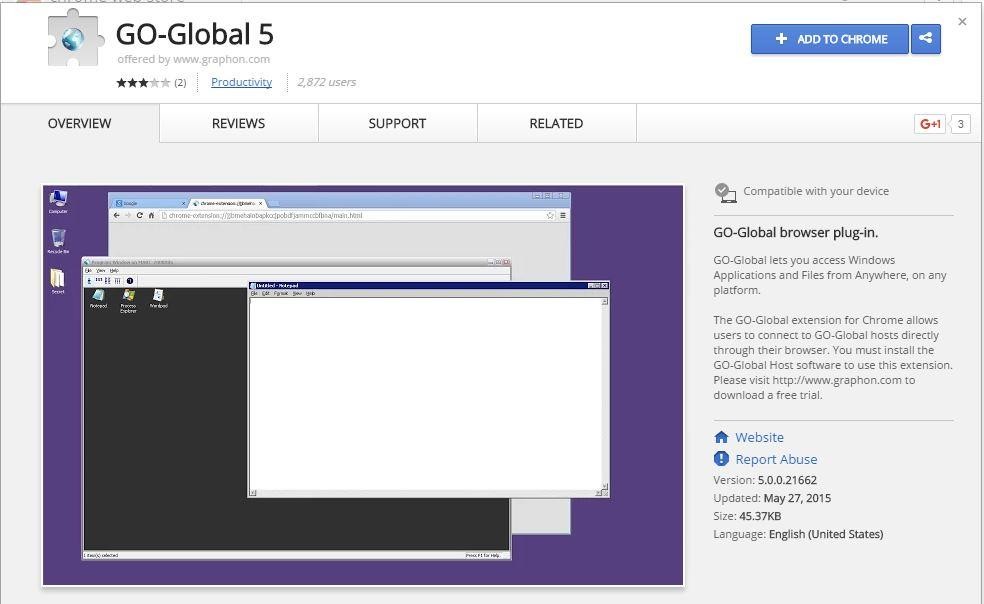
Once this screen appears, select ‘Add to Chrome’
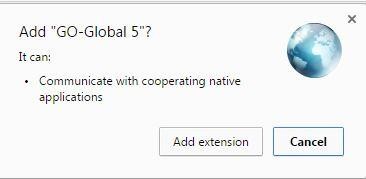

6. Select ‘Add’ Once downloaded, it will state that the download has been added to chrome.
You are now ready to go.

Apple Safari
-
After clicking our IMS Cloud Login
-
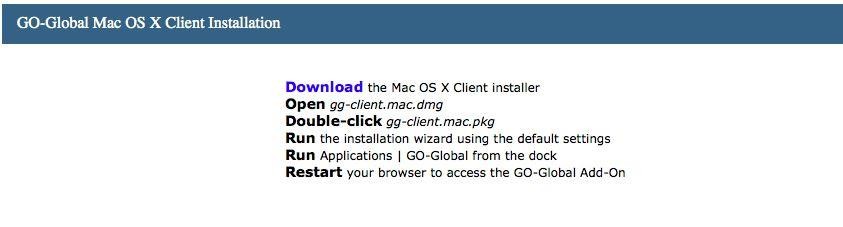
Click Download
-
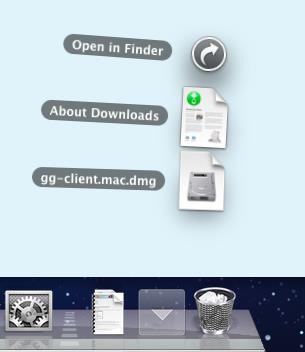
Click gg-client.mac.dmg
-
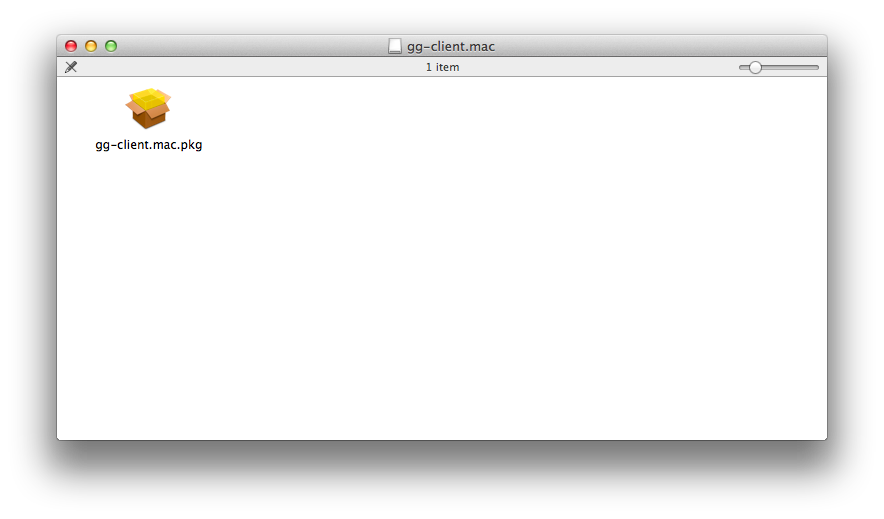
Click gg-client.mac.pkg. If a message is displayed stating that the file can't be opened then hold down the Control key, click the package and select Open from the displayed menu. An administrator password will be required (and user name if logged in as a non-administrator).
-
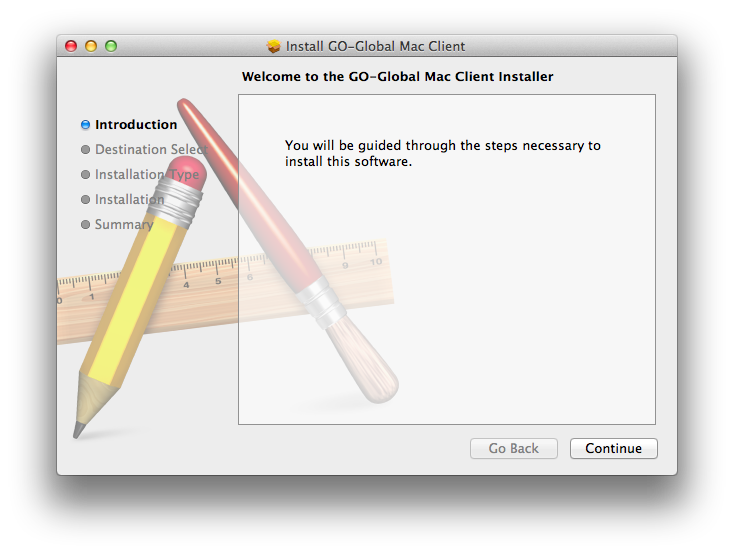
Click Continue
-
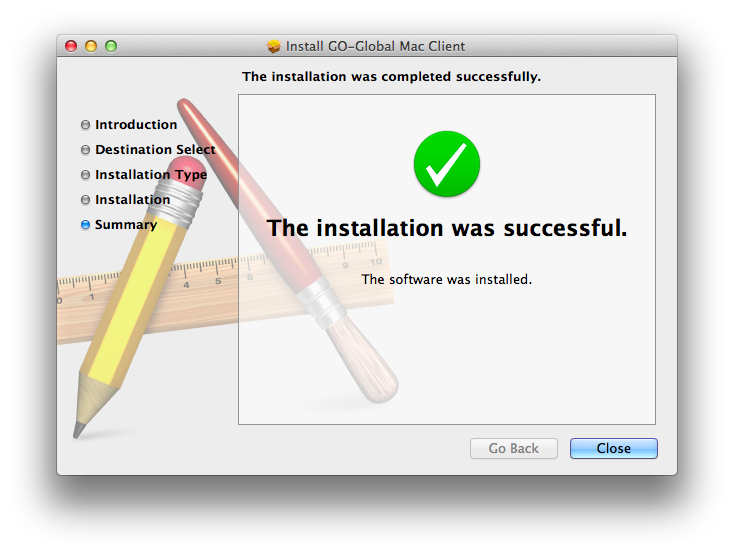
Click Close
-
After restarting your browser you are good to go….