
Processing Superannuation Payments (AU)
Each pay run, the super contributions you have withheld from the employees' pay need to be transferred to their nominated super funds.
To do this you need to create, submit and approve a superannuation batch, then either submit it to a superannuation clearing house, either directly via MYOB's Pay Super service, or by exporting a special payment file to send to another provider.
Creating and Approving a Superannuation Batch
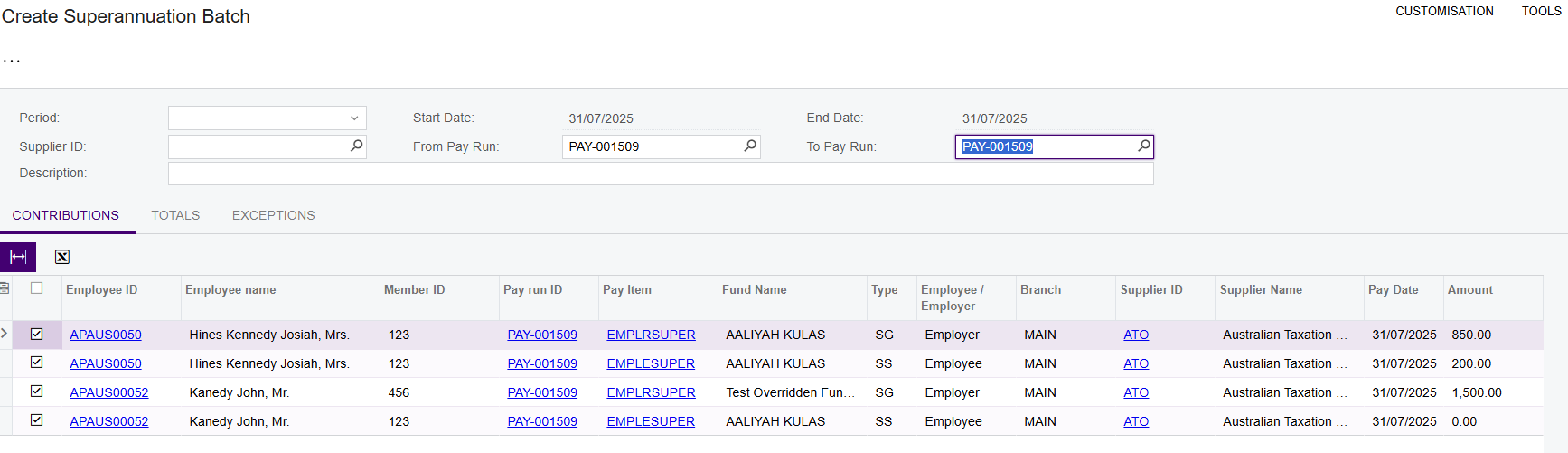
- Go to Create Superannuation Batch screen (MPPP5005).
The screen opens on the Contributions tab.
- Select the Period you want to include superannuation contributions from. If you choose Custom, select a Start Date and End Date.
- If you want to create a batch for a certain superannuation company, select a Supplier.
- If you don't want to include all pays in the period, select a date in the From Pay Run and To Pay Run fields to filter the list down.
- Review the contributions, and make sure the checkbox on the left is ticked
for all those you want to include.
- To include any adjustments to super contributions since the last pay period, go to the Adjusted Contributions tab, select all the relevant contributions, and click Add Selected Adjustments to move them to the Contributions tab for inclusion in the batch.
- To check your employees' super funds are correct, click Actions > Validate Super Funds.
- When you're ready to create the batch, click the Actions > Save
Batch.
The Superannuation Batch Details screen (MPPP5006) opens, showing the contributions included in your superannuation batch.
- To get the batch ready to pay, click Actions > Submit and then
Actions > Approve.
If you have auto-approval enabled then you don't need to do this step.
Paying a Superannuation Batch Directly Through Pay Super
If you use MYOBs Pay Super clearing house service, you can make your payments directly from the Superannuation Batch Details screen.
- Go to the Superannuation Batch Details screen (MPPP5006) and open the relevant superannuation batch.
- Once you've reviewed the batch and are ready to authorise it, click
Actions > Submit Payment.
A sign in window opens.
- Sign in to your MYOB account to submit the payment.
An SMS message with an authorisation code is sent to your phone, along with any other authorisers.
- When you receive the SMS message, click Actions > Authorise
Payment and enter the code. If you have multiple authorisers, click
Actions > View Payment Authorisations to check who still
needs to authorise the payment.Note:After the payment is authorised, general ledger journal entries are created for the superannuation batch. If the journal entries can’t be created automatically because of a setup issue, such as an invalid or missing cash account, a Create Journal Entries action appears on the batch so you can create them manually later.
Exporting a SuperStream Payment File
- Go to the Superannuation Batch Details screen (MPPP5006) and open the relevant superannuation batch.
- Once you've reviewed the batch and are ready to make the payments, click
Actions > Export and save the .csv file.
Don't open the file. Opening them in Excel may change the formatting and make the file unusable.
- Upload your file to your superannuation clearing house.
- When you are done, click Actions > Submit Payment to complete the task. If your payroll preferences are set up to create payment batches for superannuation, this creates the payment batch for the superannuation payment. The related general ledger entries are created in the finance module when that payment batch is released.