
Prepayment Invoices: Creation of a Prepayment Invoice
This topic describes how to create a prepayment invoice from a purchase order.
How to Create a Prepayment Invoice from a Purchase Order
You create a prepayment invoice on the Purchase Orders (PO301000) form.
On the More menu, you click Create Prepayment Invoice. In the Create Prepayment Invoice dialog that opens, you specify the prepayment percent or the prepayment amount (see below).
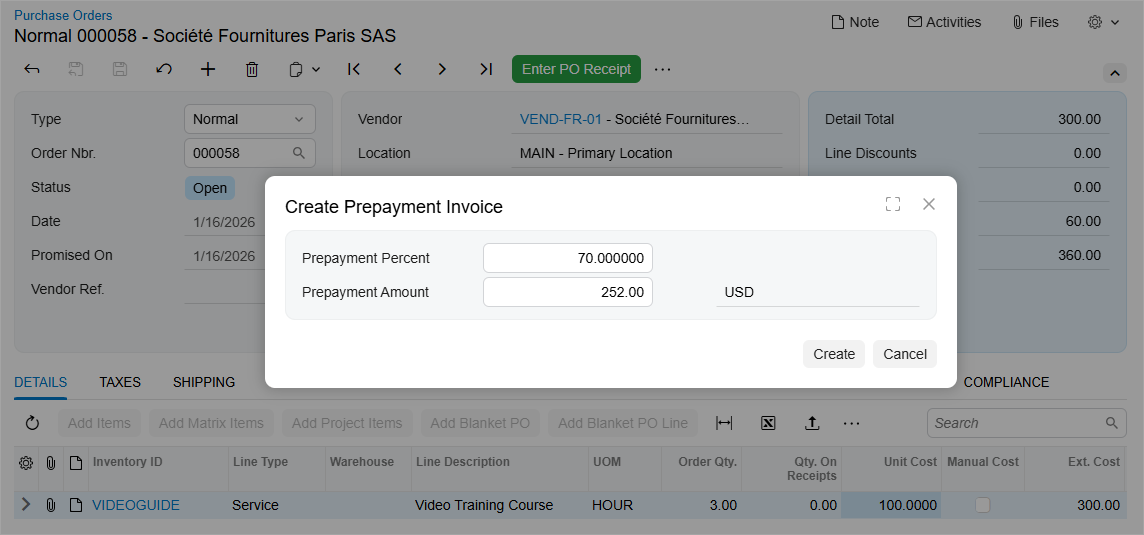
The default prepayment percent is determined as follows:
- For the first prepayment invoice:
- If a prepayment percent is specified on the Vendor Info tab of the Purchase Orders form, that value is used.
- Otherwise, the system uses the prepayment percent specified in the vendor settings on the Vendors (AP303000) form.
- If no prepayment percent is specified in either place, the prepayment percent is set to 100.
- For a subsequent prepayment invoice: The prepayment percent is calculated based on the remaining balances of the purchase order as follows.
Prepayment Percent = (Remaining Unpaid Amount ÷ Remaining Unbilled Amount) × 100
You can modify the percent, if needed. Once the prepayment percent is specified, click Create.
What the Created Prepayment Invoice Looks Like
When you click Create in the Create Prepayment Invoice dialog box, the Bills and Adjustments (AP301000) form opens with a new document of the Prepmt. Invoice type. Its summary information—such as the vendor, document currency, location, and tax zone—is copied from the purchase order. The document date is set to the current business date.
The Details tab contains only detail lines that haven't yet been fully billed. The values of the following columns are copied from the purchase order: Inventory ID, Trans. Description, Discount Percent, Discount Code, UOM, Account, Subaccount, Project Task, Cost Code, and Tax Category.
On the Taxes tab, the taxes are transferred as well. If current tax rates differ from the rates calculated for the purchase order on its document date, taxes are recalculated.