
Manufacturing: Shop Floor Kiosk
With MYOB Acumatica 2026.1.3, you can start using the new Shop Floor Kiosk to capture production data on the shop floor without slowing operators down. Designed specifically for shop floor use, the kiosk delivers a focused, simplified experience. Operators spend less time interacting with the system and more time doing productive work—while you still get the data you need.
You can launch and run the kiosk without requiring operators to sign in as MYOB Acumatica users. Supervisors can bring kiosks online quickly, operators can identify themselves in seconds, and each worker sees only the actions that fit their role, work center, and current tasks. Real-time data entry improves inventory accuracy and production scheduling. The result is faster onboarding, minimal training, fewer errors, and more consistent production reporting directly from the shop floor.
Kiosk Workflows
Operators can select their work in a way that fits their production environment. For example, they can choose from scheduled dispatch lists (“pull”) or select production orders directly (“push”). The kiosk supports both paperless and paper-based processes.
Key Capabilities
With the Shop Floor Kiosk, shop floor users can:
- Start work quickly with a focused, low-training interface
- Select work using flexible workflows (“pull” or “push”)
- Clock in to and out of production operations to capture direct labor data in real time
- Report production results, including completed quantities, scrap, and finish times
- Issue materials through backflushing, with lot and serial numbering supported
- Access operation details, required materials, and related documents, such as steps, images, and attachments, directly at the kiosk
Enabling the Feature
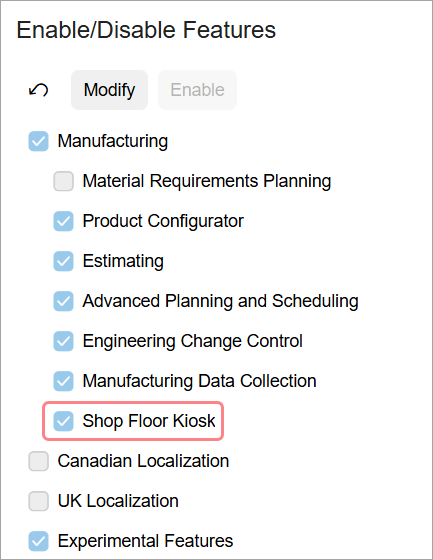
On the Enable/Disable Features (CS100000) form, the new Shop Floor Kiosk feature switch has been introduced (see below). The Shop Floor Kiosk feature must be enabled before you can proceed with the kiosk configuration.
Licensing
On the Licence Types tab of the Users (SM201010) form, there are two new user licence types related to Shop Floor Kiosk:
- Manufacturing Service Account – A free licence you can assign to a service account, which is a dedicated login that keeps the Shop Floor Kiosk open on its portal so employees can sign in and use it. By default, 10 of these licences are available for a site. If you need more, contact support. For more information, see Shop Floor Kiosk Administration: Setting Up and Starting the Kiosk.
- Manufacturing Floor User – A paid licence that lets the user log in to the Shop Floor Kiosk, as well giving them access to forms in MYOB Acumatica. For more information, see Shop Floor Kiosk Administration: Configuring Production Employee Access.
Deploying a Shop Floor Kiosk Instance
To get started, you need to deploy the Shop Floor Kiosk as a new portal instance by creating a support request. For more information, see Shop Floor Kiosk Administration: Deploying a Kiosk Instance.
Configuring a Kiosk Portal
When a kiosk portal is created for you, a record for it is created on the Portals (SP701000) form. This record is partly configured by MYOB support, but you need to finish configuring it yourself. For more details, see Shop Floor Kiosk Administration: Configuring the Kiosk Portal
Creating a Kiosk Service User Account
To launch the Shop Floor Kiosk, your user account must be assigned the Manufacturing Service Account licence and the SFK App Access user role—that is, the role specified in the Portal Access Role box on the Portals (SP701000) form. When you sign in with this account, the system starts an outer session and authorizes the kiosk application to access the database. When the kiosk is running, shop floor operators can sign in and begin using the application.
You can create a service user account by using the Users (SM201010) form, where you must enter at least the following required settings:
- Login: Enter the username that will be used for signing in.
- Email: Enter a service email address, which is required due to a limitation that doesn't allow user accounts to be created without an email address.
- On the Roles tab, ensure that the SFK App Access user role is selected.
- On the License Types tab, assign the Manufacturing Service Account licence to this account.
Additionally, you can click Reset Password on the form toolbar to specify a new password for this user account.
Controlling User Access
To access the Shop Floor Kiosk, shop floor operators must have user accounts in MYOB Acumatica with the predefined SFK User role and Manufacturing Floor User licence type assigned on the Users (SM201010) form. In addition, they must have linked employee records on the Employees (EP203000) form in which:
- The Production Employee check box is selected.
- The new Shop Floor Shift box is filled in.
Signing In to the Shop Floor Kiosk
The landing page of the Shop Floor Kiosk displays a list of all production operations currently in progress on the shop floor, giving operators full visibility into ongoing floor activity. As shown below, this page is visible to anyone before they sign in.
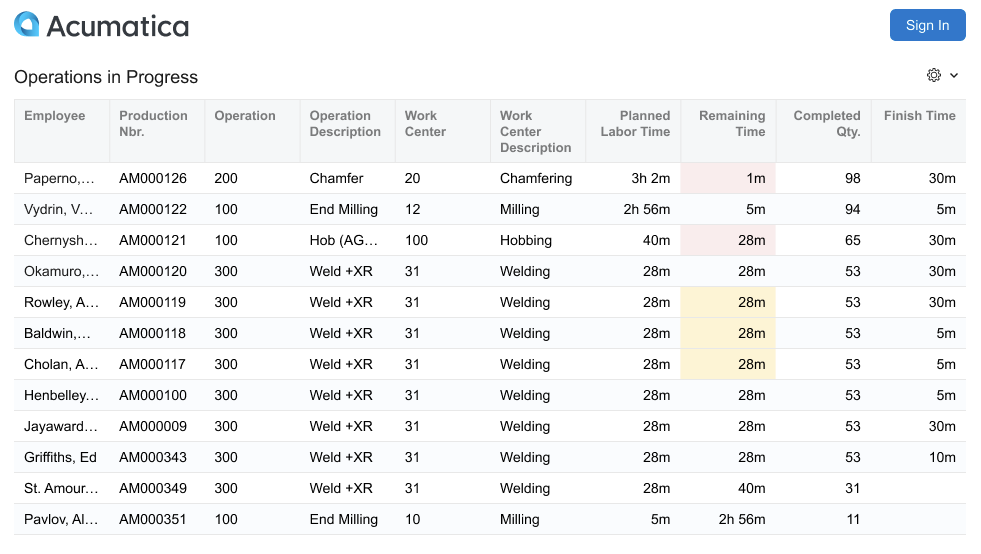
From this page, an operator clicks Sign In and selects their name from the list of active production employees. This identifies the operator in the Shop Floor Kiosk. After the sign-in, the home page opens, displaying the options available for that specific operator.
Starting from the Home Page
The home page (shown below) contains a set of tiles whose number may vary depending on certain operational conditions (described below). An operator can click any tile to go to a dedicated page.
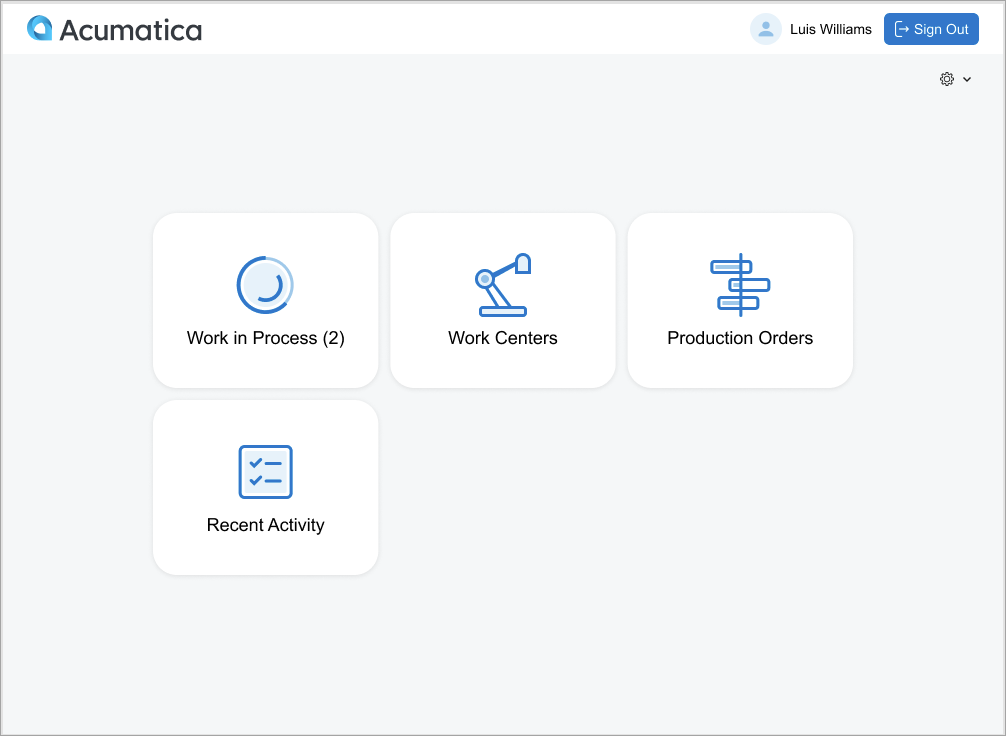
The operator may see any of these tiles:
- Work in Process (followed by the number of the operator's ongoing
operations in parentheses): When the operator clicks this tile, the production reporting
page opens, where they can clock out of operations or report the operations’ completed
quantities and scrap. This tile is unavailable if the operator isn't clocked in to any
operation.Attention:Currently, the Shop Floor Kiosk doesn't support multiple production clock entries.
- Work Centers: The operator clicks this tile to view a list of active work centers. By clicking any work center's ID, the operator can view its dispatch list and then select a production order operation to start working on.
- Production Orders: By clicking this tile, the operator opens a list of production orders of the Regular function with the Released, In Process, and Completed statuses. If there are no such orders in the system, this tile is unavailable. The tile is another way for the operator to access the needed operation.
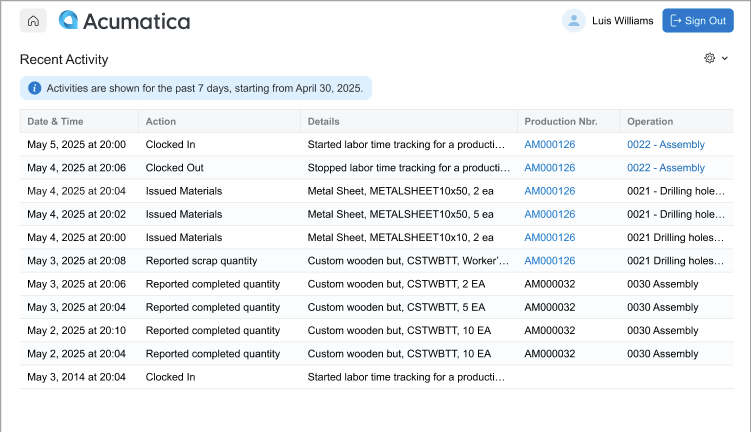
- Recent Activity: The operator clicks this tile to open a chronological list of actions performed by the operator in the Shop Floor Kiosk.
Read on for more details about how operators can proceed using these tiles.
Reporting Labor Time
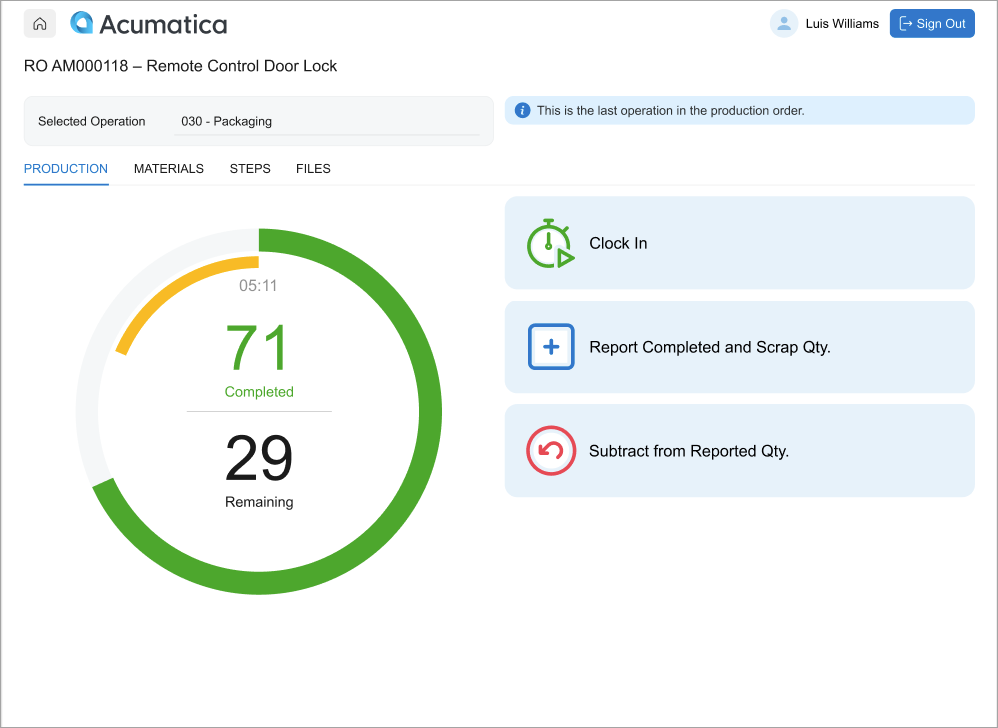
When the operator selects an operation, the production reporting page opens, as shown below. This is the primary page where the operator performs all production reporting tasks for the selected operation.
On the production reporting page, the operator sees a concentric gauge displaying a visual representation of the operation's progress. The outer circle tracks quantity, growing as completed pieces approach the planned total, while the inner circle acts as a countdown timer, shrinking as labor time is consumed. If the operation exceeds its planned quantity or labor time, the gauge changes color to alert the operator—dark green for quantity overrun and red for labor time overrun.
If the operation isn’t configured for labor backflushing, the operator can clock in or clock out to start or stop recording labor time. When the operator clocks out, the corresponding labor transaction is automatically created and released.
The Shop Floor Kiosk always uses the default shift assigned to the production employee when creating this transaction, regardless of how shifts are defined in the ERP.
Reporting Completed and Scrap Quantities
To report production quantities for the selected operation, the operator clicks the Report Completed and Scrap Qty. button on the operation details page. For operations using the Actual Costing method, this button becomes available only after the operator clocks out, ensuring that labor time is accurately captured before quantities are recorded. Once quantities are reported, the operator can clock back in to continue working on remaining quantities or to perform other work center activities such as cleaning, preparation, or maintenance.
Clicking the button opens the Report Quantities dialog box (shown in the following two screenshots), which is organized into two areas.
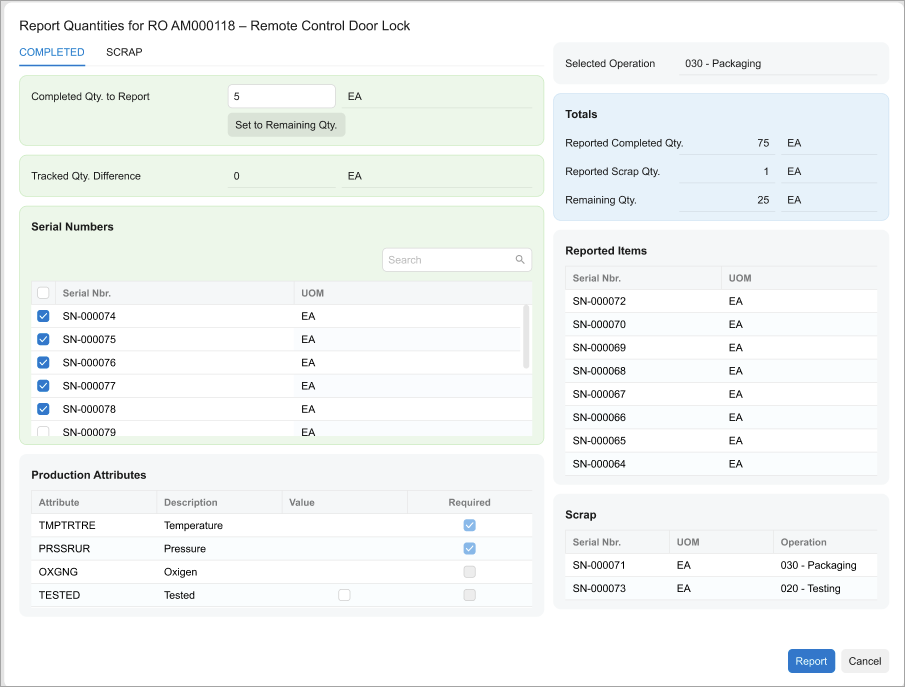
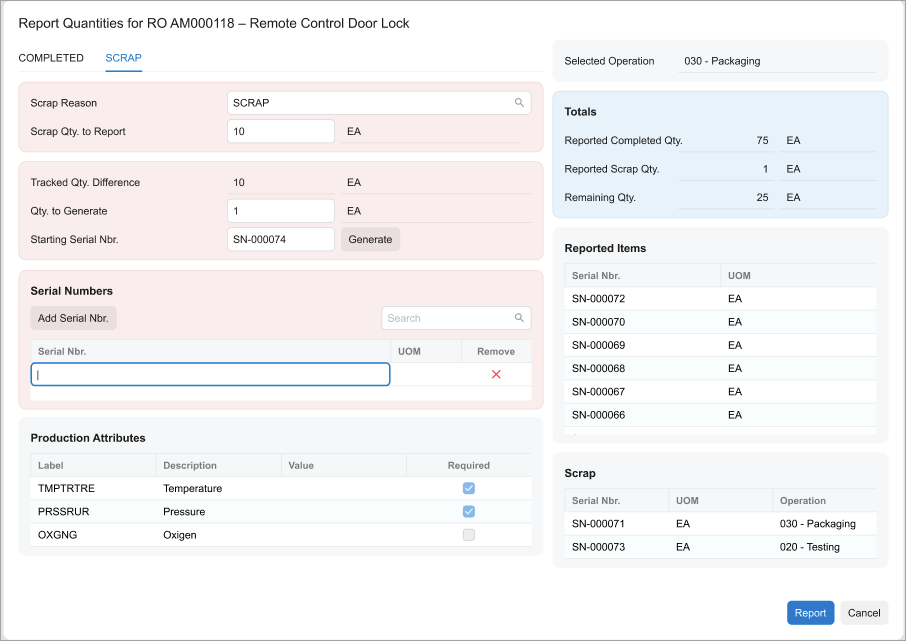
The right area of the dialog box is static and always visible regardless of the active tab. It displays:
- The Totals section, which shows the total completed quantity reported to date, the total scrapped quantity, and the remaining quantity still to be completed.
- The Reported Items table, which lists all lot or serial numbers associated with completed quantities from both released and balanced move transaction batches.
- The Scrap table, which provides the same visibility for scrapped quantities, showing the lot or serial numbers and the operations where items were scrapped.
The left area of the dialog box is dynamic and changes based on the active tab—Completed or Scrapped.
On the Completed tab, the operator can:
- Report completed quantities for the selected operation, including partial or remaining quantities
- Use a one-click option to automatically populate all remaining quantities needed to complete the operation
- Capture required production attributes (such as measurements or inspection results) when the operation requires them
- Handle lot- and serial-tracked items by selecting preassigned numbers, entering them manually, or letting the system auto-generate them
On the Scrapped tab, the operator can report scrap quantities in the same submission as completed quantities, using a single unified workflow. The scrap action is taken from the operation's configuration in the production order details, and the available options reflect that configuration. Specifically, the operator can:
- Select a Scrap Reason, which is required when the scrap action is Write-Off or Quarantine, and is not shown when the scrap action is No Action
- Report lot- and serial-tracked scrap quantities when the scrap action is Quarantine, with the same options for preassigned, manually entered, or auto-generated numbers available on the Completed tab
When the operator clicks Report, the system immediately creates a move transaction batch in a balanced state, then releases it in the background so the operator can continue working without interruption. If the batch cannot be released, it remains in the balanced state for supervisor review.
When necessary, operators can reduce previously reported completed quantities by clicking the Subtract from Reported Qty. button on the operation details page.
Viewing Materials
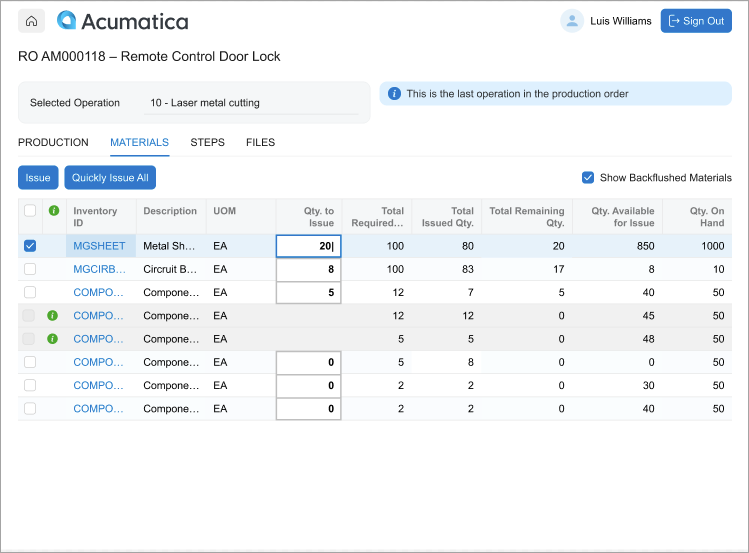
By using the Materials tab of the operation details page (shown below), operators can review the materials required for the selected operation before starting work, along with the planned and actual quantities for each material.
By default, the tab displays all materials, including those configured for backflushing. To focus only on materials that require manual issuance, the operator can clear the Show Backflushed Materials check box to hide them from the list.
Viewing Operation Instructions and Files
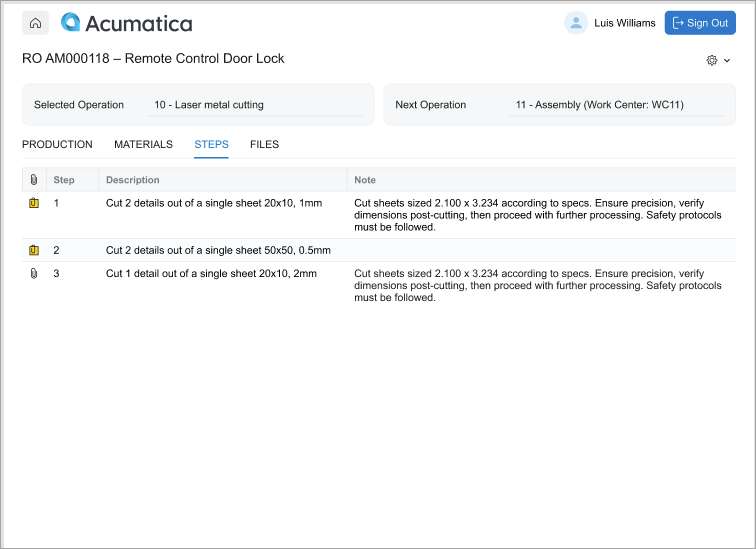
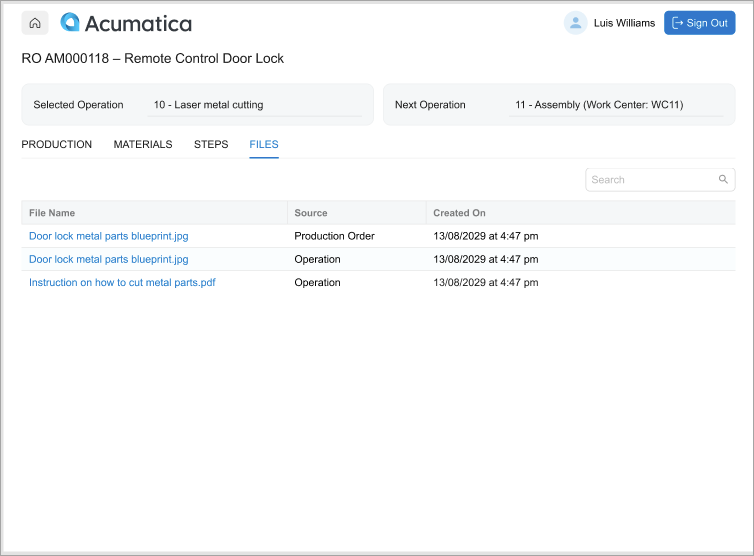
On the Steps and Files tabs of the operation details page (shown in the screenshots below), operators can:
- View work instructions and job steps for the operation to follow the required sequence, meet specifications, and reduce rework
- Access files related to the operation, such as documents, images, or other reference materials
Viewing Recent Activities
The Recent Activity page (shown below) gives Shop Floor Kiosk operators a clear, chronological view of the actions they’ve performed over the past seven days.
This lets operators:
- View and easily verify their recent activity
- Quickly confirm what they’ve already reported
- Remember where they left off after an interruption or task switch
- Resume work without rechecking production orders manually
Limitations
The Shop Floor Kiosk will be enhanced in future releases and its user interface and functionality may change. For this reason, we do not recommend developing customizations for the kiosk at this stage, because future product updates may break your custom solutions.
If a production employee clocks in to or out of an operation using the Clock Entry (AM315000) or Multiple Production Clock Entry (AM316000) form, those clock entries must be approved and processed on the Approve Clock Entries (AM516000) form. These entries are not supported in the Shop Floor Kiosk.
The clock entry forms should not be used for employees who report labor through the Shop Floor Kiosk.