Integration with LLM Providers: Creation of LLM Connections
Before you can use AI Automation, you need to establish a connection between MYOB Acumatica and your LLM provider. This connection contains your credentials, which the system will use to communicate with the model during prompt processing.
In this topic, you’ll learn how to create and test this LLM connection.
Using the MYOB-managed LLM Connection
While configuring custom LLM connections is possible, includes a managed LLM connection that gives you a way to use AI safely, without finding your own LLM model and configuring it yourself.
- Go to the LLM Connections (ML201000) form.
- On the form toolbar, click the New Record.
- Next to the LLM Provider field, click Refresh to load the latest providers.
- Complete the fields with these values that match the pre-built example
prompts included with AI Automation:
- Connection ID – Enter MYOB-MANAGED.
- Connection Name – Enter MYOB Managed AWS.
- LLM Provider – Select cloud.myob-managed. This is the MYOB-managed AWS Bedrock connection. For this provider, you do not need to provide API keys or configure a model.
- On the form toolbar, click Test Connection. After a successful test, the Status changes to Active.
- Save your changes. The MYOB-managed LLM connection is now available to use with prompts.
Configuring a Connection to another LLM
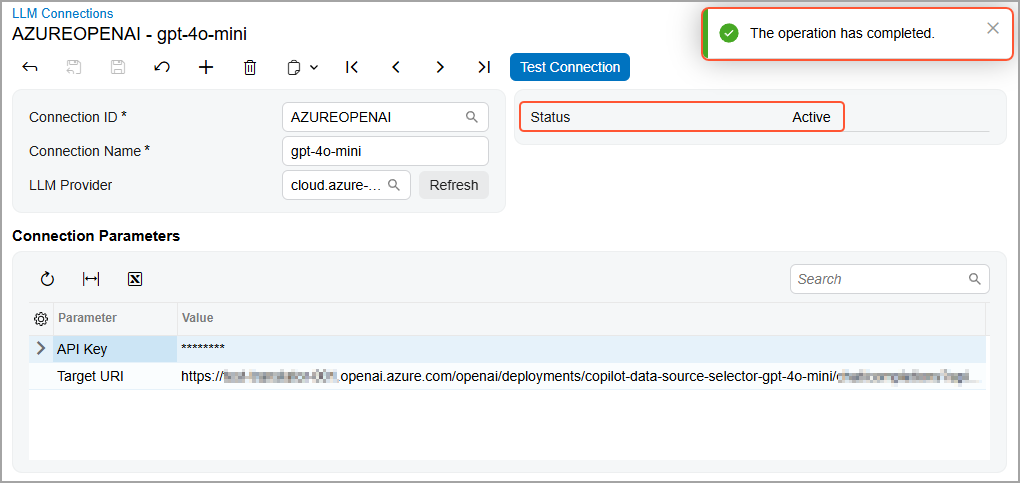
You start the setup process by configuring the connection between the LLM and the system on the LLM Connections (ML201000) form, which is shown below. Be sure to specify the following settings:
- Connection ID: A unique identifier of your connection.
- Connection Name: The display name of the LLM, which you can use to identify your connection. (You can use the name specified on the model’s page on the LLM provider's website.)
- LLM Provider: The name of the LLM provider that you’re
going to use. Tip:You click Refresh to the right of this box to load the up-to-date list of available providers.
- Connection Parameters: The parameters that are used to connect to the LLM. The list of parameters depends on the provider and the model you're using. You copy the needed values from the model’s page on your provider's website.
Testing the Connection
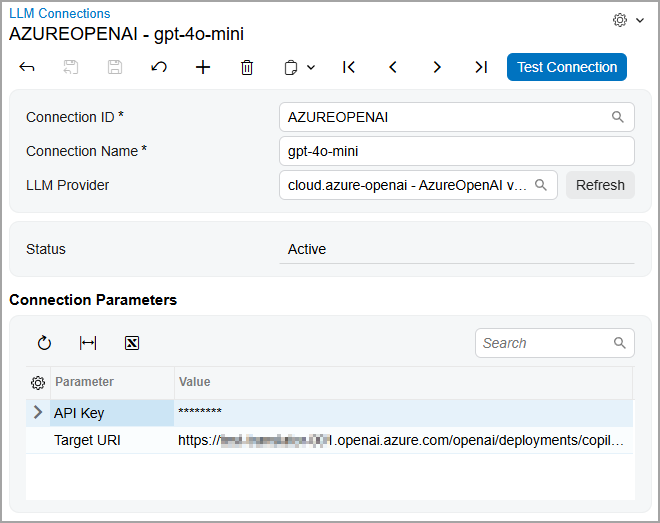
To make sure the connection works, you click Test Connection on the form toolbar. The system sends a request to the LLM provider, which verifies the connection data.
Once the system verifies the connection and its status becomes Active (shown below), you can create prompts.