Gear Issue Overview
Introduction
The MYOB IMS Payroll Gear Issue Module (GIM) is a system for automating the issuing of gear to employees, dealing with replacements and items not returned. It integrates with IMS Payroll Partner in so far as when required, or when employees terminate their employment, any outstanding items will be charged and an associated deduction created in the employee’s pay.
The processes involved and the associated system components are described below. Detailed descriptions of the system components follow.
Processes
All Gear issued whether chargeable or non-chargeable, new issue or replacement should be recorded in the Gear Issue Module on the Issues Page. The next pay run will create an appropriate Gear deduction in the employee’s pay for the chargeable gear.
In advance of termination print off a gear return form. This form lists all the currently issued items for the employee. On termination the returned items will be marked on the form and returned to Payroll for entry into GIM.
If any items are not returned the employee’s final pay will include a deduction for the total cost of the outstanding gear.
GIM Company Tab
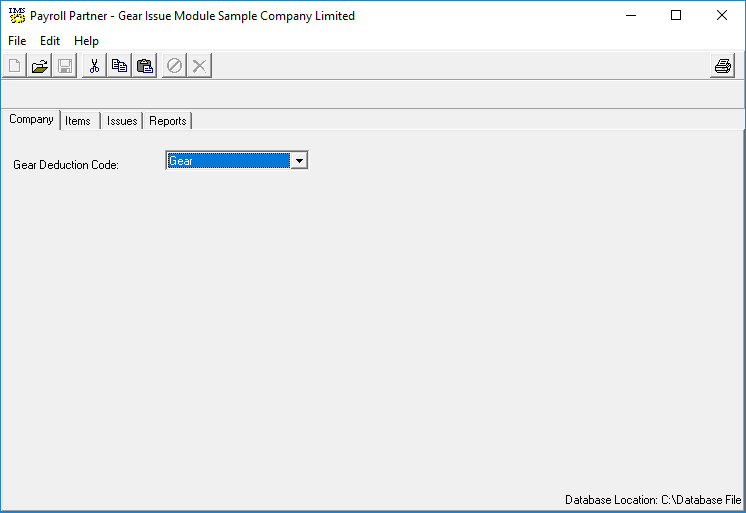
IMS Payroll Partner will search the GIM database for gear owing and create deductions in an employee’s pay when required. The deduction code to be used for the amount to be deducted is selected on this page. The dropdown box displays a list of deductions from Payroll Partner that can be used.
You may need to create a new deduction in IMS Payroll Partner. The deduction should be set up as follows:
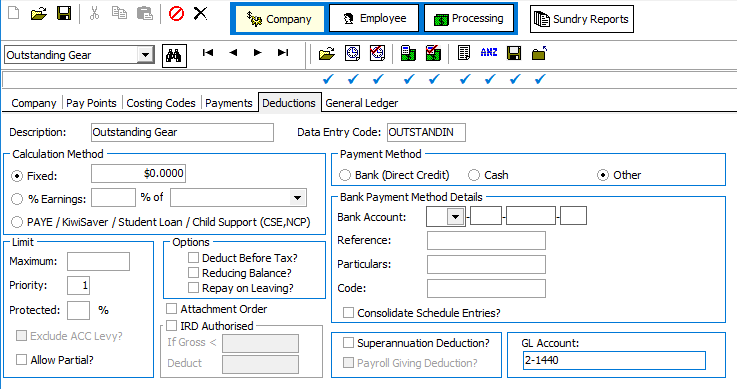
The Description, Data Entry Code and GL Account (if required) can be changed, but the Calculation method should be set to Fixed with a zero amount as per the example.
GIM Items Tab
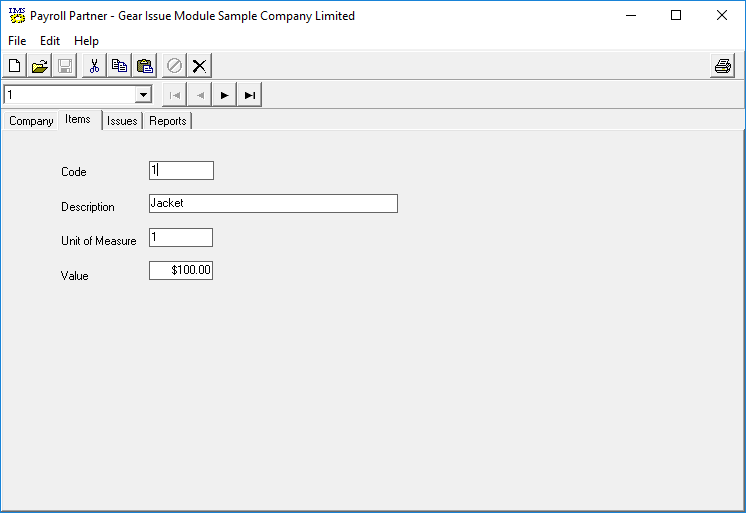
To enter a new record, the user should click the new record button on the toolbar and enter the Code, Description the Unit of Measure and $ Value.
To change an existing record the user should select the item from the drop down list, click on the item in the record that needs changing and type the new value. The Items in the drop down list are displayed in alphabetical order.
Field Descriptions
|
Name |
Values |
Description |
|
Code |
Numeric |
This value should be unique. On the Issue page typing this code will return the correct item description. |
|
Description |
Alpha |
Up to 40 characters may be entered here. |
|
Unit of Measure |
Alpha |
Up to 6 characters may be entered here. |
|
Value |
Dollar Value |
The usual cost of the item. When issuing an item on the gear screen this value will be displayed. It may be overwritten. |
GIM Issues Tab
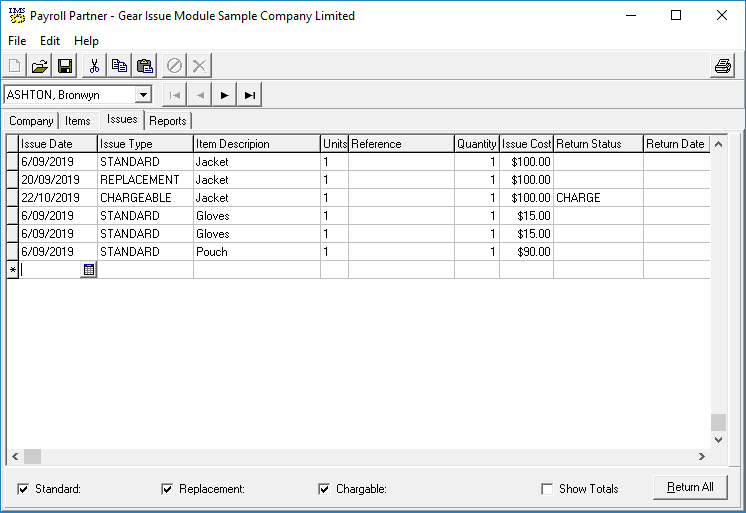
A blank line waiting for the input of a new record isisplayed by default. The correct employee should be selected from the drop down list.
To enter a new record, type in the following fields:
-
Enter a valid Date (duplicated on subsequent entries).
-
Select an Issue Type by typing in the first letter of the type (S, R or C) or selecting the type from the drop down list.
-
Select an Item Description by typing in the data entry code or selecting the item from the drop down list. The system will display the Unit of Measure and the default cost of the item
-
Enter a Quantity. If the Quantity entered was greater than one a number of records will be created.
-
A Reference may be entered and the default cost may be overwritten if required.
Pressing the Enter key will save the record(s). If multiple records are written (by using a quantity greater than 1) the reference and Issue Costs will be the same on all the records written.
Issue Types
Standard Issues
As their name suggests, this is the normal way that items are issued to an employee. When an employee leaves the company a Return Gear Form is printed, filled in by the employee’s supervisor and returned to payroll.
To enter the data from a Return Gear Form, firstly hide the chargeable and replacement items by removing the ticks in their respective boxes at the bottom of the screen. The screen will then resemble the Return Gear Form and show the same items in the same order. Select the Employee for the gear return form from the drop down list. Click in the Return Status field on the top line. The user may then enter the first letter of the return status (R or C). On pressing the key the system will set the status and take the cursor to the next line. This process will allow quick data entry. Any overridden costs can then be entered. If all the items on the gear form have been returned the user should press the [Return All] button instead of setting the status for every record.
Replacement Issues
Replacement issues are for items that have been issued already and need replacing. There is no charge for replacement issues. The data should be entered the same way as for Standard issues. No return status or return date is allowed for Replacement Issues
Chargeable Issues
Chargeable items are for items that incur a charge when they are issued. For instance lost or damaged items. When adding a chargeable item the status is automatically set to ‘To be Charged’. Once the Payroll has processed the deduction the Return Status is set to ‘Charged’ and the return date set to the payroll period end date.
Payroll Processing
When a pay period is opened in IMS Payroll Partner the system will search for any terminating employees and read through their issued items. Any Standard issues that have not been returned or Chargeable issues that have yet to be charged will be totalled and a deduction created for the total cost of the items. Similar processing will happen if an employee is given a finish date when the period is already open. Payroll Partner will also search for Chargeable items for all employees irrespective of their finish date.
Any records found that match the above criteria will have their return status set to ‘Processing’ while the payroll is being processed. Completing the payroll and closing the period will set the status to ‘Charged’. Re-opening an open period will reset the ‘Processing’ status to its original value.
Field Descriptions
|
Name |
Values |
Description |
|
Issue Date |
Any Valid Date |
Duplicated on second and subsequent entries. |
|
Issue Type |
Standard Replacement Chargeable |
Use Standard when issuing an item to an employee. Replacement Items do not incur a charge Chargeable Items will be charged in the next payrun. |
|
Item Description |
Select a description from the list. |
Typing the data entry code will retrieve the item description. |
|
Units |
Not enterable |
The system will retrieve the units from the Items table. |
|
Quantity |
Numeric |
A quantity is only required when adding a new record. If the quantity is greater than 1 then once the record has been added the system will create the number of records required. |
|
Reference |
Free format |
The user may enter up to 20 characters |
|
Issue Cost |
Numeric |
The system will retrieve the item cost from the Items table. The default value may be overwritten. |
|
Return Status |
Returned Charged To Be Charged |
Return Status can only be set for Standard Issue types. The system will set the relevant status for Chargeable Issues. No return status is allowed for Replacement issues. |
|
Return Date |
A Valid Date |
The Date that applies to the return Status. |
GIM Reports Tab
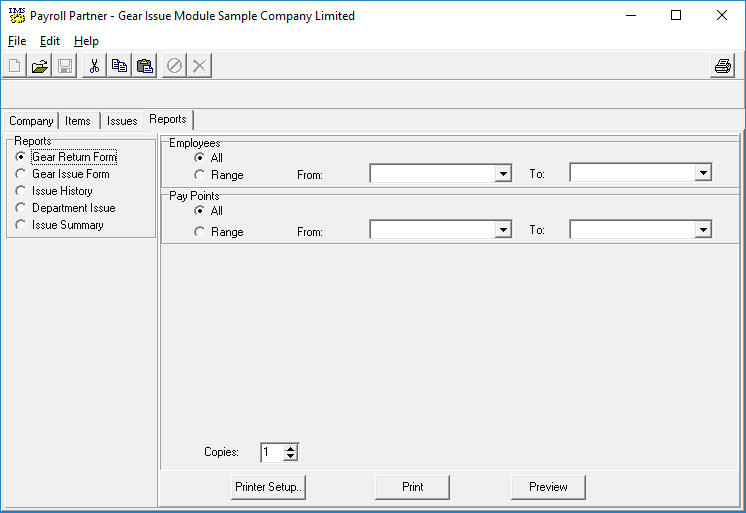
The destination printer and its settings may be chosen from the Printer Setup button. Clicking the Print] button prints the selected report. Clicking the Preview button displays the report on screen allowing the user to preview the report. The report may then be printed or discarded from the preview screen. The number of copies required may also be set before printing.
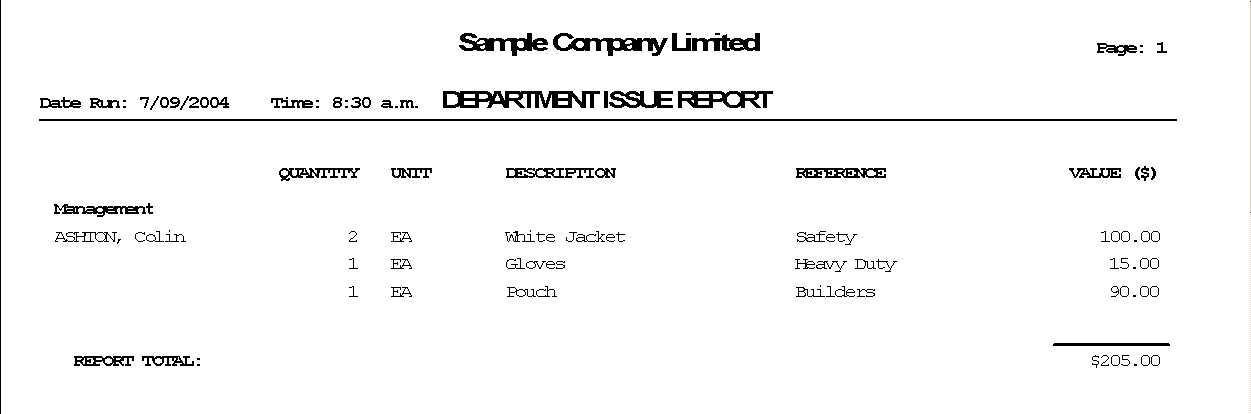
A number of options are available for the reports: A range of Employees or all Employees can be selected along with ranges of Pay Points and Item types. For the Department Issue and Summary reports a range of dates and Issue Types can be selected.
Gear Return Form
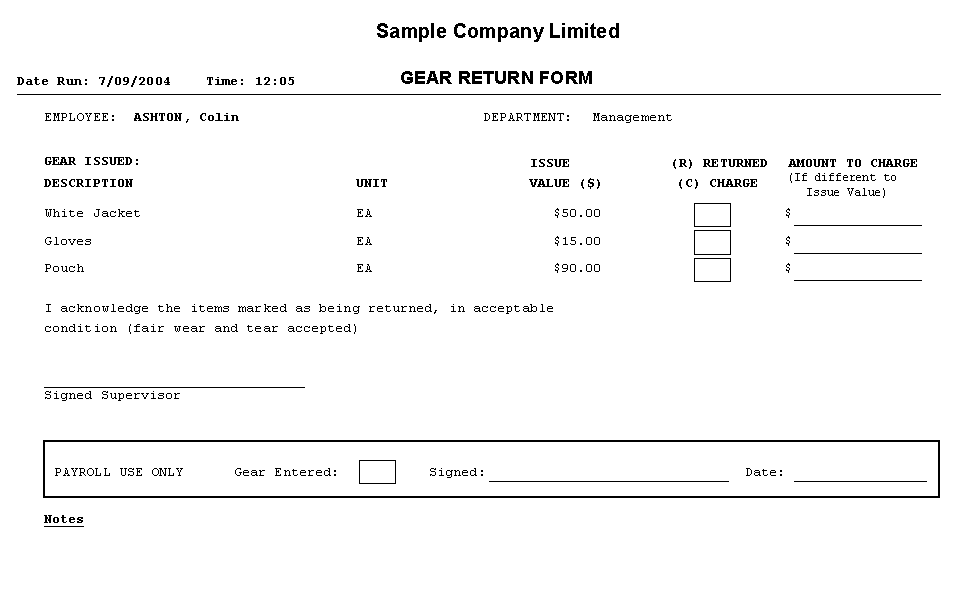
Only Standard issued items will appear on this report.
The report may be run using a range of Employees or a range of Departments.
The returned box should be filled with either a C or R (chargeable or returned). If the gear is not returned the user may override the value with a new charge. The value printed on the form will be taken from the value entered when the item was issued.
Gear Issue Form
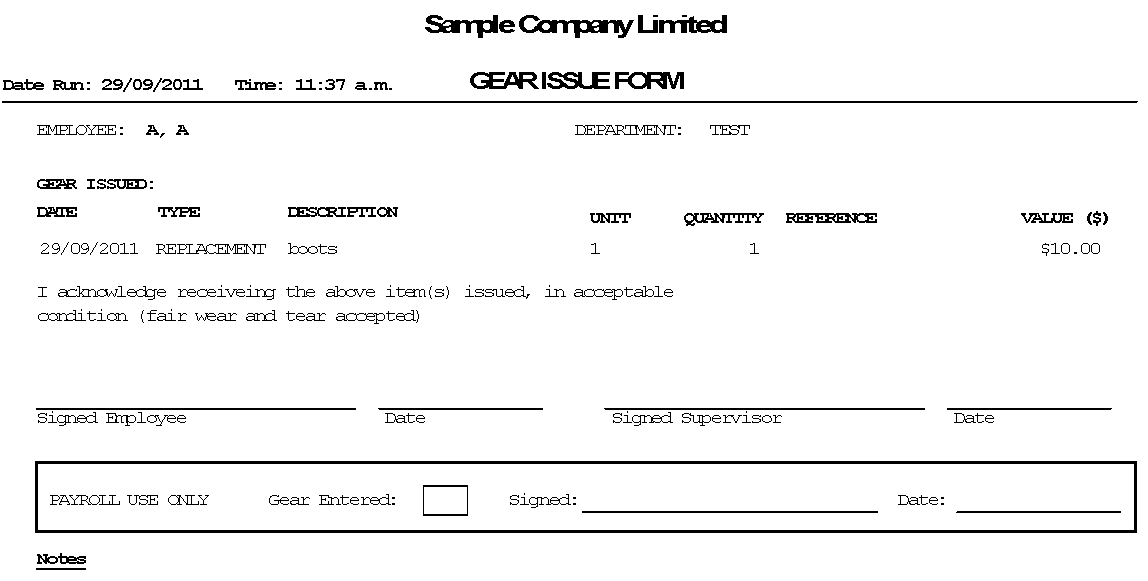
This report may be run using a range of Employees, Pay Points, Items, Issue Dates and Types .
Either the Employee and / or Supervisor signature fields are printed as per selection options.
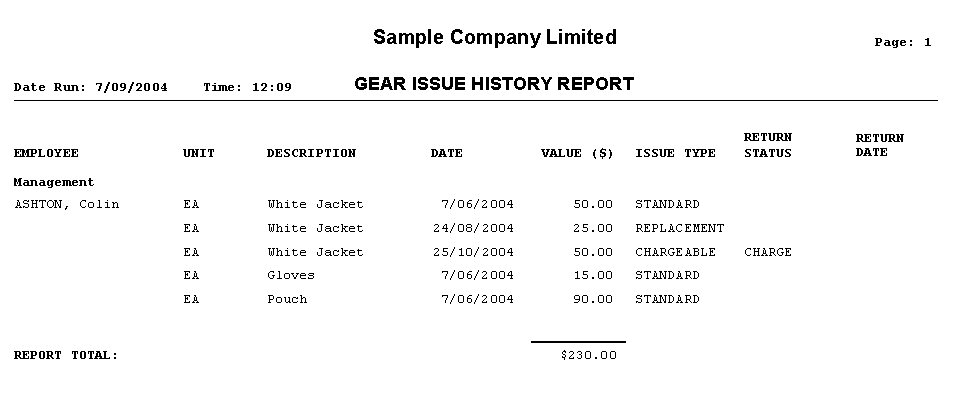
Gear Issue History Report
Department Issue Report