
Cost Centre Update Utility
The Cost Centre Update Utility
This utility enables existing Costing Codes to be allocated new Codes, or selected Costing Codes to be merged, throughout the selected Payroll Company. It also provides the ability to optionally update Costing Codes as held in the Timesheet History data set (Sundry Reports – Timesheet History).
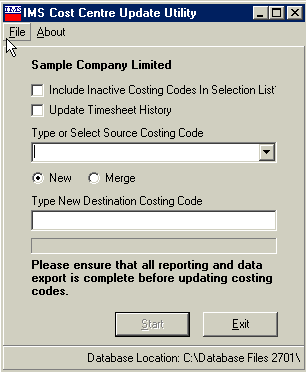
When creating a new Costing Code, the Costing Code description, Period and Year to Date Totals and General Ledger code, where applicable, of the old costing code (Source) will be utilised for the new costing code (Destination).
When merging existing costing codes, the destination Costing Code will retain its Costing Code description and General Ledger code, where applicable, and the Period and Year to Date Totals will be updated with those values from the source costing code.
In both cases the old Costing Code will no longer be available.
Prior to utilising this utility please ensure that the last Pay Period processed has been closed, all reporting has been completed and that any General Ledger Exports, where applicable, have been performed up to and including the last Pay Period Processed. A backup of the payroll company concerned is also recommended prior to utilising this facility.
Installing the Utility
An email with a link will be sent to you. Click on the link and download the file (it will automatically save to your Downloads folder), then run the file to install the utility.
The utility should be installed in the same location as your IMS Payroll.
Running the Utility
-
To run the IMS Costing Code Update Utility:
-
Desktop: Click the Windows Start button and click the IMS Payroll Partner menu, then click IMS Costing Code Update Utility. When the Welcome Screen appears click the “Open <Company Name>” button to re-open the last payroll company the application accessed or click the “Open a Different Company” button to access a different payroll.
-
Cloud: Select the utility and the Payroll Company you want to update.
-
When the main window appears, select whether Inactive Costing Codes are to be included in the selection lists and whether the Update is to apply to Costing Codes as held on the Timesheet Entry Database (Sundry Reports – Timesheet History Report).
-
Select the Costing Code you want to update from the drop-down list (you can also type the value in). A message will be displayed if a non-existent Costing Code has been typed and the field will remain red.
-
Select whether a new costing code is to be generated (New) or a merge is to be performed (Merge).
-
Type in the new Costing Code or in the case of a merge select or type in the destination costing code for the merge.
-
Click the Start button to initiate the update process.
To access another payroll when the application is already running, select Open Company from the File menu and navigate to another payroll database via the Open Company window that appears.
To exit the utility, click the Exit button or select Exit from the File menu.