Backpay Module
Introduction
This document provides an overview of the standard IMS Backpay Calculator module.
Once installed, the Backpay Calculator functions will be available from the Tools menu.
To use the Backpay Calculator, the IMS Time Import module must also be installed—see “Importing the Extract File” on page 4.
User Security Access
If you have User Security activated within IMS Payroll Partner, make sure that access to this module is granted to the appropriate users via Company Controls > User Codes:
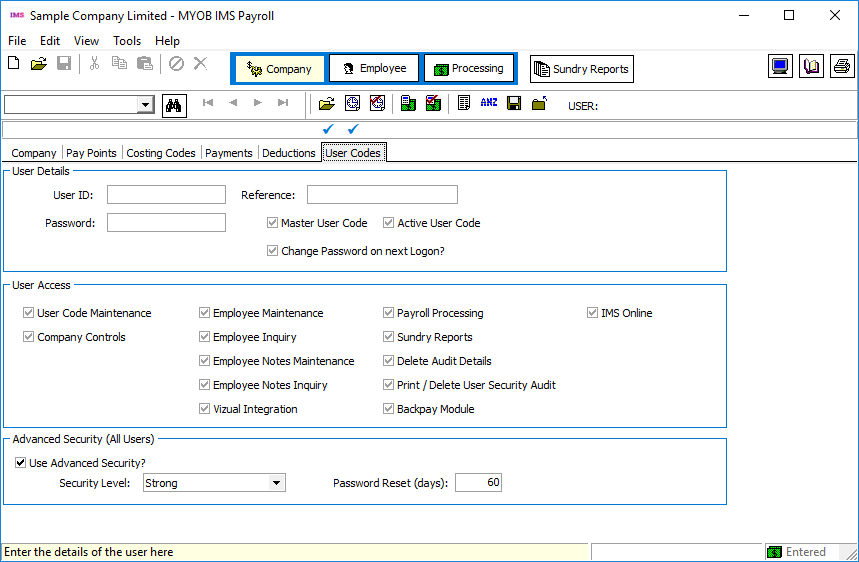
Access to ‘Payroll Processing’ must first be granted to the user concerned in order to permit access to the Backpay Module)
Using the Backpay Module
The Backpay Calculator module lets you calculate, report on, and create an extract file of backpay payments. Open the Backpay Calculator from the Tools menu by selecting Backpay Calculator > Backpay Calculation Report/File Extract.
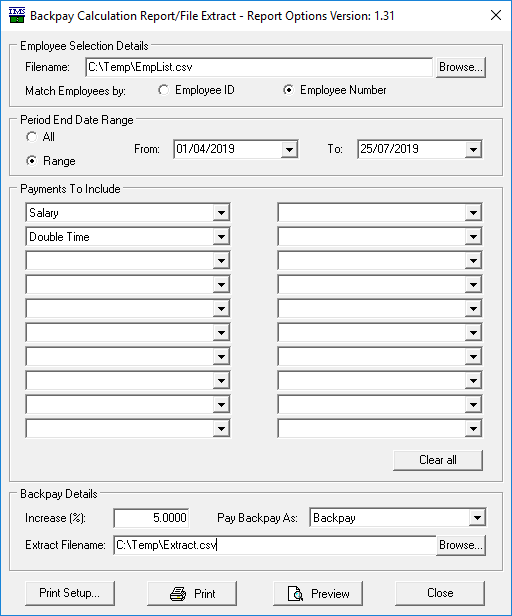
In the Employee Selection Details section, you must specify the name and location of a file containing the list of selected employee numbers (either internal Employee IDs number or user-defined Employee Numbers) for whom you want to calculate backpay. This is a single-column format CSV file (see example below). Ensure that no blank lines exist between employee numbers.
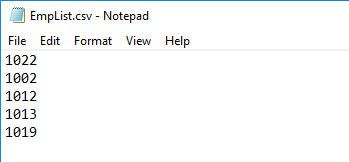
The file generated by the Tools > Files Export > Vizual Personnel option could be utilised to generate a file, then delete the fields not required for backpay calculation with Excel.
Select the method to match employees in the database by (internal Employee ID or user-defined Employee Number).
The Period End Date Range section allows you to limit the number of pay periods from which candidate payments will be included.
The Payments To Include section lets you choose up to 20 payment types for inclusion in the Backpay Calculation, according to user requirements.
The fields in the Backpay Details section must be completed:
-
The Increase (%) field captures the percentage increase on earnings that is due to the specified employees.
-
The Pay Backpay As field allows you to select the payment type that should be used to pay the backpay to employees when the resulting file is imported into timesheets.
-
The Extract Filename field is where you specify the name and location of the Backpay extract file that will be created.
Processing
When all mandatory fields have been entered, the Preview and Print buttons become enabled—click either of these buttons to begin the Reporting / File Extract process.
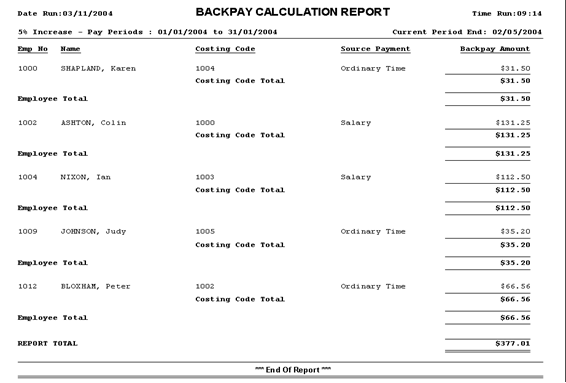
Once the backpay calculation and data extract processes have completed, a report will either be submitted for preview or printing (see example below). If any employee numbers on the Employee selection file cannot be matched to an employee number in the payroll then these will be listed on the report.
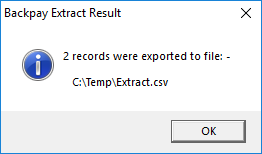
After you close the Preview window, or after the report has been submitted for printing, a message will be displayed confirming the destination and filename of the backpay extract file created and the number of payment transactions it contains:
Importing the Extract File
The extract file produced by the Backpay Calculator module is designed for uploading into MYOB IMS Payroll using the IMS Time Import module.
When importing the extract file into IMS Payroll Partner timesheets, select the “CSV (Comma Delimited)” import format and set the Match Employees by… setting to “Employee Number”.
Set the filename and path for IMS Time Import to the location and filename of the backpay file created during the extract process, then proceed with importing the data.
We recommended that you record the existing IMS Time Import settings, so that you can re-enter them after the backpay file import has been completed.
Backpay Transaction Report
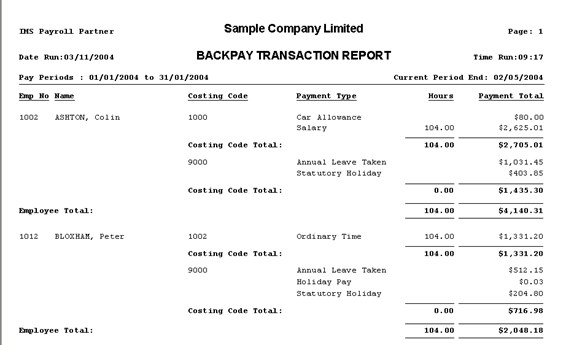
The Backpay Transaction Report displays the total hours and payment total for each hours-based payment group included in the report. These values are sub-totalled for each costing code and a grand-total is provided for the entire report.
Run this report from the Tools menu by selecting Backpay Calculator > Backpay Transaction Report.
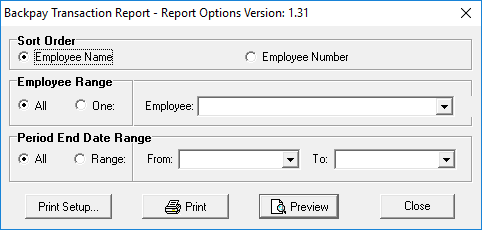
Set all options, then click Print or Preview to generate the report: