
FBT Overview
Introduction
The IMS Fringe Benefit Tax (FBT) System has been developed for businesses that report Fringe Benefit Tax on a quarterly basis using the Alternate Rate calculation method. It captures the quarterly taxable values of attributed, non-attributed, and pooled fringe benefits paid to, or to the benefit of employees of your business.
The IMS FBT system integrates its data files with your IMS Payroll Partner payroll database. It draws employee information from your payroll system. FBT Security is independent of your payroll security settings.
A report emulating the IR 417 Alternate Rate Calculation Sheet for Quarterly Returns (IR 417 report) can be generated from the IMS FBT System at the end of the Tax year. This report provides you with information necessary to complete your IR 420 "Quarter 4" return. The IR 417 report uses employee earnings information captured from the payroll at the tax year rollover in order to complete the calculation of Fringe Benefit Tax.
Before entering fringe benefit information into the IMS FBT System, you will need to calculate the quarterly taxable values for fringe benefits using the Taxable Value Calculation Sheet supplied by IRD. Once you have completed the calculation process using the IRD worksheets you can enter the individual results into the FBT System.
When the data entry process is complete for the four quarters you can generate the IR 417 report from the Reports tab (the report can be printed in either Portrait or Landscape orientation on any dot matrix, ink-jet or laser printer).
Refer to the IRD document "IR 409 - Fringe Benefit Tax Guide" for detailed information regarding the rules and requirements of FBT Alternate Rate calculation)
Logging In
Access to your IMS Fringe Benefit Tax database is achieved via a Welcome Screen in the same manner as used to open your IMS Payroll Partner payroll database:
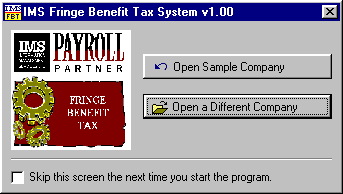
The Welcome Screen provides you with two options: =
1.Open < Company Name Here>-opens the last FBT database accessed
2.Open a Different Company-opens a different FBT database.
Once you have selected the database you wish to access, the system will prompt you to enter a valid User ID and Password via the Logon Screen shown below:
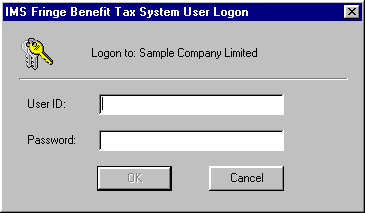
When you open an IMS Fringe Benefit Tax System database for the first time, the program creates a temporary User Security record for you with User ID "USERNAME" and password "PASSWORD". The temporary User Security record gives you FULL access to the IMS Fringe Benefit Tax System and will remain available until you deactivate or remove the record.
When the logon screen is displayed for the first time for any FBT database, the temporary User-ID and Password values (see above) will appear in the appropriate fields. After the first successful logon to the FBT system, all subsequent logon attempts will require you to type in a User-ID and Password.
Please note that User ID and Password values are not treated in a "case sensitive" way. Entering an "A" is the same as entering an "a". The default values shown above have been displayed in upper case for clarity only.
Main Window
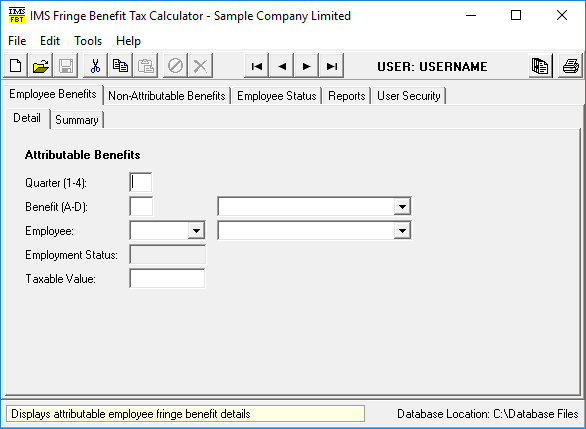
Successful logon to an IMS Fringe Benefit Tax system database will display the main application window:
Detail tab
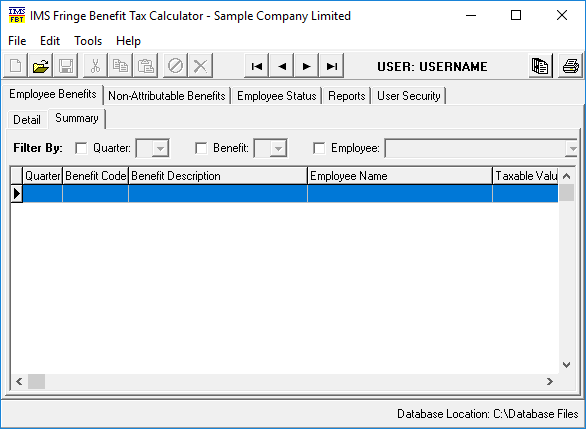
Summary tab
Menus and Toolbars
Title Bar
The Title Bar displays the name of the application and the name of the Fringe Benefit Tax company
Menu Bar
The Menu Bar displays main menu items - File, Edit, Tools, & Help. Left-clicking each main menu item displays the sub-menu for that item.
Tool Bar
The Tool Bar displays speed buttons that allow you open databases, create new records, cancel or save changes, cut, copy & paste field text, and delete existing records. In addition, four navigation buttons are included on the Tool Bar to allow easy movement between records. Each speed button displayed on the Tool Bar has a corresponding menu entry on either the File or Edit menus.
Status Bar
At the bottom of the application window is a Status Bar. On the left-hand side of the Status Bar, the application displays hints about the fields and components displayed on the screen (hints appear on the Status Bar when you position the mouse pointer over a field or component). On the right-hand side of the Status Bar the application displays the location of the database you are currently logged on to.
Progress Bar
When an FBT company database is being opened (eg. during the logon process or after a backup or restore) you will see a Progress Bar appear on the left-hand side of the Status Bar.
Keyboard Shortcuts
In addition to using the Menu Bar entries and the Tool Bar speed buttons the following keyboard key-combinations are available to navigate through and modify data displayed in the IMS Fringe Benefit Tax system:
|
Ctrl+O |
Open a Company |
Ctrl+Home |
Move to the First Record |
|
Ctrl+N |
Create a New Record |
PgDn |
Move to the Next Record |
|
Ctrl+S |
Save Changes |
PgUp |
Move to the Previous Record |
|
Ctrl+Del |
Delete a Record |
Ctrl+End |
Move to the Last Record |
|
Esc |
Cancel Changes |
Enter |
Save Changes |
Tab Pages
A Tab Page is provided to manage each aspect of the IMS Fringe Benefit Tax system.
-
The Employee Benefits page allows you to view, create, edit and delete FBT benefit records that are "attributable" to an employee.
-
The Non-Attributable Benefits page allows you to view, create, edit and delete "non-attributable" and "pooled" FBT benefit records.
-
The Employee Status page allows you to view, create, edit and delete records that hold the Major Shareholder status and Taxable Earnings balance for individual employees for the FBT Year. If an employee holds Major Shareholder status, you can also record the amount the employee received from the company as Interest & Dividends.
-
The Reports page allows you to preview and print the IR 417 Alternate Rate Calculation Summary and Transaction Listing reports.
-
The User Security page allows you to define and maintain logon details and access rights of the users who access the IMS Fringe Benefit Tax system.
Each Tab Page provides two methods of accessing information:
-
A Detail page-view where you can view and edit the details of individual records.
-
A Summary page-view where you can scroll through the details of many records at one time. The Summary view is read-only. You cannot modify the information displayed, however you can select individual records for display in the Detail view by left clicking on the desired record with the mouse.
FBT Processing
General
The IMS FBT system can only be run once you have installed IMS Payroll Partner v3.40 or later and have created a new payroll database or upgraded your existing payroll.
When you close the first payroll period in a new tax year using IMS Payroll Partner v3.40 or later, the payroll application records the total Taxable Earnings of each employee (relating to the old tax year) in a new file in your payroll database. The IMS FBT System uses this data to calculate the FBT Tax for each employee.
You can maintain this information via the Employee Status page of the FBT System. However, under normal circumstances maintenance in this section would be restricted to changing the Major Shareholder status of an employee and entering Interest and Dividend balances.
Starting a New FBT Year
The Start New FBT Year option in the Tools menu clears FBT data from the previous FBT year from the FBT database.
Do not use the Start New FBT Year option until you have completed all FBT system data entry and reporting for the previous tax year.
If you are using the FBT system for the first time, it is not necessary to start a new FBT year as the FBT database is already initialised (empty) when it is created.
Calculating the Taxable Benefit Amount
IRD provides employers with worksheets (“FBT Taxable Value Calculation Sheets”) to use when calculating the Taxable Value of fringe benefits for employees or and non-attributable/pooled benefits. These worksheets are the source documentation for data entry into the IMS FBT Employee Benefits and Non-Attributable Benefits sections.
Entering FBT Benefit Details
Employee Benefits
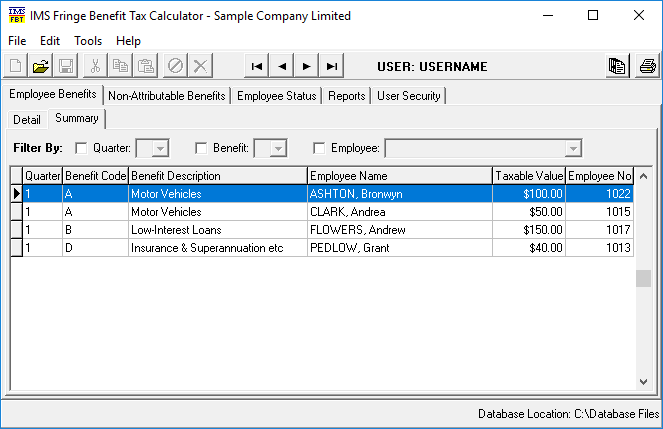
The Detail tab of Employee Benefits allows you to create, maintain, delete and display employee-attributable FBT benefit records.
An Employee Benefit record should be created for each employee to whom a fringe benefit is attributable within an FBT quarter.
The Quarter (1-4) field indicates which FBT quarter the Taxable Value relates to:
-
1 April to 30 June
-
1 July to 30 September
-
1 October to 31 December
-
1 January to 31 March
The Benefit (A-D) field indicates which Fringe Benefit category the Taxable Value relates to:
-
Motor Vehicles (4A)
-
Low Interest Loans(4B)
-
Goods and Services etc(4C)
-
Insurance and Superannuation(4D)
Each Benefit code corresponds to a section of the “FBT Taxable Value Calculation Sheet” (as indicated by the value displayed in brackets on each line above).
The Employee fields indicate which payroll employee the benefit is attributed to. Values can be assigned by typing in an employee number/name, or by selecting the employee number/name from the drop-down lists provided (if the payroll company does not use employee numbers the employee number field will not be displayed).
The Employment Status of the employee is also displayed. This field normally displays the value "Current" or "Terminated" however, if the employee no longer exists in the payroll system (because you opted to delete terminated employees when the tax year was rolled) the text "Deleted" would be displayed here.
The Taxable Value field records the taxable amount of the fringe benefit and can be any value greater than or equal to zero.
The Employee Benefits Summary tab displays details for many quarters, benefits and employees at once. Records in the summary can be limited (filtered) by using the display filters located at the top of the summary page to specify the quarter, benefit or employee (or a combination of these) you wish to display information for. Record values cannot be modified in the Summary view.
Non Attributable Benefits
The Detail tab of Non-Attributable Benefits allows you to create, maintain, delete and display the taxable values of FBT benefits that cannot be attributed to specific employees and for Pooled FBT benefits.
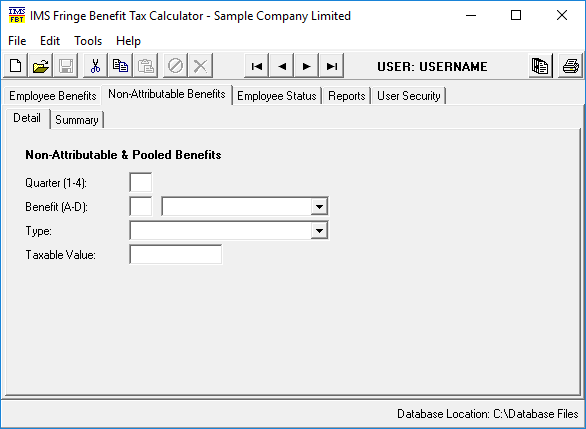
A Non-Attributable Benefit record should be created for each quarter for each applicable benefit category.
The Quarter (1-4), Benefit (A-D) and Taxable Value fields on the Non-Attributable Benefits tab operates identically to those found on the Employee Benefits tab.
The Type field indicates which FBT tax rate should be applied to the individual benefit.
The Non-Attributable Benefits Summary tab operates identically to the Employee Benefits Summary tab, displaying details for many quarters and benefits at once.
Due to the limited number of records maintained in this section, no filtering options have been provided.
Employee Status
The Employee Status tab allows you to create, maintain, delete and display the Taxable Earnings balance, Major Shareholder status and (in the case of Major Shareholders) the Interest and Dividend Earnings of specific employees.
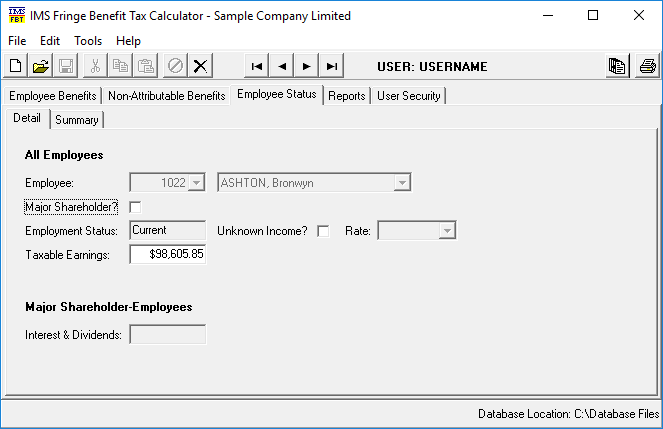
Your IMS Payroll Partner payroll application creates the records displayed in this section when the first pay period is closed in each new tax year.
For flexibility you can create and delete records in this section. However, to prevent accidental reassignment of the employee to whom a particular Taxable Earnings balance applies the employee name and employee number assigned to existing records in this section cannot be changed.
Duplicate records (i.e. multiple records for the same employee) cannot be created.
If the Major Shareholder option is ticked on a particular Employee Status record, this status will be indicated on the IR 417 and Transaction Listing reports.
Applying Major Shareholder status to an Employee Status record will activate the Interest & Dividends field. Any value entered in this field will be added to the employees Taxable Earnings, and will correspondingly affect the employees "Total Accessible FBT Income".
The Unknown Income option is set when the "Total Accessible FBT Income" for an employee is not known until after the end of the FBT year. Setting this indicator will enable the Rate field from which you must choose an FBT rate to be applied to the employees attributable benefit calculation.
Applying the Unknown Income status to an employee indicates to the system that FBT on the employee's attributable benefits should be calculated at the nominated rate only (ie. the taxable earnings for the employee are not included in the calculation).
If 49% is selected as the Rate for an employee with Unknown Income status, an adjustment will be required in the FBT Return at the end of the next FBT year (refer to the IRD FBT Guide and FBT Return Guide for further details).
Reports
The Reports tab allows you to preview or print two reports: the IR 417 and the Transaction Listing.
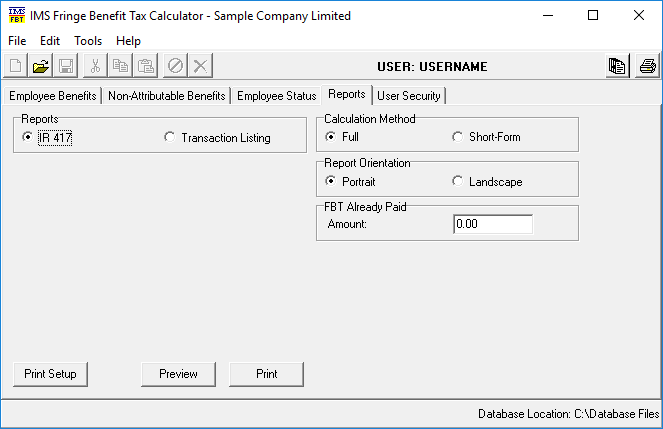
The IR 417 report is the document you would produce once you have completed your FBT data entry and wish to calculate the remaining FBT Tax you are required to pay (or will receive as a refund).
The IR 417 Calculation Method allows you to select either the "Full Form" or "Short Form" Alternate Rate calculation methods.
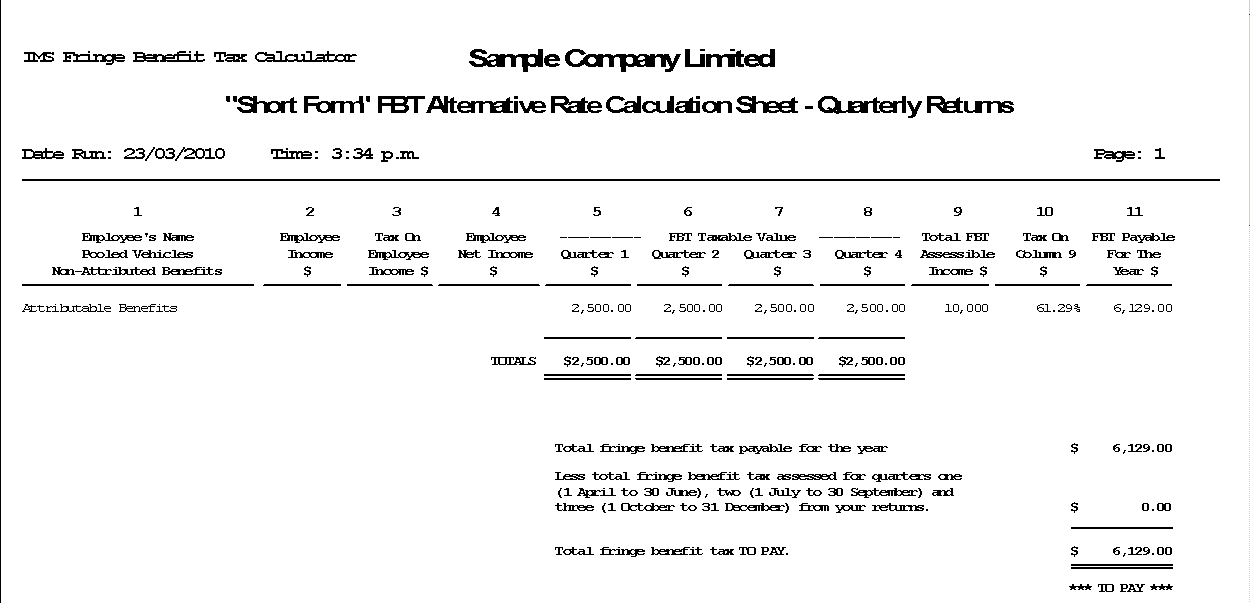
The Short Form method disregards employee earnings and Unknown Income status, calculating FBT on the total of all attributable benefits for all employees in one transaction and at the rate of 55.04% (please refer to the IRD FBT Guide for further details).
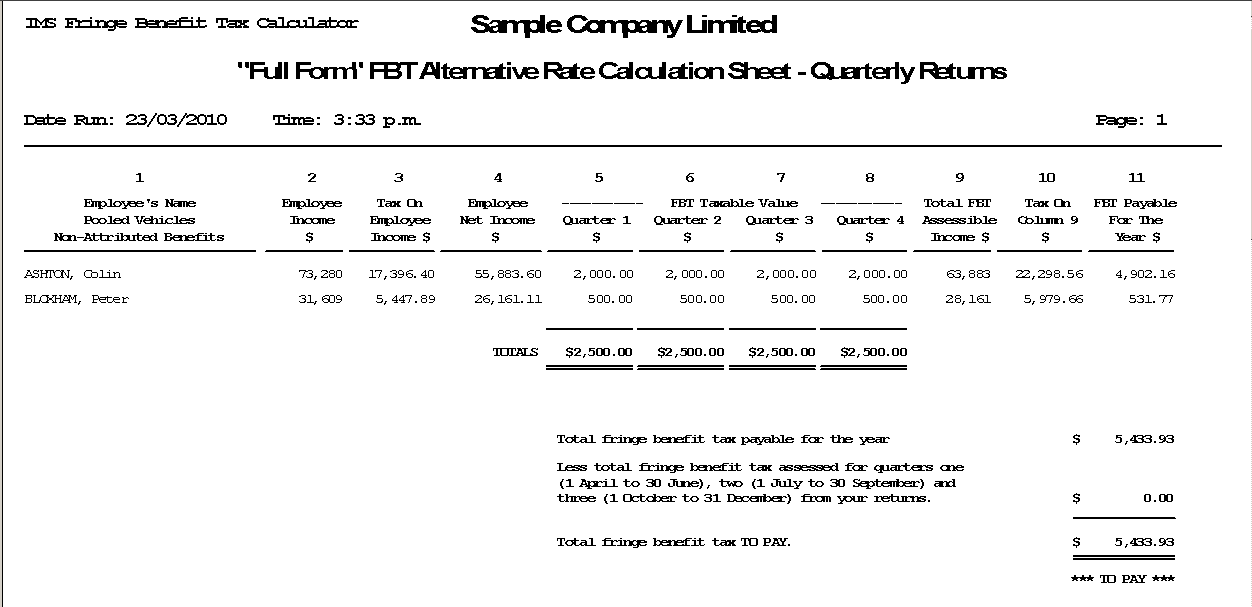
The Full Form method calculates FBT for individual employees taking into account the Unknown Income status of the employee and if appropriate the employee's total cash remuneration (please refer to the IRD FBT Guide for further details).
The Report Orientation option allows you to specify whether you want the report produced in Portrait or Landscape printer orientation.
The FBT Already Paid amount field captures the amount of FBT Tax you have already paid to IRD in quarters 1, 2, and 3. This amount is deducted from the years overall FBT tax in order to determine the outstanding tax amount.
The Transaction Listing report is used to list the benefit transactions that have been entered for a particular quarter, benefit, employee or non-attributable type or combinations thereof.
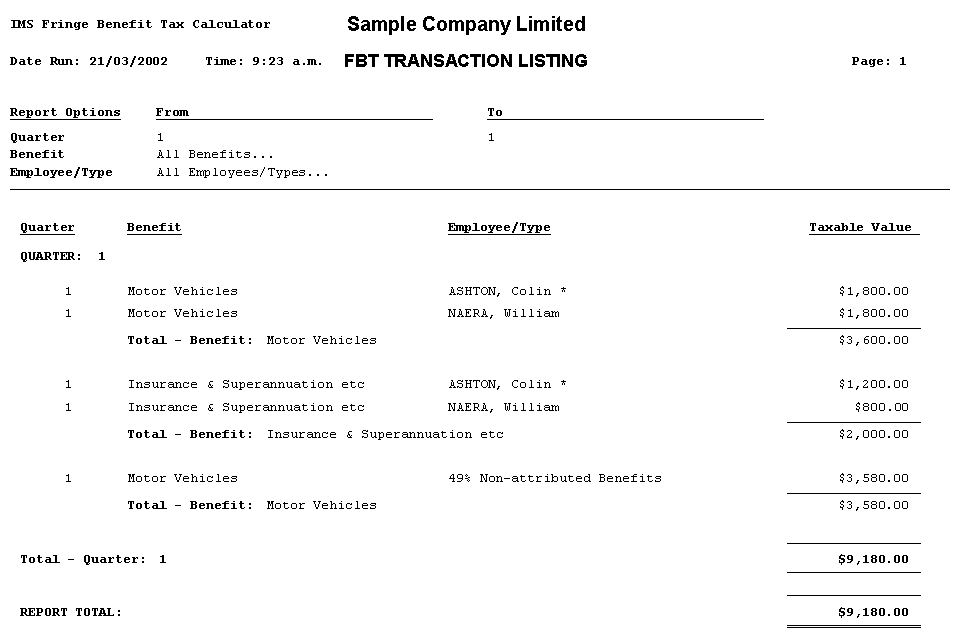
The listing is produced in Portrait printer orientation and can be grouped by quarter (ie a page feed is performed when the reported quarter changes).
User Security
The User Security tab allows you to create and maintain records that define who can access your FBT system data. Each user record allows you to specify which parts of the system a user is granted access to. The tabs and menu options available to a user after logon reflect the level of access granted to that user.
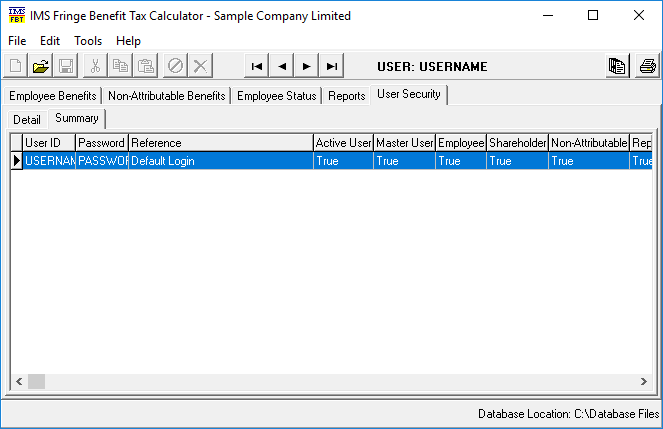
Immediately after you logon to the FBT system for the first time it is recommended that you create appropriate User Security records and either deactivate or delete the temporary logon record.
To add a User Security record, click on the New Record button or select New Record from the File menu. Complete the required fields (ie. fields with a red background) to indicate which parts of the system you want the user to have access to (in the Security Options section). When all the desired settings have been entered click the Save Record button or select Save Record from the Edit menu (you can also press the Enter key on the keyboard to save new records and changes).
To remove a User Security record you must have the User Security Detail tab displayed. Move to the appropriate record via the navigator buttons or the summary display then return to the Detail tab. Click on the Delete button or select Delete Record from the Edit menu to remove the selected User Security record.
System Backup & Restore
The IMS FBT system archive screens are available from the Tools menu (Tools > Backup and Tools > Restore). These options allow you to archive and restore your FBT system information.
The backup and restore functions only operate on the database tables related to the IMS Fringe Benefit Tax system.