
Integrating with QuickBooks
Introduction
The MYOB IMS QuickBooks Interface utility has been designed to import QuickBooks Customer : Jobs into the IMS Payroll Cost Code database and optionally export Job Costing charges and General Ledger transactions from the MYOB IMS Payroll system into QuickBooks.
Pre-Requisites
QuickBooks
QuickBooks 2002 Pro or QuickBooks 2003 or later must be installed.
‘Customer : Job’ descriptions, as set up within QuickBooks, must not exceed a maximum of 30 characters. This includes the QuickBooks assigned ‘:’ separator when a ‘Customer : Job’ is created, e.g. Bailey Farms:Spraying. Any ‘Customer : Job’ descriptions exceeding 30 characters will be rejected when attempting import into MYOB IMS Payroll Partner.
An Item should be set up to identify the type of ‘service’ job costing charges will be classified under when importing charge details from Payroll .eg: ‘Labour’. The user will have the opportunity to declare the default item to be utilised when generating the file from within the payroll system. Additionally, a specific service item may be assigned against a payment within the payroll timesheet entry process by entering the Item within double quotes in the Comment field. (Refer to Multiple Labour Items on Page 4).
Contact your accredited QuickBooks support person should you require any additional information regarding import implications within QuickBooks.
MYOB IMS Payroll Partner
The IMS Payroll QuickBooks Interface Utility must be installed.
Within ‘Company Controls – Company Options’ the ‘Costing Required’ option must be activated.
If the General Ledger option is selected within ‘Company Controls – Company Options’ then General Ledger Account Codes must be entered on the General Ledger tab.
If you intend to use the Job Costing interface facility and wish to allocate QuickBooks Labour “Items” at timesheet entry level then within ‘Company Controls – Company Options – Advanced activate the ‘Transaction Comments’ facility.
Operating Procedures
Exporting from QuickBooks
The IMS Payroll - QuickBooks Interface utility enables QuickBooks ‘Customer : Jobs’ to be imported into the IMS Payroll Partner Costing Codes database to be available for selection and allocation on timesheet entries. As specified, the maximum description length for any Customer : Job to be imported is 30 characters.
To export a ‘Customer : Job’ interface file from QuickBooks, select File menu > Utilities > Export > Customer List. Click OK and enter the filename and location of the file to be generated.
Importing into IMS Payroll Partner
To import the ‘Customer : Job’ list from QuickBooks, select Tools menu > QuickBooks > Import Cost Codes. The user will be required to browse for the ‘Customer : Job’ list file exported from QuickBooks as detailed on the previous page. The file path will default to the location QuickBooks has been installed to. The file name will need to be appended to this path.
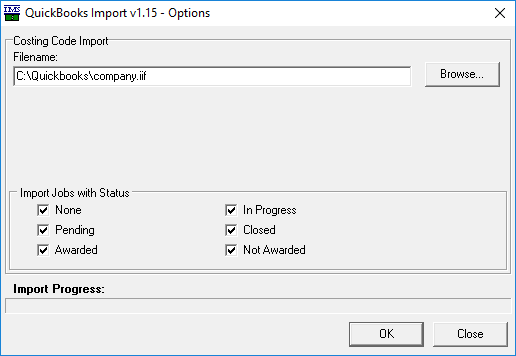
Only active QuickBooks ‘Customer : Job’ entries with a Job Status matching those selected will be imported into the payroll costing codes. Any ‘Customer : Job’ descriptions exceeding 30 characters will be rejected and detailed on an Invalid Job Descriptions Report automatically generated at the end of the import. Importation of ‘Customer : Jobs’ descriptions can be done at any stage of Payroll Processing.
The import selection may also include Customers with a ‘Job Info’ tab containing a match on Job Status selected. The description for these jobs will be the Customer Name which must not exceed 30 characters.
Customers who do not have sub-items jobs, i.e. they only have a one job association, will be included in the import if their job has a status as per one the Status selection options. Those clients whom have more than one job will have a status of “None” on the interface file. Therefore, to ensure that those customers are not included in the import it is recommended that the ‘None’ status is not utilised as a selection tool and all jobs to be imported are allocated one of the other available status indicators available for selection.
The Payroll Costing Code record will be constructed as follows during the import:
-
Description: Customer : Job description. Once imported this description should not be manually changed within payroll as it is this description which is utilised to match thecorresponding Customer : Job within QuickBooks when the Job Costing charges are imported. If the Customer : Job description within QuickBooks is changed after it has been imported into payroll then the Customer : Job list should be re-exported and re-imported into payroll.
-
Costing Code:This unique key field will be constructed with the first two characters being ‘QB’ and the following 8 characters representing the unique key reference as held in QuickBooks for the particular Customer : Job record. This is to ensure that the Costing Code will be a unique key and that the Costing Codes imported will be readily identifiable by the preceding ‘QB’ characters. The payroll import facility will create a new record if this Costing Code does not exist. If the record already exists then only the Customer : Job description will be updated, if applicable.
-
GL Account: If General Ledger is selected within Payroll then this field will default to the ‘Default Gross Pay General Ledger Account’ as set up within the Company Controls - General Ledger tab. This value may be changed at a later date if required.
-
Costing Totals: Zeroes
-
Active Indicator: Selected
-
YTD Retain indicator: Not selected
Once imported, the Costing Codes will then be available for selection within Timesheet Entry by selecting the required cost code within the drop-down box on the Costing Description field. When deleting old Customer : Job costing codes within payroll please ensure that all charges posted to these codes, for the pay periods in which they were active, have been imported in QuickBooks. When deleting Costing Codes a warning is given to the user if charges exist within Timesheet History, however the user may proceed with the deletion.
Exporting from MYOB IMS Payroll
The generation of current pay period related Job Costing charges, and/or General Ledger Details, to a file for importing into QuickBooks can only be performed after the current pay period has been closed.
To export data from IMS Payroll Partner, select Tools > QuickBooks > Export Data. Job Costing and/or General Ledger details for a particular Period End Date Range can be exported simultaneously.
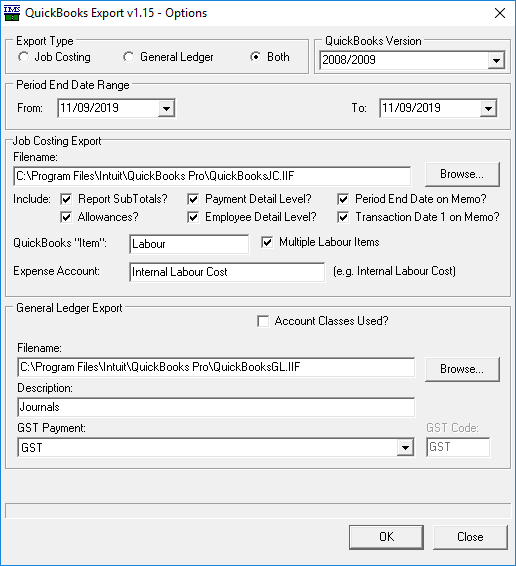
Select the version of QuickBooks you are running from the QuickBooks Version? dropdown, then select an Export Type: Job Costing, General Ledger or Both.
Export Type: Job Costing (or Both)
Only payment transactions with costing codes preceded with ‘QB’ will be selected for export. In addition, only those charges with an Earnings Type of ‘Ordinary Time’, ‘Overtime’ or ‘Penal Time’ (as set up the in Company Controls – Payments tab) will be included in the export. Payments with an Earnings Type of ‘Allowance’ may optionally be included, as detailed below.
File to Export: The user will be required to enter the file name and path for the file to be generated.
Period End Date Range: Job Costing charges for one or more pay periods can be exported at any one time. Remember that if you wish to export the data from the current pay period then that pay period must first be closed.
Include:
-
Report Sub Totals?: Select whether subtotals are to be printed, on the Consolidation Report, for Job Costings with one or more Labour and/or Allowance posting.
-
Allowances?: Indicate whether you wish payments with an Earnings Type of ‘Allowance’ to be included in the export.
-
Payment Detail Level?: If Employee Detail Level? is not selected in conjunction with this option, Job Costing records will be generated on a Costing Code - Payment - Rate level. The Memo line will be constructed with the Payment Description - Costing Code Description, e.g.
Ordinary time on Tech IndustriesCar Allowance on Tech Industries
-
If Employee Detail Level? is selected in conjunction with this option, Job Costing records will be generated on a Costing Code - Employee - Payment Rate level. The Memo line will be constructed with the Employee Name - Payment Description - Costing Code Description, e.g.
Colin Ashton Ordinary time on Tech IndustriesColin Ashton Car Allowance on Tech Industries
-
Employee Detail Level?: If Payment Detail Level? is not selected in conjunction with this indicator, Job Costing records will be generated on a Costing Code - Employee - Default Payment Narrative - Rate level. The Memo line will be constructed with the Employee Name - ‘Labour Cost’ or ‘Allowance’ narrative - Costing Code Description, e.g.
Colin Ashton Labour Cost on Tech IndustriesColin Ashton Allowance on Tech Industries
If Payment Detail Level? is selected in conjunction with this indicator, Job Costing records will be generated on a Costing Code - Employee - Payment - Rate level. The Memo line will be constructed with the Employee Name- Payment Description - Costing Code Description, e.g.
Colin Ashton Ordinary time on Tech IndustriesColin Ashton Car Allowance on Tech Industries
If both the Payment Detail Level? and Employee Detail Level? options are not selected then Job Costing records will be generated on a Costing Code - Default Payment Narrative - Rate level. The Memo line will be constructed with the Default Payment Narrative - Costing Code Description, e.g.
Labour Cost on Tech IndustriesAllowance on Tech Industries
-
Period End Date on Memo?: This option will govern whether the Period Ending Date is to be appended on the end of the Memo field, e.g.
Colin Ashton Ordinary time on Tech Industries for Period Ending 99/99/9999.
-
Transaction Date 1 on Memo?: This option governs whether the Transaction Date 1 is to be placed on the Memo field, e.g.
Colin Ashton Overtime on Tech Ind. 99/99/9999 for Period Ending 99/99/9999.
QuickBooks Item: Enter the default ‘Item’ reference name as set up within QuickBooks.
Multiple Labour Items: Any payment may be allocated a QuickBooks ‘Item’ as an entry in the appropriate timesheet ‘Comment field’. The rules for defining a QuickBooks ‘Item’ within the Comment field are:
-
The ‘Labour Item’, if different to the default QuickBooks “Item” as declared, must be enclosed in double-quotes within the payment’s Timesheet Entry Comment Field, e.g. "Labour Item 1". This may be inserted anywhere within the comment field and other narrative may be entered pertaining to the payment as long as it is not enclosed in double-quotes.
-
If the text between the double-quotes is blank, either because the double-quotes follow each other ("") or because the text is made up entirely of spaces, then the default Labour Item will be used. Only the contents within the first set of double-quotes is evaluated and utilised.
-
The Multiple Labour Items option must be selected on the export screen or else all payments will be allocated the default QuickBooks “Item”.
When the Multiple Labour Items option is selected, the export process will inspect the Comment field for each payment and utilise characters contained within double quotes as the ‘Item’ field. If no characters are setup in this manner then the QuickBooks Item, as entered, will be utilised.
Job Costing charges are consolidated by identical Pay Period Ending Date, Costing Code, Payment Type, Rate and Item code (either assigned and/or defaulted) when generating the export file. A report is available for printing once the export process has completed detailing the consolidated transactions included in the export.
The description of the consolidated records is constructed as follows:
For example, for an imported QuickBooks Customer : Job with a description of “Bailey Cellars:Painting Shed” and the export for the pay period ending the 04/05/2003:
Allowance data = “Allowance on Painting Shed for Period Ending 04/05/2003Hours related data = “Labour Cost on Painting Shed for Period Ending 04/05/2003
If the export encounters a Job Costing charge for a particular pay period which does not have a corresponding Costing Code master file record then these charges are not included in the export but are reported on in a generated exception report. This would occur if the master Costing Code record had been deleted from within payroll after the pay period has been closed. (When deleting Costing Codes a warning is given to the user if charges exist within Timesheet History however the user may proceed with the deletion). These orphan charges would then need to be manually posted in QuickBooks against the original Customer : Job record.
Expense Account: Enter the Expense Account as set up within your QuickBooks. This field will default to ‘Internal Labour Cost’ and may be overwritten. Generally this account would be set up with a Type of ‘Other Expense’.
Export Type: General Ledger (or Both)
If General Ledger is activated, then General Ledger details for the Period End Date Range selected may also be exported along with the Job Costing Details. The QuickBooks General Ledger Export option is also available within the ‘IMS Payroll Partner Tools – General Ledger Export’ facility along with the ‘Print Accounting details on a Transaction Report’ and ‘Delete Accounting details already exported’ options.
Account Classes Used? To declare General Ledger Account Classes when constructing General Ledger accounts, and to have this information included within the export file, a General Ledger account must be constructed as ‘General Ledger account – Comma – Account Class’, as per the following example: ‘2-1102,4532’ (where the General Ledger Account = 2-1102 and Account Class = 4532). The comma will be ignored when generating these separate fields within the export file.
If Account Classes are to be declared then all General Ledger Accounts must have a “,” within their construct, whether or not an Account Class pertains to that account or not.
For example, ‘2-3220,’ indicates a General Ledger account with no associated Account Class. Alternatively, if no Account Classes are to be declared then no General Ledger code may have a “,” within its construct.
When generating the General Ledger Export File the ‘Account Classes Used?’ option can be selected to indicate that Classes are being utilised and the export file will be constructed to reflect this.
File to Export: The user will be required to enter the file name and path for the file to be generated.
Period End Date Range: General Ledger details for one or more pay periods can be exported at any one time. Remember that if you wish to export the data from the current pay period then that pay period must first be closed.
Description: Enter a description for the General Ledger file export.
GST Payment: In order to ensure that the GST component paid to employees or sub-contractors is included in the QuickBooks GST Liability Report after a IMS Payroll Partner generated General Ledger file has been imported, the following procedures must be implemented:
Those payments which are GST applicable must have their Accumulates Into > Special Total option selected. Only payments which are GST applicable, i.e. on which GST will be calculated, should have this indicator selected.
See the ‘Contractor’ payment in the Sample Company for an example of this).
The payment used to pay GST should be set up Reimbursing Allowance with a Calculation Method of 15% of ‘Special Total’.
See o the ‘GST’ payment in the Sample Company for an example of this.
When generating the General Ledger export file, if a GST Payment is selected in this field then it is presumed that there will be General Ledger Accounts with an associated tax (GST) amount. If no GST applicable payments apply then please ensure that this option is blank.
The GST component will be calculated on the General Ledger Account total of payments posted to that Account which have been indicated as GST applicable, as indicated by the selection of the ‘Special Total’ indicator, as discussed above.
Within QuickBooks versions pre 2008/2009, the Tax Code will be “S” and within QuickBooks version 2010/2011 the tax Code will be “S-P”, being the standard Goods and Services Tax code, and cannot be changed within these options.
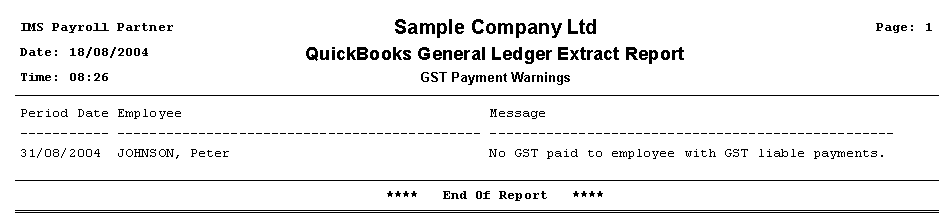
If the export process detects that an employee has payments indicated as GST applicable, but no associated GST Payment record, then a warning report will be generated notifying the operator of this, as per the following example. The export file will still be generated in this situation.
A report is produced at the end of the General Ledger export:
Importing into QuickBooks
To import Job Costings and/or General Ledger interface files in QuickBooks, select File menu > Utilities > Import. Identify the file as generated from within the Payroll system and select ‘Open’. You are notified when the import has completed.