
Costing Code Import
Introduction
The Costing Code Import function lets you import new costing codes and modify the configuration of existing codes (Description, GL Accounts, Active and Retain YTD Total flags).
The import file containing your new or existing Costing Codes may be a .csv or .txt file consisting of comma delimited fields. Ensure that any Costing Codes, Description and General Ledger Accounts do not contain commas. If any of these fields need to contain embedded commas then the contents of the field should be enclosed in double quotes.
If for any reason you wish to import a .csv file as generated from within the Company Controls – Costing Codes tab - ‘Mark as Inactive’ and/or ‘Delete Inactive’- processes please ensure that this file was generated without ‘Column Headers’. If the file was generated with ‘Costing Totals’ be aware that these totals will not be imported.
Import File Fields
There are five required fields per Costing Code record:
-
Costing Code
-
Description
-
General Ledger Account Code
-
Active Flag
-
Retain Costing YTD Total At Year End Flag
Costing Code
This field is mandatory and has a maximum of 20 characters.
If the import matches an existing Costing Code then the current Description, GL Account, Active and Retain YTD Total indicators may be updated if required.
If this field contains a Costing Code containing any commas then the contents should be enclosed in double quotes.
Costing Code Description
This is a mandatory field and has a maximum of 30 characters. If this maximum is exceeded then the description will be truncated. You will be notified of this on the Audit report.
If this field contains any commas then it should be enclosed in double quotes.
General Ledger Account Code
The presence of this field will depend on whether General Ledger is activated within the payroll company and the field size has a maximum of 25 characters.
If this field contains any commas then it should be enclosed in double quotes.
Active Flag
Maximum of 1 character - either Y or N (Yes or No).
Retain Costing YTD Total At Year End: Flag
Maximum of 1 character - either Y or N (Yes or No).
Examples
There must always be 4 commas per record irrespective of your requirements (this excludes commas that are enclosed in double quotes).
1001,Administration,6-8100,Y,Y
All five fields are used.
1001,Administration,,Y,Y
Only four fields are populated, as the General Ledger is not activated.
1001,Administration,,,
Only two fields are populated, as the General Ledger is not activated and the ‘Active’ and ‘Retain Totals’ settings are declared on the Import parameters – see “Import Options” on page 3.
1001,”Admin,Wages”,,,
Description contains an embedded comma so has therefore been enclosed in double quotes.
Running an Import
In order to use the import function, the Costings Required? checkbox must be ticked at Company Controls > Company tab > Company Options, and the payroll company in question must be in a “Closed” state. We recommend that a backup of the payroll company be done before proceeding with the import.
Run the Costing Code Import tool by selecting Files Import > Costing Code Import from the Tools menu.
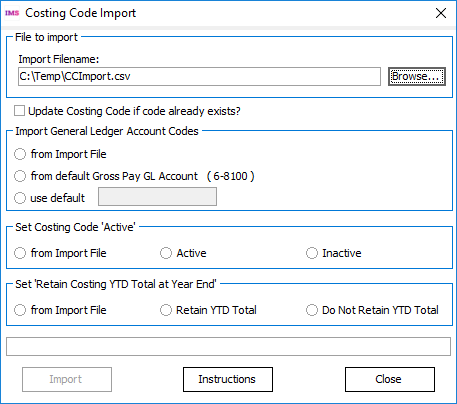
Set all options, then click Import to import Costing Code details.
An audit report detailing import statistics and any warnings will be produced at the end of the Import process.
Import Options
File Name
Browse and select the file containing the Costing Codes you wish to import.
Update Costing Code if code already exists?
Select this option if you want the Description, GL Account (if applicable) and the Active and Retain YTD Totals to be upgraded if a Costing Code in your Import file is matched with a current Costing Code assigned in the payroll. This option is disabled if the pay period is open (i.e. only new Costing Code will be import when the pay period is opened).
Import General Ledger Account Codes
This section is available if General Ledger? is selected in the Company Options. Three options are available:
-
From Import File: The required General Ledger code will be available within the import file for each Costing Code.
-
From default Gross Pay GL Account: use the Gross Pay General Ledger Account, as held on the ‘Company Controls – General Ledger’ tab as the default for all Costing Codes on file. There will be no need to contain the General Ledger Code within the file.
-
Use default: enter the default General Ledger code which will be applied to each Costing Code imported. There will be no need to contain the General Ledger Code within the file.
Set Costing Code ‘Active’
Select one of the following options:
-
From Import File: Select if the required ‘Active’ indicator will be available within the import file for each Costing Code (Y or N).
-
Active: Select if all costing codes imported are to have the status of Active. There will be no need to contain the Active Indicator within the file.
-
Inactive: Select if all costing codes imported are to have the status of Inactive. There will be no need to contain the Active Indicator within the file.
Set ‘Retain Costing YTD Total at Year End’
Select one of the following options:
-
From Import File: Select if the required ‘Retain Total’ indicator will be available within the import file for each Costing Code (Y or N).
-
Retain YTD Total: Select if all costing codes imported are to have the status of Retain YTD Totals. There will be no need to contain this indicator within the file.
-
Do not Retain YTD Total: Select if all costing codes imported are to have the status of not to Retain YTD Totals. There will be no need to contain this indicator within the file.