
Integrating with MYOB AccountRight
Overview
MYOB IMS Payroll Partner provides three methods of integrating payroll data into the MYOB AccountRight accounting system. The three options are available when setting up the General Ledger Export window for MYOB AccountRight (see page 6):
-
My Library – This is your local instance of AccountRight, this will be running on your local machine.
-
Network Library – This is an instance of AccountRight running on a network machine.
-
Online – This is the online version of AccountRight.
If the Costing Required? option is selected on the Company tab, there will also be an option to allow job costing in AccountRight.
Setup Requirements
All journals that go to MYOB IMS Payroll are coded (as held within the payroll General Ledger fields). You can use one MYOB IMS Payroll GL Code that represents the Gross Pay or each payment amount comprising of the Gross Pay can be assigned to separate codes, e.g. Normal Hours, Allowances, Deductions, Superannuation Contributions (KiwiSaver etc) and PAYE related deductions.
You will need to apply any General Ledger codes from MYOB AccountRight to MYOB IMS Payroll.
Maintaining Codes in MYOB AccountRight
To check and/or maintain codes in MYOB AccountRight:
-
Log in to MYOB AccountRight.
-
Select Accounts in the Command Centre.
-
Select Account List to display the chart of accounts.
-
Browse to locate the correct codes or if required use the + New button to set up new codes.
-
Take note of the codes now available in MYOB AccountRight and set up these codes in MYOB IMS Payroll.
To set up MYOB IMS Payroll for job costing integration with MYOB AccountRight, all costing codes within MYOB IMS Payroll will need to match the Jobs within MYOB AccountRight.
-
Log in to MYOB AccountRight.
-
Select the Lists menu option.
-
Select Jobs.
-
Browse to confirm jobs or if required use the + New button to setup new jobs.
-
Take note of the job codes by printing within MYOB AccountRight and set up these codes in MYOB IMS Payroll.
Setting up IMS Payroll for Integration
Before starting integration, make sure that IMS Payroll is set up correctly.
General Ledger
Ensure that the General Ledger? option is ticked at Company > Company > Company Options. When this option is ticked, a General Ledger tab is available on the Company tab:
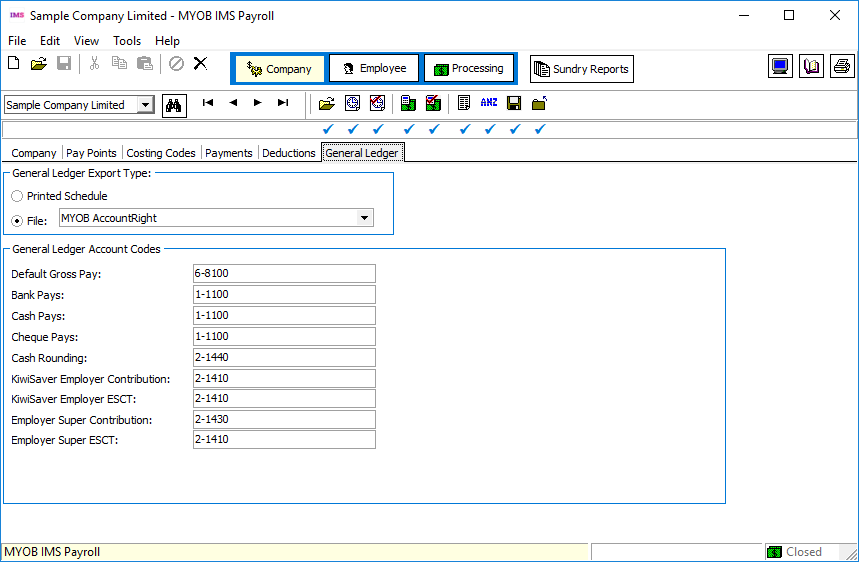
For the General Ledger Export Type, select File and choose “MYOB AccountRight” from the drop down list.
Enter the codes for each of the elements you want to track—remember these must be set up in MYOB AccountRight.
Make sure the accounts you use from MYOB AccountRight are not inactive accounts.
The General Ledger Codes report in Sundry Reports can be used to review your assignment of General Ledger Codes within the Payroll database.
Costing Codes
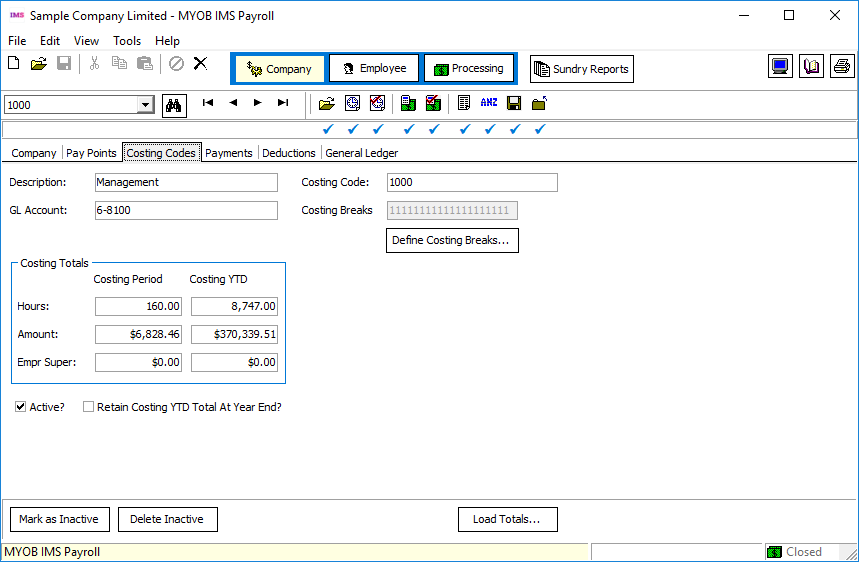
If you are using Costing Codes in IMS Payroll you will need to enter a GL Account for each of the costing codes set up on the Company > Costing Codes tab.
The Costing Code must not be more than 15 characters long.
Deductions
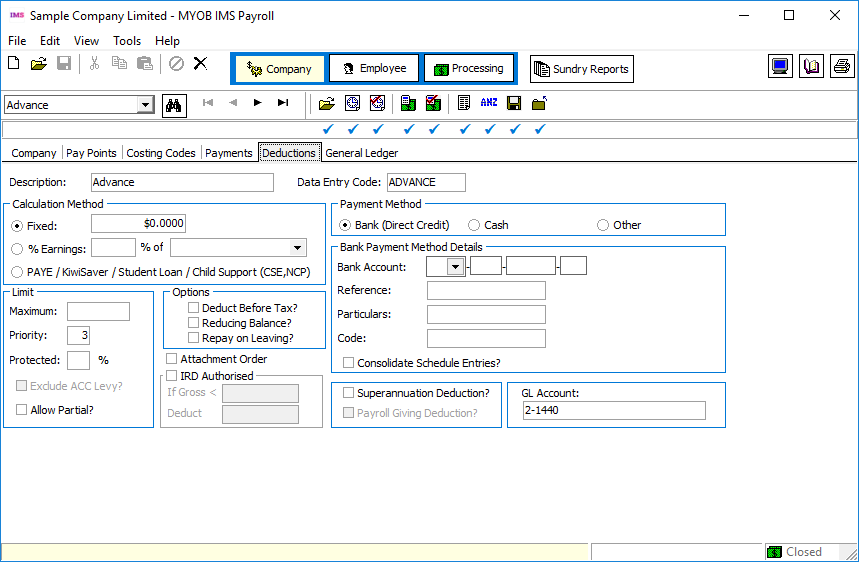
All deductions need to have a General Ledger Account code assigned at Company > Deductions.
KiwiSaver
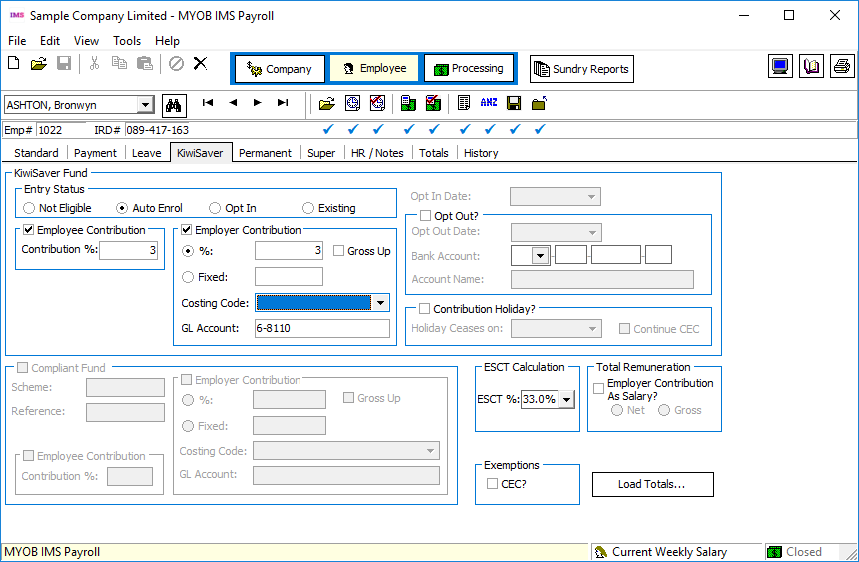
On the Employee Information > KiwiSaver tab, the KiwiSaver and/or Compliant Fund Employer Contribution General Ledger Account(s) must be assigned for each employer contribution to either fund. If you use Costing Codes, you can select a code using the Costing Code dropdown. The GL Account will default to the GL Account Code that is assigned to the selected costing code. If you do not use Costing Codes, you will need to manually enter the GL Account Code.
Job Costing
The setup for job costing is the same as for Costing Codes (see page 3):
-
Ensure that the Costing Required? option is ticked on the Company > Company tab.
-
Enter a GL Account for each of the costing codes set up on the Company > Costing Codes tab.
Integrating with MYOB IMS Payroll
Exporting General Ledger Data
Once you have processed and closed your pay period you are ready to integrate with MYOB IMS Payroll:
-
Go up to the Tools menu. and select General Ledger Export.
-
Select Export Accounting details to a file then click the Next button.
-
Select the date (or date range) of the pay period data you want to integrate into MYOB AccoutnRight. (Dates refer to Common Reporting Dates not the Pay Period Ending Dates.) Click Next once you have completed your date range selection.
On the first run of the export you will be notified that you need to set up the type of integration and company to use. Click Setup Journal Configuration to open the AccountRight Library Browser and configure the type of integration—see “AccountRight Configuration
-
AccountRight Configuration” on page 6 for details of the configuration process.
-
Once configuration is set up, click Next.
-
If you wish to proceed with the integration click the Process button.
-
An AccountRight Company File Login window appears. Enter the username and password for the AccountRight Live company that you selected during the configuration process.
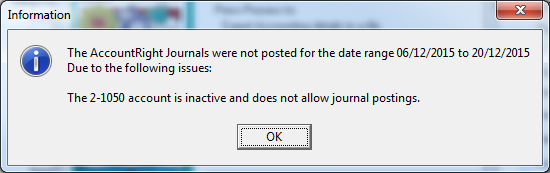
If the integration is unsuccessful, a message will be displayed detailing the issue with the integration. No postings will occur until this has been corrected and the integration done again.
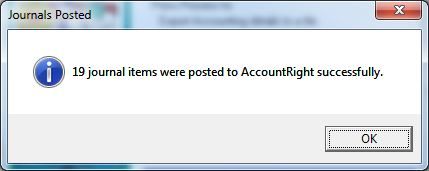
If integration is successful, you will be notified how many records have been posted to AccountRight.
AccountRight Configuration
Local Configuration
MYOB AccountRight needs to be installed on the same machine you are running IMS Payroll. AccountRight will also install and run the MYOB Add-on Connector, which is required for IMS Payroll to connect to MYOB AccountRight.
On the AccountRight Library Browser window, select My Library, which is the local instance of AccountRight. All the companies that are available to your local instance of AccountRight will be displayed on the right.
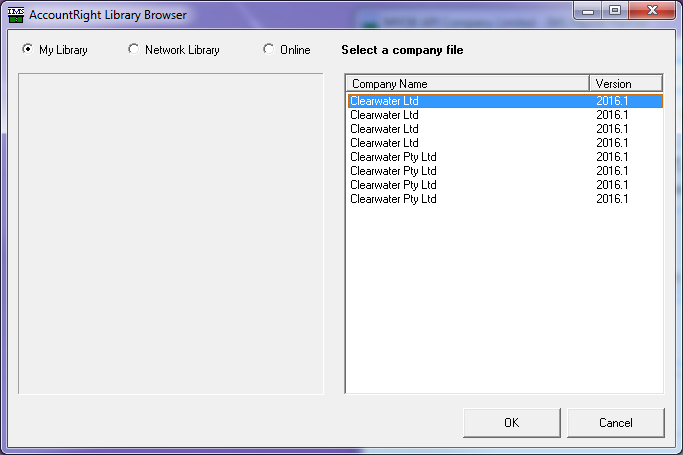
Select a company and click OK to save this selection for use.
Network Configuration
The AccountRight Server Edition needs to be installed on your server—follow the instructions provided by MYOB.
On the AccountRight Library Browser window, select Network Library, which is the server instance of AccountRight.
You will need to specify the Address of the server and the Port number. If you are unsure, please contact your system administrator. All the companies that are available to your server instance of AccountRight will be displayed on the right once you select the Connect Button.
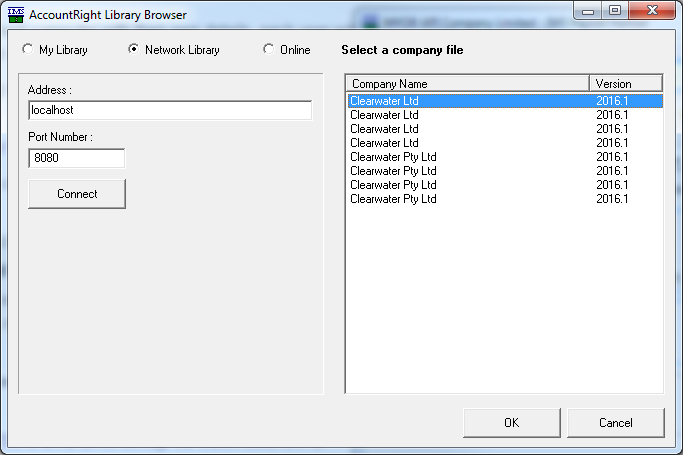
Select a company and click OK to save this selection for use.
Online Configuration
You will need to connect to MYOB IMS Payroll to set up configuration. This requires a my.MYOB account to set up configuration—follow the instructions provided by MYOB.
On the AccountRight Library Browser window, select Online, which is the server instance of AccountRight.
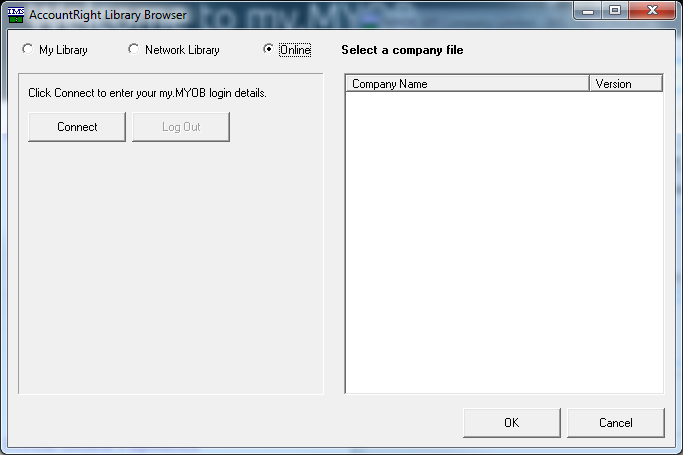
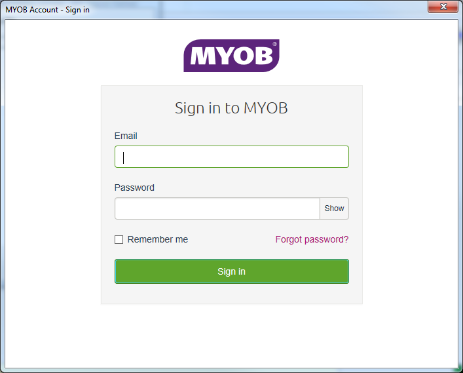
A dialog for connecting to my.MYOB is displayed. Enter your email and password for my.MYOB here, then select Sign-in.
All the companies that are available to your “Live” instance of AccountRight will be displayed on the right once you have signed into your my.MYOB account.
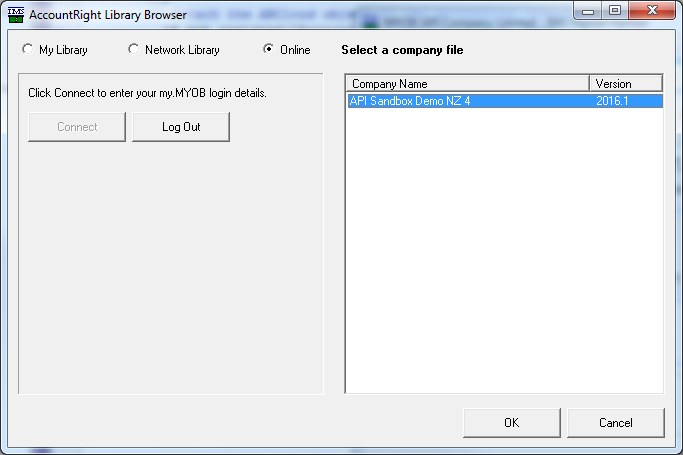
Select your AccountRight company and click OK to save this selection for use.