Annual Leave
Annual Leave
The complexity of the New Zealand Holidays Act is universally acknowledged, and issues of implementation are an ongoing challenge for businesses across New Zealand.
MYOB IMS Payroll is committed to helping employers meet their obligations under the Holidays Act 2003. There are areas of the Act which require manual intervention with MYOB IMS Payroll to ensure compliance and avoid under or over payments for certain leave types.
This document provides an overview of the setup and management of Holidays in IMS Payroll.
Disclaimer: This document provides guidance on how to manage leave entitlements within our product. We recommend that you read the MBIE document “Holidays Act 2003: Guidance on annual holidays, domestic violence, leave, bereavement leave, alternative holidays, public holidays and sick leave” to understand how to meet your obligations as an employer under the Holidays Act 2003. If you have further questions or are in doubt, it is best to seek legal advice to ensure you are meeting your obligations.
MBIE Website:
The Annual Leave setup of employees in MYOB IMS Payroll needs to reflect your circumstances, including what is in your Employment Agreements and/or what has been agreed between the Employer and Employee. The IMS Support Team can help you set up the employee in the Leave screen but are unable to give you advice on what setup is most appropriate to you; you may want to seek legal advice.
Annual Leave Types
Available Annual Leave Types
The first thing you should do when setting up an employee’s leave details in MYOB IMS Payroll is choose their Annual Leave Type, based on the hours they work. Three options are available: Set Hours, Variable Hours and Casual:
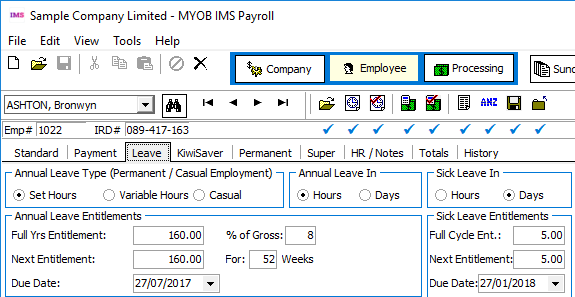
The Set Hours method should be used when the employee generally will work the same hours each pay period and is expected to be employed for 12 months or more.
The Casual method should be used when the employee is expected to work less than 12 months.
The Variable Hours method is not recommended.
Agreed Definition of a Week
This information applies to Set Hours employees only.
The fields in the Agreed Definition of a Week section are used to calculate the employee’s hourly or daily balances and entitlements. They specify how many days or hours are in a working week for the employee—this value will be used when converting between weeks and days/hours. The default values are based on employees’ usual days/hours, but they should be reviewed for all employees.
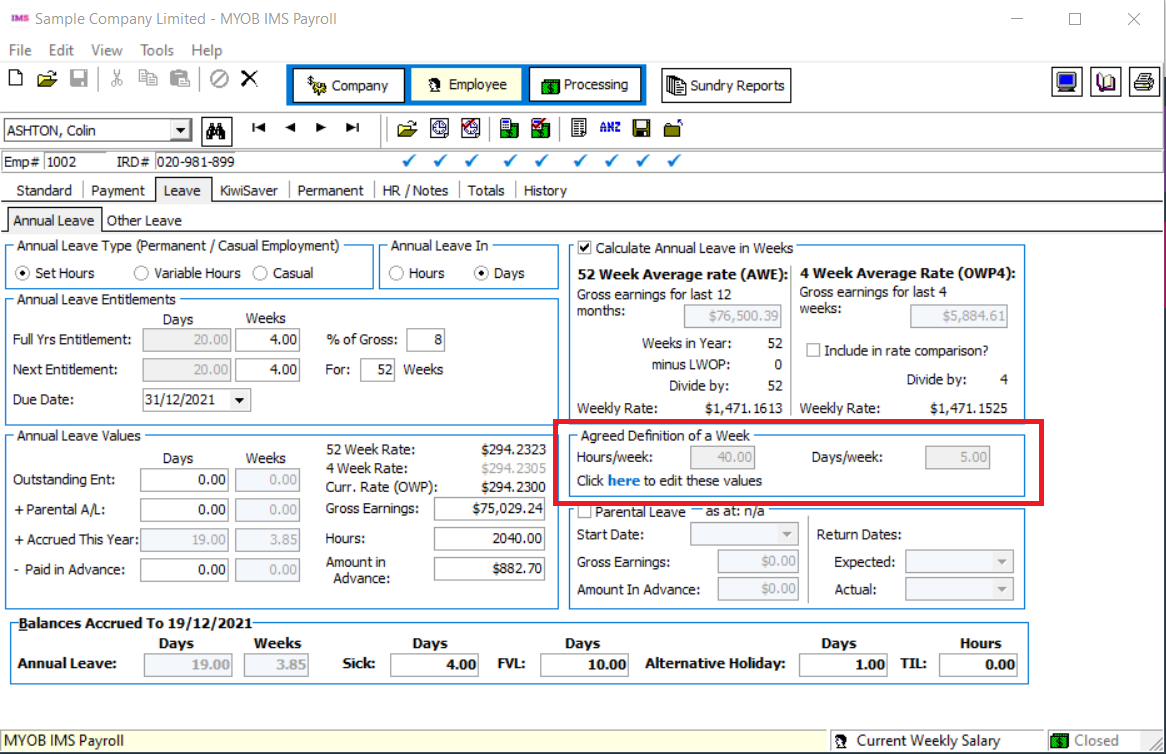
For employees with variable hours that change from week to week, talk to an expert for advice on how to enter their Agreed Definition of a Week. Remember that the definition must be agreed on by the employer and employee.
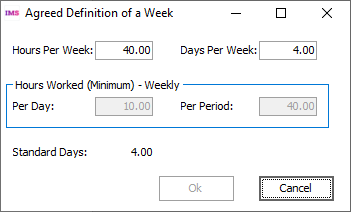
Click the here link below these fields to open a window that lets you edit the Agreed Definition of a Week values:
Which Annual Leave Type to Use?
Permanent employee working set hours
Employees who generally work fixed hours are best set up as a Permanent employee working set hours. This annual leave type works out the holidays owing based on entitlement for the year.
Permanent employee working set hours is not limited to people who work 30 or more hours a week – for example you could use this annual leave method for an employee who works only one day every month.
It can also be used in situations where the employee has fixed hours and works some overtime. The holiday entitlement would be 4 weeks at their set hours, and the overtime would increase the holiday leave rates calculated.
Casual
The Casual method is available to be used for genuine casual employees. Generally, these are people who you employ for a special job that you can’t always anticipate with no expectation of ongoing employment beyond the special job or whose work pattern is so irregular or intermittent that the concept of four weeks away is difficult to apply.
This method does not work out days or hours owing, just a cash amount (based on a percentage of the Gross Earnings). This can be paid in one lump sum or paid out each time the employee is paid wages.
Recording Annual Leave in Days vs Hours
Each employee can have a different recording method for annual leave.
Permanent employee working set hours
Can be recorded in either days or hours. If recorded in days and the Weekly calculation method is not being used, leave balances will be rounded down to the nearest half-day.
Casual
Casual employees will only accumulate leave as a monetary value, so neither option applies to them.
Initial Annual Leave Setup
When setting up MYOB IMS Payroll for the first time, you will need to enter current Annual Leave balances for each employee. Annual Leave balances are entered on the Employee > Leave > Outstanding Entitlement fields:
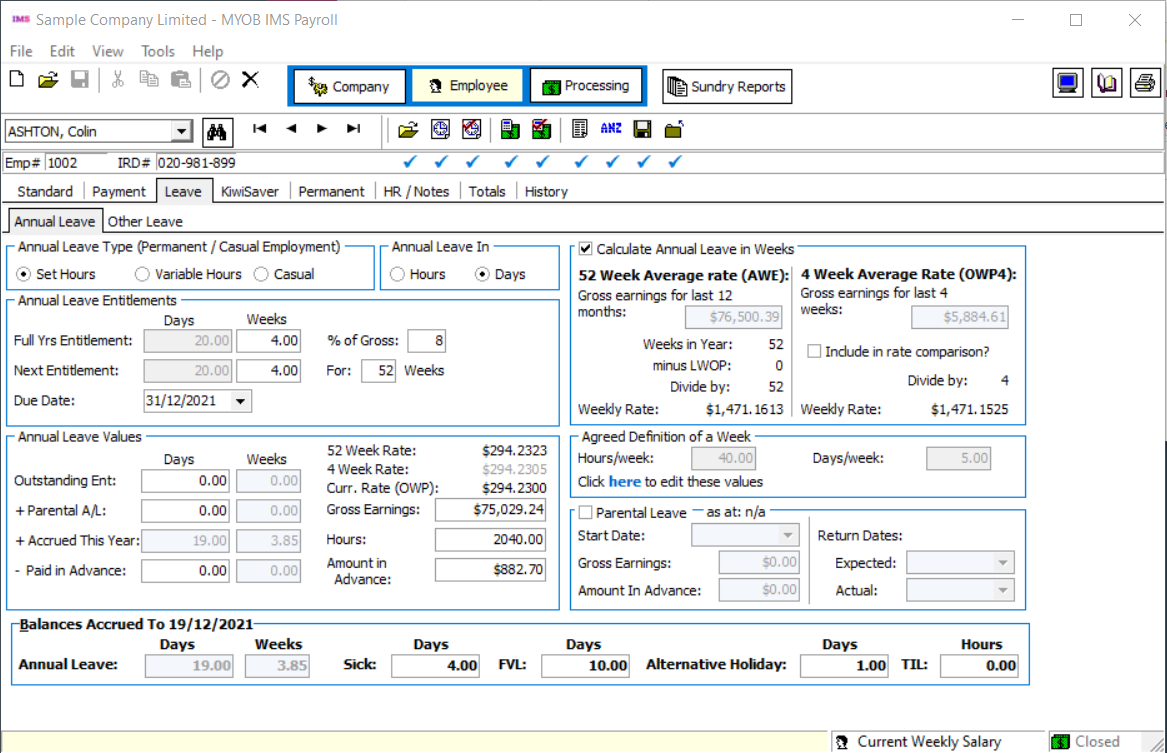
The balances you enter depend on the employee’s working arrangement.
Permanent employee working set hours
-
Set whether you want to record Annual Leave in Hours or Days.
-
Check (and edit if necessary) the Full Yrs Entitlement and % of Gross fields under Annual Leave Entitlements.
-
When a new employee is entered the Due Date will automatically default to the next anniversary of the employee’s Start Date. However, if you have a company anniversary date set on the Company tab, the Due Date will default to this anniversary date and the Next Entitlement and For xx Weeks fields will automatically adjust.
If the employee has outstanding leave:
-
Determine the amount of leave the employee was owed at their last anniversary due date.
-
Subtract any leave they have taken since their last anniversary.
-
Enter this outstanding leave balance into the Outstanding Ent field under Annual Leave Values.
Make sure that the amount entered conforms to the employee’s Agreed Definition of a Week, so that the Weeks value is not incorrect or misleading.
If the employee has taken leave in advance, enter the following values under Annual Leave Values:
-
Enter any days/hours taken in the Paid in Advance field.
-
Enter the dollar value the employee was paid for this leave into the Amount in Advance field.
-
Enter their Gross Earnings (Liable for holiday Pay) and Hours worked from their last anniversary due date until the date of going live with MYOB IMS Payroll.
The employee’s accrued leave (for the current year) will automatically calculate based on the number of completed weeks from their start date or last anniversary until the ‘Leave Balances Accrued To’ date at the bottom of the Leave tab. To adjust this accrued to date, right-click on this field and enter the date required.
See the “Leave Earnings History” document on the MYOB IMS Payroll Education Centre for more information on viewing and editing employees’ leave history.
-
Set to record Annual Leave in Hours.
-
Check (and edit if necessary) the % of Gross field under Annual Leave Entitlements.
-
When a new employee is entered the Due Date will automatically default to the next anniversary of the employee’s Start Date. However, if you have a company anniversary date set on the Company tab, the Due Date will default to this anniversary date and the Next Entitlement and For xx Weeks fields will automatically adjust.
If the employee has outstanding leave:
-
Determine the amount of leave the employee was owed at their last anniversary due date.
-
Subtract any leave they have taken since their last anniversary.
-
Enter this outstanding leave balance into the Outstanding Entitlement field under Annual Leave Values.
If the employee has taken leave in advance, enter the following values under Annual Leave Values:
-
Enter the hours taken in the Paid in Advance field.
-
Enter the dollar value the employee was paid for this leave into the Amount in Advance field.
-
Enter their Gross Earnings (Liable for holiday Pay) and ordinary Hours worked from their last anniversary due date until the date of going live with MYOB IMS Payroll.
The employee’s accrued leave (for the current year) will automatically calculate based on a percentage of the Hours field. Therefore, it is extremely important that you input the number of ordinary hours worked since the last due date into this field.
See the “Leave Earnings History” document on the MYOB IMS Payroll Education Centre for more information on viewing and editing employees’ leave history.
Enter the gross earnings that the employee is still entitled to be paid Annual Leave on into the Gross Earnings field under Annual Leave Values and the leave percentage into the % of Gross field under Annual Leave Entitlements. The percentage must be at least 8% but could be higher if a different value has been agreed on by the employer and employee.
Changing Employees’ Existing Annual Leave Setup
If your employee has a regular work pattern but changes to another work pattern part way through their anniversary year, you will need to review their setup on the Employee > Payment tab and the Annual Leave balance on the Employee > Leave tab.
For more information, see on the Ministry of Business, Innovation and Employment website.
If an employee’s Agreed Definition of a Week values change at any time, this will affect their hourly or daily Holiday Pay balance and entitlement.
Changing an Employee’s Agreed Definition of a Week
Options for how employees’ balances will be affected are available under Change of Agreed Weekly Hours/Days Behaviour on the Company Information tab:
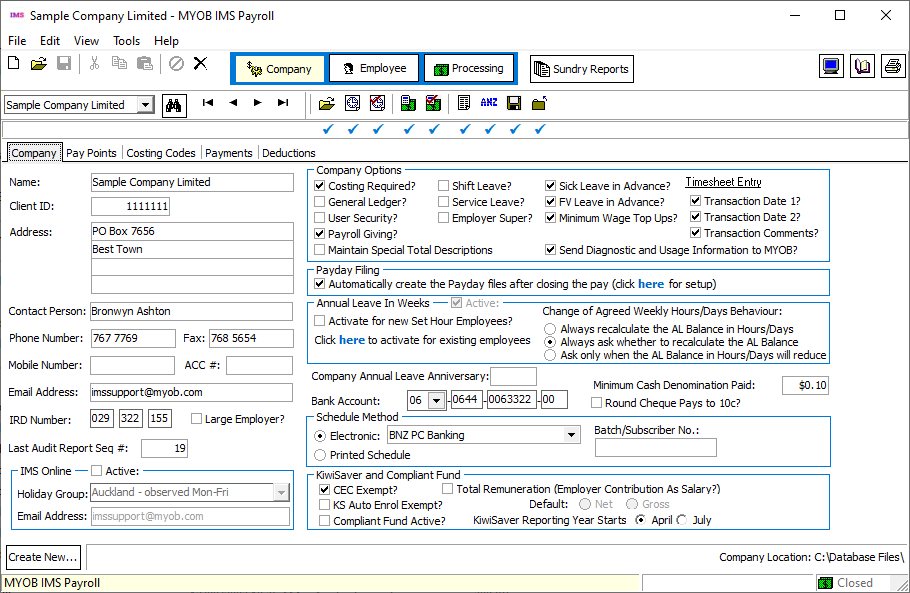
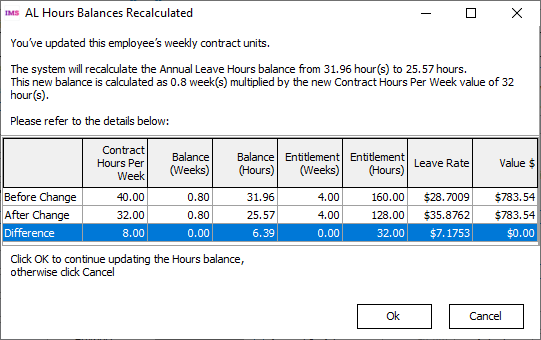
Selecting Always recalculate the AL Balance in Hours/Days means that when an employee’s Agreed Definition of a Week changes, their hourly/daily Annual Leave balance will be recalculated automatically. An information window appears, showing the new balances and entitlements in weeks as well as in days/hours:
Selecting Always ask whether to recalculate the AL Balance means that the following message window appears when an employee’s Agreed Definition of a Week changes:
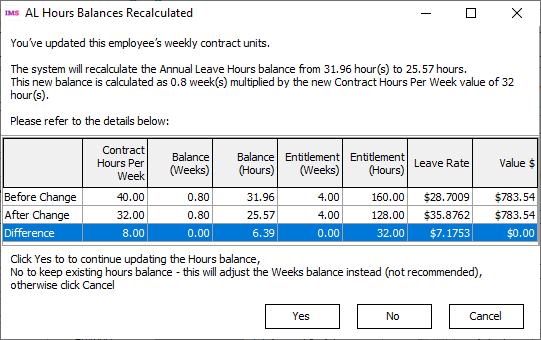
This window has the following options:
-
Yes – The employee’s hourly/daily balance and entitlement will be recalculated as displayed on the window.
-
No – The hourly/daily balance will remain the same and the employee’s weekly balance and entitlement will be recalculated. (This is not recommended.)
-
Cancel – The change to the employee’s Agreed Definition of a Week is not saved.
Selecting Ask only when the AL Balance on Hours/Days will reduce means that the user is only asked if they want to update or keep the hours/days values if the change to the Agreed Definition of a Week would result in a reduction of the employee’s hour/daily balance and entitlement. If the change means the employee’s hourly/daily values would stay the same or increase, they are recalculated automatically and the user is not asked.
To change an employee whose Annual Leave is record in hours to record Annual Leave in days, perform the following actions on the Employee > Leave tab:
-
Print an up-to-date Annual Leave report.
-
Change the Annual Leave In option to Hours.
-
Convert the Full Year’s Entitlement and Next Entitlement fields to hours, e.g. 20 days would become 160 hours for a 40-hour per week employee.
-
Convert any Outstanding Entitlement or Paid in Advance values to hours.
-
Check that the Employee > History > Leave Earnings tab is showing an acceptable Average and Ordinary rate under Holiday Rates.
-
Print a new Annual Leave report and compare the one printed at the start.
variable hours to set hours (in days)
Leave the system accruing leave as it is until the next Annual Leave due date for the employee, if possible. Once the due date has passed and the rollover has occurred:
-
Print an up-to-date hourly Annual Leave report.
-
Change the Annual Leave Type from Variable Hours to Set Hours.
-
Change the Annual Leave In option to Days.
-
Convert the Full Years Entitlement and Next Entitlement values to what the employee is entitled to, e.g. 20 if the employee is entitled to 4 weeks leave and they work 5 days a week.
-
Convert any Outstanding Entitlement or Paid in Advance values from hours into days.
-
Print another Annual Leave report and compare the value to the report taken before you started.
If it is not possible to leave this change until the next Annual leave due date, contact MYOB IMS Support.
Changing variable hours to set hours (in hours)
Leave the system accruing leave as it is until the next Annual Leave due date for the employee, if possible. Once the due date has passed and the rollover has occurred:
-
Print an up-to-date hourly Annual Leave report.
-
Change the Annual Leave Type from Variable Hours to Set Hours.
-
Change the Annual Leave In option to Hours.
-
Convert the Full Years Entitlement and Next Entitlement values to what the employee is entitled to, e.g. 20 if the employee is entitled to 4 weeks leave and they work 5 days a week.
-
Print another Annual Leave report and compare the value to the report taken before you started.
If it is not possible to leave this change until the next Annual leave due date, contact MYOB IMS Support.
Changing set hours to variable hours
Before you make any changes print an up-to-date hourly Annual Leave report.
-
Change leave type from Permanent employee working Set Hours to Permanent employee working Variable Hours.
-
Any Outstanding Ent or Paid in Advance will not change.
-
Ensure that the Accrued this year amount remains the same and the correct % of Gross is showing.
If it is not possible to leave this change until the next Annual leave due date, contact MYOB IMS Support.
Changing Casual employment status to Permanent
Where an employee has originally been employed as a casual employee and their employment is continuous for more than 12 months, or is changed to a permanent position, contact the Ministry of Business, Innovation & Employment on 0800 20 90 20 (or any other organisation you would normally approach for employment related legal advice). You will need to explain the background of the employment and ask what leave they are entitled to and how you should be treating them with relation to annual leave.
Once the correct procedure has been established, contact MYOB IMS Support so that we can help you implement the changes required into your payroll.
Setting up Extra Annual Leave for Long Service
For example, employees become entitled to 25 days Annual Leave after 5 years continuous service instead of their current 20 days.
The additional leave should be recorded on the Employee > Service Leave tab for each employee.
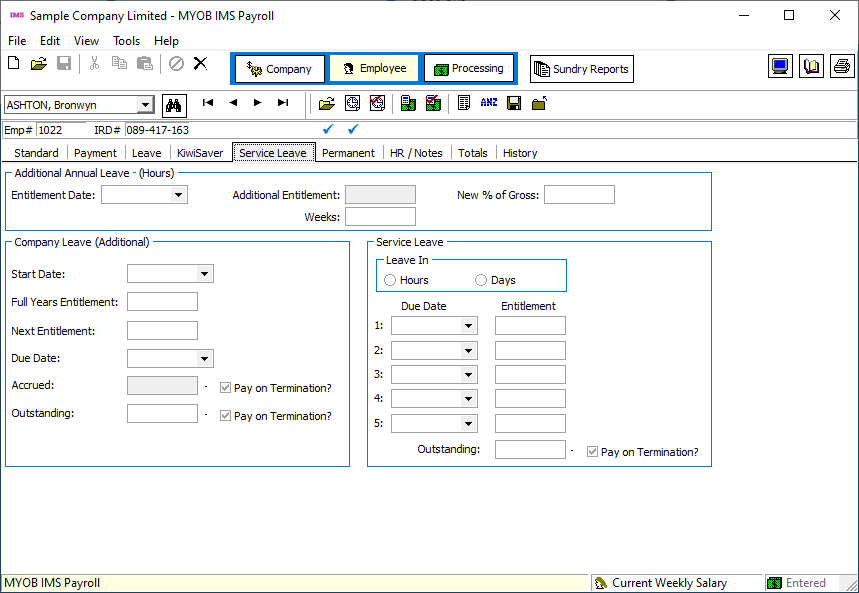
This tab is only available if Service Leave? is ticked on the Company tab under Company Options.
To set this up, enter an Entitlement Date set to a number of years after the employee’s start date. The entitlement should be in the same units as Annual Leave, i.e. days or hours.
On the Entitlement Date rollover, the Additional Entitlement amount will be added to the Full Years Entitlement on the Leave tab, and the New % of Gross value will be copied to the % of Gross field on the Leave tab. The Additional Annual Leave figures will then be cleared. This will happen once payroll is calculated at step 4-Calculate of the payroll processing.
Recording Annual Leave for Salaried Employees
When processing a pay, on the 2-Timesheet tab, the salary transaction should be recorded as usual. Next, enter an Annual Leave transaction showing the number of days/hours taken in the quantity field and the rate will show as the Annual Leave dollar value. Then enter an additional salary transaction with a negative quantity equivalent to the number of days/hours leave taken. For example, if a fortnightly salaried worker (8 hours per day, 80 hours per period) took 3 days Annual Leave, the timesheet could be entered as follows:
|
Payment or Deduction |
Quantity |
Rate |
|
Salary |
1 |
800.0000 |
|
Salary |
-3 |
80.0000 |
|
Annual Leave Taken |
3 |
80.0000 |
|
P.A.Y.E. |
1 |
M |
Annual Leave Calculations
Annual Leave Payments
When setting up payments in the Company Control area of MYOB IMS Payroll, it is important to select the correct Leave Accumulation flags. Depending on the flag selected, the amounts of those payments will be included or excluded from the calculation of the Annual Leave rate’s gross earnings.
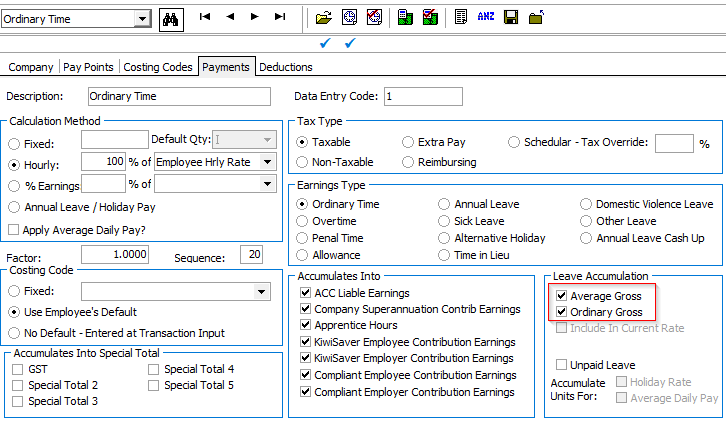
The Holiday Act explains the definition of gross earnings here:
Three important points to recognise are:
-
Gross earnings exclude any payments that the employer is not bound, by the terms of the employee’s employment agreement, to pay the employee. These payments will be relatively rare;
-
“Employment agreement” should be read broadly to include all documents and other agreements that form part of the contractual agreement between the employee and employer. Agreements need not be written down; they may also be verbal or created by the conduct of the parties. An employment agreement includes (but is not limited to) an offer of employment, an individual employment agreement, a collective agreement and additional agreed terms and conditions not inconsistent with the collective agreement;
-
Listed in the exclusions are ‘discretionary payments’. It is important to understand that ‘discretionary payments’ have a special meaning under the Act. If an employer is bound by the terms of the employment agreement or some other agreement such as the rules of a commission scheme, to make a payment to the employee – even if the amount is discretionary (and could be zero) and/or certain conditions must be met before it is paid – it is not a discretionary payment.
The document Holiday Act 2003: Guidance on annual holidays, domestic violence leave, bereavement leave, alternative holidays, public holidays and sick leave, available on the provides a table with common payments types and whether they should be included or excluded from gross earnings (see “Annex 1: Gross earnings”).
Annual Leave Entitlements
-
Take one year away from the Due Date. If the Start-date is more recent, then use that date instead.
-
Work out the number of weeks between this date and the ‘Accrued To Date’ (at the bottom of the Annual Leave screen).
-
Take the employees Next Entitlement; divide that by 52 then multiply by the number of Weeks as calculated above.
If the Annual Leave is in Days, the result will be rounded down to the nearest half-day.
The system will perform an Annual Leave Rollover during a pay-run when the Period End Date of that run is on or after the Due Date. This will do the following:
-
The Next Entitlement value is added to the Outstanding Entitlement, less any leave amount in the Paid in Advance field. If more leave was taken in advance than was due, the remainder is left as ‘Paid in Advance’ (and the ‘Amount in Advance’ is proportioned accordingly).
-
The ‘Next Entitlement’ is set to the ‘Full Year’s Entitlement’, the Weeks are set to 52, and the ‘Due Date’ is increased by a year.
The Gross Earnings and Hours fields are then showing only the current pay.
Enter an “Annual Leave Taken” transaction onto the employee’s timesheet. In the Quantity field, enter the number of Days or Hours of paid annual leave. The rate will be worked out automatically as at the end of the previous pay period.
When Annual Leave was taken outside of the current open pay period, the rate can be overridden by selection the option Leave rate as at and selecting the Start Date for the Annual Leave.
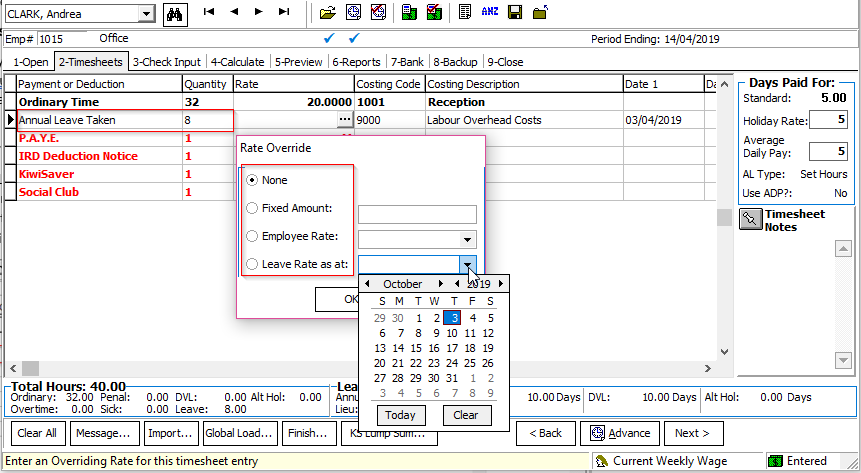
For salaried employees it will pay the Annual Leave Taken in addition to the normal Salary payment, therefore reduce the salary by entering a negative number of days in the quantity field to balance the leave taken.
Ensuring the Holiday Rate Days or Hours are recorded correctly
If an employee has a “Set Hours” Annual Leave Type and the Annual Leave is recorded in days this field is very important. This is not required for Casual or Variable Hours employees, unless they are to change to a Set Hours employee in the future. It is also not required if the employee’s Annual Leave is recorded in weeks—in this case, rates and entitlements are calculated based on the Agreed Definition of a Week (see “Agreed Definition of a Week” on page 2).
When processing the pay, you need to be very careful when entering timesheets that you are capturing the correct hours or days per period. If Annual Leave is recorded in “Days” we need to record the “Holiday Rate Days” correctly. However, if Annual Leave is recorded in “Hours” we need to record the “Holiday Rate Hours” correctly.
In the example below, this employee normally works an 8-hour day, and 40 hours per week, but this week they have worked 44 hours. Their Annual Leave is recorded in days.

When 44 hours are entered for Ordinary Time, the “Holiday Rate” days changes to 5.5. It is then necessary to override the “Holiday Rate” days to 5. Either click the mouse into the box or use the “Quick Access Key” to override the number. The “Quick Access” is operated by pressing and holding the “CTRL” key then the “+” on the numeric keypad keys combination. The “TAB” key can then be used to access the Average Daily Pay days if necessary.
It is important that the employee’s “Holiday Rate” days is recorded correctly, otherwise the annual leave rates would calculate incorrectly. The Holiday Rate days needs to reflect the ordinary days paid, in the example above the employee normally works 5 days, so the Holiday Rate days should be recorded as 5 instead of 5.5.
The screenshot below shows the correction for the example described above.

When to use the payment “Extra Ord Hours”?
If the Annual Leave were recorded in “Hours” instead of days, then you would use a combination of Ordinary Time and “Extra Ord Hours” as you can’t adjust the Holiday Rate hours using the Holiday Rate days override box. In the example above 40 hours are recorded as ordinary time and 4 hours as “Extra Ord Hours” as shown in the screenshot below. You could also use this method if you are recording leave in days.

As the “Extra Ord Hours” payment is set up as an “earnings type” of overtime, the holiday rate hours and days automatically record correctly.
For information on when to use the Days paid for Average Daily Pay override box, see the document “Using Average Daily Pay”.
What happens when you terminate a Set Hours employee?
Once you have entered a Finish Date for a terminating employee, the system will automatically create transactions on the timesheet in the next pay run to pay out the employee’s remaining Annual Leave.
Example:
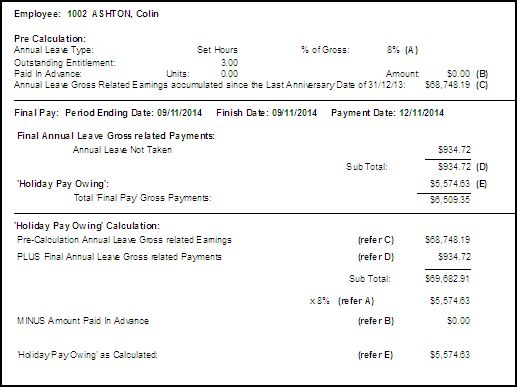
When finishing an employee, instructing IMS Payroll to create termination transactions (where the employee has an outstanding annual leave balance) causes the payments “Annual Leave Not Taken” and “Holiday Pay Owing”.
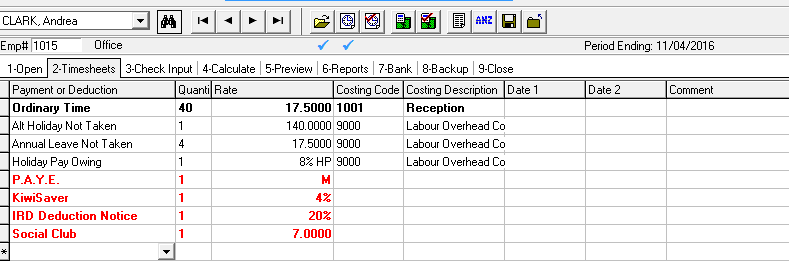
A “Holiday Pay Owing” allowance will be added to account for any remaining holiday pay (leave accrued this year). The amount will be worked out as follows:
The Gross Earnings (including payments made this period that accumulate into Leave Accumulation) will be multiplied by % of gross field (see Employee> Leave tab). The percentage must be at least 8% but could be higher if a different value has been agreed on by the employer and employee. If there is any amount in the Amount in Advance field, this will be taken away from the amount calculated.
Other transactions may also be created at this time, such as Service Leave Not Taken, Alt Holiday Not Taken or deductions set to ‘Repay on Leaving’.
The Holidays Act requires that employees are given four weeks of annual leave each year and that what constitutes a working week should be agreed between employer and employee. Sometimes determining what a working week is can be challenging due to unpredictable work patterns.
MYOB IMS Payroll supports an optional “Variable Hours” leave accrual method which calculates an employee’s four weeks of leave based on the hours worked in the previous entitlement year. Historically, this method has been used when an employee’s hours varied unpredictably across pay periods, so that it was difficult to determine what a working week was for the purpose of Annual Leave.
It is important to note that this method is not defined within the Holidays Act or MBIE’s guidance. Using this method there is risk that an employee may not receive a full four weeks of leave, particularly where the employees hours of work have increased over time.
While IMS Payroll continues to offer this method of leave calculation, we caution that it should only to be used when a clear agreement exists to use it and that its use should be reviewed regularly in case a work pattern has changed or has become predictable.
The Hours value on the Annual Leave screen is multiplied by the Annual Leave % of Gross percentage.
The system will perform an Annual Leave Rollover during a pay run when the pay run’s Period End date is on or after the Due Date on the Annual Leave tab. This will do the following:
-
The Full Yrs Entitlement and Next Entitlement values are set to the Annual Leave accrued this year.
-
The Accrued this Year value is added to the Outstanding Entitlement, less any amount in the Paid in Advance field. If more leave was taken in advance than was due, the remainder is left in the Paid in Advance field (and the Amount in Advance value is proportioned accordingly).
-
The For … Weeks value is set to 52, and the Due Date is increased by a year.
-
The Gross Earnings and Hours fields are then only recording this last pay.
How do you pay leave?
Enter an “Annual Leave Taken” transaction onto the employee’s timesheet. In the Quantity field, enter the number of Hours of paid annual leave. The rate will be worked out automatically as at the end of the previous pay period.
When Annual Leave was taken outside of the current open pay period, the rate can be overridden by selection the option Leave rate as at and selecting the Start Date for the Annual Leave.
What happens when you terminate a Variable Hours employee?
The system will automatically create transactions on the timesheet in the next pay-run to pay out remaining holiday pay, as for Set Hours employees (see page 15).
This method works out Annual Leave based on a percentage of the Gross Earnings (specified in the % of Gross field on the Employee > Leave tab). The gross earnings is cleared when the Annual Leave on that amount has been paid out.
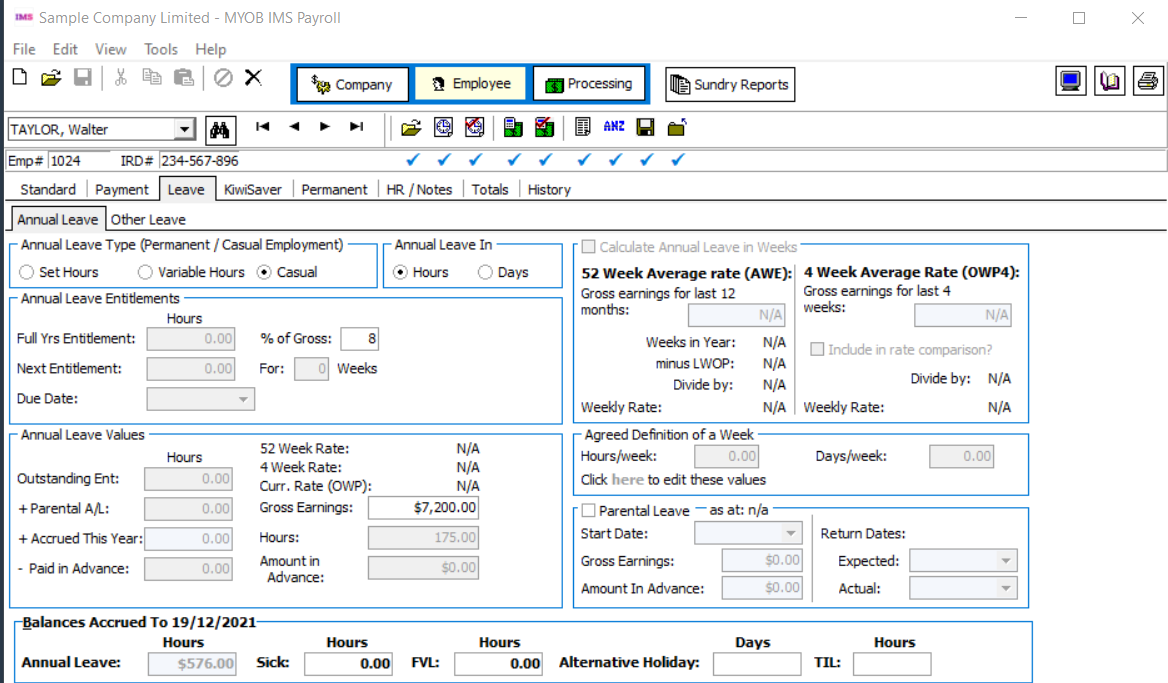
Set the percentage to zero if you don’t want the system to calculate any Annual Leave for an employee.
How do you pay leave?
Enter a ‘Casual Holiday Pay’ transaction on the timesheet (or on the Permanent page of the employee if you want to pay out every time).
Use a quantity of 1. The rate will be ‘8% of HP’. This will, by default, pay out all holiday pay due and clear out the Gross Earnings. If you want to pay out a different amount, you can override the rate with a dollar value and the system will work out how much holiday pay remains owing.
What happens when you terminate a Casual employee?
This puts a ‘Holiday Pay Owing’ allowance on the timesheet, which works the same as paying out the leave with a ‘Casual Holiday Pay’ transaction.
Annual Leave Spanning More Than One Pay Period
Sometimes it is necessary to pay more than a single pay period in a pay calculation. This often occurs when an employee is going on leave for several weeks and wishes to be paid in advance. A similar situation occurs if your company closes down over Christmas and employees are paid for the close down period in advance.
We recommend against this, as it may produce incorrect data for payday filing and can result in an incorrect Average Weekly Earnings rate (AWE) for Holiday Pay.
The Annual Leave rate for the whole holiday period should be calculated at the same rate as at the Period End Date prior to the start of the holiday pay.
Example: A fortnightly paid employee is going on leave for four weeks and wants their pay in advance (i.e. their two weeks they would normally be paid, and an extra two weeks). Enter 20 days (or 160 hours) annual leave. The AL rate that will be paid will be the same for both pay periods, and by choosing the Leave rate as at the beginning of the holiday in the timesheets, the rate will be applied correctly.
Annual Leave Rate Calculations
For Permanent employees working set hours with leave in Days, Leave will be calculated at the higher:
-
Of the Current Daily Rate based on their current Salary or Hourly rate (if this can be determined)
-
Or Ordinary Daily Rate:
-
Gross Earnings for the 4 weeks immediately before the end of the last pay period divided by
-
The number of worked days (e.g. 4 weeks x 5 days = 20)
-
Or Average Daily Rate:
-
Gross Earnings for the 52 weeks immediately before the end of the last pay period divided by
-
The number of worked days. (e.g. 52 weeks x 5 days = 260)
The number of worked days is taken from the Employee > History > Leave Earnings tab:
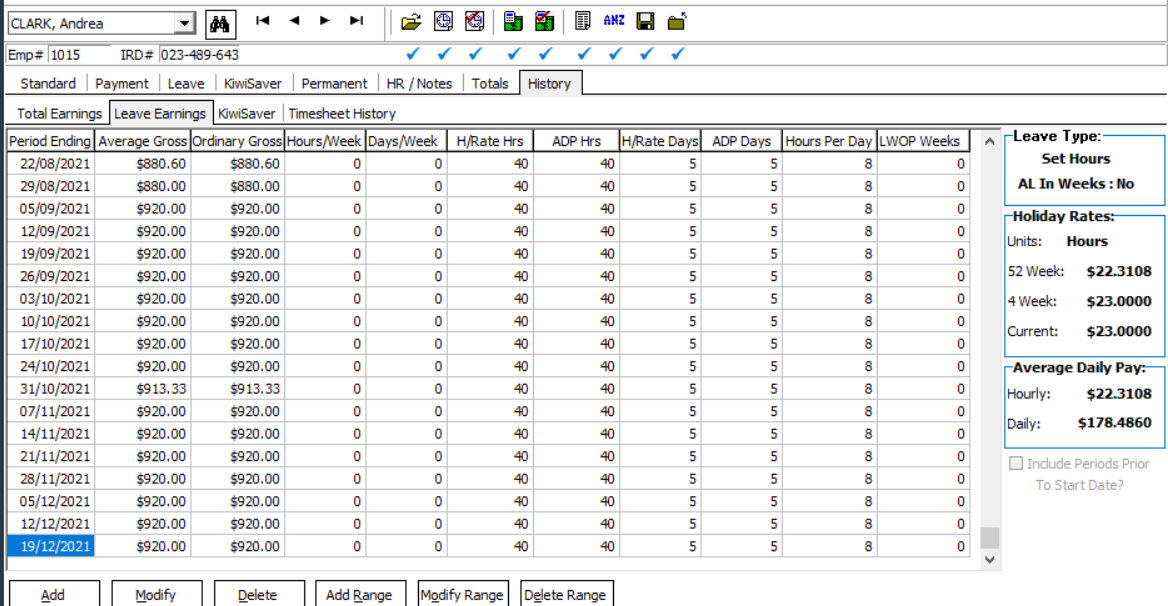
For Permanent employees working set hours with leave in Hours, Leave will be calculated at the higher:
-
Of the Current Hourly Rate based on their current Salary or Hourly rate (if this can be determined)
-
Or Ordinary Hourly Rate:
-
Gross Earnings for the 4 weeks immediately before the end of the last pay period divided by
-
The number of worked hours (e.g. 4 weeks x 40 hours = 160)
-
Or Average Hourly Rate:
-
Gross Earnings for the 52 weeks immediately before the end of the last pay period divided by
-
The number of worked hours (e.g. 52 weeks x 40 hours = 2080)
The number of worked days is taken from the Employee > History > Leave Earnings tab:
For Permanent Employees Variable Hours with leave in Hours, Leave will be calculated at the higher of the:
-
Of the Current Hourly Rate
-
Or Ordinary Hourly Rate:
-
Gross Earnings for the 4 weeks immediately before the end of the last pay period divided by
-
Total ‘Ordinary hours’ in the previous 4 weeks
-
Or Average Hourly Rate:
-
Gross Earnings for the 52 weeks immediately before the end of the last pay period divided by
-
Total ‘Ordinary hours’ in the previous 52 weeks
The ‘Ordinary hours’ and ‘Total hours’ in the period are taken from the ‘Employee Information’, ‘History’, ‘Leave Earnings’ tab in the payroll: ‘HRate Hrs’
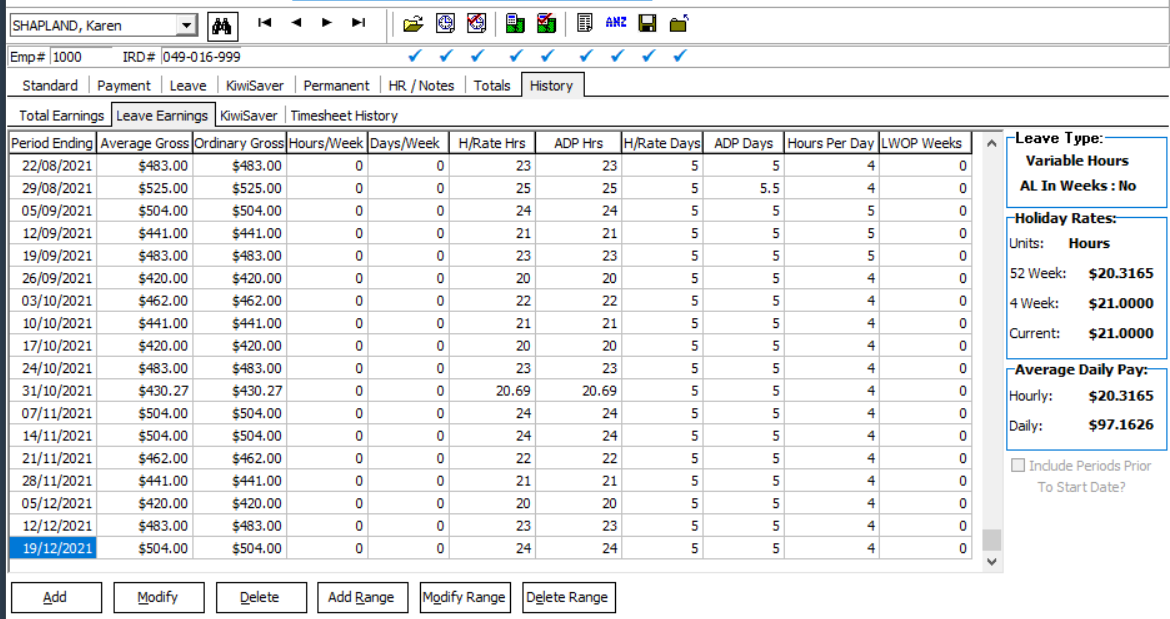
Up
Employees can ask their employer to pay out in cash, up to one week of their four weeks’ minimum entitlement to annual holidays per year for each .
Annual Leave Accrued cannot be cashed up. Cash Up entitlement can be calculated and paid in Hour or Day units and for those employees whom work Variable Hours the employee and employer must reach a mutual agreement on what constitutes a working week.
Employers may decline any request by an employee for Cash Up (no reason needs to be given when a request is declined) and advise the employee in writing.
Annual Leave Cash Up payments are regarded as an “Extra Pay” type payment and the rate of tax pertaining to “Cash Up” payments are calculated as per current Extra Pay Tax Legislation guidelines. Remember that the Pay Period Exceptions report has the option to print the Tax rate at which an employee’s Extra Pay has been taxed at and that, if required, an Extra Pay override Tax rate can be made on the employee’s Payment tab.
Cashed Up gross paid will not accumulate into Gross Earnings used for the calculation of Annual Leave rates or the Average Daily Pay.
Company Settings
A designated payment with the default description of “Annual Leave Cash Up” and Data Entry Code of “ALCU” is available at Company Controls > Payment Tab, for use in Cash Up payments. This payment must be used to generate any Cash Up payments. The payment has the following settings:
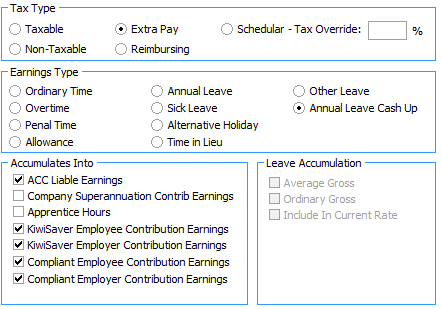
In conjunction with this an “Annual Leave Cash Up” Earnings Type is also available to identify Cash Up type payments.
To ensure Cash Up payments do not accumulate into the Gross used for the calculation of Annual Leave and Average Daily Pay rate calculations the Leave Accumulation indicators are de-selected.
Employee Settings
The Employee Information > Leave > Other Leave tab has Cash Up related fields in the Annual Leave Values section:
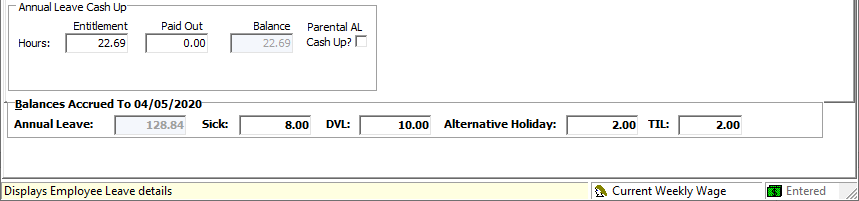
The Entitlement field will be populated with the ‘Cash up’ Entitlement on an Annual Leave Anniversary rollover - calculated as 1 week of the new entitlement (for non-casual employees).
For Variable Hours employees this entitlement is calculated as 2% of the hours worked as at the annual leave anniversary.
The employer and employee must agree as what constitutes a working work and therefore this entitlement should be checked when an anniversary rollover occurs.
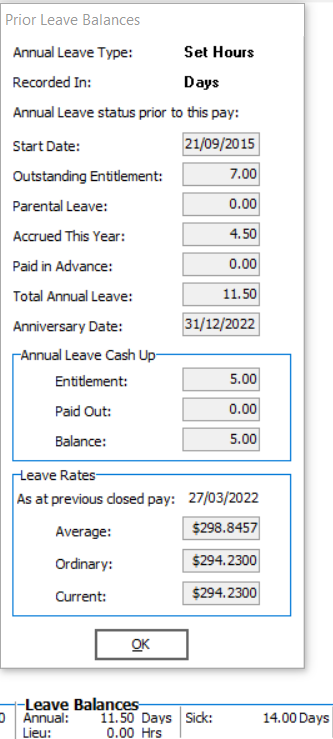
The Entitlement and Paid Out fields will be reset every anniversary. Any Cash Up payment made during an anniversary year will be reflected in the Paid Out field and the Outstanding Entitlement will also be reduced by any Cashed Out paid units, i.e. the Outstanding Entitlement reflects what is available to the employee for Annual Leave to be taken and/or the balance available for Annual Leave Cash Up.
Payroll Processing
The Prior Leave Balances window (click Annual under the Leave Balances at the bottom of the Processing > 2-Timesheets tab) displays Annual Leave Cash Up balances:
Parental Leave and Annual Leave
See the “Parental Leave” document on the MYOB IMS Payroll Education Centre for information on how to process the following scenarios:
-
An employee is requesting an Annual Leave and they have been on Parental Leave in the previous 12 months.
-
An employee is requesting an Annual Leave Cash Up and they have been on Parental Leave in the previous 12 months.
Example Reports
Annual Leave Reports
Payment Screen Details
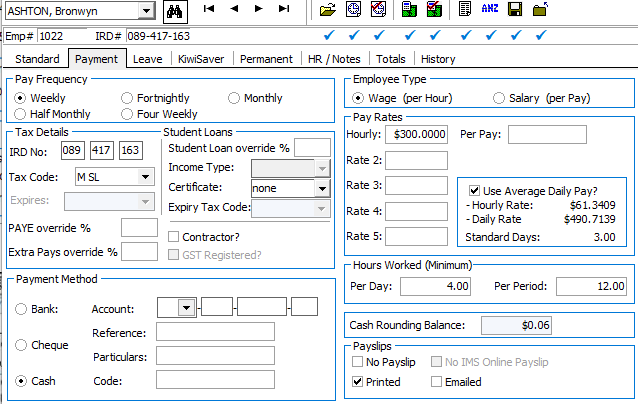
Leave Screen Details
Annual Leave Report Options
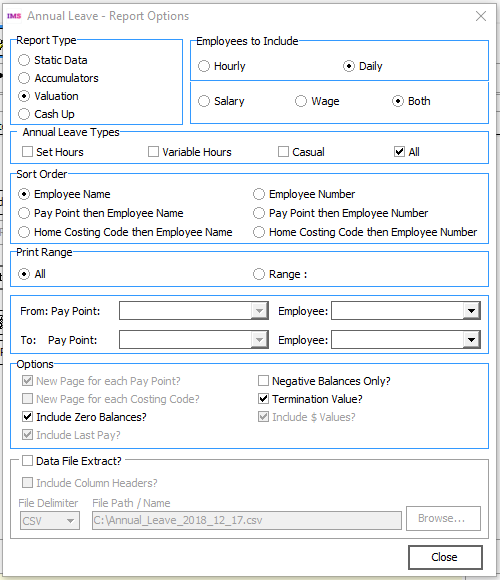

This report produces the values that would be paid to an employee if they were terminating and there were no other final payments to be considered.
|
Outstanding Value: |
3 days @ $311.5740 per day |
$934.72 |
|
Accrued GROSS Earnings:(pre Outstanding value added) |
$68748.19 |
|
|
+ Outstanding Value(to pay 8% on Outstanding Value) |
$934.72 |
|
|
= Total Annual Leave related Gross: |
$69682.91 |
|
|
8% (% of gross) |
$69682.91 x 8% |
$5574.63 |
|
+ Outstanding Value |
$934.72 |
|
|
Termination Pay |
$6509.35 |
The value of any Outstanding Leave is to be included in the percentage of gross calculation required for termination pay.
Final Pay Calculation Report
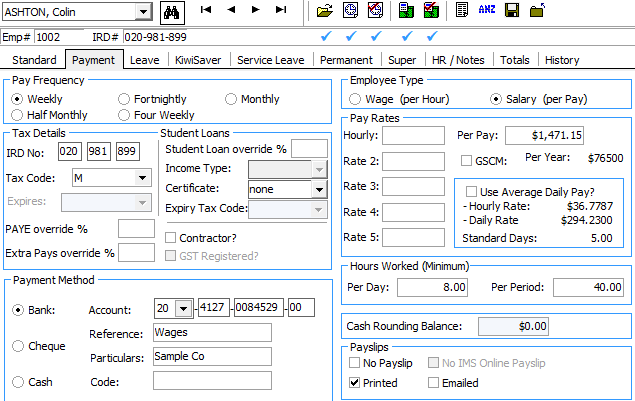
Payment Screen Details
Leave Screen Details
Final Pay Calculation Report Options
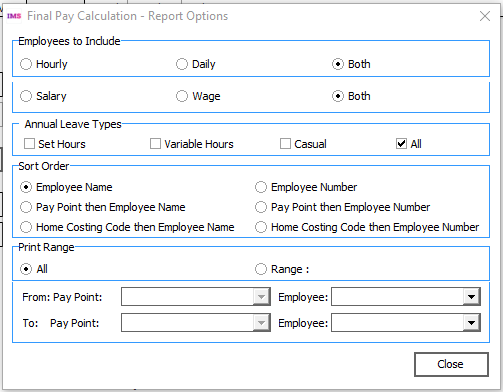
The ‘Final Pay Calculation Report’ is available when you run payroll reporting during the processing of the employee’s final pay, giving details of how the termination pay is calculated. We recommend that you add this report to your list of standard reports for printing.