
Proportional Costing
Proportional Costing is only available if Costing Required? is ticked on the Company Information page and Proportional Costing is individually ticked for each employee on the Employee Permanent Transactions page.
To view the Proportional Costing page, press  (Employee Information) on the toolbar and click on the "Proportional Costing" tab. If this tab is not visible check that Costing has been activated for the company and that Proportional Costing has been switched on for the employee you are viewing.
The Proportional Costing page allows you to define how the value of payments made to an employee should be apportioned across multiple costing codes within your organisation. Proportional Costing allocations are made to each costing code on a percentage basis.
On this screen, you create records that define the Allocation Percentage (%) and Cost Code. The Allocation Percentage entered on each record contributes to an Allocation Total displayed on the right-hand side of the screen. In order for you to move from the Proportional Costing page, the displayed Allocation Total must equal 100% if records have been entered, or there must be no records entered (negative allocation percentages are not accepted).
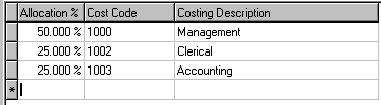
Proportional Costing is applied to payment transactions that:
-
are defined on the Payments page with the Costing Code set to "No Default - Entered at Transaction Input",
-
and are Manually entered onto the timesheets without costing codes. Or imported into the timesheets via the IMS Time Import facility without costing codes.
When transactions are entered on the timesheets by the methods specified above, the system will automatically create transactions with quantity values proportionate to the Allocation Percentages and Cost Codes specified on the Proportional Costing screen.
Proportional Costing is not applied to payments that are copied from the Permanent screen when the payroll period is opened.
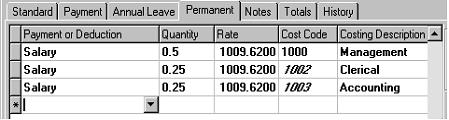
If, for example, you want to permanently allocate proportions of an employee's Salary to different costing codes then you would enter the permanent allocations on the employee's Permanent screen as follows:
If only one line is entered on the Proportional Costing page, with 100% going to the same Cost Code as the one selected on the employee's Standard Information page, changing the Costing Code on the Standard Information page will also update the Cost Code on the Proportional Costing page.