
Employee Transfer Overview
Introduction
The MYOB IMS Payroll Partner Employee Transfer Utility allows you to move records belonging to an employee from one payroll company database to another. It has the advantage of moving over all Permanent Transactions, Pay Points, Contracts, HR Notes Categories and if used Costing Codes. If these are not present in the target database it will also create these as part of the process.
From version 1.30 onwards it will also create a New and Departing File for the IRD (although the employee’s Start Date will need to be manually adjusted in the file) if this is needed.
Prior to using the utility you must ensure that:
-
The version of IMS Payroll Partner used to access each database is the same.
-
The last Pay Period processed in each payroll company has been closed, i.e. Step 9 of Payroll Processing.
-
The Company Options are identically set for each payroll company.
-
A backup of both the source and target companies is done prior to the transfer.
User Security must be turned off in both databases; otherwise the transfer will not work.
Using the Employee Transfer Utility
Open the MYOB IMS Payroll Partner Employee Transfer Utility by double-clicking on its executable.
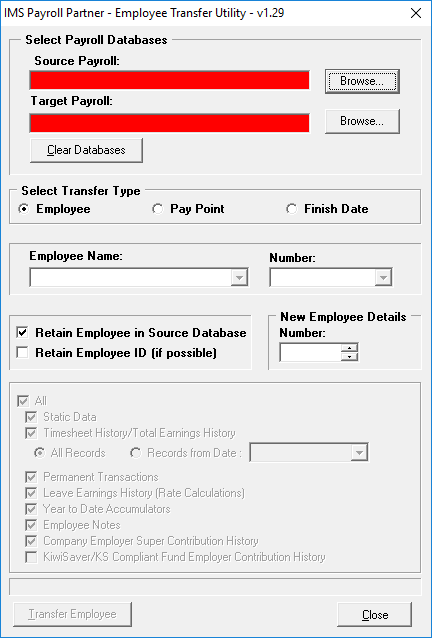
Employee Transfer Options
When the IMS Employee Transfer Utility window appears, there are various options to select.
Source Payroll: Use the Browse button to select the payroll company you wish to transfer an employee from.
Target Payroll: Use the Browse button to select the payroll company you wish to transfer the employee to.
Transfer Type: Select to transfer employees based on their Employee Name or Number, their Pay Point or their Finish Date. The options below change depending on your selection here.
Employee Name / Number: When Employee is selected for the Transfer Type, you can select an individual employee to transfer. Select the employee’s name or employee number from these dropdowns.
Pay Point: When Pay Point is selected for the Transfer Type, you can transfer all employees with a specified Pay Point. Select the Pay Point from this dropdown.
If you want to transfer several employees from different Pay Points, you can create a new temporary Pay Point in the source payroll company. This Pay Point can then be assigned to those employees to be transferred. Once the transfer has been successfully completed, the transferred employees can then be assigned a new Pay Point if required.
Finish Date: When Finish Date is selected for the Transfer Type, you can transfer all employees with a Finish Date prior to, and including, the Finish Date entered here. The utility will check to identify employees with Finish Dates in the current tax year. A notification message will display these employees.
If employees are transferred with a Finish Date in the current tax year then the employees transferred will not be included in the source payroll IRD Reports and Trial Balance Report for the current tax year.
Retain Employee in Source Database: This provides the option to retain, or delete, all data pertaining to the employee being transferred in the source database. If the employee is not being retained, i.e. if they are to be deleted from the source database once the transfer has completed, there will be the requirement to transfer the Tax Year To Date Accumulators (see below) to ensure that Tax information is not inadvertently lost. If the employee is moving to a payroll database that reports to the same IRD using the same company IRD number this option would normally be unticked. If the employee was moving to a database with a different company IRD number this option would normally be ticked.
Retain Employee ID (if possible): The Employee ID is the unique identification code assigned to an employee when they are first entered into the payroll whereas the Employee No is subsequently manually assigned if required. The Employee ID can be viewed on the Employee Inquiry window (click on the Employee Information screen in MYOB IMS Payroll:
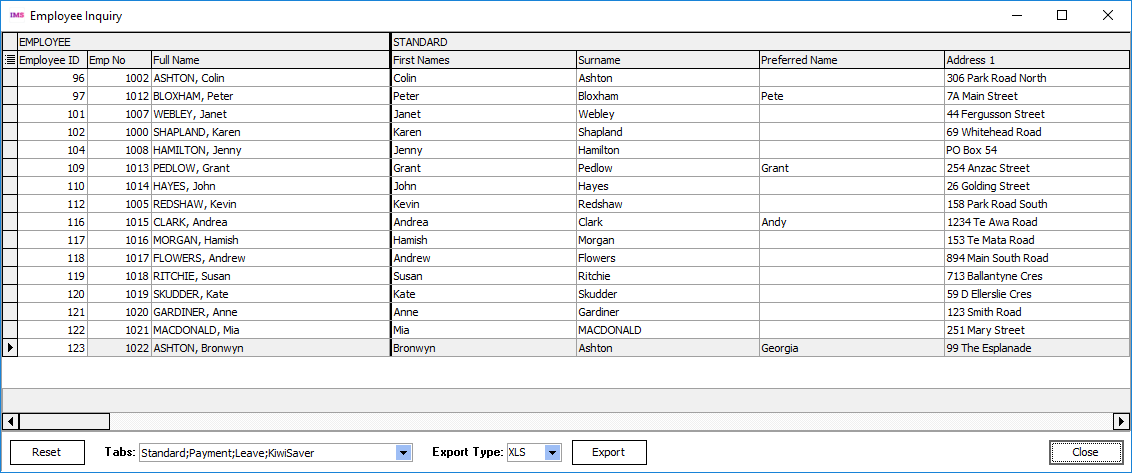
If it is not possible to retain the ID of an employee being transferred, due to an identical Employee ID already existing in the Destination Payroll, then the operator will be advised and given the opportunity to continue, or not, with the transfer. If the option to continue is taken then the employee in question will be assigned another unique ID number starting from 50,000.
New Employee Details - Number: If the user-assigned employee number of the employee being transferred is already assigned to another employee in the target payroll, type in an alternative employee number in this field. If this field is left blank and the employee has an employee number in the source payroll company, the system will attempt to assign this number to the employee in the target payroll.
Data to Transfer
This area controls what information will be transferred.
Static Data: This option is always selected and refers to the data as held on the employees Standard, Payment and Annual Leave data screens.
Timesheet History / Total Earnings History: Data as printed on the Sundry Reports > Timesheet History Report and displayed on the Employee Information > History > Total Earnings tab respectively.
If selected, this option will be extended to enable a selection of ALL records or that information pertaining to pay periods after, and including a nominated date. This option would normally not be ticked if the two databases used different Company IRD numbers.
Permanent Transactions: As entered on the Employee Information > Permanent tab.
Leave Earnings History (Rate Calculations): As displayed on the Employee Information > History > Leave Earnings tab. This information is required for calculation of Annual Leave and Relevant pay rates.
Year to Date Accumulators: As per the Employee Information > Totals > Accumulators, Payments and Deductions tabs (including IRD Reporting information, i.e. IR345 and IR348). This option would normally not be ticked if the two databases used different Company IRD numbers.
Employee Notes: As per the Employee Information > Notes tab.
Company Employer Super Contribution History: If the Employer was contributing to a Company Superannuation Scheme on behalf of the employee, i.e. a non- compliant KiwiSaver Fund. This option would normally not be ticked if the two databases used different Company IRD numbers.
KiwiSaver / KS Compliant Fund Employer Contribution History: If the employer was contributing to a KiwiSaver and/or KS Compliant Fund on behalf of the employee. The history referred to relates to the last 52 weeks of KiwiSaver and/or KS Compliant contributions, by both employee and employer, which is used to determine if any subsequent employer contributions are ESCT exempt. Employer Tax Credit (ETC) information is also transferred. This option would normally not be ticked if the two databases used different Company IRD numbers.
If the Costing Required? option is activated in both companies, the Costing Period and YTD totals will be retained in the source company. Within the Target company the Sundry Report – Costing History Report will include the transferred employee(s) Costings if Timesheet History was selected for transfer.
Transferring the Employee
Click on the Transfer Employee button to begin the transfer. If a new Employee Number has not been assigned, you will be asked if you want to continue. Click Yes to proceed or No to stop the process and assign an Employee Number.
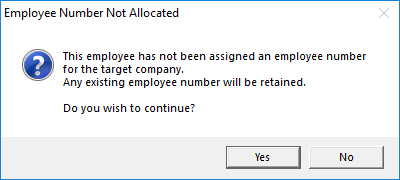
Prior to the transfer, a verification process will identify any potential issues with transferring an employee. A report will be produced advising of missing Pay Points, Permanent Transactions, Contracts, Costing Codes, Note Categories, Payments and Deductions master files not existing in the target company. An error report is subsequently produced identifying these issues.

Close the report. When you do this you will be asked:
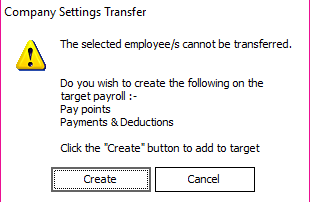
Click Create to proceed or Cancel to stop the transfer process. If you choose to proceed, you will be advised that the missing items have been successfully created. Click OK to proceed.
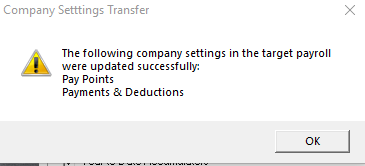
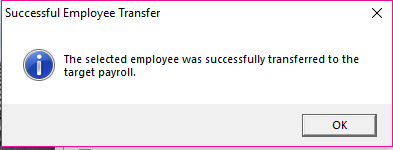
You will then be advised if the transfer has been successful or not. Click OK and then close the Employee Transfer Utility.
Examples
Both Company IRD Numbers are the Same
In this scenario we would expect the employee’s information would NOT be retained in the source database and all employee information including timesheet history and year to date accumulators would be moved.
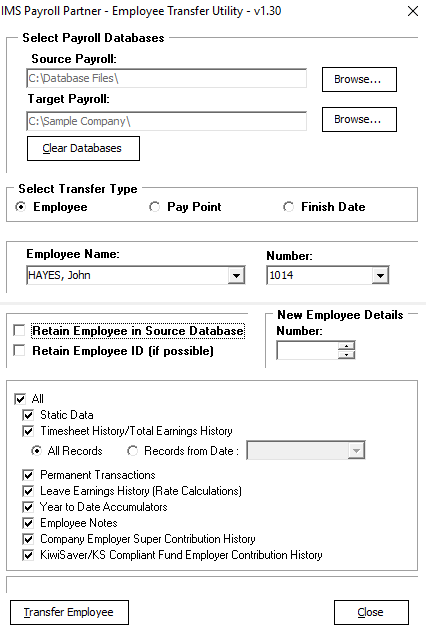
A New and Departing File will be generated after the first pay. In this scenario this information should not be sent. For this reason, it is recommended that no other new or departing employees be paid in this first pay run.
Company IRD Numbers are Different
In this scenario we would expect their information would be retained in the source database and all employee information including timesheet history and year to date accumulators would NOT be moved.
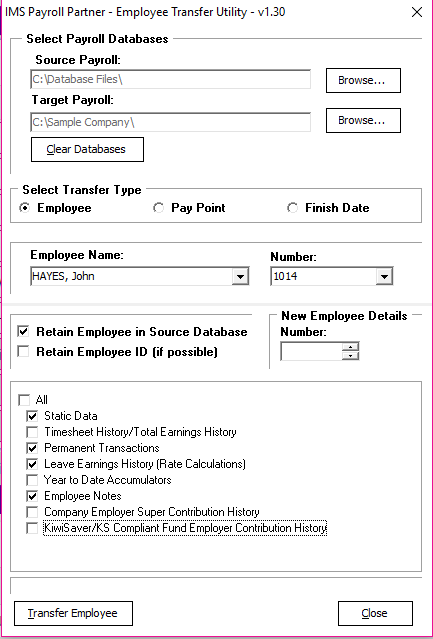
A New and Departing File will be generated after the first pay. In this scenario this information should be sent to the IRD. Because you have migrated the employee’s original start date the would need to be manually adjusted in the file created. This can be done by opening the file in Notepad.