
Modern Customer Portal: Paying Sales Orders and Invoices
In the Modern Customer Portal, you can make payments for orders and invoices by using saved payment methods or adding new ones on the fly.
At a Glance: Making Payments
- Open either the Orders (SP504010) form for sales orders or the Balance Overview (SP314010) form for sales invoices.
- Do one of the following:
- Select the sales orders or invoices to be paid now and then click Proceed to Pay.
- Click Proceed to Pay All.
- On the Pay (SP314002) form, complete the payment.
Who does this: An authorized portal user of your company, typically with the Customer Portal Manager, Customer Portal Financial Manager, or Customer Portal Order Manager role.
Let’s take a closer look at how this process works.
Starting to Pay Sales Orders
In the Modern Customer Portal, you start paying open sales orders on the Orders (SP504010) form. Do either of the following:
- Select the check boxes for the open orders you want to pay and click Proceed
to Pay (see below).Important:You can make payments for selected documents only if they have the same currency. If you select a check box for a document in one currency, the check boxes for documents in other currencies become unavailable.
Figure 1. Selection of orders for payment 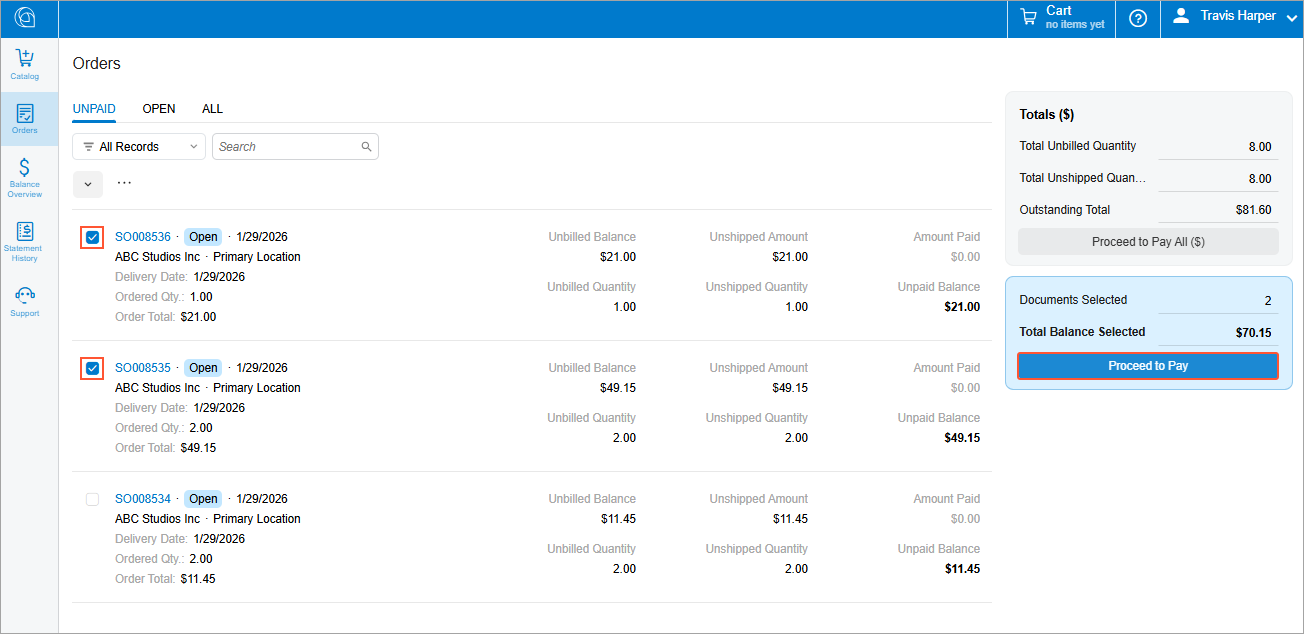
- Click Proceed to Pay All to pay all open orders that are listed
on the filter tab.
Figure 2. The Proceed to Pay All button 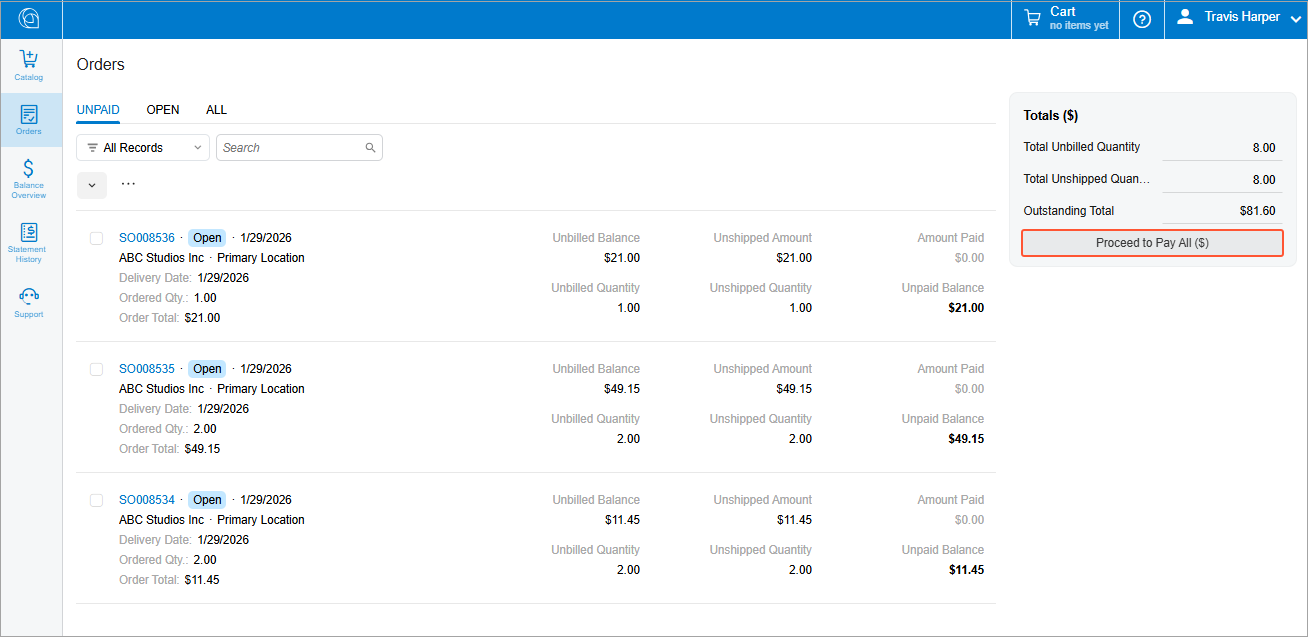
When you click Proceed to Pay or Proceed to Pay All, the Pay form opens.
Completing the Payment
On the Pay (SP314002) form, you complete the payment process. Do either of the following:
- Make full payments for all listed orders: Select the payment method (Item 1 below),
enter a payment description (Item 2), review the listed sales orders (Item 3), and click
Pay (Item 4).
Figure 3. Completion of a full payment 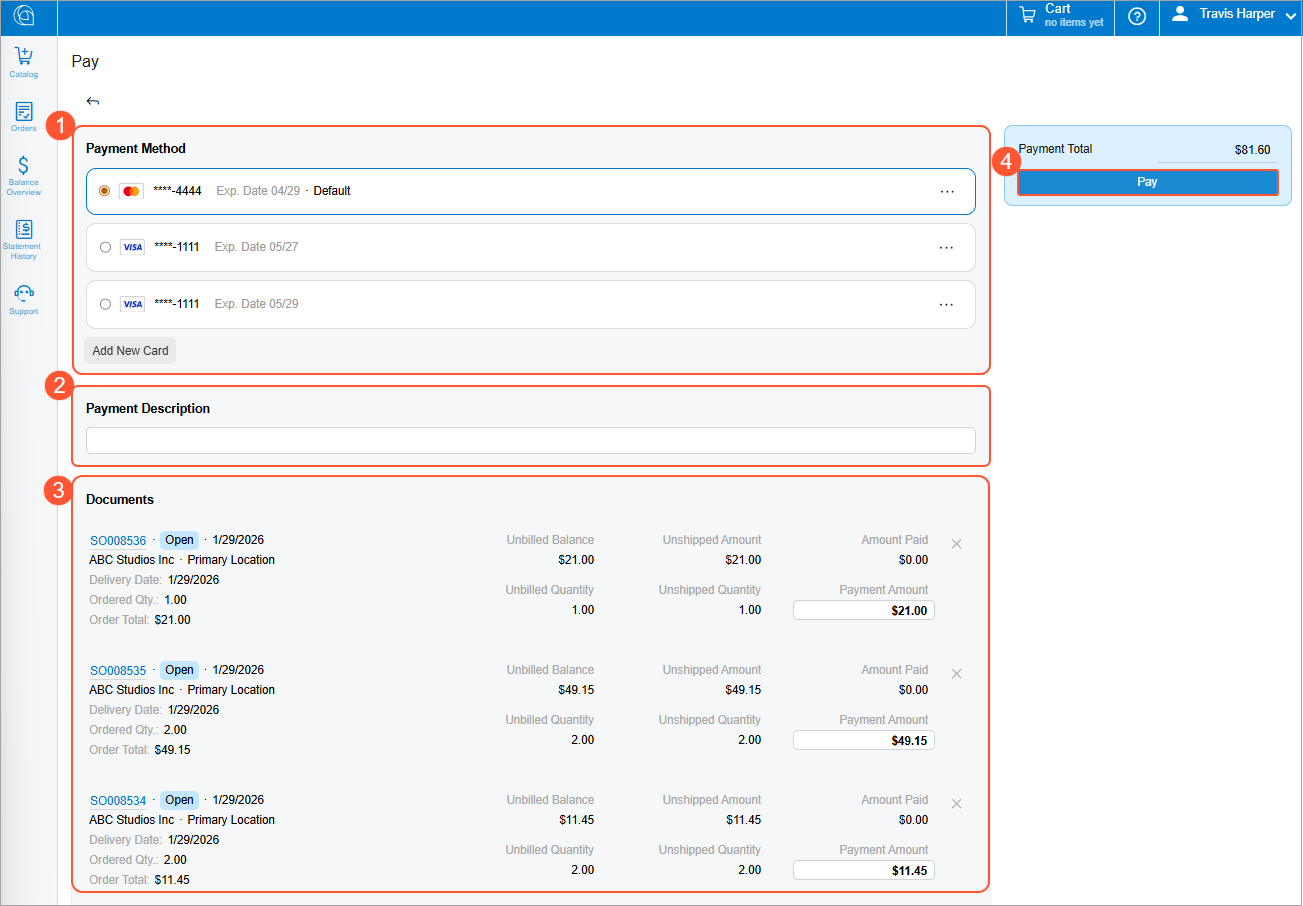 Tip:In the Payment Method section, you can create a payment method without leaving the form. To do this, click Add New Card. In the Create New Card dialog box, enter the settings for the payment and click Submit.
 - Make partial payments. For any sales order, enter the amount you want to pay and click
Pay.
Figure 4. Completion of a partial payment 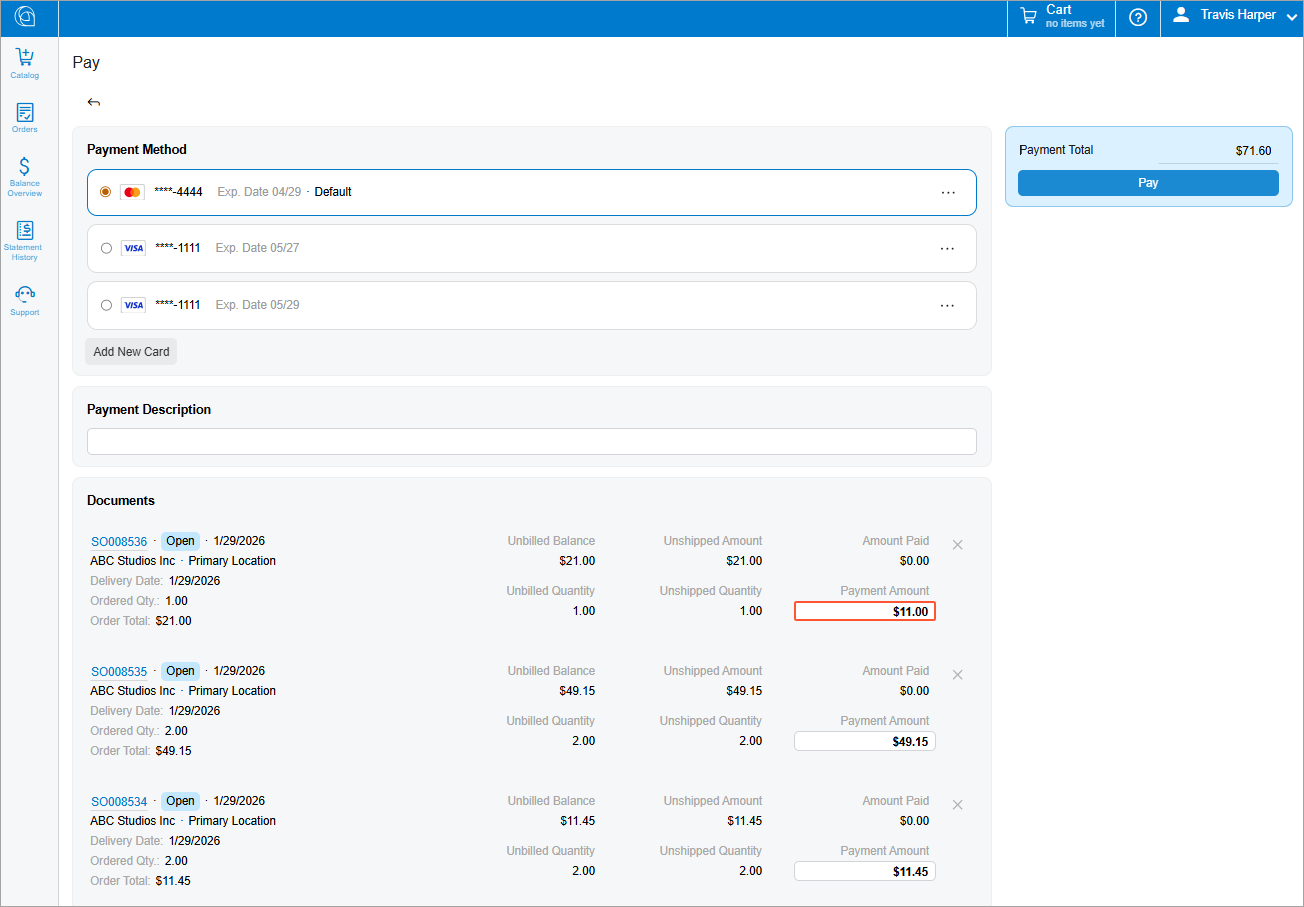
Starting to Pay Invoices
In the Modern Customer Portal, you can pay any number of open invoices.
To begin this process, open the Balance Overview (SP314010) form. On the Open Documents tab, select the check boxes for the invoices you want to pay (Item 1 below) and click Proceed to Pay (Item 3). If you want to pay all listed invoices, click Proceed to Pay All (Item 2).
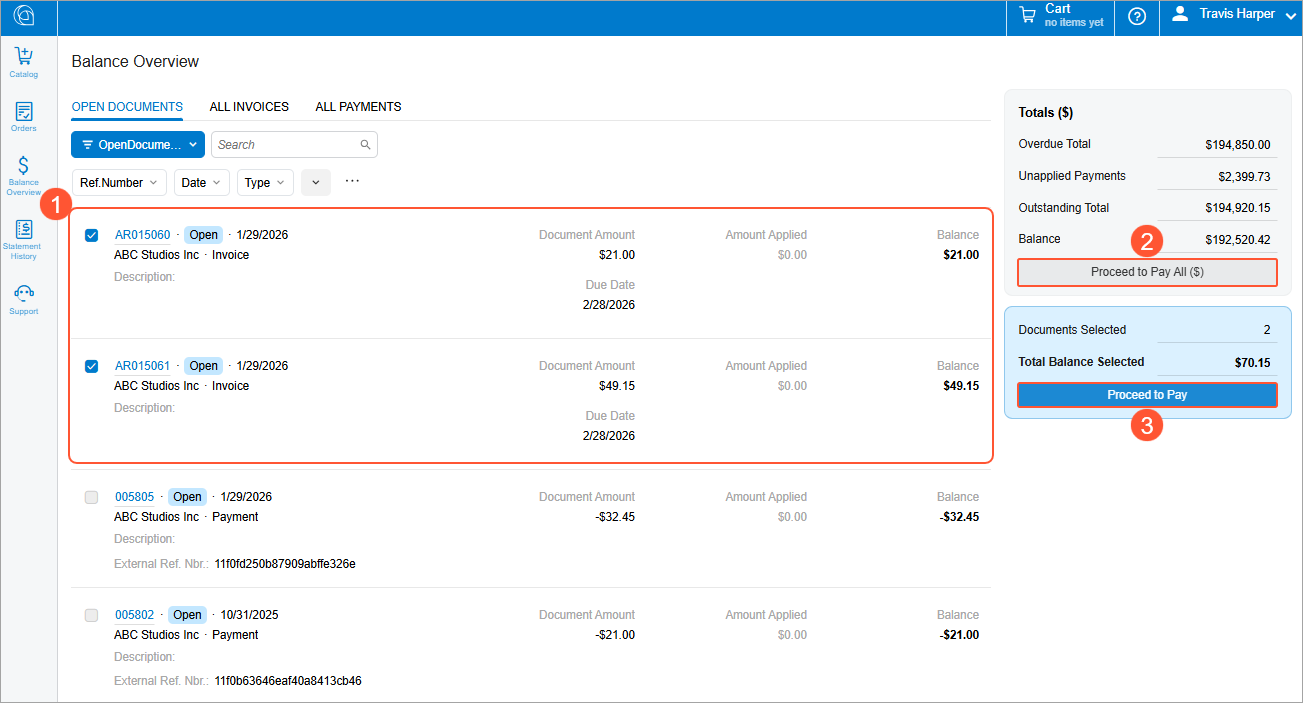
Clicking either button opens the Pay (SP314002) form.
Completing the Invoice Payment
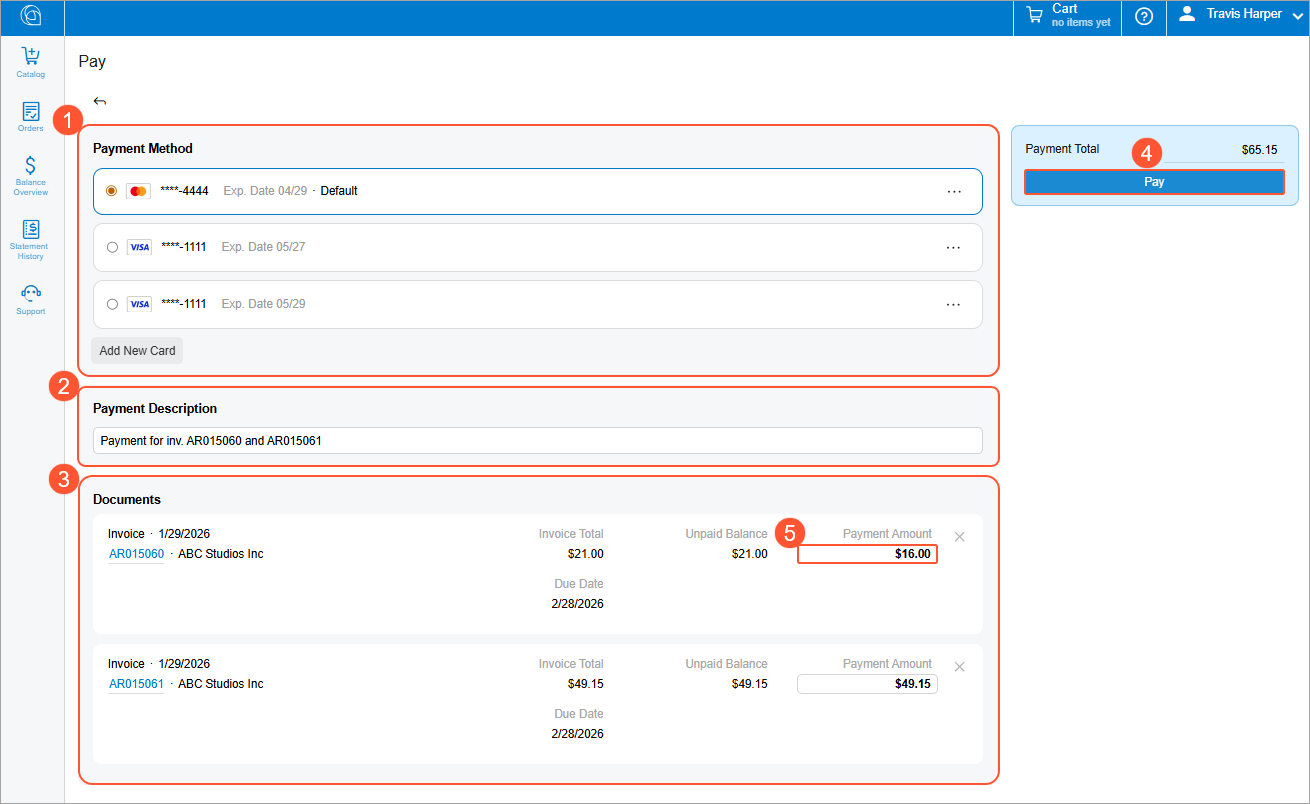
On the Pay (SP314002) form, you finish the payment process. Select the payment method, enter a payment description (Items 1–2 below), review the listed invoices (Item 3), and click Pay (Item 4).
You can instead make partial payments for invoices: For any invoice, you enter the amount you want to pay (Item 5) and click Pay.
Unsuccessful Payments
The Modern Customer Portal gives you more control over payments and helps you avoid delays. If a payment attempt fails, you don’t need to start over—you can either retry the payment or change the payment method and submit it again.
If a payment isn't completed (for example, due to an authorization error), the system retains your payment details and creates a payment with the Pending Processing status. If the next retry is successful, the system:
- For sales orders: Replaces the failed payment with a new one linked to each processed order
- For invoices: Creates a new payment and removes any previously failed payments linked to each processed invoice
What's Next?
To learn how to view financial information in the portal, see Modern Customer Portal: Working with Financial Data.