
Esignature Providers: General Information
MYOB Acumatica integrates with Adobe® Acrobat® Sign and DocuSign™, letting you send documents for electronic signing, follow their progress, and retrieve the signed copies—all from within the system.
Documents often require a formal signature from multiple parties before work can proceed or a deal can close. Instead of taking the file out of Acumatica, sending it through an external tool, and uploading the result by hand, you handle the whole process from the record itself and can check the signing status at any point.
To request a signature, you open a file attached to a record—a sales order, purchase order, change request, contract, or similar document—choose the signing account and recipients, and submit the file. The provider sends the document to each recipient by email. The system automatically attaches the completed file back to the original record once everyone has signed.
Requirements for the Integration
Before you set up the integration with the esignature provider, you must do the following:
- Configure an API application in the esignature provider’s portal: Adobe® Acrobat® Sign or DocuSign™
- Get the credentials for the API application.
Getting Credentials at Adobe® Acrobat® Sign
To get credentials for the API application in the Adobe® Acrobat® Sign portal, do the following:
- Open the Adobe Sign portal and sign in to your account.
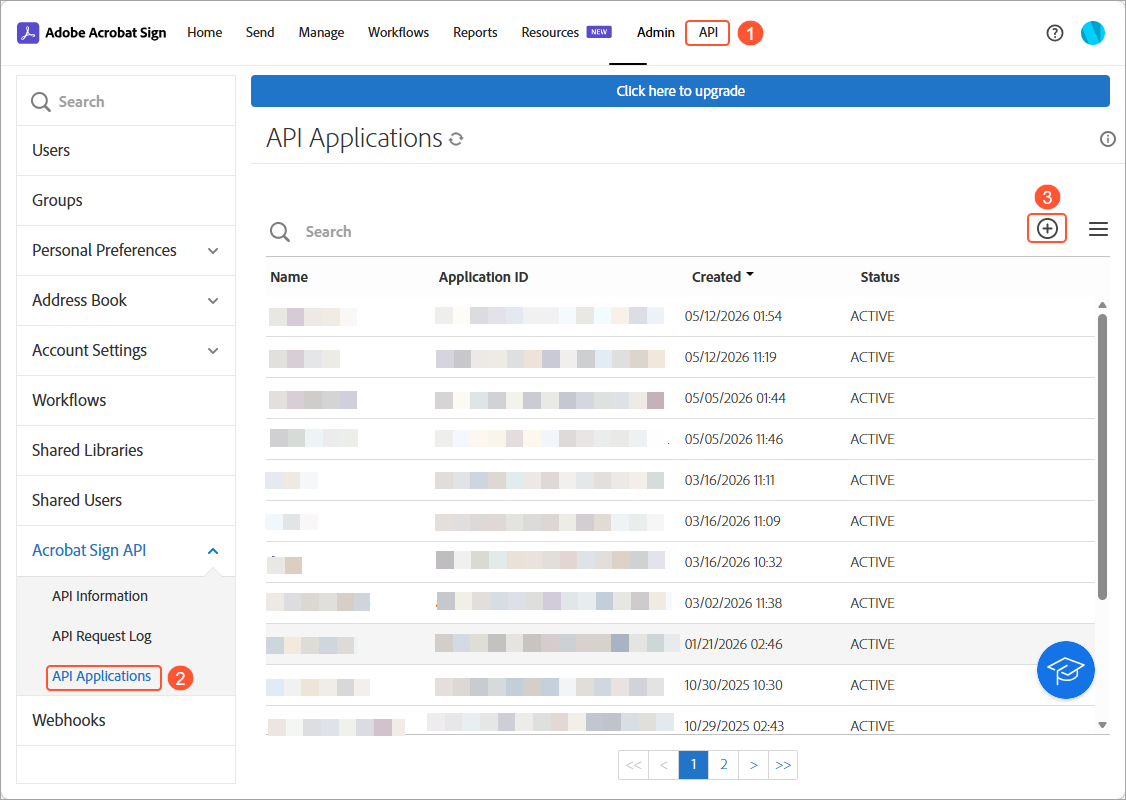
- Open the API tab (Item 1 below).
- In the menu on the right of the Adobe Acrobat Sign page, click API Applications in the Acrobat Sign API section (Item 2).
- Click the Create button (Item 3).
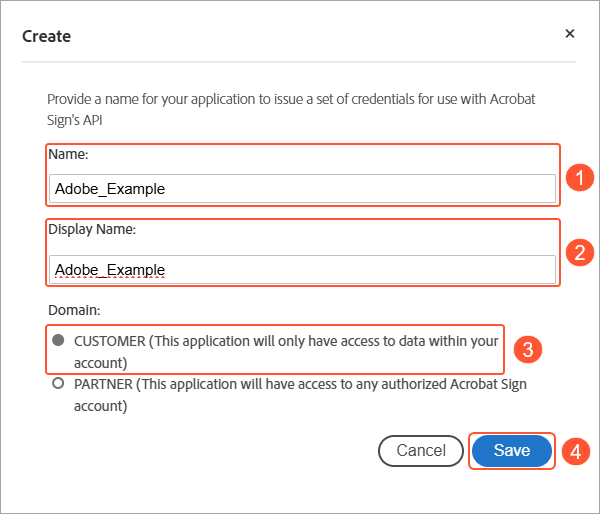
- Specify Name (Item 1 below) and Display Name (Item 2) for your application.
- Select Customer (Item 3) in the Domain box.
- Click Save (Item 4).
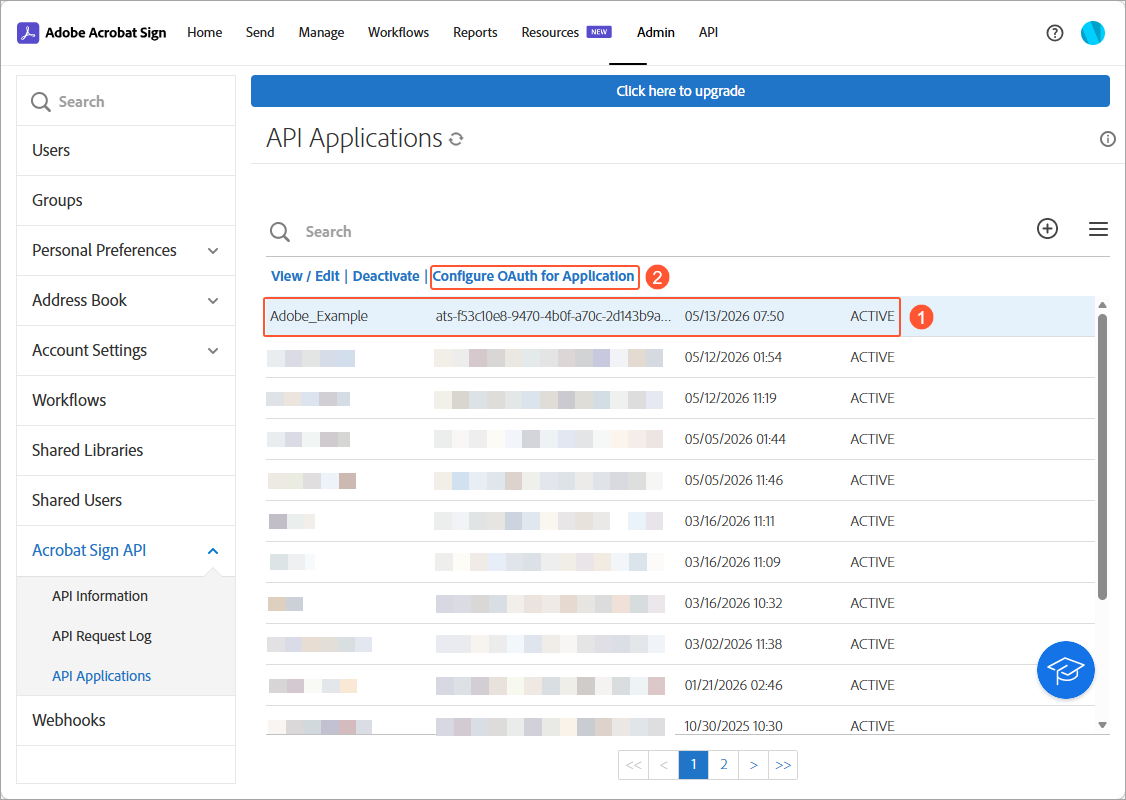
- Select your application (Item 1 below) in the list.
The table toolbar appears.
- Click Configure OAuth for Application (Item 2) in the table toolbar.
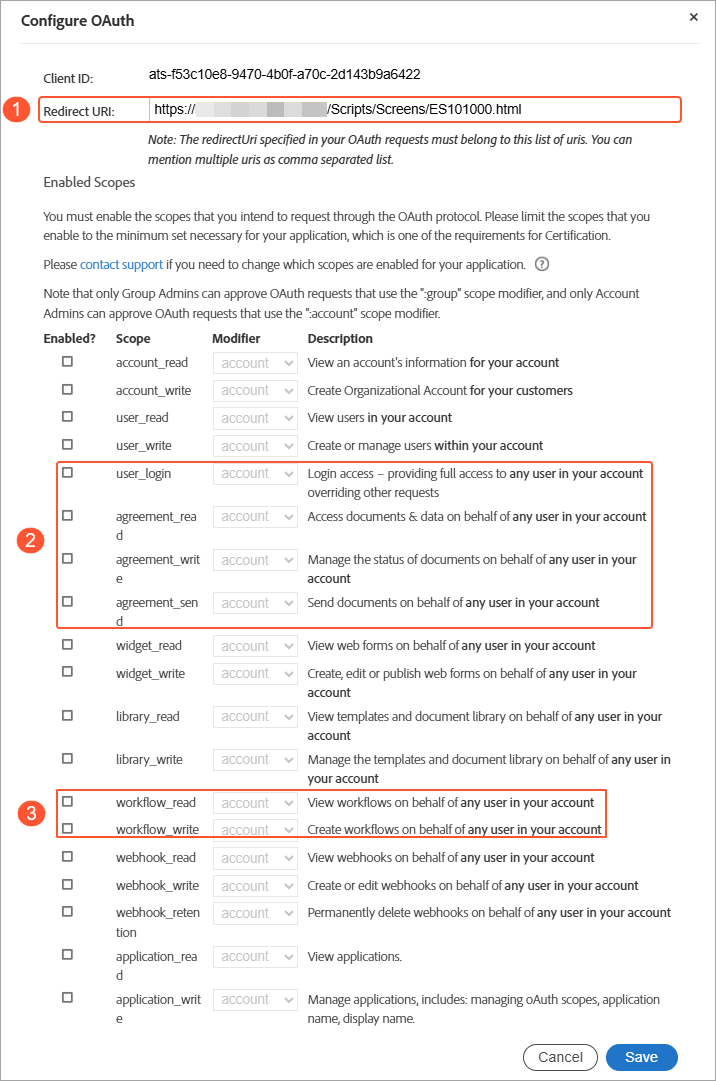
- In the Configure OAuth dialog box, do the following:
- In the Redirect URI box (Item 1 below), specify the address of your instance in the following format: https://<your_Acumatica_URL>/Scripts/Screens/ES101000.html.
- For the user and agreement scopes (Item 2), select the check box in
the Enabled? column next to the following ones:
- user_login
- agreement_read
- agreement_write
- agreement_sent
- For the workflow scopes (Item 3), select the check box in the Enabled?
column next to the following ones:
- workflow_write
- workflow_read
- Make sure that account (the default option) is selected in the Modifier column for all scopes you've selected.
- Click Save (Item 4).
- Select your API application and click View / Edit (Item 1 below) in the table toolbar.
- In the View / Edit dialog box, copy and save the following values:
- The Application ID box (Item 2)
- The Value column (Item 3) in the Client Secrets table.
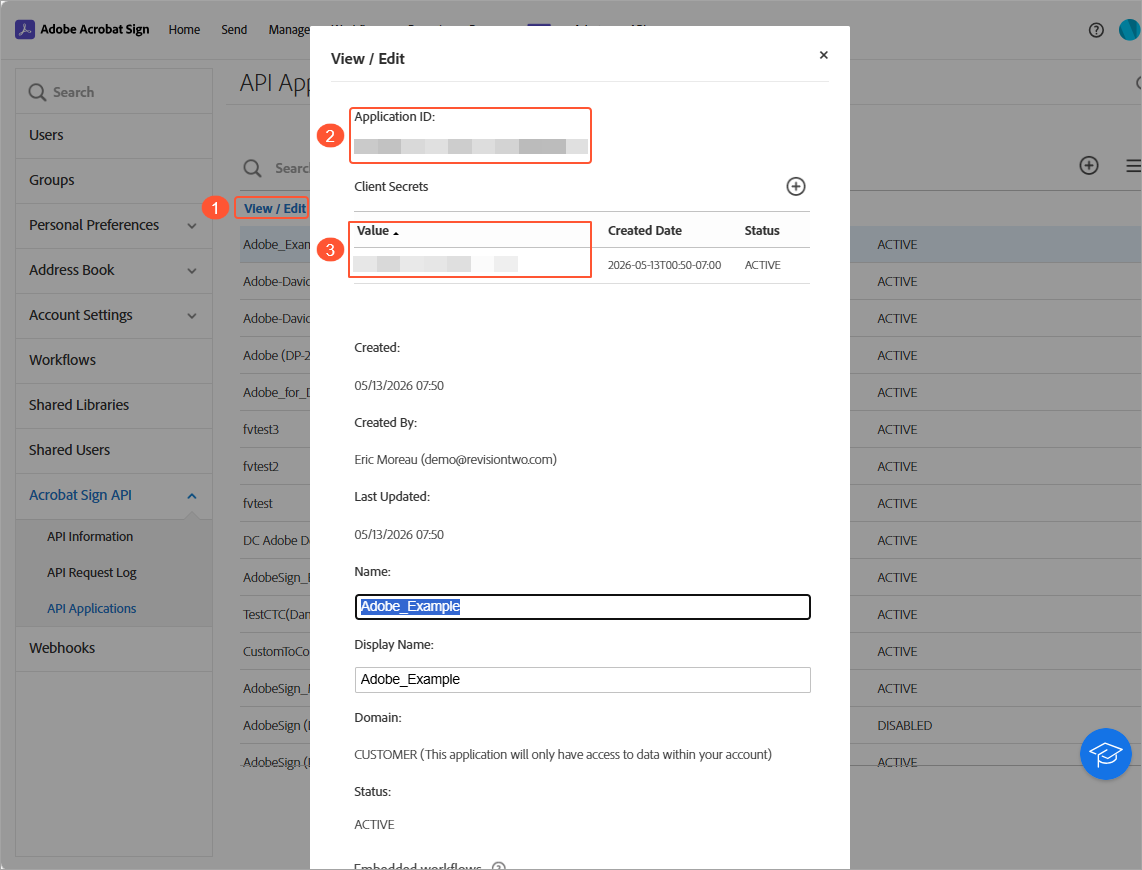
You have successfully created the credentials you will use to set up the connection to Adobe® Acrobat® Sign in MYOB Acumatica.
Getting Credentials at DocuSign™
To get credentials for the API application in the DocuSign™ portal, do the following:
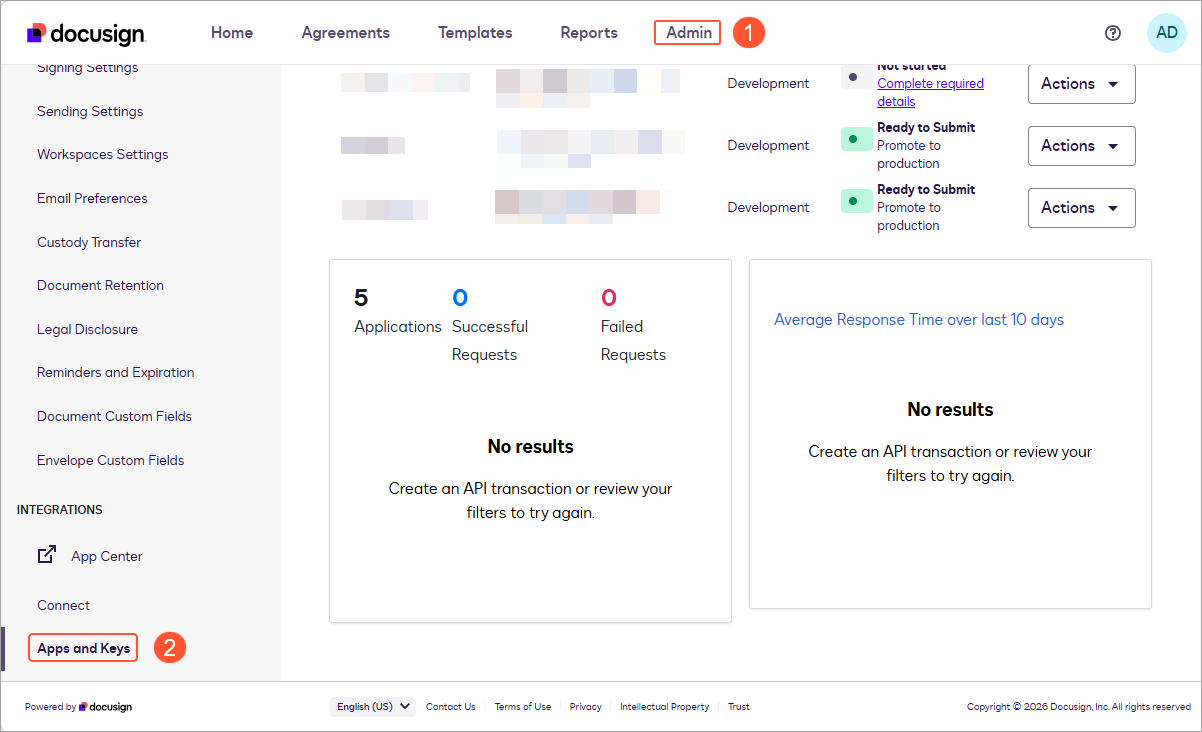
- Open the DocuSign portal and sign in to your account.
- Open the Admin tab (Item 1 below).
- In the menu to the right of the browser window, click Apps and Keys (Item 2) in
the Integrations section.
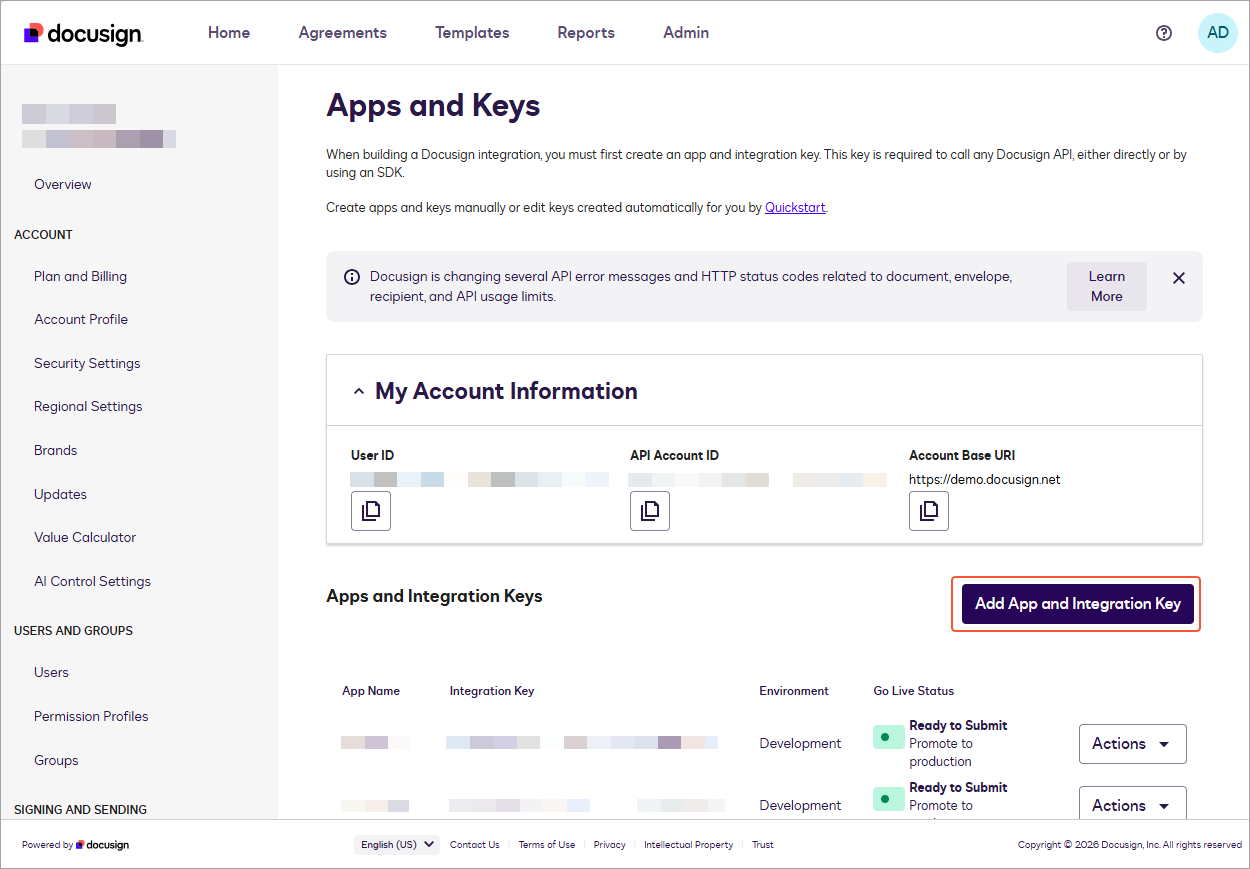
- On the Apps and Keys page, click the Add App and Integration Key
button.
- In the Add Integration Key dialog box, specify the name of your app in the App
Name box.
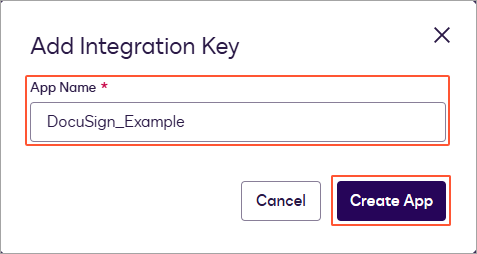
The <Your_Application_Name> page opens.
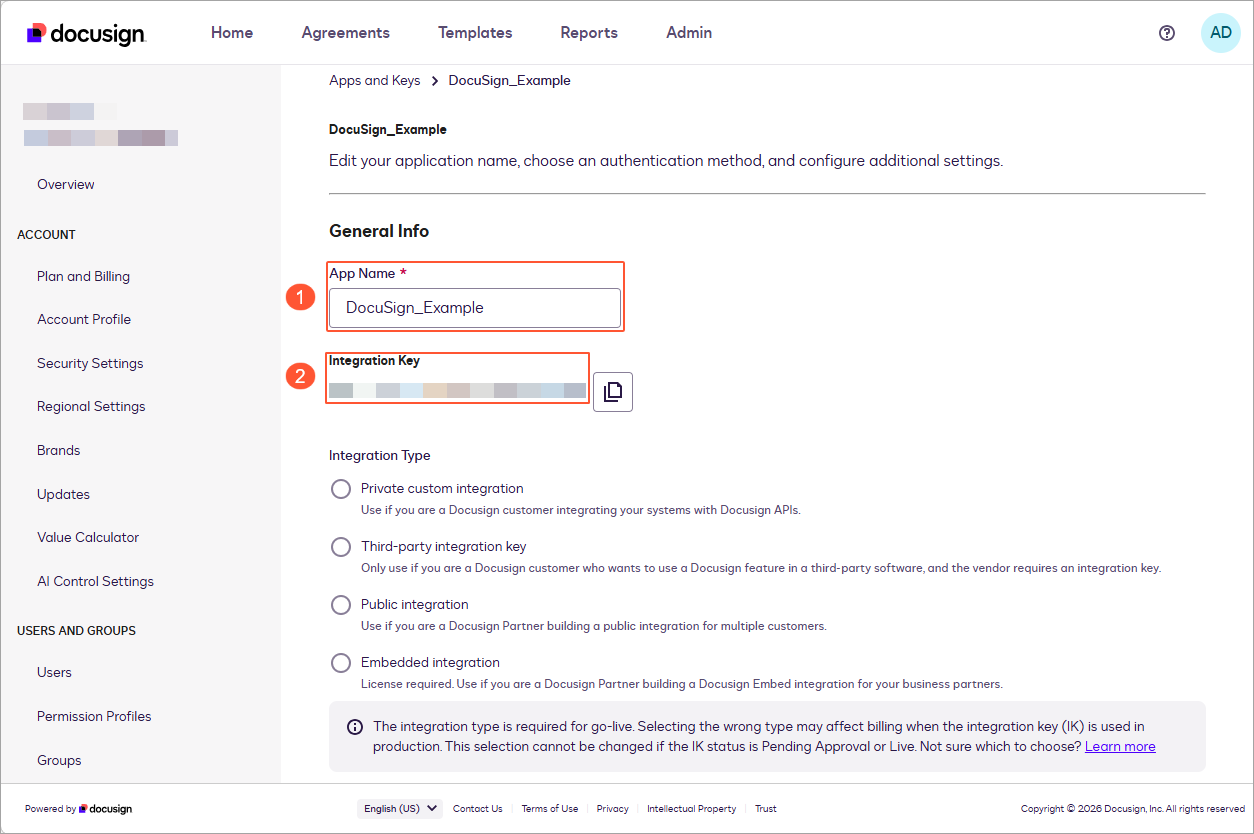
- In the General Info section, do the following:
- Copy the value of the Integration Key box (Item 1 below).
- In the Integration Type box (Item 2), select Third-party integration key.
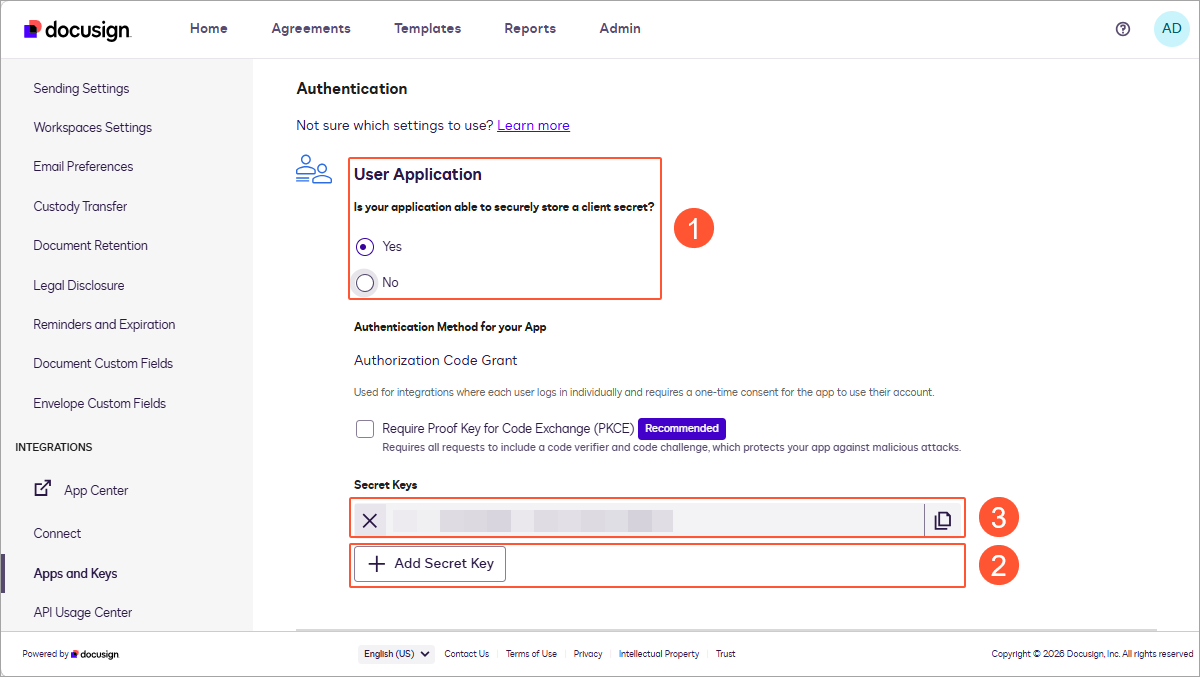
- In the Authentication section, do the following:
- In the User Application box (Item 1 below), select Yes.
- Click Add Secret Key (Item 2).
- Copy and record the generated key (Item 3).
- In the Additional Settings section, do the following:
- Click Add URL (Item 1 below).
- In the empty box (Item 2), specify the address of your instance in the following format: https://<your_Acumatica_URL>/Scripts/Screens/ES101000.html.
- Click Save (Item 3).
You have successfully created the credentials you will use to set up the connection to DocuSign™ in MYOB Acumatica.