
Transaction Details
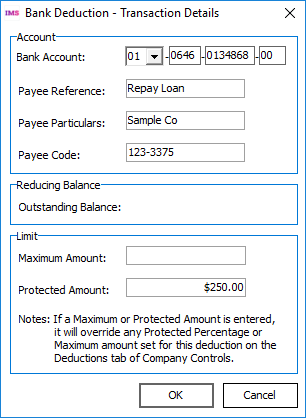
The Transaction Details window is displayed when you add deductions (other than PAYE and Student Loan Repayment) to an employee's timesheet or permanent screen, or when you modify a deduction that is of the Bank payment method or Reducing Balance type, or when you double-click deductions on these screens with the mouse.
Fields in the three sections of the window, Account, Reducing Balance, Maximum Amount and Protected Amount, are hidden or displayed according to how the deduction is defined on the Deductions page.
Account
The Bank Account field is only displayed if the deduction has been defined with the Bank Payment Method.and the deduction was not assigned a bank account number on the Deductions page.
If the Bank Account field is displayed, you will be required to enter a valid bank account number and a Payee Reference.
The Payee fields, Particulars, Code and Reference can be entered for all deduction types, however if the corresponding fields contain values on the Deductions page (with the deduction selected), any value you enter here will be ignored.
If the Bank Account field is not visible, you may still enter details in the three Payee fields and these details will be displayed on the appropriate printed schedule, i.e. the Deductions Schedule or the Bank Schedule - see Print Reports.
Reducing Balance
The Outstanding Amount field is only displayed in this section of the Transaction Details window when the deduction being viewed is of the "Reducing Balance" type.
The field displays the amount of money still to be recovered from the employee before any current pay period was opened or calculated.
When you add a Reducing Balance deduction to an employee's Permanent screen, you must enter the total amount to be recovered by the deduction in the Outstanding Balance field of the Transaction Details window.
In an open pay period, if the deduction is included on an employees timesheet and the pay has been calculated, the Outstanding Balance displayed on this screen will differ from the Balance value displayed on the Deduction Totals page of Employee Information by the amount of the deduction (or the remaining balance if the final deduction is a partial amount).
If the pay period is closed when you view the deduction, the Outstanding Balance and the Deduction Totals Balance should agree.
If there are several deduction records of the same type on the employees Permanent or Timesheet screen, the Outstanding Balance set for the deduction is common to all instances of the deduction type for that employee, not individual to each instance.
Limit
The Maximum Amount field displayed on the Transaction Details window allows you to enter the Maximum amount that can be deducted for this deduction.
The Protected Amount field displayed on the Transaction Details window allows you to enter the amount of nett pay that should remain for the employee after a deduction has been made (see Protected Earnings for more information).
If there are several deduction records of the same type on the employees Permanent or Timesheet screen, the Protected Amount set for the deduction is common to all instances of the deduction type for that employee, not individual to each instance.