
Company Information
The Company Information Page contains some basic information about the company that is paying the employees.
To see this page, click  on the toolbar and click on the Company tab.
Name Enter the name of the company here.
Address Enter the company's Postal Address.
Contact Person Enter the name of the person responsible for using or managing this program.
Phone Number Enter the company's Phone Number.
Fax Number Enter the company's Fax Number.
Mobile Number Enter the mobile phone number of the contact person for the company.
Email Address Enter the company (or contact person's) email address here. Leave it blank if you do not have an email address or if you do not want to receive email from your software supplier.
IRD Number Enter the company IRD number here.
Large Employer? Tick this box if your company is termed as a Large Employer by Inland Revenue. The definition of a large employer is an employer who pays more than $500,000 in PAYE and ESCT in a year. Large Employers have different requirements:
-
IRD Filing
-
Large Employers must send the Payday files electronically every payday. The files must be sent within two working days of the payday.
-
Small Employers (total annual PAYE and ESCT of less than $50,000) can send the Payday files electronically or by paper. Payday filing by paper is available from April 2019.
-
-
Making payments to IRD
-
Large Employers are required pay their deductions twice a month.
-
Small Employers are required to pay their deductions once a month.
-
IMS Online
The following options relate to the IMS Online functions which offer many benefits including Online Payslips, Online Messaging and Report/Files distribution, Online Leave Requests and Online Timesheets. Please contact IMS Sales for further information and pricing. The options can only be used after the IMS Online facility software has been installed
Active Activate the IMS Online facility.
Holiday Group A default 'Holiday Group' for the company will be required to be selected from a drop down selection box. This Holiday Group will be required for the synchronisation of information between the IMS Payroll and IMS Online facilities. Select the period (Mon-Sun / or Mon-Fri) in which your region observes the appropriate Anniversary day. The group selected will be populated in the Holiday Group field on the Employee Information - Leave tab and may be manually overridden for individual employees on that tab if required. The selected Holiday Group will be the default for any new employees subsequently added.
Email Address Enter the company (or contact person's) email address. A valid email address must be entered to use the IMS Online facility.
A prerequisite for the IMS Online facility is that all active employees must be assigned a unique user defined 'Emp #' as held on the 'Employee Information - Standard' tab. Once the Online facility has been selected a check will be made to ensure that all active employees have a Emp # assigned. If not, a dialogue box will be displayed listing those employees whom do not have a Emp #. At this point selecting the 'Automatic' button will automatically assign an Emp # to those employees listed and the 'Cancel' button will deactivate the facility.
Company Options
Costing Required? Check this box if you want to use costing codes. If you leave this unchecked, you will not be able to create costing codes or enter costing codes against timesheet entries or other transactions. (The ability to turn off costing is very useful if you just want to calculate pays, without going to the extra work of recording costing details).
General Ledger? Check this box if you want to post accounting details to an accounting package, either via a printed report or a computer generated file. If you leave this unchecked, you will not be able to enter account codes against deductions or costing codes. You can generate the file or report using the 'General Ledger Export…' option on the menu.
User Security? Tick this box if you want to enable user security. You may then restrict access to this payroll company by going to the User Codes page (refer to the User Logon page for more information).
Payroll Giving? Tick this box if this payroll company will utilise Payroll Giving and the calculation of Tax Credits. This will allow access to the 'Payroll Giving Deduction?' flag on the Deductions page of Company Controls.
Only those employers whom file electronically to Inland Revenue can adopt the Payroll Giving scheme. If you wish to adopt the Payroll Giving scheme please refer to the documents 'Implementing Payroll Giving' and 'Payroll Giving FAQ's' in the 'Documentation - Frequently Asked Questions' folder on the application CD. For additional information, refer to www.ird.govt.nz.
Shift Leave? Tick this box if you want to enter extra leave entitlements for employees working shifts. This will allow you to access the Shift Leave page in the Employee Information section.
Service Leave? Tick this box if you want to enter additional leave entitlements for employees. This will allow you to access the Service Leave page in the Employee Information section.
Employer Super? Tick this box if your company contributes to a Company (i.e. non-KiwiSaver) Superannuation scheme. This allows you to enter Super details on each employee, so that the Employer's contribution can be calculated each time they are paid.
Sick Leave in Advance? Tick this box if your company allows for paid sick leave to be taken in advance of entitlement. If this option is ticked, any sick leave taken in advance is deducted from the employee's sick leave entitlement at rollover.
FV Leave in Advance? Tick this box if your company allows for paid family violence leave to be taken in advance of entitlement. If this option is ticked, any family violence leave taken in advance is deducted from the employee's family violence leave entitlement at rollover.
Transaction Date 1? Tick this box if you want to enter a transaction date for specific transactions on your employees timesheets (e.g. on an Annual Leave transaction you may wish to enter the date the employee's leave started).
Transaction Date 2? Tick this box if you want to enter a second transaction date for specific transactions on your employees timesheets (e.g. on an Annual Leave transaction you may wish to enter the date the employee's leave finished).
Transaction Dates can only be entered on the Timesheet Entry and Global Load screens.
Transaction Comments? Tick this box if you wish to enter Comments for specific transactions on your employees timesheets (e.g. you may wish to qualify the type of leave that was taken when Sick Leave was paid to an employee i.e. Sick, Parental etc).
Transaction Comments can be entered on the Permanent, Timesheet Entry and Global Load screens. Transaction comments entered against permanent transactions will be copied into the timesheets when you open a standard payroll period.
If the Transaction Date 1?, Transaction Date 2?, or Transaction Comment? options are selected, the information entered into these fields will be available for printing on the following reports:
-
Payroll Reports - Employee Payroll Summary
-
Payroll Reports - Payslip
-
Sundry Reports - Transaction Listing (only comments will be printed for Permanent transaction listings)
-
Sundry Reports - Timesheet History.
To display Transaction Date/Comment information on these reports you must tick the "Print Transaction Dates?" and/or "Print Transaction Comments?" options on the appropriate report options screen.
Maintain Special Total Descriptions Tick this box if you want to assign user-defined descriptions to the five Special Total accumulation fields available on the Payments and Deductions tabs. Payments can be flagged to accumulate into a Special Total on which a deduction can be set up to apply a percentage to the accumulated total. Ticking this option opens a window where you can enter descriptions for each Special Total.
Send Diagnostic and Usage Information to MYOB? Untick this box to deactivate this option.
MYOB would like your help to improve the quality and performance of its products and services. MYOB IMS Payroll can automatically collect diagnostic and usage information and send it to MYOB product development and support teams for analysis.
Diagnostic and usage information may include details about hardware and operating system specifications, performance statistics, crash reports and data about how you use your applications. None of the collected information identifies you personally.
Payday Filing
Automatically create the Payday files after closing the pay Tick this box to create Employment Information (EI) and Employee Details (ED) return files for payday filing as soon as a pay is closed. Click the here link to open a window containing more payday filing settings:
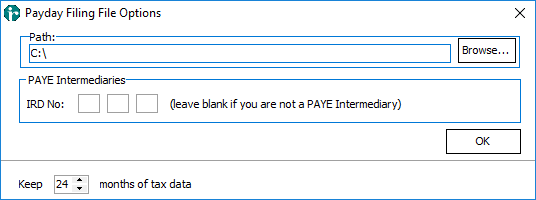
Enter the Path to where payday filings will be stored. If you are a registered PAYE Intermediary, enter a value in the PAYE Intermediaries IRD Number field; otherwise, leave this field blank. Select how many months of payday filing data to keep.
Leave Date / Annual Leave Anniversary Enter the day and month (format "dd/mm") of the company Annual Leave Rollover here if you wish new employees to have a common Annual Leave Due Date (refer Leave). Leave this field blank if you want new employees to have an Annual Leave Due Date that is based on their Start Date.
Minimum Cash Denomination Paid Enter the smallest coin or note value that the company will pay in cash to an employee, e.g. to ensure only notes and no coins are in cash pays, enter $5.00.
Round Cheque Pays to 10c Check this option to ensure that cheque pays are always multiples of 10c - except for cheques for termination pays, which are not rounded. (Some organisations do this so that if an employee cashes a cheque, the bank will not have to round the amount to the nearest 10c, withdrawing a different amount than expected from the company's bank account).
Bank Account Enter the company bank account number here that the direct credit schedule payments will be made from. There is a check digit validation on the bank account number, so the program will only let you enter valid numbers. If this field stays highlighted after you have entered a number, it is invalid - you must type in a valid account number or else you will not be able to direct credit any payments to employees.
Annual Leave in Weeks
Active Tick this option to activate the ability to calculate employees' Annual Leave in weeks. Once activated, this setting cannot be changed.
Set individual employees to calculate Annual Leave in weeks on the Employee Leave screen.
Activate for new Set Hour Employees? Tick this option to set all new Set Hour employees to calculate Annual Leave in Weeks.
Change of Agreed Weekly Hours/Days Behaviour Select what should happen when an employee's Agreed Definition of a Week values are changed. Choose from:
-
Always recalculate the AL Balance in Hours/Days - when an employee’s Agreed Definition of a Week change, their hourly/daily Annual Leave balance will be recalculated automatically. A confirmation message appears, showing the results of the recalculation and giving the option to cancel.
-
Always ask whether to recalculate the AL Balance - a message window appears when an employee’s Agreed Definition of a Week changes. This window gives the option to recalculate the hourly/daily Annual Leave balance and leave the weekly balance the same; to recalculate the weekly balance and leave the hourly/daily balance the same (not recommended), or to cancel the change.
-
Ask only when the AL Balance in Hours/Dyas will reduce - the system behaves as if the Always ask whether to recalculate the AL Balance option is selected when the change to the Agreed Definition of a Week would result in a reduction of the employee’s hour/daily balance and entitlement. If the change means the employee’s hourly/daily values would stay the same or increase, the system behaves as if the Always recalculate the AL Balance in Hours/Days is selected.
Schedule Method
Enter the method by which the company sends its direct credit schedule to its bank. If you select the Electronic schedule method, you must also select the appropriate banking system (i.e. the program you use to transmit pays to the bank) and, if required by that banking system, a batch or subscriber number (refer to the documentation with your banking software for details).
KiwiSaver and Compliant Fund
CEC Exempt? Tick this option if you have employees who are under 18 or over 65 years of age and have been a member of a KiwiSaver scheme or complying fund for a minimum of five years. These members are not liable for CEC contributions. You must also indicate against each employee applicable that they are CEC exempt.
KS Auto Enrol Exempt? Select this option if your company has been granted exemption from the KiwiSaver Auto-Enrolment rules i.e. if your company can provide access to an approved and registered superannuation scheme which complies with specified criteria. Selection will allow exemption from auto-enrolling new eligible employees into KiwiSaver.
Compliant Fund Active? Select this option if your company has a superannuation fund which is a registered and approved superannuation scheme incorporating certain KiwiSaver rules. Approval from the Government Actuary that the requisite criteria has been met is a condition of the fund being classified as compliant. Employees may join the compliant fund in conjunction with KiwiSaver scheme membership if they wish. If selected, access to the Employee Information - KiwiSaver - Compliant Fund section will be available.
The deduction transaction used to effect the employee's contribution to a KiwiSaver Compliant Fund is by default named "KS Compliant Fund". The Name and Data Entry Code for this deduction can be modified, for example to reflect the name of your compliant fund provider. In addition, this deduction can be set up with a "Bank (Direct Credit)" payment method and this can be added to the employee's permanent transaction list containing the individual employee's policy reference.
Total Remuneration (Employer Contribution As Salary?) Select this option if your company supports a policy of having KiwiSaver and KiwiSaver Compliant Fund Employer Contributions included as part of an employees Salary or Wages.
Default: Net / Gross This setting determines the default method of calculating the employee's employer contribution value from the Salary / Wages when setting the employee to use the Employer Contribution As Salary facility.
KiwiSaver Reporting Year Starts Select "July" or "April". The KiwiSaver reporting year officially spans 1 July to 30 June. This indicator can be used if, for your reporting requirements, you want the reporting period to span 1 April to 31 March. The selection here affects when the KiwiSaver Period and Year accumulators should be reset.