Modern Customer Portal: Case Management
The case management forms in the Modern Customer Portal are integrated with MYOB Acumatica’s case management functionality. You can submit and manage cases in the portal, and the portal owner’s support team can view and manage these cases in MYOB Acumatica.
On the Case form, you can communicate with the support team through case messages.
This topic explains how you can create and update cases in the Modern Customer Portal.
At a Glance: Portal Case Management
- Create a case in the Modern Customer Portal.
- Send a case message to the MYOB Acumatica support team.
Who does this: An authorized portal user of your company, typically with the Customer Portal Manager or Customer Portal Case Manager role.
Creating a Case
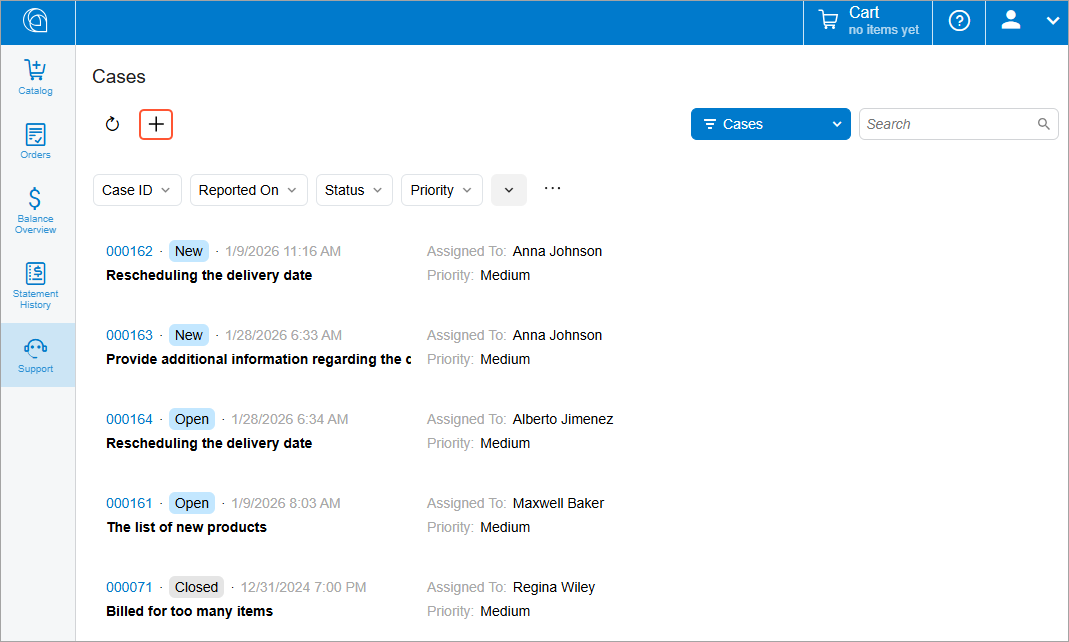
The Cases (SP401010) form of the Modern Customer Portal is the starting point for creating cases and viewing all cases your company’s employees have submitted through the portal. Click the Add New Record button to create a case.
Then on the Case (SP401000) form, which opens, fill in the case’s settings. In the Summary box, type a brief description of the case. On the Details tab, enter a detailed description of the issue or request.
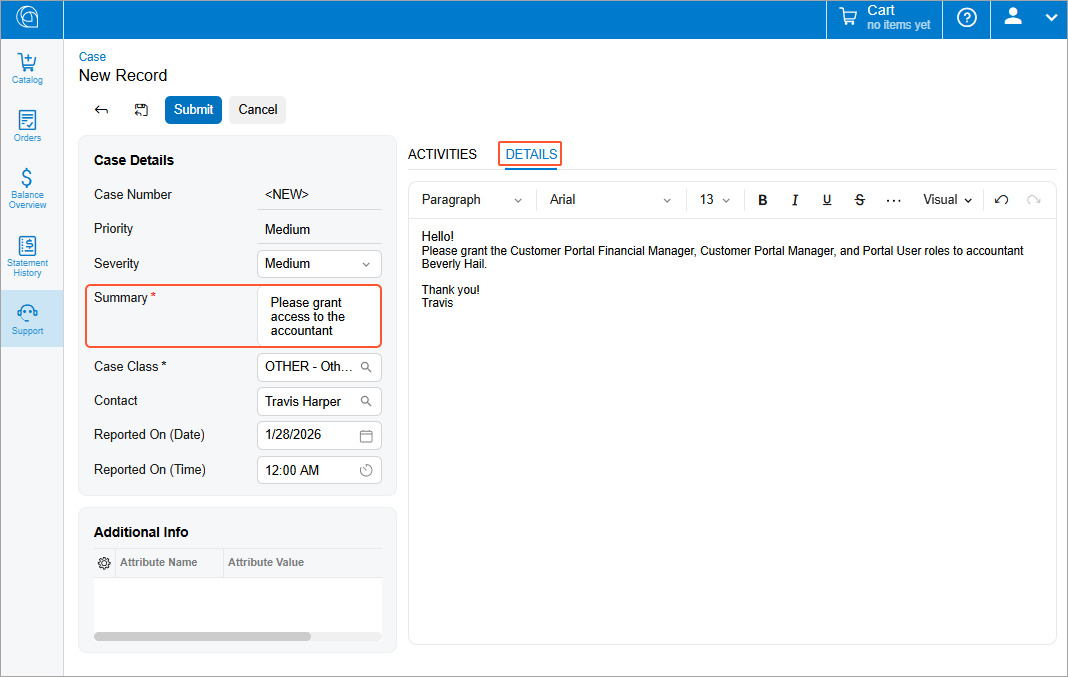
Then click Submit to display the case in the portal owner's system. The system assigns an identifier to the case and notifies the portal owner’s support team.
Updating a Case
Once you’ve created a case, you can track its status, review it, and update its settings in the Modern Customer Portal.
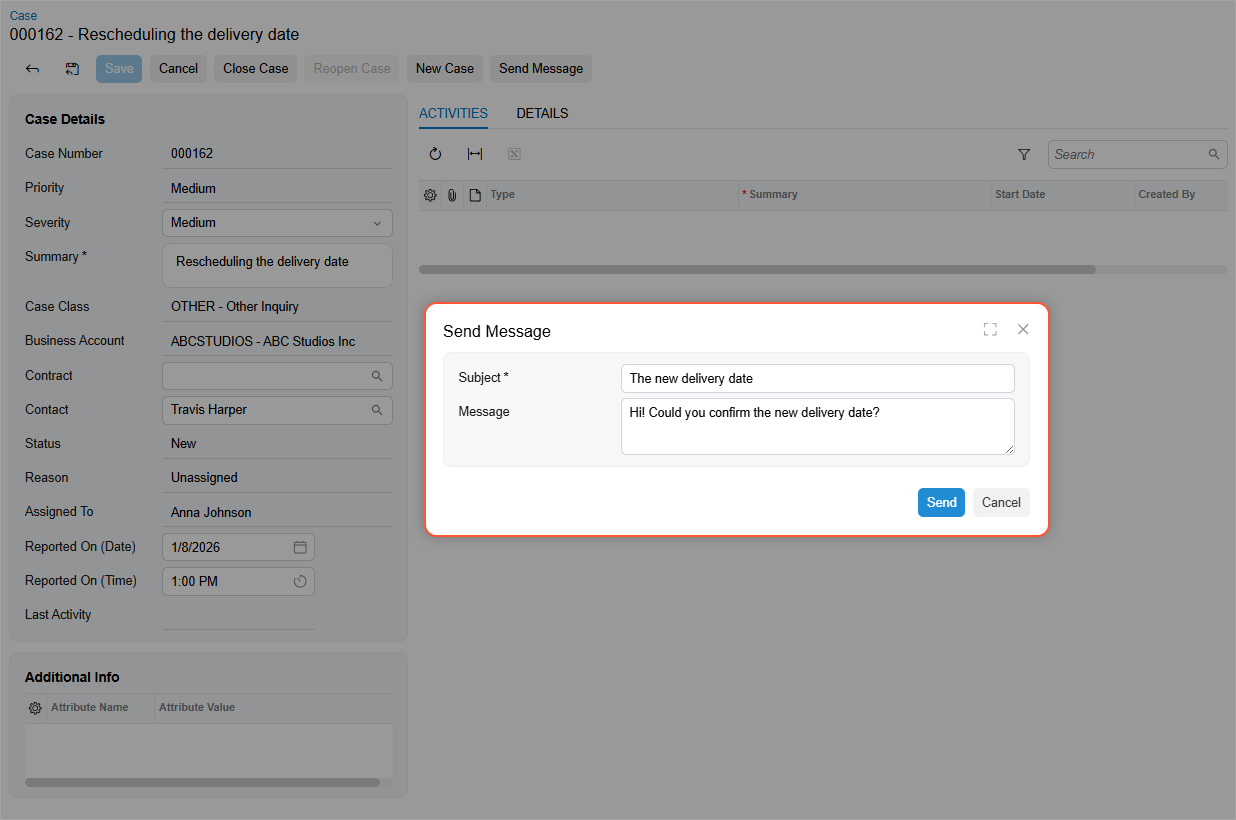
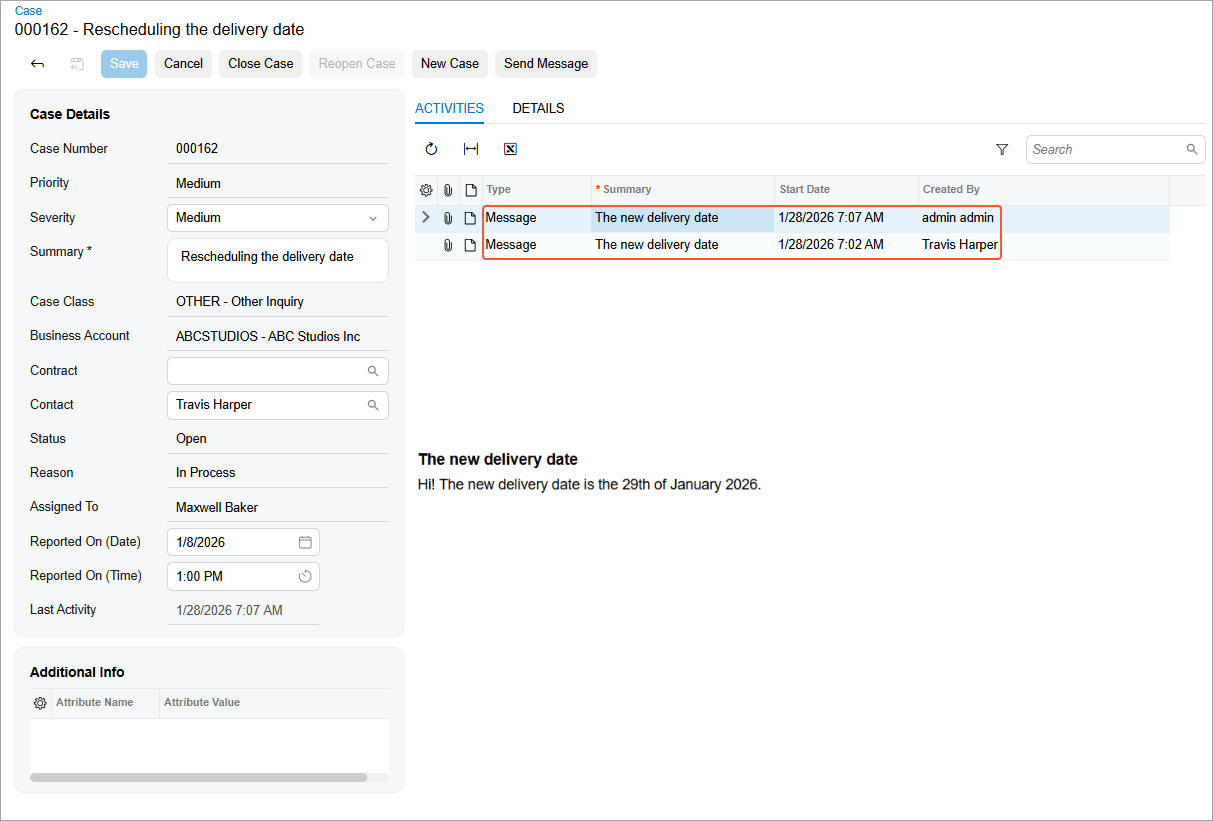
You can also continue communicating with the MYOB Acumatica support team about the case. On the form toolbar of the Case (SP401000) form, you click Send Message and enter your message in the dialog box.
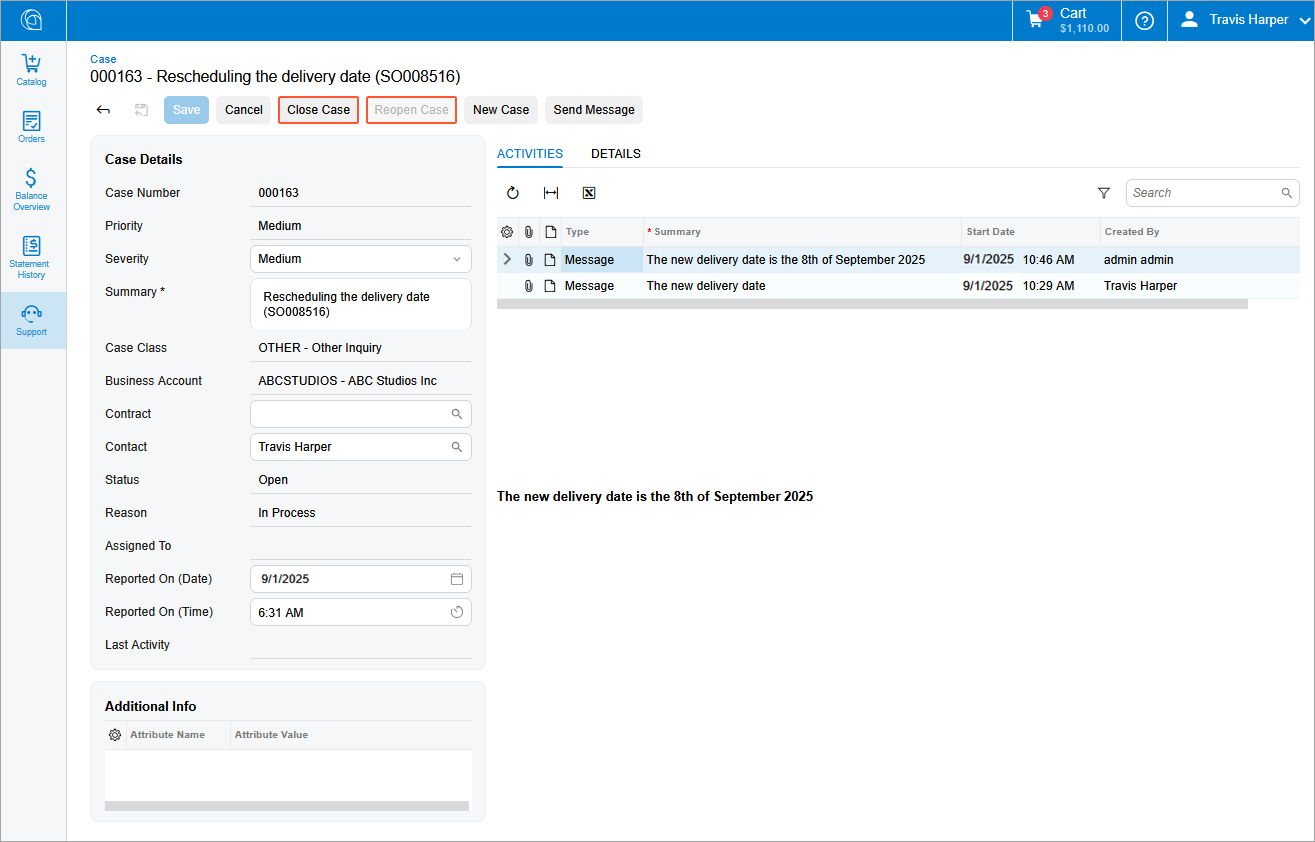
On the Activities tab, you can view all messages you've sent and received for the case.
To close a case or reopen it, click Close Case or Reopen Case.