
Modern Customer Portal: Role Assignment in the Portal
After you create a contact, you must assign roles before the employee can sign in to the system. These roles determine access rights.
You can assign roles directly in the Modern Customer Portal, as described in this topic, or request assistance from the MYOB Acumatica administrator.
At a Glance: Assigning Access Rights to the Portal
- Open the contact in the Modern Customer Portal.
- Assign one or more roles.
Who does this: An authorized portal user of your company with the Customer Portal Manager or Customer Portal Contact Manager role.
This simple process is described below.
Assigning Roles to a Contact in the Portal
On the Company Contact (SP201020) form of the Modern Customer Portal, select the contact you want to assign roles to. In the Portal Access section, click the Grant Access button.
Then select the check boxes for:
- The Portal User role.Important:Every contact must be assigned this role to sign in to the Modern Customer Portal.
- At least one additional role that matches the employee’s position and assigned
responsibilities.
Figure 1. Assignment of user roles 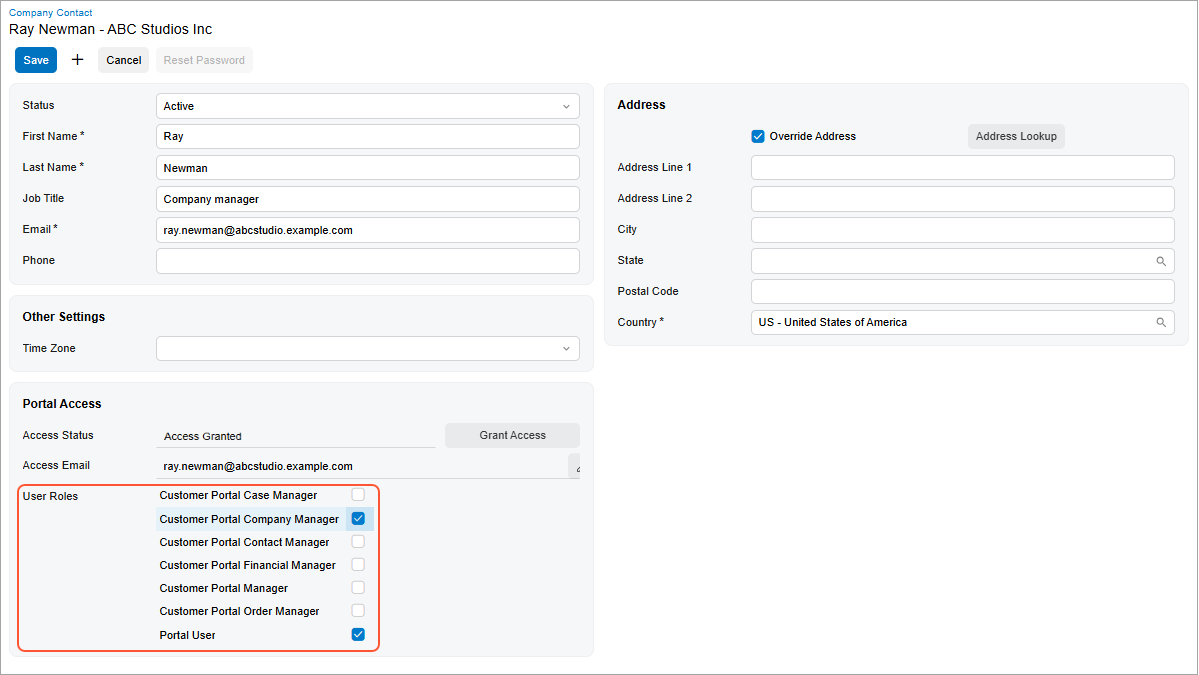
Tip:For more information, see Modern Customer Portal: Access Rights Through Predefined Roles.
If you select only the Portal User role for a contact, this user can access only the Homepage (SP000000) and My Profile (SP101000) forms in the portal.
Save your changes. The system creates the contact’s user account on the Users (SM201010) form of MYOB Acumatica.
What's Next?
The portal user can now sign in to the Modern Customer Portal, view or edit contact information on the My Profile (SP101000) form, and perform tasks based on the assigned roles. The remaining chapters of this guide describe these tasks.