
Modern UI Editor: Creating and Editing a Custom TypeScript Extension
The Modern UI Editor gives you the ability to create and edit custom TypeScript extensions. You click Edit TypeScript Extension on the page toolbar to begin creating this extension. Then you specify its name and add your TypeScript code. The system generates the TypeScript extension file using your specified name.
Creating and Editing the Extension
To create a custom TypeScript extension for a form, perform these general steps:
- Open the Modern UI Editor for the form.
- On the page toolbar, click Edit TypeScript Extension (Item 1 below), which opens the Edit TypeScript Extension dialog box.
- Optional: Click New Extension (Item 2) to clear any previously selected extension in the Extension Name box.
- Specify your extension’s name in the Extension Name box (Item 3).
As you start typing, a drop-down list appears showing existing custom and system-generated
extensions (Item 4).
Figure 1. The Edit TypeScript Extension dialog box 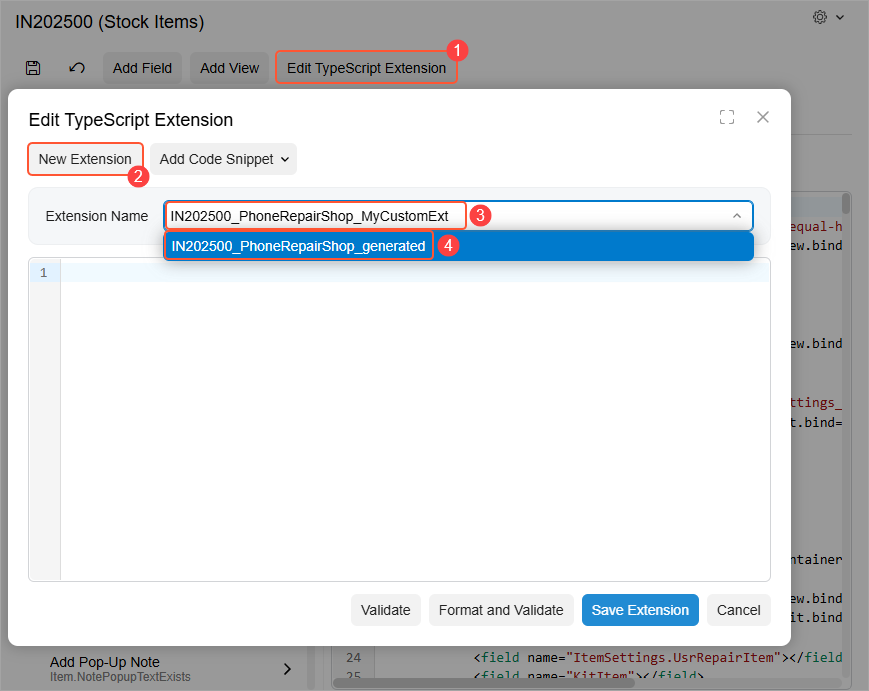
- Once you’ve finished typing the name, move the focus away from the Extension Name box. The system generates the boilerplate code for your extension, which is displayed in the code editor (Item 1 below).
- Modify the code in the code editor. You can also use the options of the Add Code Snippet drop-down menu (Item 2) to quickly add boilerplate code for a field, view, data view extension, grid view or custom event handler. For details, see Modern UI Editor.
- Click Save Extension (Item 3).
Figure 2. Generating a custom TypeScript extension 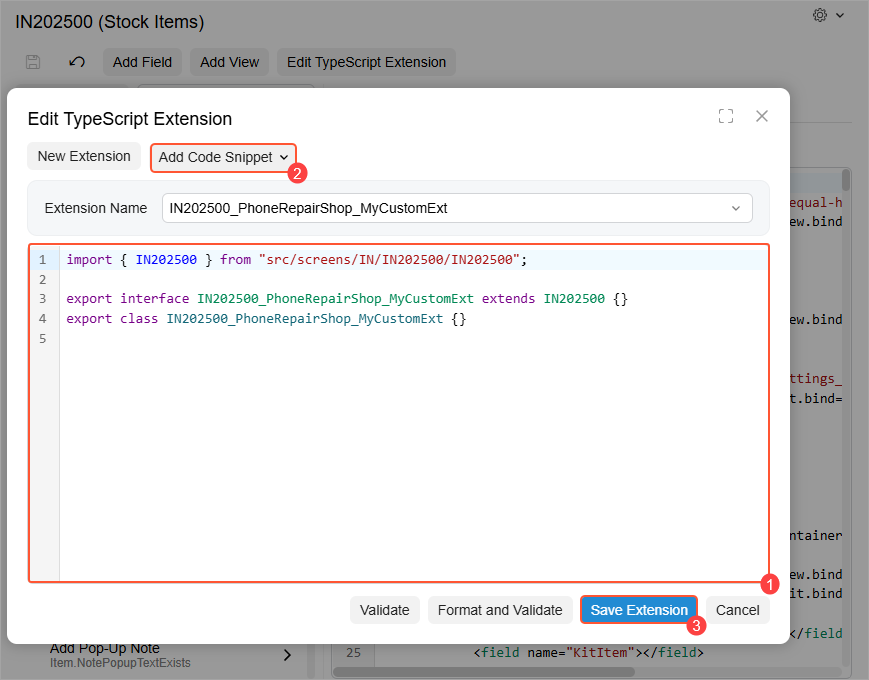
- Click Save on the page toolbar.
The system adds the file with the generated extension to your customization project and lists it on the Modern UI Files page of the Customization Project Editor.
- To apply the changes, publish the customization project. The system validates and builds
the frontend code, including the TypeScript extension.Attention:If you add a view or field while creating or editing a TypeScript extension, you must publish the customization project before you can access this view or field in the element tree of the Modern UI Editor.
To edit the extension, you click Edit TypeScript Extension on the page toolbar, which opens the Edit TypeScript Extension dialog box. Select the extension in the Extension Name box. You then use the code editor to make the changes. Once you’ve finished, click Save Extension.