Modern UI Editor: Adding Decorators to the Selected View or Field
By using the Modern UI
Editor, you can view and customize the TypeScript properties of a view or field. You use the
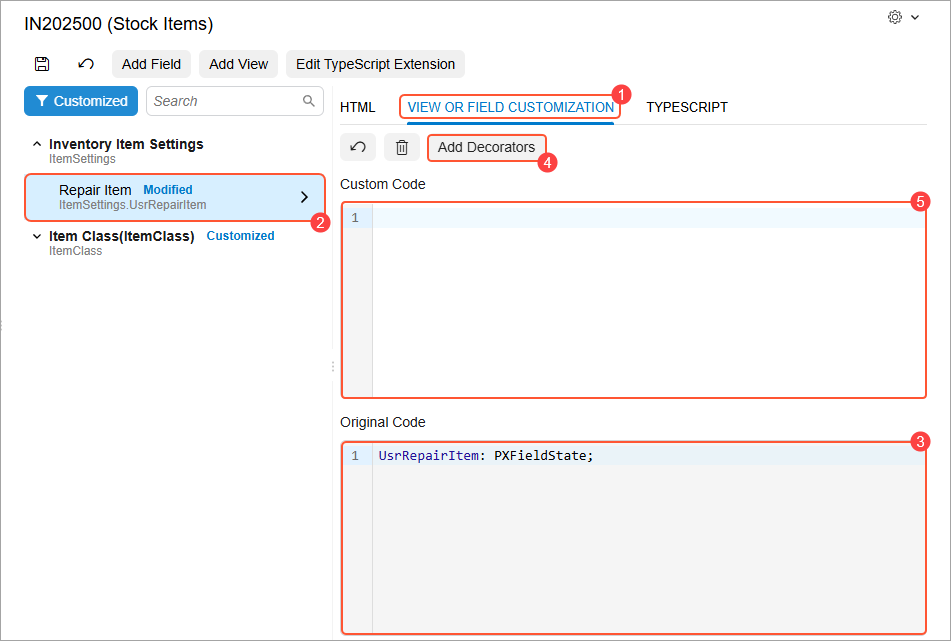
View or Field Customization tab (Item 1 below) of the Modern UI
Editor page to view or customize the TypeScript properties of a view or field that is
selected in the element tree (Item 2). The original code of the selected view or field is
displayed in the Original Code area (Item 3).
You use the Add Decorators button (Item 4) on the tab toolbar to
add new decorators to the selected view or field and customize the corresponding properties
of each decorator. The added decorator code is displayed in the Custom
Code area (Item 5). You can also manually write the code in this area to
customize the TypeScript properties of a view or field.
Figure 1. The View or Field Customization tab
Attention:
Currently, the system only supports adding new decorators to the
selected view or field. You can’t view and edit the properties of decorators that are
already applied to the selected view or field in the original code.
The following section describes the general steps you perform to add a decorator to a
selected field.
Adding Decorators to the Selected View or Field
Suppose that you need to specify that the UsrRepairItem field, represented
by the Repair Item check box in the UI, should be disabled by
default. You need to add the @controlConfig<ICheckBoxControlConfig>
decorator to this field and set its enabled property to
false. You’d perform the following steps:
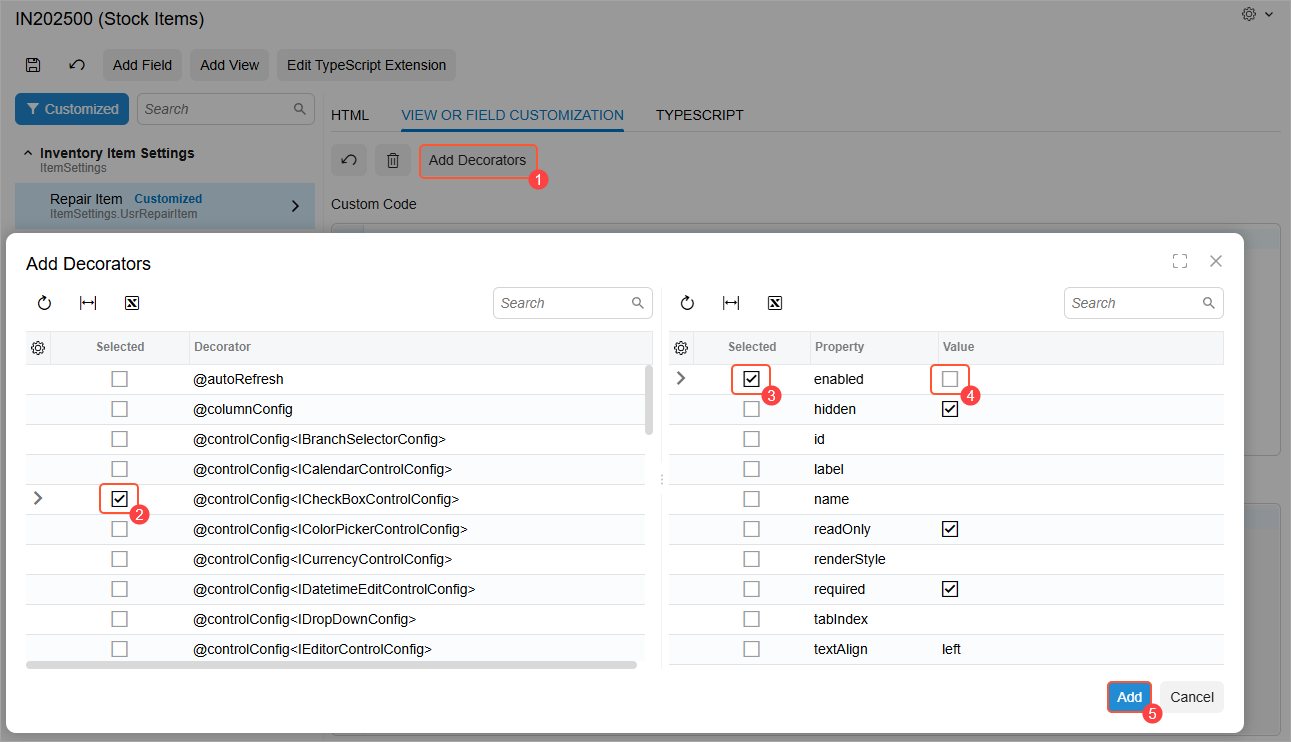
Click the Add Decorators button on the tab toolbar (Item 1
below).
In the left table of the dialog box that opens, select the check box in the
Selected column for the
@controlConfig<ICheckBoxControlConfig> decorator (Item 2).
In the right table, for the enabled property, select the check box in the
Selected column (Item 3) and clear the check box in the
Value column (Item 4).
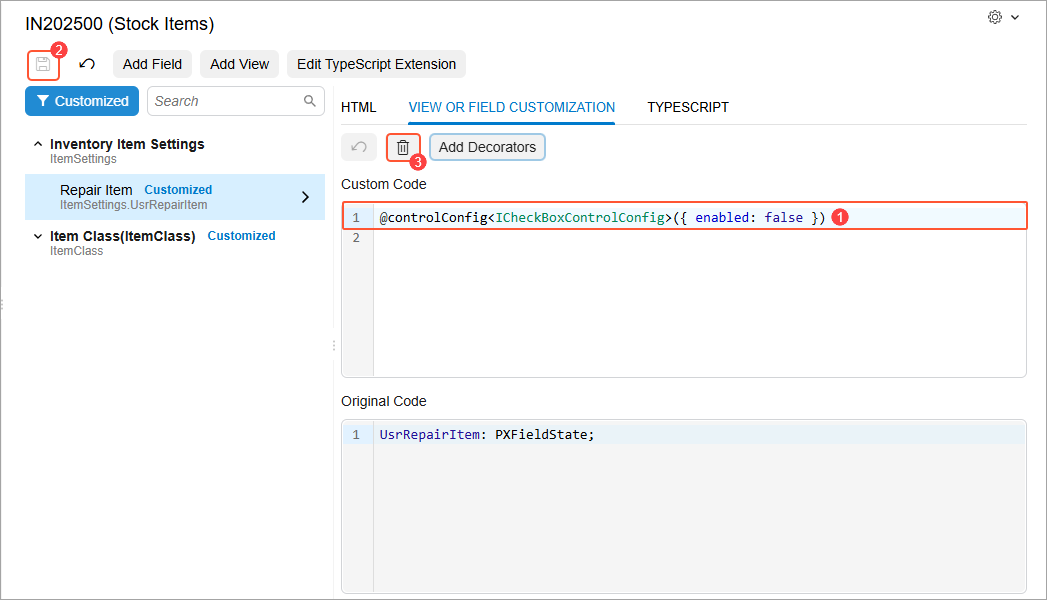
Click Add (Item 5).Figure 2. The Add Decorators dialog box The added decorator code is displayed in the Custom Code area
(Item 1 below).
Click Save on the page toolbar (Item 2).Figure 3. The added decorator code
The system updates the corresponding TypeScript extension file with the added
code.
To apply the changes, publish the customization project.
To remove the decorator code at any time, you click Delete (Item 3
above) and then Save on the page toolbar. To apply the changes,
publish the customization project again.