
Modern UI Editor: Adding a View
In the Modern UI Editor you can quickly add a view that you’ve declared in a form’s graph or a graph extension to the frontend code. You click Add View on the page toolbar to open the wizard you’ll use to add the view. Once you’ve finished, the system generates a TypeScript extension with the _generated suffix in its file name.
Adding a View
To add an existing view to a form’s TypeScript code, perform these general steps:
- Open the Modern UI Editor for the form.
- On the page toolbar, click Add View (Item 1 below) to open the corresponding wizard.
- In Step 1, specify the view in the View Name box (Item 2). The
remaining boxes are filled in automatically. Verify that their values are accurate and
click Next (Item 3).
Figure 1. Step 1 of the Add View wizard 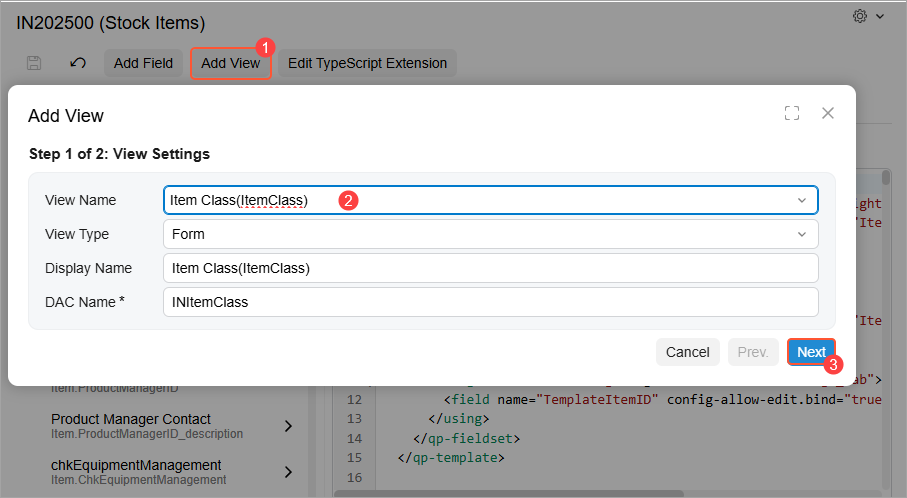
- In Step 2, in the table with the fields of the selected view, select the unlabeled check
boxes for the fields you want to add (Items 1 and 2 below). Click
Finish (Item 3).
Figure 2. Step 2 of the Add View wizard 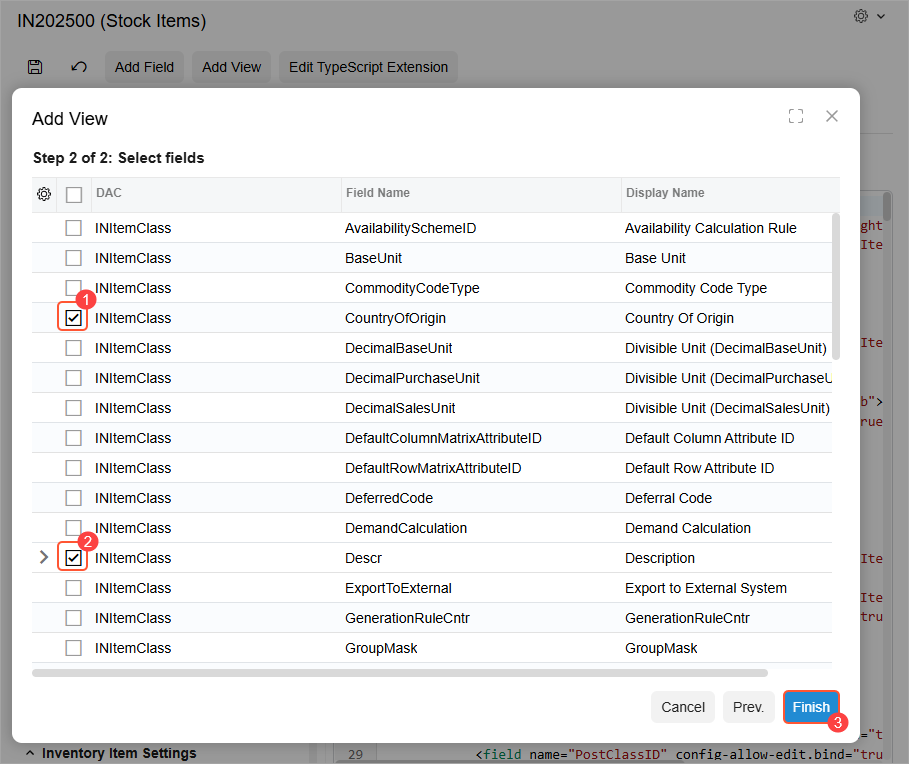
- Click Save on the page toolbar.
The system adds the file with the generated TypeScript extension to your customization project and lists it on the Modern UI Files page of the Customization Project Editor.
Attention:If you’ve previously generated an extension for the form by clicking Add Field or Add View, the system adds the new view and the selected fields to the existing extension file. - To apply the changes, publish the customization project. The system validates and builds the frontend code, including the TypeScript extension.
- To make the view’s selected fields available in the UI, customize the HTML layout of the form, as described in Step 2 of Modern UI Editor: To Add a Field.