
Payday Filing
Payday Filing
Payday filing is a new way of reporting employee pay details to the IRD. Instead of sending an Employer Monthly Schedule (IR348) every month, under payday filing you generate and upload an Employment Information (EI) return file for every pay run. The EI return file contains the same information as the IR348, as well as ESCT amounts for each employee and dates for the pay run. Information about new and departing employees in the pay is also sent to the IRD in an Employee Details file.
Payday filing is compulsory from 1 April 2019, but you can start using it before then. Once you start using payday filing, you no longer need to submit the IR348 and IR345.
See “Payday filing” on the IRD’s website for more information:
Setting up Payday Filing
Before you can upload EI return files, your system needs to be set up for filing using the IRD’s myIR website. If you currently file your IR348 returns electronically, your system is already set up - if not, the IRD has information on registering for and using myIR on their website:
IMS Payroll provides two options to create files for payday filing automatically or manually:
-
The recommended option is Automatic file creation: an EI return file is created for a pay as soon as the pay is closed. (If the pay contains any new or departing employees, an Employee Details file is created as well.)
-
Manual file creation can be used when Payday file(s) need to be re-created and/or created for a pay that is already closed; you will need to create files for payday filing from the Tools > IRD Reporting > EI – Payday Filing Report/File option.
We recommend that the Automatic file creation option is activated to simplify the payday filing process. See “Automatically Generating Files” on page 2.
Automatically Generating Files
In the Company Options section of the Company Information > Company tab. You can decide whether you would like the system to automatically generate the EI Return and Employee Details files on every close of a pay run:
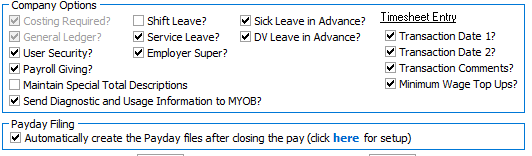
If auto-generation of the payday files checkbox is ticked, you will be presented with an options screen allowing selection of the location to save the exported files to and entry of a PAYE Intermediary’s IRD Number if required.
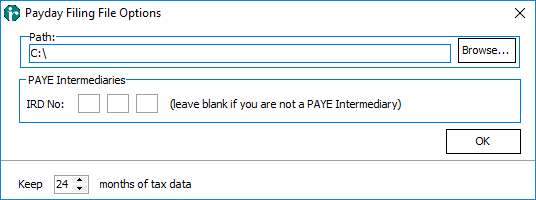
Only enter a value in the PAYE Intermediaries IRD No: field if you are a registered PAYE Intermediary; otherwise, leave this field blank.
The options on this screen are also available from Tools > IRD Reporting > EI – Payday Filing Report/File.
Closing a Pay
When you close a pay, a new process will occur in the background at completion of the close. The EI Return and Employee Details files will both be generated in the location specified in the Payday Filing File options screen above.
The Employee Details file is only generated if there were any employees who have started or finished in the pay just closed.
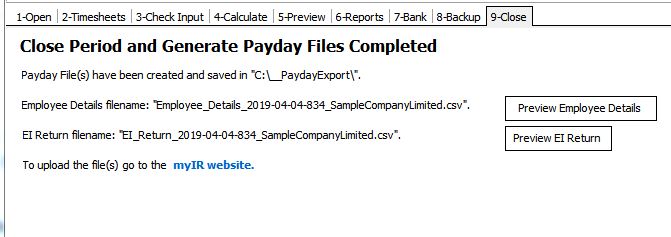
To see a preview of the values generated into the EI Return or Employee Details files, click the Preview buttons on the right. These reports can be printed or saved to disk for reference if desired.
Click the myIR website link to open the IRD myIR logon page.
If you are an IMS Cloud user, clicking the link will copy the link to your clipboard. Open your browser and paste into the address bar to open the same myIR logon page.
If an issue occurs during the file creation process, both files can be generated manually from the Tools > IRD Reporting > EI – Payday Filing Report/File option.
Also note that if you navigate away from the Close tab (e.g. to the Reports tab) and then back to the Close tab, the preview buttons and file information is no longer displayed. In this case the following will be displayed:
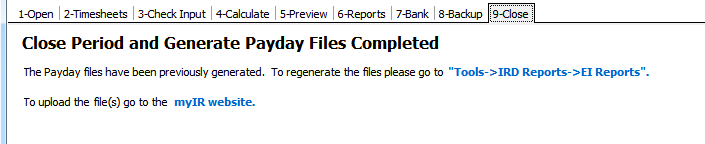
Clicking the link “Tools->IRD Reports->EI Reports” will open the same screen as Tools | IRD Reporting | EI – Payday Filing Report/File (detailed on next page) where the file contents can be previewed or printed if required.
IRD Reporting
When selecting the EI – Payday Filing Report/File option from the IRD Reporting menu, the following screen is displayed:
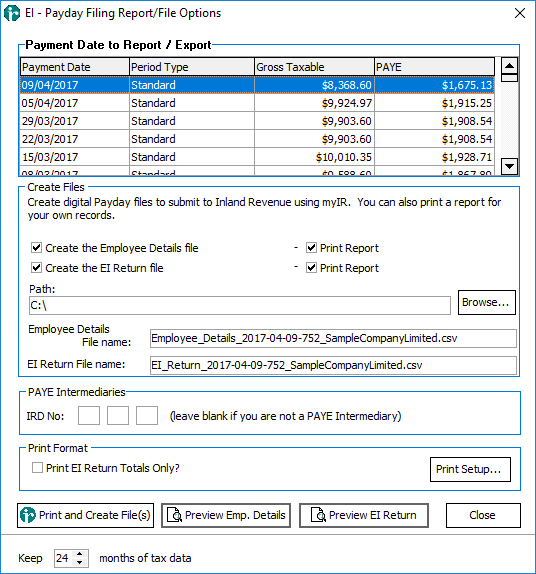
This function can be used to generate both the EI Return and Employee Details files if the Automatically create the Payday files after closing the pay option has not been selected on the Company tab of Company Controls.
It can also be used to regenerate the files from the last pay (e.g. if there was an issue generating the files) or can be used to regenerate the files and/or reports from previous pay periods.
EI Return File Consolidation
The existing Digital File Consolidation function available on the Tools > IRD Reporting menu has been modified to include the facility to consolidate multiple EI Return files, as long as the files are for the same Payment Date and company IRD number. The function duplicates the process in place for EMS (IR348) files—the EI Return files need to be generated to disk first then they can be selected and joined into a new file via the consolidation utility.
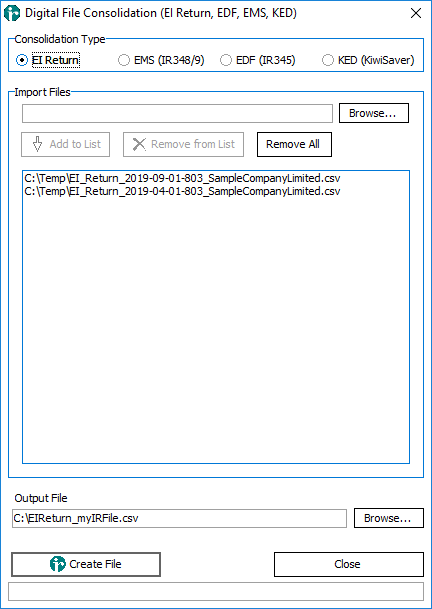
Note that unlike the EMS (IR348) filing, there is no requirement with payday filing to consolidate files before uploading to the myIR portal. You can file as many files for the same payment date and company IRD number as required, as long as the files are not identical (to avoid duplicate uploads). We have added this function for those users preferring this workflow process prior to logging into myIR.