
Minimum Wage Top Up
Introduction
The Minimum Wage Top Up tool provides the ability to ensure employees are paid the minimum wage requirements covered in the Minimum Wage Act 1983. To achieve this, the earnings for each employee are divided by the total number of ordinary hours for that employee in the pay run – this calculated rate is then compared to the current Minimum Wage Rate, the difference is calculated, and then the results are displayed for review.
To activate the tool, navigate to the Company tab of Company Controls and tick the Minimum Wage Top-Ups? checkbox.
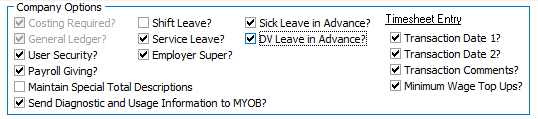
A new Minimum Wage Top Up Calculator option will then be available in the Tools menu.
Setting Up
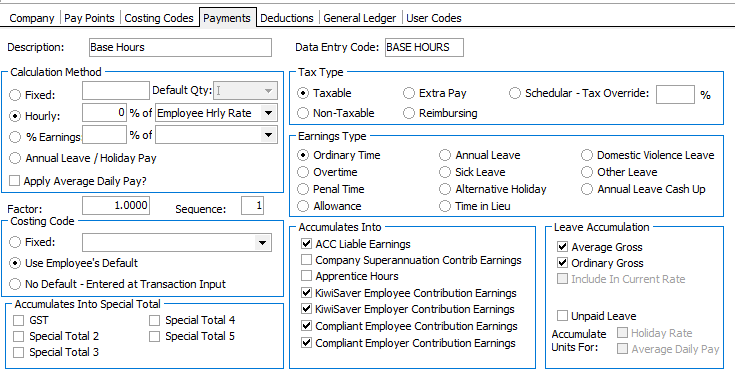
To ensure the minimum wage top-up works correctly, two payments need to be available in IMS Payroll: one records the base number of hours worked (payable at zero), and the other is a payment that the top up is made under. The screenshots below show how these payments should be set up:
Base Hours payment:
Minimum Wage Top Up payment:
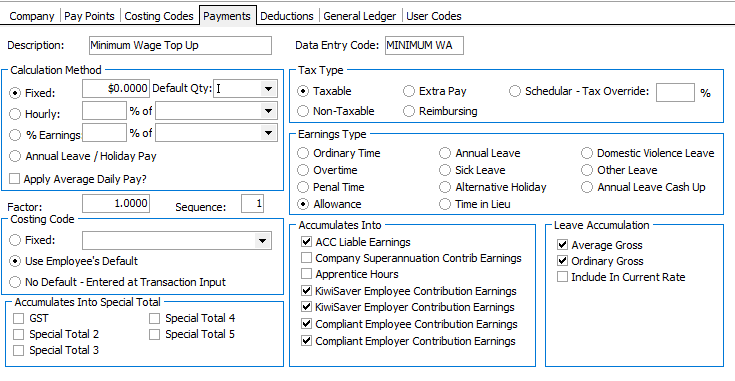
The payment assigned to the Top Up payment should only be used in conjunction with the Minimum Wage Top Up tool.
Payrun Process
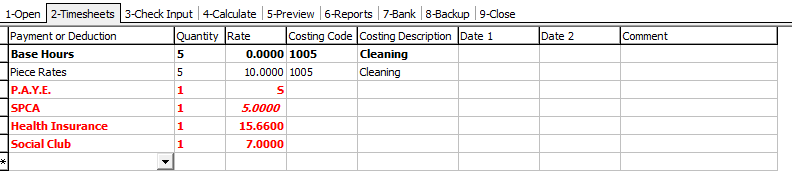
When entering information against an employee at Step 2-Timesheets, the piece rate payments will be entered as well as the hours it took to complete the tasks. In the example below the employee took five hours to complete five piece rate items:
After you have calculated the pay, the tool will also be accessible from a button on the bottom left of the Step 4-Calculate tab of Payroll Processing:
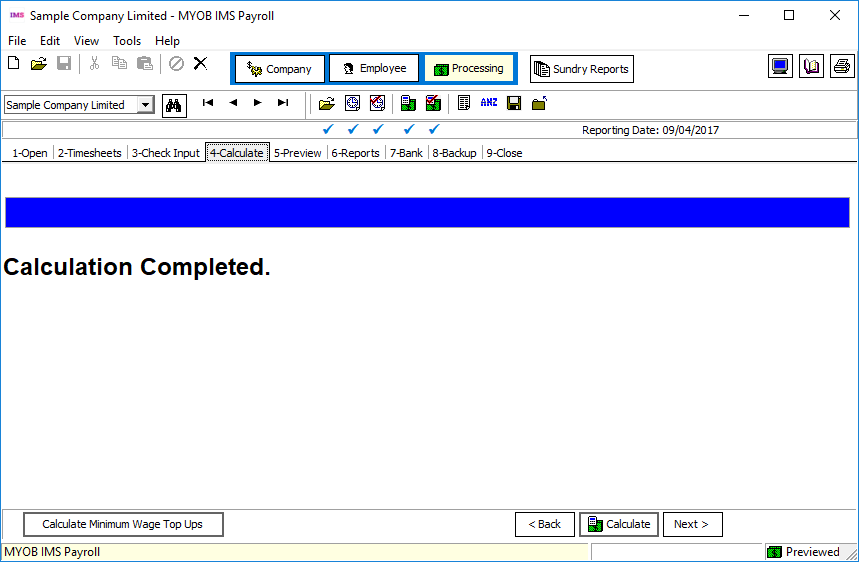
Clicking this button displays the following screen. Select the “Minimum Wage Top Up” payment that you created previously (see page 2).
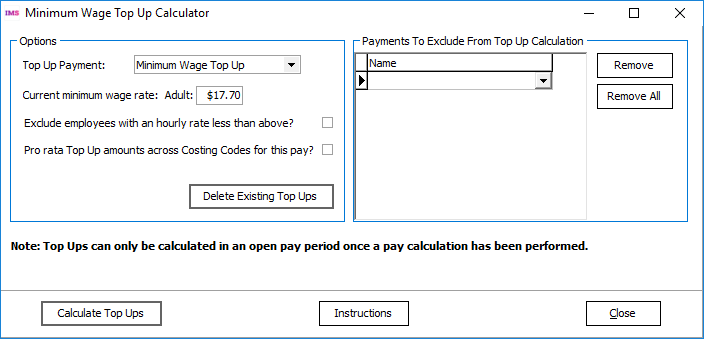
The Current minimum wage rate field displays the current Adult minimum wage rate as defined for the current tax year.
The Exclude employees with an hourly rate less than the above? option allows the exclusion of employees who have an Hourly Rate (as defined by the Hourly Rate 1 field or Per Pay rate fields on the Payment tab of Employee Information) lower than the current minimum wage rate. This may be useful for excluding “starting-up” or “training” employees from the minimum wage rate calculation.
The Pro rata Top Up amounts across Costing Codes for this pay? option allows the calculated Top Up amount to be proportioned across the Costing Codes for which earnings have been assigned to for an employee. See “Pro Rata Amounts Across Costing Codes” on page 6 for more information on this option.
The Delete Existing Top Ups button will remove all previously created Top Up payments from timesheet entry for the current pay period.
This may be useful if top ups have been created, then subsequent data entry in timesheets would make those previously created payments obsolete.
For example, an employee on Piece Rate with an incorrect Hours payment could have a Top Up payment created. The user goes back to correct the Hours payment and calculates Top Up payments again. This time no Top Up payment is calculated for the employee. The only way to remove the previously created Top Up payment in this case is to either delete the payment manually from Timesheet Entry or use the Delete Existing Top Ups button. Where Top Ups have been created for multiple employees, using this button would be preferable to manually deleting the payments one by one.
The Payments To Exclude From Top Up Calculation grid allows selecting payments which will not have their hours or earnings included for the purposes of calculating Top Ups. To select payments to add to this grid, click on the dropdown list for the next available row, select the required payment and then use either the down arrow key or Enter key to save.
All leave type payments are automatically excluded from the Top Up calculation—both hours and earnings. Non-taxable and reimbursing type payments are also automatically excluded.
Click the Calculate Top Ups button to proceed. This button is only enabled if the pay period is open and a pay calculation has been performed.
Minimum Wage Top Up Calculation
On clicking the Calculate Top Ups button, Top Ups are calculated based on current employee timesheets and the results are displayed for the affected employees:
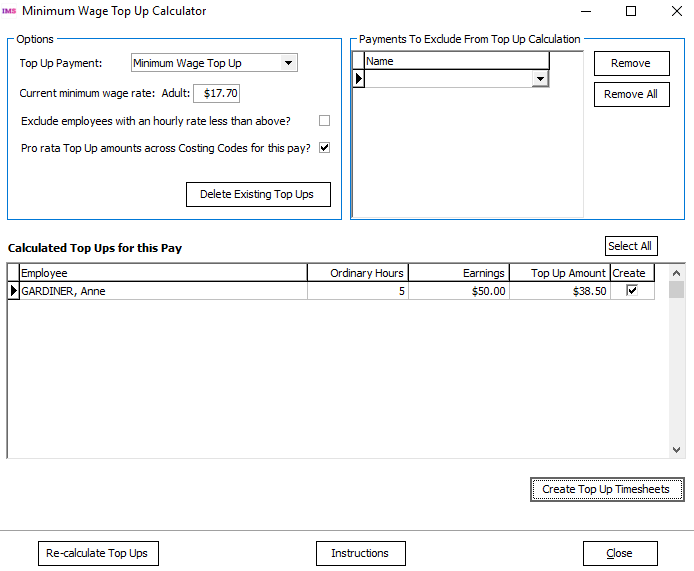
In this example, the Minimum Wage Top Up tool has calculated a top up of $38.50. The employee has been paid $50.00; however they took 5 hours to complete the task. $17.70 multiplied by 5 = $88.50. This amount less $50.00 already paid leaves a top up of $38.50.
The Re-calculate Top Ups button can be clicked if different options are required, e.g. if new payments need to be added to the Payments To Exclude list.
To create the Top Up payments in employee timesheets, click the Create Top Up Timesheets button.
On clicking this button, any previously created Top Up payments for the employees will first be removed. The removal will only happen for the employees selected to create Top Up payments for. If the removal of all Top Up payments is required for all employees in the current pay period, use the Delete Existing Top Ups button.
To de-select employees from the Create Top Up Timesheets process, untick the check box next to the relevant employee in the Create column. The Select All button allows you to quickly toggle the Create checkbox on or off for all employees.
Once the Top Up payments have been inserted into Timesheet Entry, a new pay calculation will need to be performed. It is then recommended that the Payment Schedule report is used to list Top Up payments created in the pay run.
Pro Rata Amounts Across Costing Codes
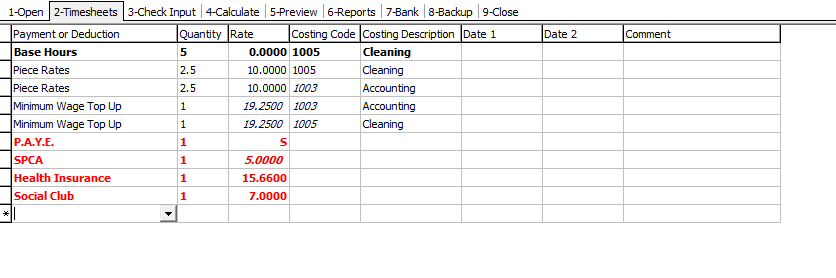
When the Pro rata Top Up amounts across Costing Codes for this pay? option is selected, the Create Top Up Timesheets process will create one Top Up payment for each Costing Code to which earnings are assigned for the employee’s regular timesheets. The amount assigned to each Top Up payment is a portion of the total calculated Top Up amount, based on a percentage calculated from the employee’s total earnings and the earnings against each individual Costing Code.
Example:
A piece-rate employee has their earnings split over 2 Costing Codes as follows:
Notes
-
On clicking the Create Top Up Timesheets button, any Top Up Payments previously entered for the employee to create the Top Up Payment for will be deleted from Timesheet Entry. This will avoid multiple Top Up Payments being added to an employee’s timesheets if the Minimum Wage Top Up Calculator is run multiple times in a pay run.
-
In all cases, it is important that the actual hours an employee works are recorded against a payment with an Earnings Type of Ordinary Time. Only payments with the Earnings Type of Ordinary Time type are considered for the summing the hours.
-
In Piece Rate or Salary type situations, the actual hours an employee works MUST be recorded for this function to work accurately, e.g. where an employee earns 100% of wages via piece rate, a zero-rated Ordinary Time type payment should be added to the timesheets.
-
All Leave Type payments are excluded completely from the calculation (any payments with Earnings Type of Annual Leave, Sick Leave, Alternative Holiday, Time In Lieu, Other Leave and Annual Leave Cash Up). The Parental Leave Hours payment is also excluded.
-
All non-taxable and reimbursement payments are excluded from the calculation (any payments with a Tax Type of Non-Taxable / Reimbursing).
-
Employees with no ordinary hours are excluded from the Top Up calculation. Employees with negative hours or negative earnings balances are also excluded.