
Change of Ownership
Introduction
This document is a guide to creating a new company where there is a change of ownership and the employees remain the same.
This is a general guideline. Follow the instructions below if you have IMS on your local computer or a server. If you are using the payroll in the IMS Cloud you will need to contact IMS Support on 0800 600 110. If you have the IMS Online Product, you will need to create a new URL, as you will not be able to use the existing one. If you have any queries regarding this, contact IMS Support.
Change of Ownership Process
Creating a New Company
-
Take a backup of your existing payroll (Tools menu > Backup…) once your final pay run has been processed and closed (all nine ticks appear in Payroll Processing).
-
Go to the Company Controls > Company tab and click Create New… in the bottom left hand corner.
-
When creating a new company follow all of the defaults through. When setting the company location, you can either accept the default of C:\Payroll Company 1, or you can direct where you would like the information to be stored, e.g. in a folder on a server drive.
-
Once this new company has been created, select Restore… from the Tools menu, to restore the backup that you took of your existing company at the beginning of this process.
-
You will now need to go to the Company Controls > Company tab and change the information to that of the new company, i.e. company name, bank account details etc.
-
To restart the Tax Reporting data for the new ownership you will need to perform the following steps prior to your first pay run calculation:
-
Log out of the Payroll Company and locate the Initial Company folder, which is a sub-folder of the IMS Payroll Partner folder that MYOB IMS Payroll is installed in (the default location is C:\Program Files\IMS\IMS Payroll Partner\Initial Company).
-
In the Initial Company folder locate the two files Tax.imsdb and Tax.imsix, then and copy paste them both into the new company’s folder (specified in step 3), overriding the existing files. Both files must be copied and pasted.
These procedures will remove all IRD Reporting Tax Records up to this point of time so ensure that if you require a hard copy of Tax Reporting data this should be done prior to these procedures):
Editing Employee Details
You can optionally enter a Finish Date on the Employee Information > Standard tab for the employees that will not be working in this payroll company. When you save the finish date it will ask if you would like to create the employees’ termination pays—select No.
Make sure that you terminate employees not wanted in this company before opening first payroll period.
Processing Pay Runs
When opening the first pay period in the new company you will need to reset your accumulators for both period and year and also change Purge History to 0 months. (You will also have the opportunity to delete terminated employees at this stage.)
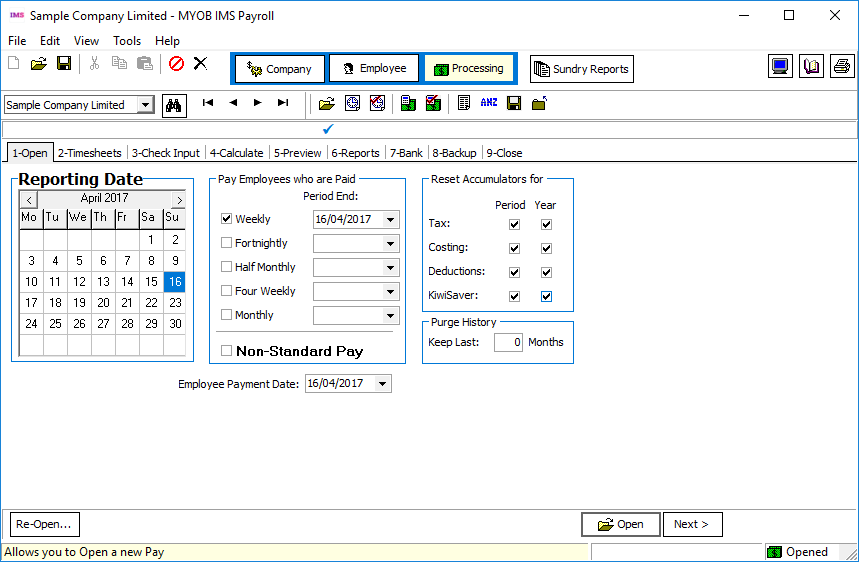
You will need to purge the history for each pay frequency. If you have more than one pay frequency, you will need to purge the history individually, unless you open all pay frequency’s in the first pay run. As an example, if you have weekly and fortnightly pays in the first pay run and you are only processing a weekly pay, make sure in the next pay you run the fortnightly pay by itself to purge the history out. Once the pay period is closed change back the Purge History setting on the 1-Open screen back to the required number of months, i.e. 99 months.
This will delete the employee history. Leave earnings and KiwiSaver history remains. There is also an option to Include Periods Prior to Start Date for Leave earnings history if required.
While processing your first pay run, go through the whole process, i.e. steps 1 – 9 in payroll processing and close the pay run once you are satisfied that it is correct.
Tax Reporting
Payday filing?
you will need to edit them to include the finish date for each employee on the old company and the start date for each employee on the new company to reflect the dates the change took effect from.