
Service Order Prepayments: General Information
Sometimes you may agree with the customer on providing a service or multiple services with some prepayment made by the customer beforehand.
Learning Objectives
In this chapter, you will learn how to do the following:
- Create a service order and enter the prepayment to the service order
- Create an appointment and enter the second prepayment for the appointment
- Generate a sales order and review two prepayments applied
Applicable Scenarios
You process service orders with prepayments if customers of your company make prepayments for the service to be provided.
Process Diagram
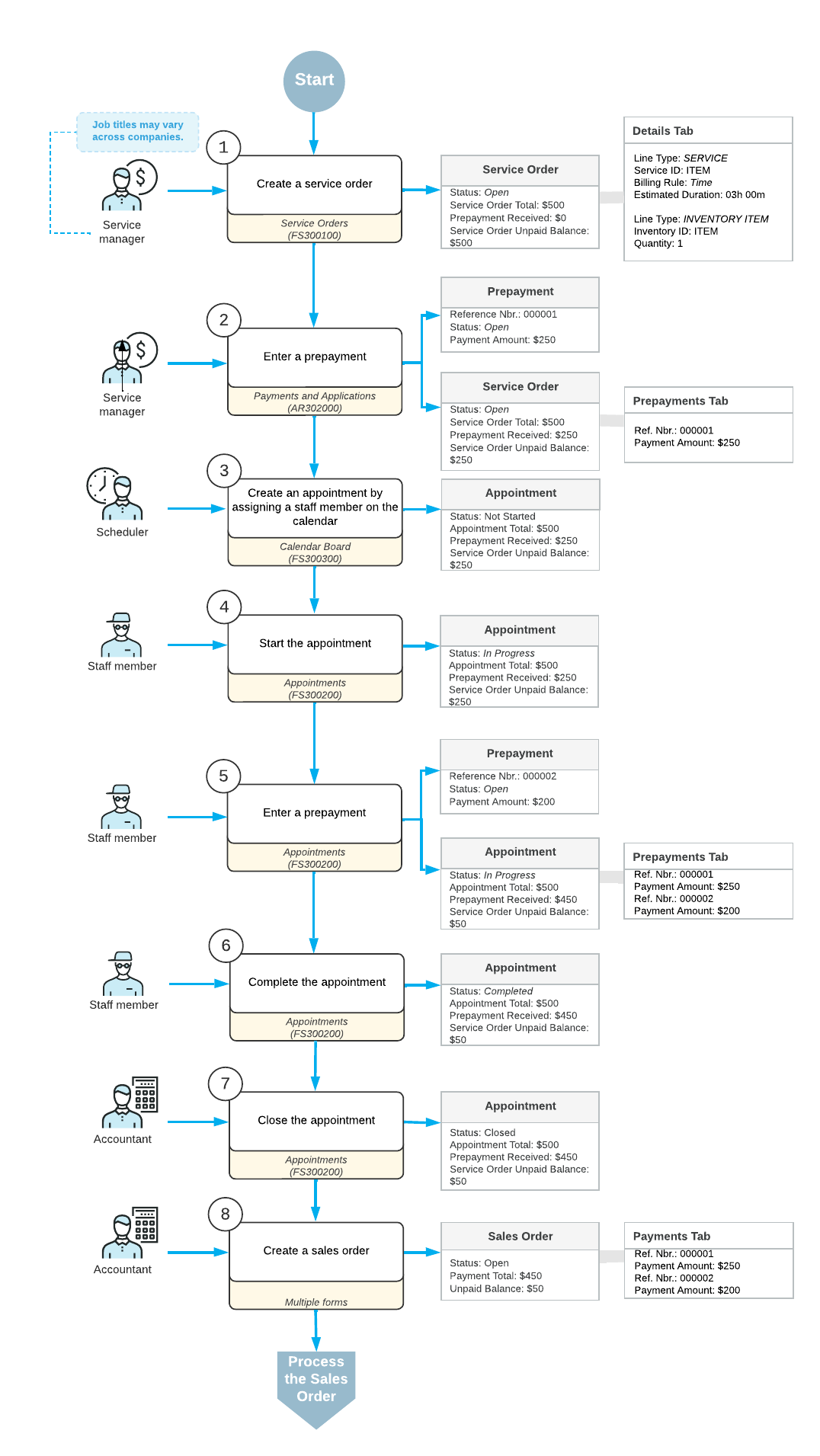
In the diagram below, you can see the general workflow of processing a service order with prepayments.
Creating a Service Order
The service manager creates a service order on the Service Orders (FS300100) form. The order includes both service and inventory line items.
Entering a Prepayment
The service manager records a prepayment for the service order on the Payments and Applications (AR302000) form. The prepayment reduces the unpaid balance of the service order.
Creating an Appointment
The scheduler creates an appointment on the Appointments (FS300200) form. The appointment includes all relevant details from the service order.
Starting the Appointment
The assigned staff member starts the appointment on the Appointments (FS300200) form. The appointment status changes to In Process, and the system updates the balances accordingly.
Entering an Additional Prepayment
If necessary, the staff member records another prepayment on the Appointments (FS300200) form to reflect partial payments made during the service.
Completing the Appointment
After performing the service, the staff member completes the appointment on the Appointments (FS300200) form. The appointment status changes to Completed.
Closing the Appointment
The accountant reviews and verifies the appointment details, then closes it on the Appointments (FS300200) form. The appointment status changes to Closed.
Generating an Invoice
The accountant runs billing for the completed appointment. After the invoice is generated and released, its balance reflects that all prepayment amounts have been subtracted from the total.