
Assigning Lot and Serial Numbers in Appointments
In MYOB Acumatica, you can assign lot or serial numbers to stock items directly in an appointment on the Appointments (FS300200) form. This is useful when the specific unit to be installed or used at a customer site is not known until the technician performs the work.
Before You Begin
To assign lot or serial numbers in appointments, the following conditions must be met:
- The Lot and Serial Tracking feature is enabled on the Enable/Disable Features (CS100000) form.
- The stock item’s lot or serial class (on the Lot/Serial Classes (IN207000) form) is configured with:
- Track Serial Numbers or Track Lot Numbers selected as the tracking method.
- When Used selected as the assignment method.
- The functionality applies only if the customer has a billing cycle set up to process billing for appointments.
Methods for Generating Lot or Serial Numbers on the Appointments Form
On the Appointments (FS300200) form, you can view or generate lot or serial numbers for a stock item by clicking the item on the Details tab and then clicking Lot/Serial Nbrs. on the table toolbar. Lot or serial numbers for stock items can be generated either manually or automatically, depending on the state of the Auto-Generate Next Number check box in the stock item's lot or serial class on the Lot/Serial Classes (IN207000) form:
- If the check box is selected, the system automatically generates lot or serial numbers
for each unit of the selected stock item on the Details tab of the
Appointments form. The lot or serial number or numbers
are displayed in the Lot/Serial Nbr. column in the Line
Details dialog box.
If the lot or serial class settings of the selected stock item require auto-generation of the lot or serial number, the Unassigned Qty. and Quantity to Generate boxes in the dialog box contain 0 by default. This is because the lot or serial numbers are automatically generated by the system when the appointment is saved.
- If the check box is cleared, you must manually generate lot or serial numbers by
clicking the Generate button in the Line
Details dialog box.
When you click Generate, the system generates lot or serial numbers for the specified quantity of the stock item and displays the numbers in the Lot/Serial Nbr. column. In the following screenshot, serial numbers have been generated. (Note that the system generates a single lot number for all units of the selected item and lists it in the only row.)
Figure 1. The generated serial numbers 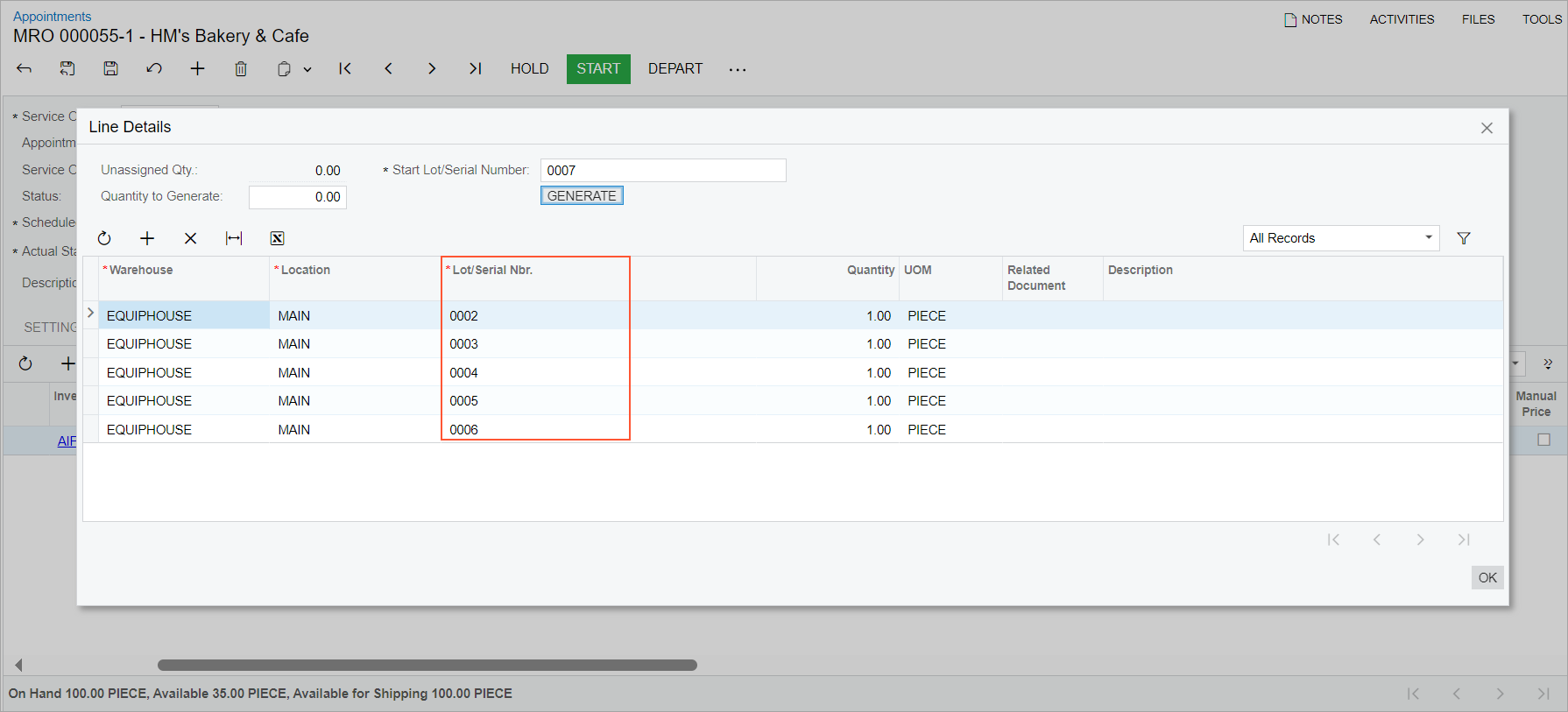
If a serial number is generated for a single unit of the stock item, the system creates one serial number and inserts it in the Lot/Serial Nbr. column of the item's line on the Details tab of the Appointments form.
If serial numbers are generated for multiple units of the item, the Lot/Serial Nbr. column in the item's line on the Details tab remains empty. However, when the appointment is billed each unit of the stock item will be listed in its own row in the invoice with its serial number in the Lot/Serial Nbr. column.