
Adjustment of the MYOB Acumatica UI: To Perform System-Wide Form Configuration
This activity will walk you through the process of loading a personal configuration of a form layout, making changes to the form’s configuration, and applying these changes system-wide—while preserving individual users' configurations.
Story
Suppose that you are Kimberly Gibbs, a system administrator and customizer at the SweetLife Fruits & Jams company. You were asked to make some changes to the configuration of the Invoices and Memos (AR301000) form and apply these changes system-wide.
You have also reviewed the personal configuration that David Chubb, a sales manager at the SweetLife Fruits & Jams company, has made on this form and decided to apply this personal form configuration system-wide. While applying this configuration, however, you need to preserve other users’ personal configurations of the form (if applicable).
Acting as Kimberly, you’ll load David Chubb's configuration of the form, make additional changes, and apply the updated layout to all users, while preserving their personal configurations. Then acting as David, you need to review the system-wide changes and confirm that your personal configuration remains intact.
Process Overview
In this activity, you’ll do the following on the Invoices and Memos (AR301000) form:
- Load David Chubb's personal form configuration
- Manage UI elements in the sections of the Summary area
- Pin a UI element in the section
- Rename the section
- Delete a UI element from the section
- Change the order of tabs
- Change the set of visible columns in the table
- Apply the changes system-wide, preserving users’ personal form configurations
- Review the system-wide and personal changes
System Preparation
Before you begin performing the steps of this activity, do the following:
- Launch the MYOB Acumatica website with the U100 dataset preloaded and the Modern UI turned on.
- Complete the Adjustment of the MYOB Acumatica UI: To Personalize a View of a Form activity as David Chubb to make a personal configuration of the Invoices and Memos (AR301000) form.
- Sign in to the system as Kimberly Gibbs by using the following credentials:
- Username: gibbs
- Password: 123
Step 1: Loading the Personal Form Configuration
To load David Chubb's personal configuration of the Invoices and Memos (AR301000) form, do the following on the form:
- On the form title bar, click the Settings button and then click the
UI Configuration menu item, as shown below.
Figure 1. The UI Configuration menu item 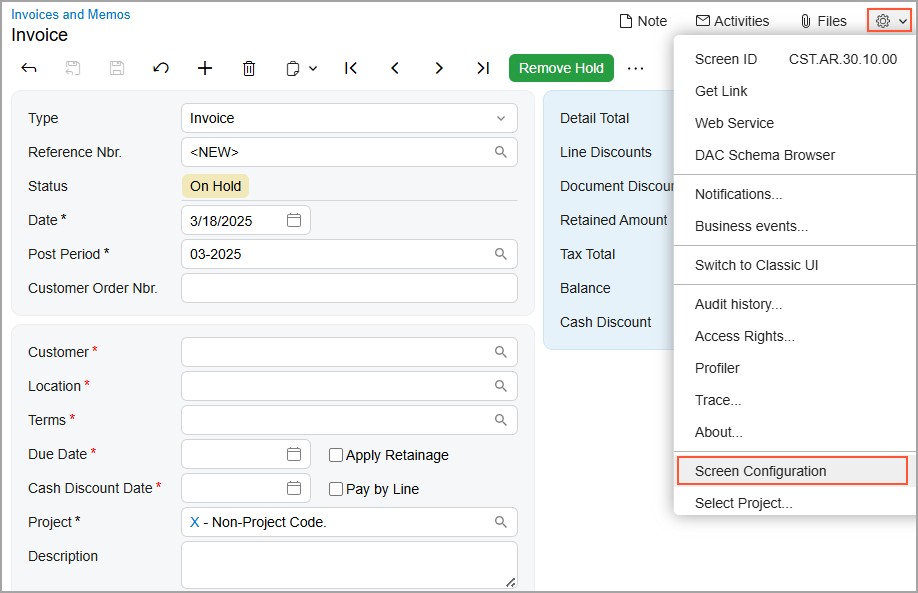
This activates UI Configuration mode, and displays the UI Configuration pane at the top of the form (see below).
Figure 2. The UI Configuration pane 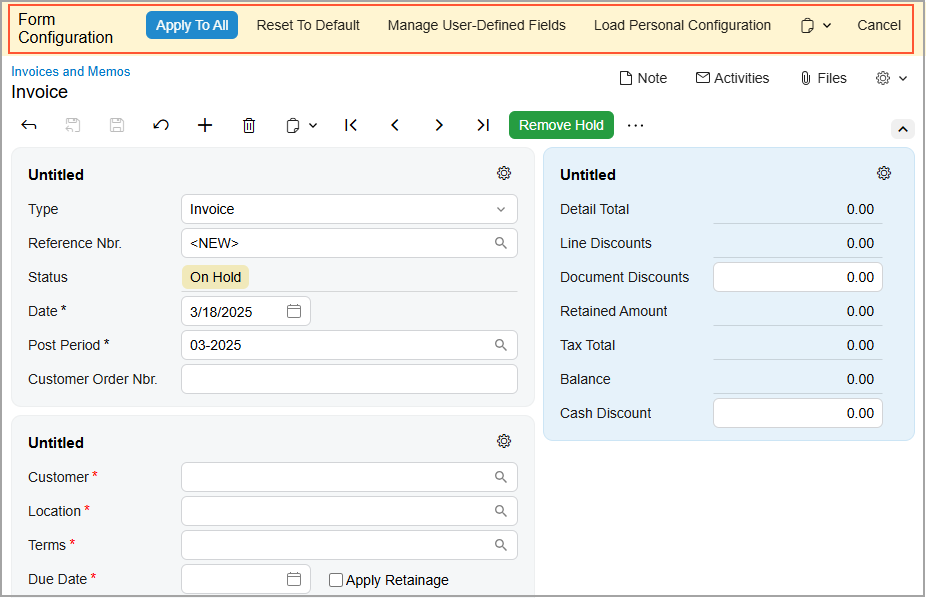
- In the UI Configuration pane, click Load Personal Configuration.
- In the Load Personal Configuration dialog box, which opens, select David Chubb in the User box. This is the user whose configuration you want to load.
- Click Load. The system loads David’s personal configuration of the form.
- Review the tabs’ order. It should match David Chubb’s layout exactly.
Step 2: Customizing Sections
Suppose that you were asked to do the following in the Summary area of the Invoices and Memos (AR301000) form:
- Add the Branch box to the first section and pin it so that it stays visible when the section is collapsed
- Add the Base Currency ID box to the second section after the Cash Discount Date box
- Rename the third section to Total
Also suppose that after you added the Base Currency ID box to the second section, you were asked to remove it because management decided to postpone the addition of the element. To make these changes, do the following:
- While you are still on the Invoices and Memos form in the Form
Configuration mode, click the Settings button in the upper-right corner of the
first section in the Summary area (see below).
Figure 3. The Settings button for the section 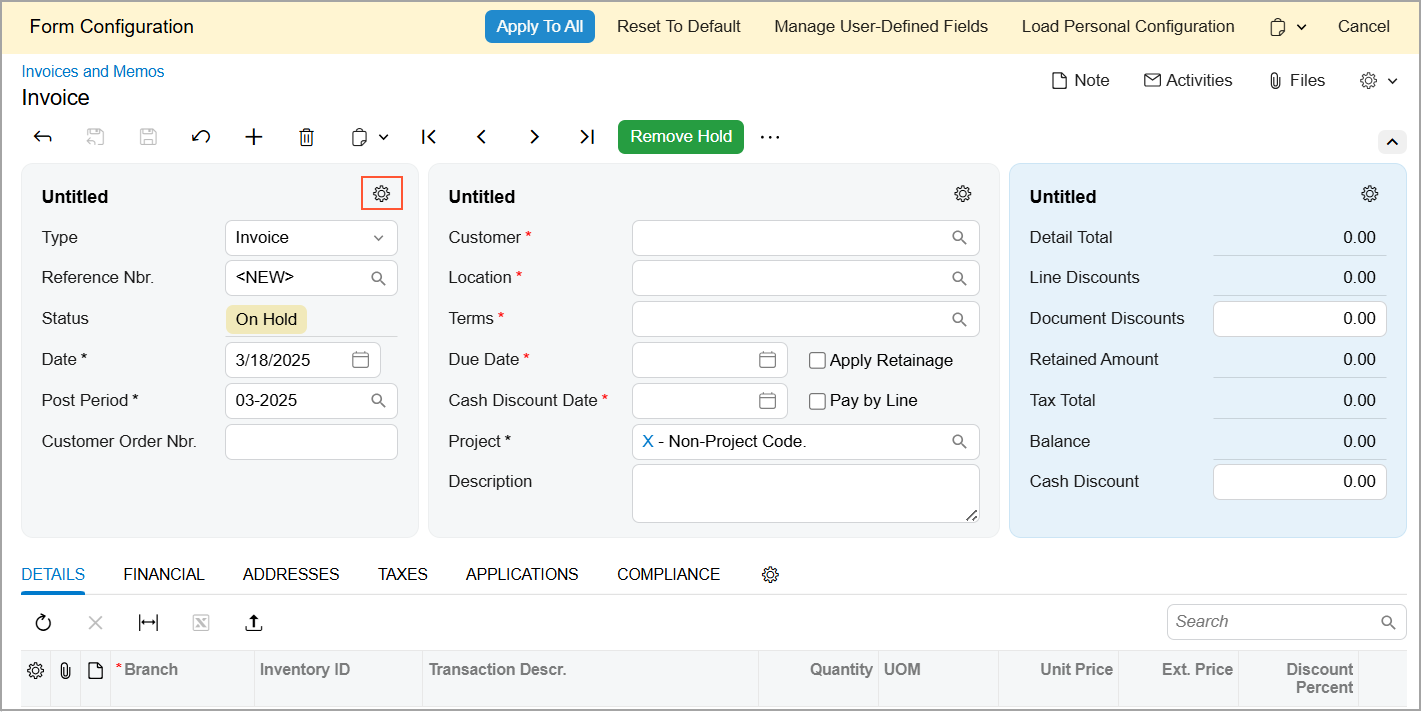
The Section Configuration dialog box opens.
- In the Available Elements pane of the dialog box, expand the CurrentDocument group by clicking the arrow icon next to its name.
- Click Branch in the expanded group of UI elements and
then click the arrow that appears to the right of its name (see below).
Figure 4. The Section Configuration dialog box 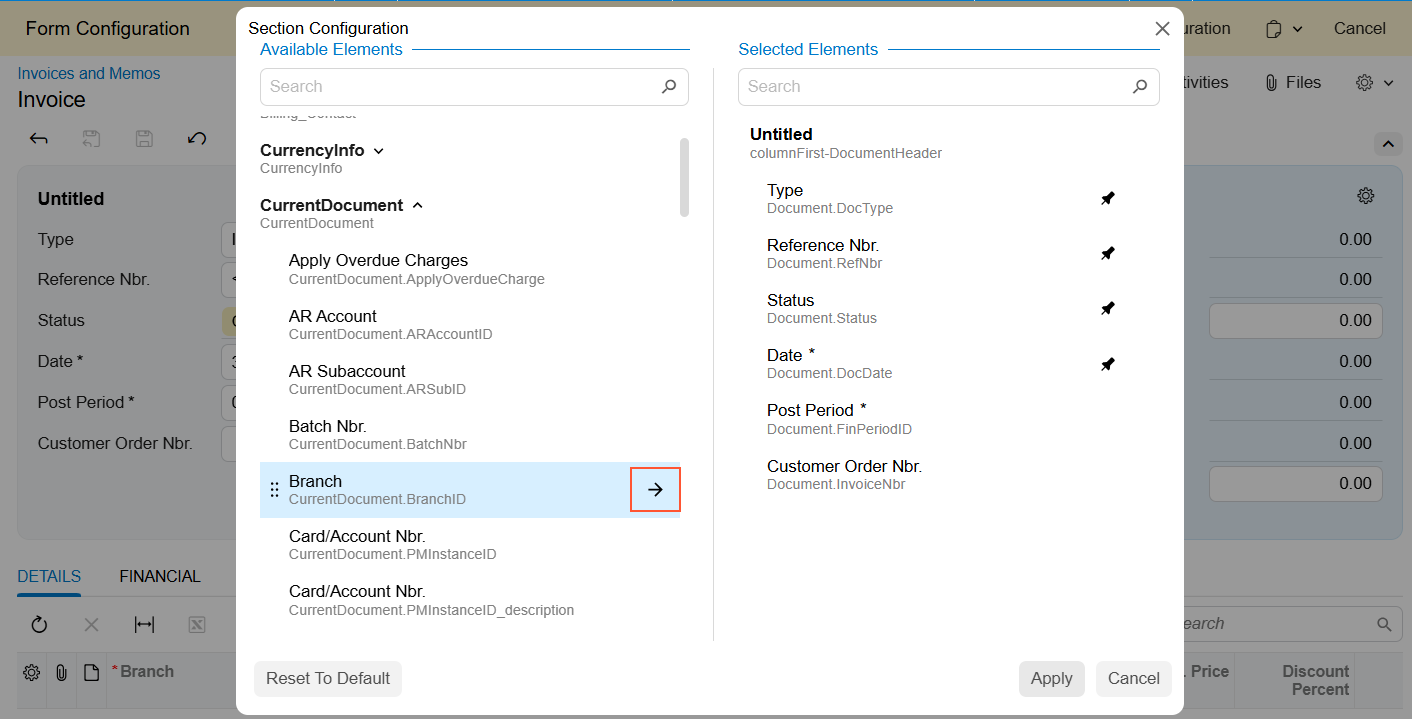
The system moves Branch to the end of the list in the Selected Elements pane.
- Click the Pin icon next to Branch (shown below). This
ensures that the Branch box will remain visible when the
section is collapsed.
Figure 5. The Pin icon 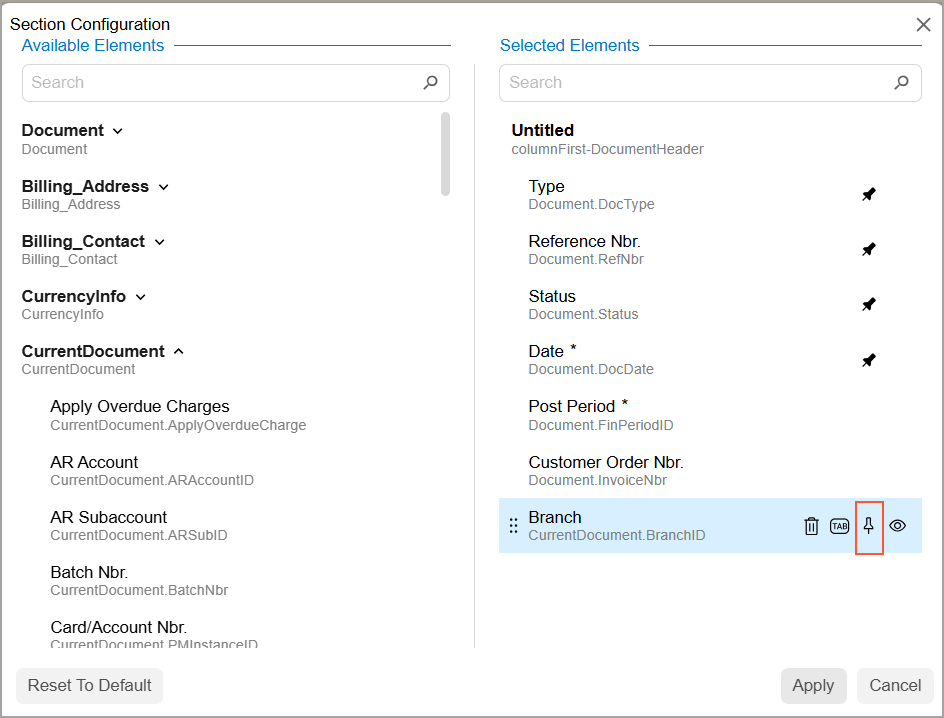
- Click Apply.
The Branch box appears in the first section, as shown below.
Figure 6. The Branch box in the section 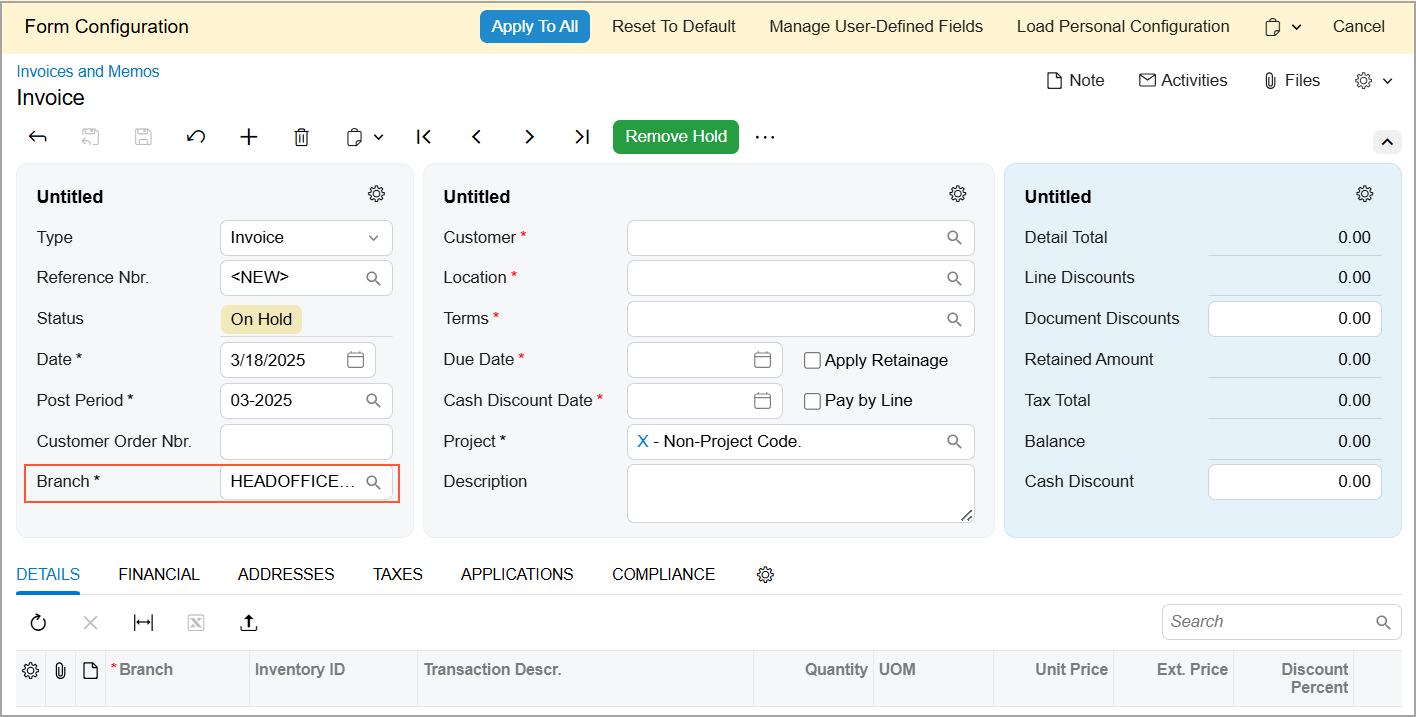
- Click the Settings button in the second section.
- In the Available Elements pane of the Section Configuration dialog box, type Base Currency ID in the Search box. The CurrencyInfo group appears.
- Expand the CurrencyInfo group (see below).
Figure 7. The search for the element name 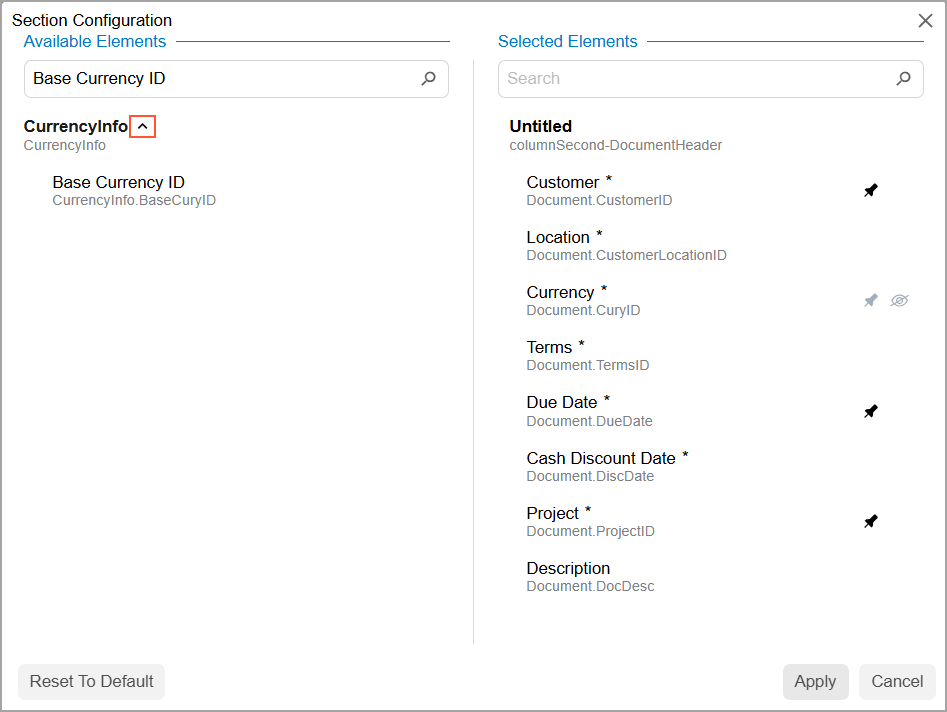
- Click Base Currency ID in the expanded group and then
click the arrow next to its name.
The system adds Base Currency ID to the end of the list in the Selected Elements pane.
- Drag Base Currency ID immediately after Cash
Discount Date (see below).
Figure 8. The changed element order 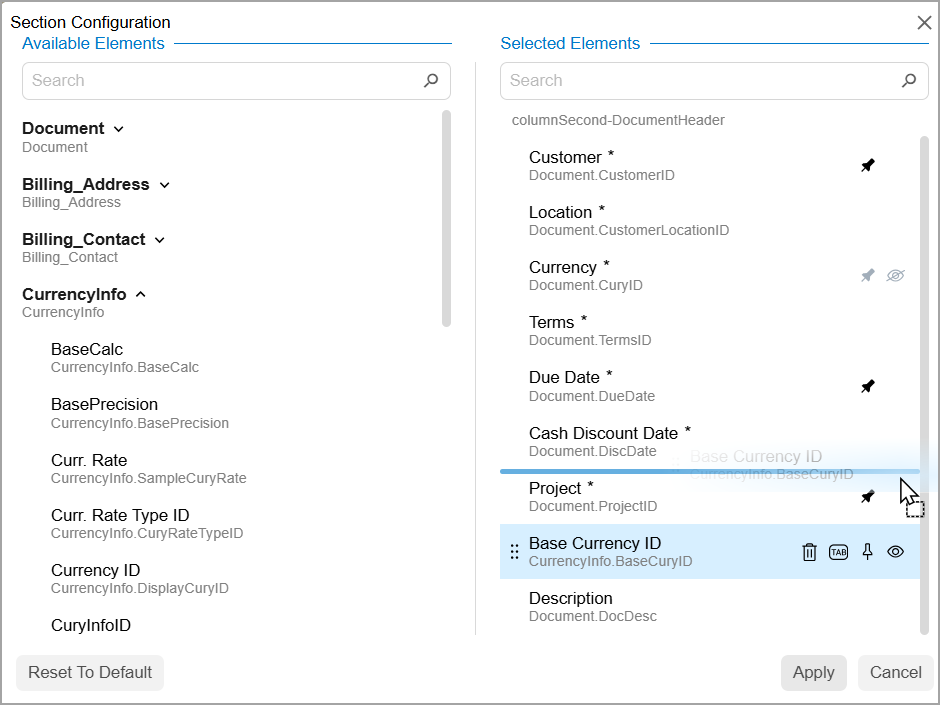
- Click Apply.
The Base Currency ID box appears in the second section after the Cash Discount Date box, as shown below.
Figure 9. The added Base Currency ID box 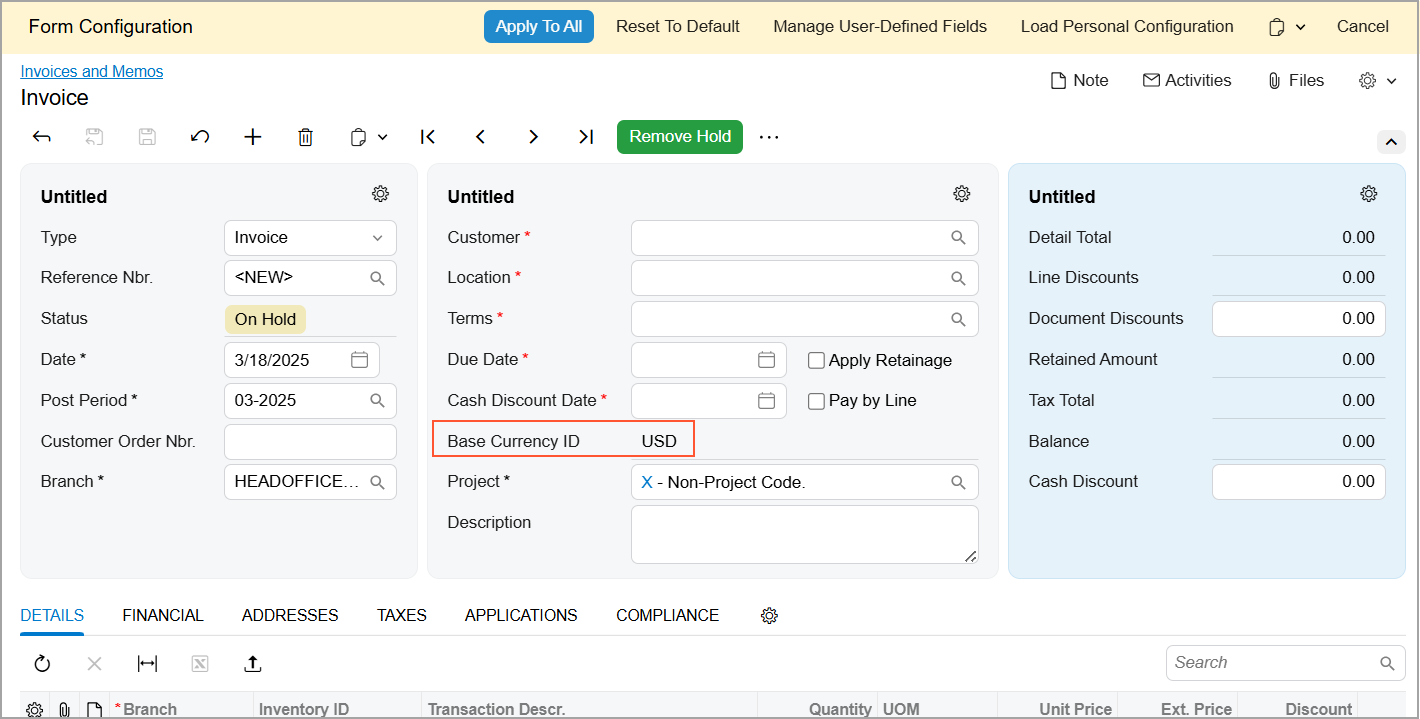
- Click the Settings button in the third section.
- In the Selected Elements pane of the Section Configuration dialog box, hover over Untitled and click the Edit button, which appears to the right of it.
- In the editing area, type Total.
- Click Apply.
The name of the third section changes, as shown below.
Figure 10. The renamed section 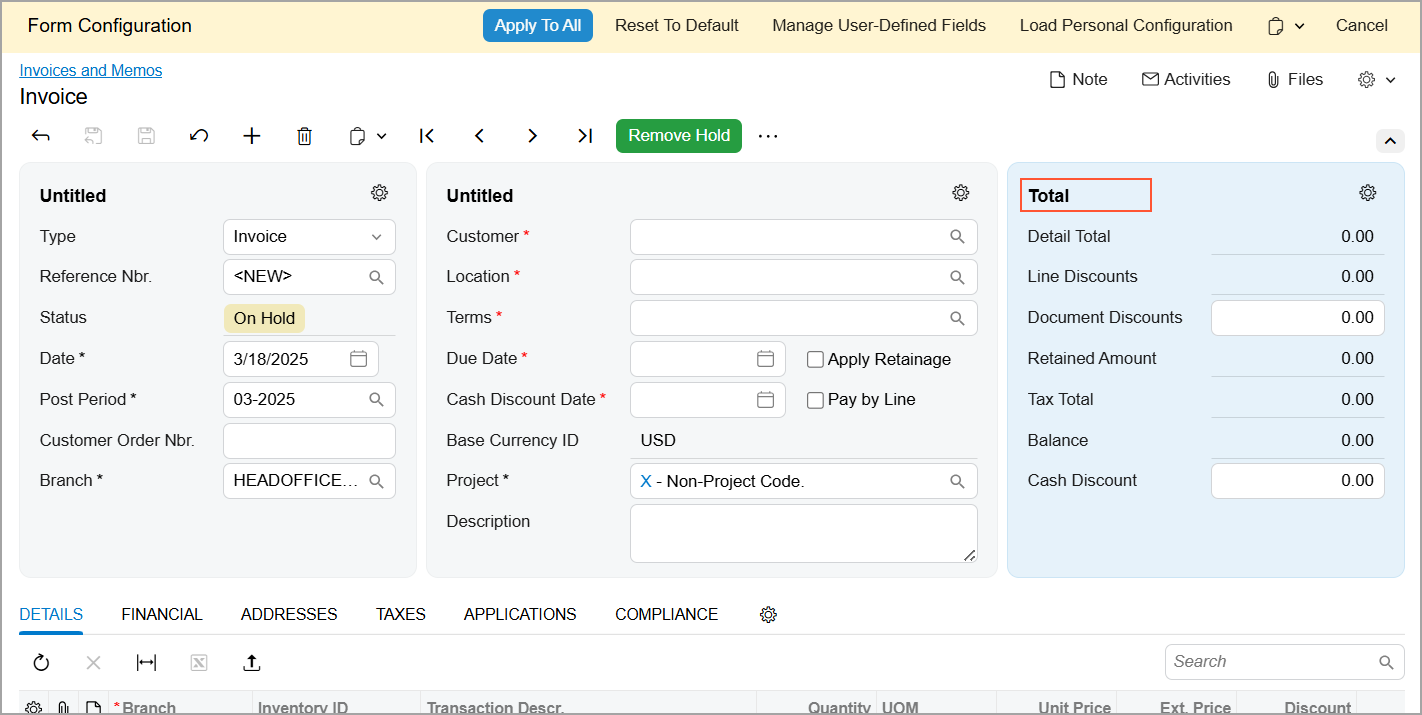
- To remove the UI element that’s no longer needed, click the Settings button in the second section.
- In the Selected Elements pane of the Section
Configuration dialog box, hover over Base Currency
ID and then click the Delete icon, as shown below.
Figure 11. The Delete icon 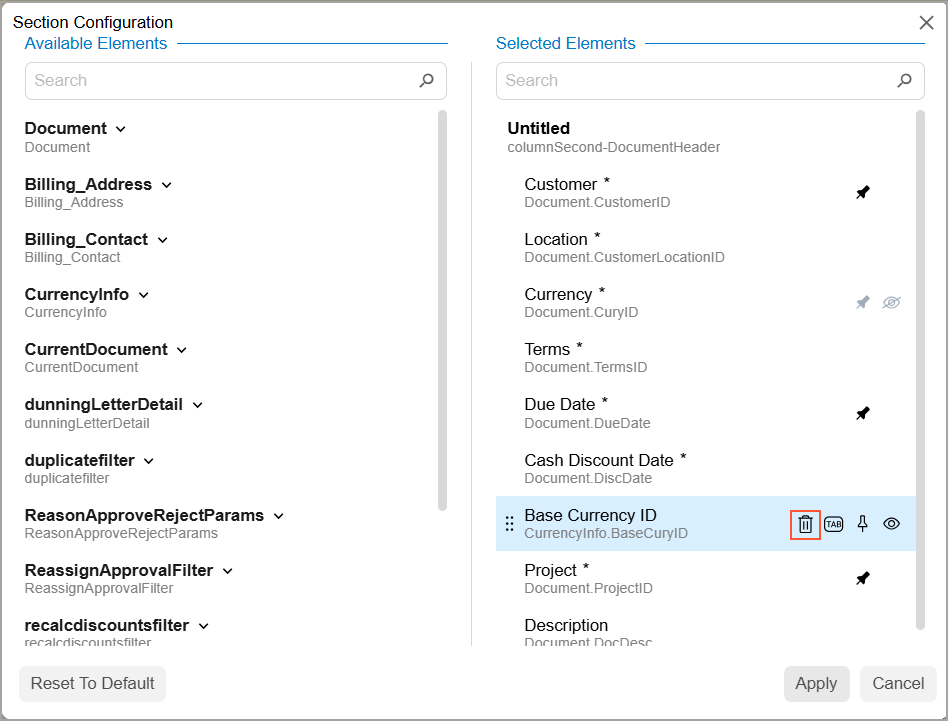
- Click Apply.
The system has removed the Base Currency ID box from the second section of the Summary area.
Step 3: Changing Tabs’ Order and Visibility
Suppose that you were asked to apply the following changes system-wide on the Invoices and Memos (AR301000) form:
- Move the Taxes tab after the Details tab
- Hide the Applications tab
To make these changes, do the following:
- While you are still on the Invoices and Memos form in the Form Configuration mode, drag the Taxes tab to place it immediately after the Details tab.
- Drag the Applications tab to the More button and then
move it to the Hidden Tabs section that appears below the
More button (see below).
Figure 12. The change in tabs’ order and visibility 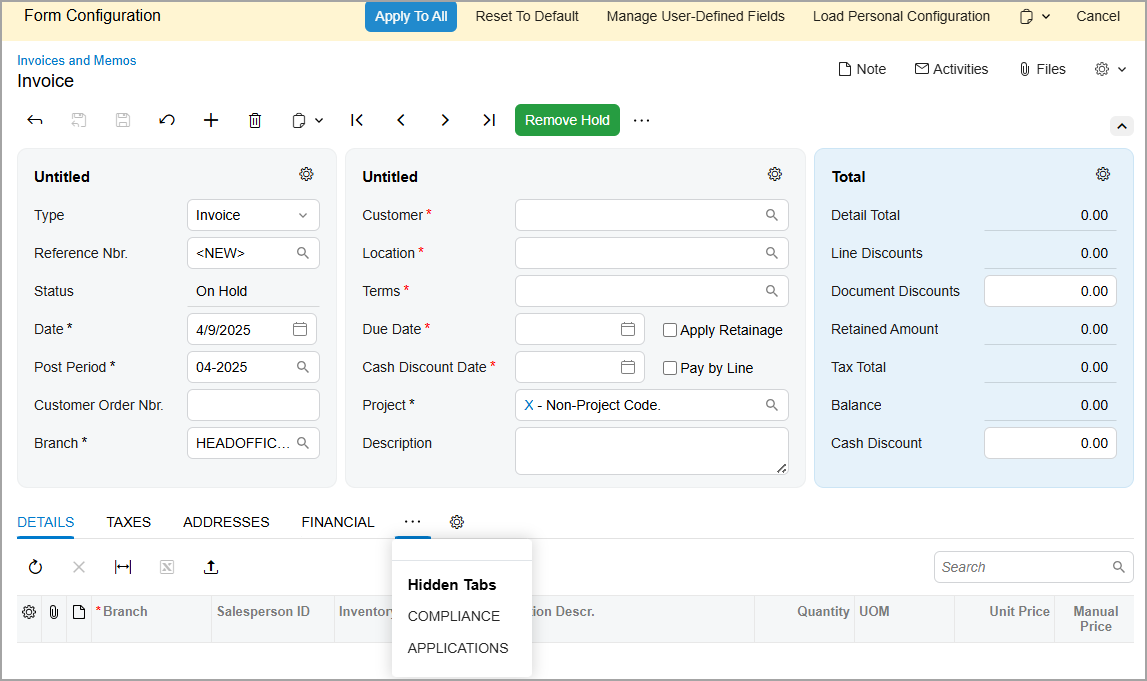
Step 4: Managing Table Columns
Suppose that on the Details tab of the Invoices and Memos (AR301000) form, you were asked to add the Tax Amount column to the table and hide the Expense Date column.
To change the set of columns of the table, do the following:
- While you are still on the Invoices and Memos form, go to the Details tab.
- In the upper-left corner of the table toolbar, click the Settings button. The Column Configuration dialog box opens.
- Select the check box for Tax Amount.
- Clear the check box for Expense Date.
- Click OK.
Step 5: Applying the Changes System-Wide
To apply the changes on the Invoices and Memos (AR301000) form system-wide, do the following while you are still on this form in UI Configuration mode:
- Click Apply to All in the UI Configuration pane at the top of the form.
- In the Apply to All dialog box, which opens, click the
Preserve Personal Configuration
button.
The system applies the changes (except for users with their own configuration of the form) and closes the UI Configuration pane.
- Sign out of the system.
Step 6: Reviewing the System-Wide Changes
Now suppose that you are David Chubb. After Kimberly Gibbs has applied the system-wide changes on the Invoices and Memos (AR301000) form, you need to review the form and verify that your personal configuration of it has been preserved. Do the following:
- Sign in to the system as David Chubb by using the following credentials:
- Username: chubb
- Password: 123
- Open the Invoices and Memos (AR301000) form and add a new record.
- Review the first section in the Summary area to confirm that the Branch box is there.
- Click the arrow icon in the upper-right corner of the area to collapse it.
The sections collapse and show only pinned UI elements, including the Branch box in the first section.
- Review the third section to confirm that it’s named Total.
- Review the order and visibility of the tabs. They should be in the same order that you previously configured (for example, the Taxes tab appears after the Financial tab, not after the Details tab).
- On the Details tab of the form, review the Manual Price column that has been added to the table in your personal configuration and the Tax Amount column that has been added to the table in the system-wide configuration.
- On the Addresses tab, review the appearance of the Bill-To Contact and Bill-To Address sections. They should be collapsed while the other sections of the tab are expanded.
As a system administrator and customizer, you loaded the personal configuration of the form and made other changes to it. Then you applied all the changes, including the personal configuration, system-wide while preserving users’ personal configurations. As a user, you reviewed the applied system-wide changes and verified that your personal configuration had not changed.