IMS Cloud
Introduction
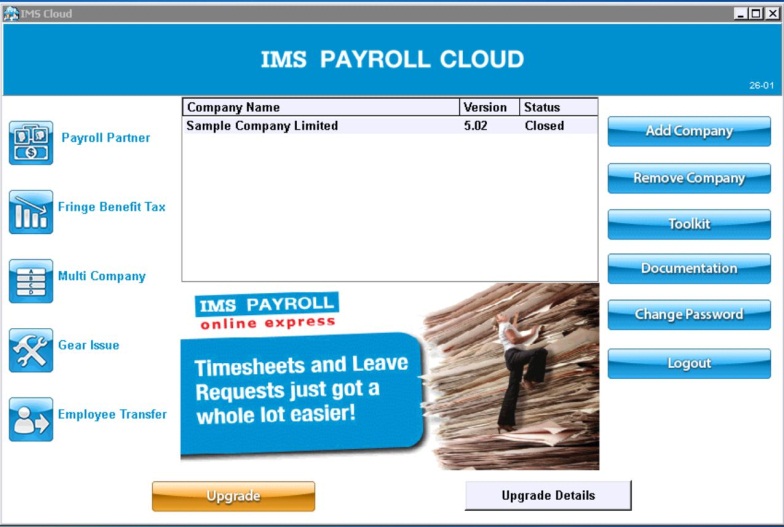
The MYOB launcher screen lets you open MYOB IMS Payroll applications and perform maintenance activities. This document describes the process of getting set up with , as well as its key maintenance functions, which are accessed using the buttons at the right of the main window:
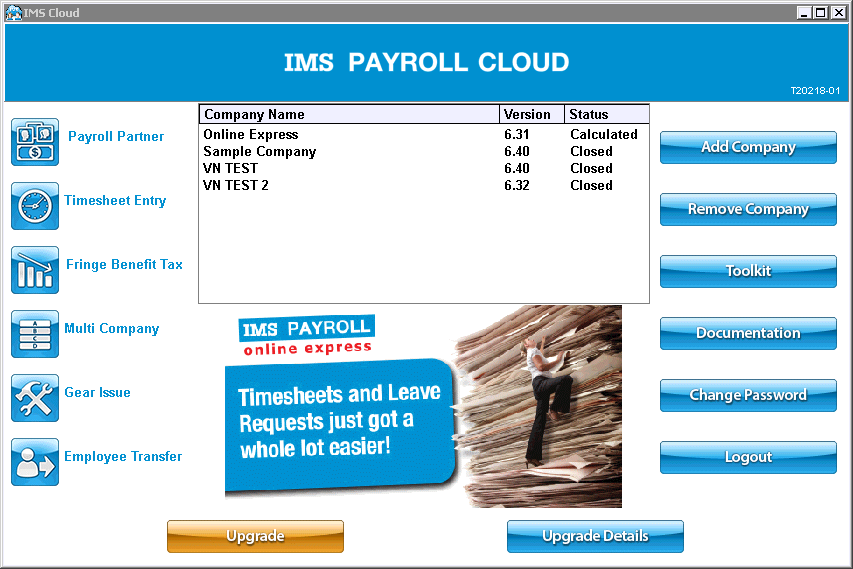
The following maintenance options are available:
-
Add a new IMS company
-
Remove an existing IMS company
-
Open the Toolkit Maintenance Utility, which lets you create and manage backups of IMS companies
-
View documentation for
-
Change your login password
-
Log out of
When an upgrade to is available, it can be run from the MYOB launcher.
Getting Started
You will have received your login details for MYOB IMS Payroll Cloud (user name and password) in an email. To log in to IMS Payroll Cloud for the first time:
-
Open a web browser and go to the MYOB website.
-
In the top right, click Sign in and choose IMS Cloud.
-
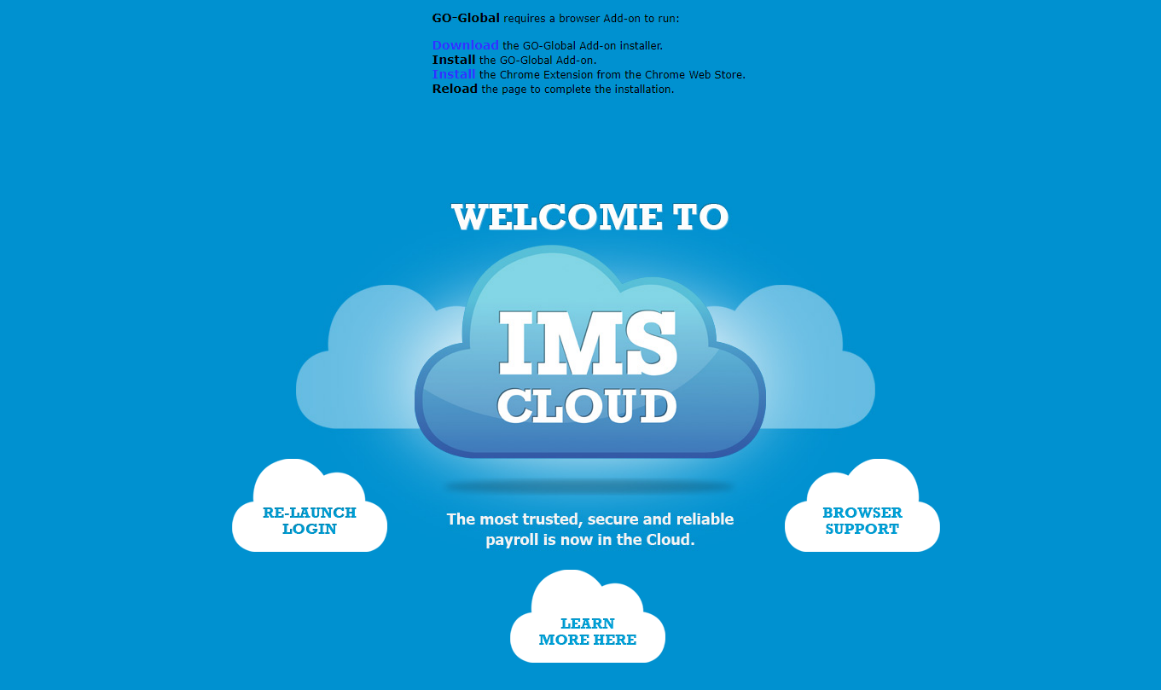
On the welcome screen, click the option to Download the GO-Global Add-on:Note:The process of installing the plug-in will depend on the web browser you’re using—see “Appendix: Browser Support” for details.
-
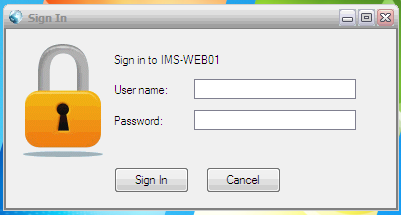
Once the plug-in is installed, a login window will appear. Enter the login details that were emailed to you.
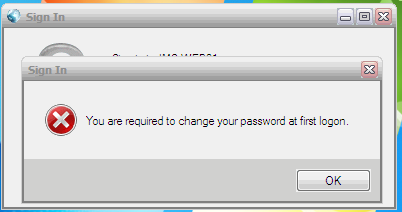
The first time you log in, you need to change your password. Click OK to continue.
-
Enter your old password (the one that was emailed to you), then enter a new password (twice for confirmation) and click OK.
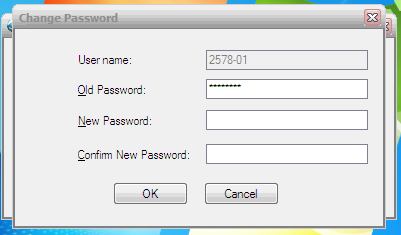
Your new password should meet the following criteria:
- at least seven characters long
- does not contain your account or full name
- contains at least three out of the following four character types: uppercase characters (A to Z) lowercase characters (a to z) numerals (0 to 9) special characters (!, @, #, $, & etc.)
- You also need to set up two-factor authentication for improved security. See Signing in with 2FA for IMS Cloud.
- After you’ve set up your password and two-factor authentication, a window displaying Terms and Conditions appears. Agree to the Terms and Conditions, and you will be logged in to the IMS Payroll Cloud application. You can change your password again at a later time from the MYOB IMS Payroll Cloud launcher screen—see “Changing Your Password”
Company Management
Adding a Company
To add a new company:
-
Click the Add Company button:
-
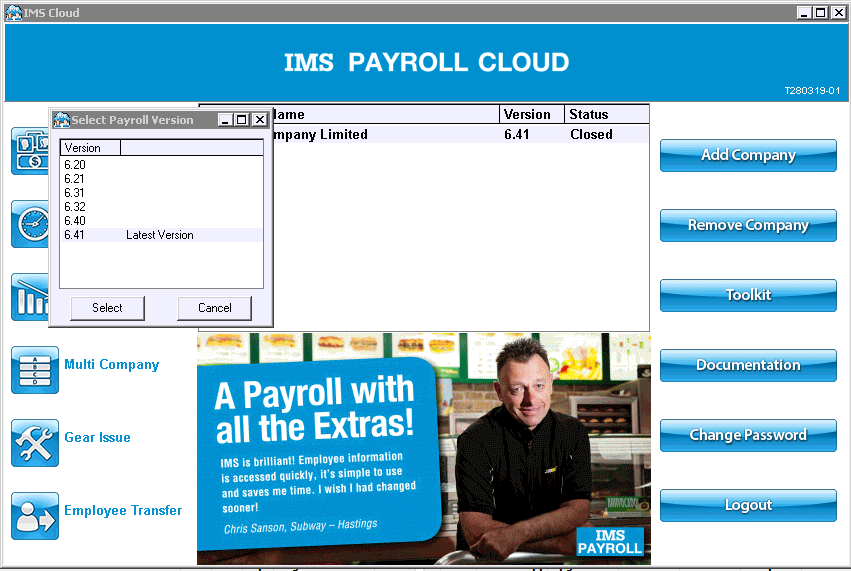
Select the version of IMS Payroll for the new company:
-
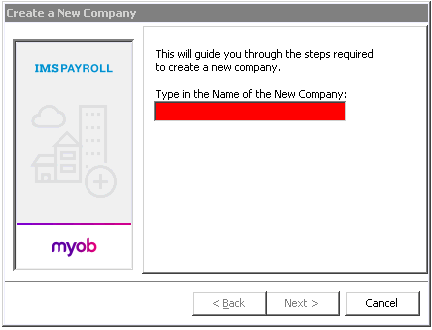
Enter the new company’s name, then click Next.
-
Click Finish.
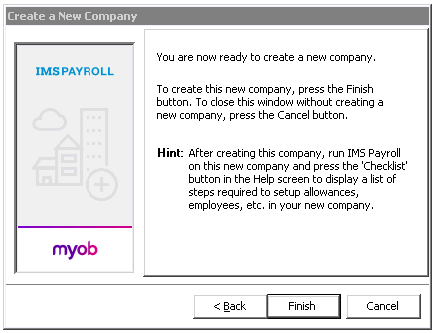
 To find the Checklist, click the Help button at the top right of the IMS Payroll window ( ), then click the “Quick Reference Checklist” topic on the Contents tab.
-
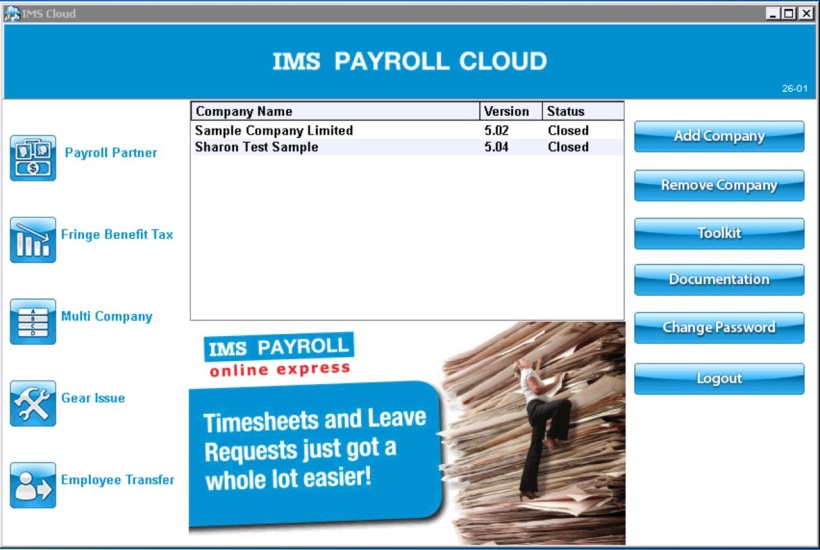
You will be taken back to the main control panel, which will show your newly created company. Double click on the new company to open it.
-
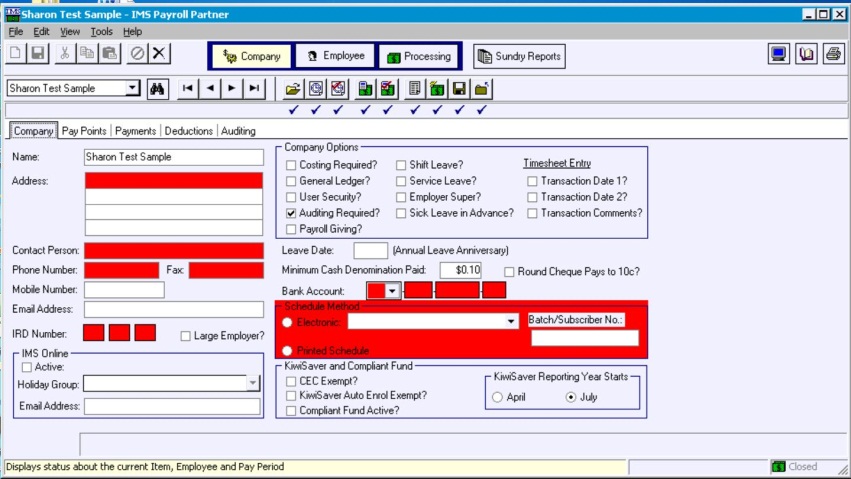
Complete the company setup as normal—see the online Help and your startup manual for more information.
Transferring a Desktop Company to IMS Payroll Cloud
To transfer a desktop company to IMS Payroll Cloud, first add the company, following steps 1 – 4 in “Adding a Company” above. Instead of entering the company data manually (steps 5 and 6 above), perform the following steps to migrate data from the desktop company into the new cloud company:
-
Upload a backup of the desktop company to IMS Payroll Cloud—see “Uploading a Company Backup File” for information on this process.
-
Restore the company backup to the new cloud company—see “Restoring a Company Backup” for information on this process.
Changing Where Files Are Saved
After you’ve transferred your desktop company to IMS Payroll Cloud, you need to change where payday files and bank files are saved on your computer. It’s up to you where you want the files to be saved.
Changing Payday File Save Location
On the Company page, in the Payday Filing section, click the word here.
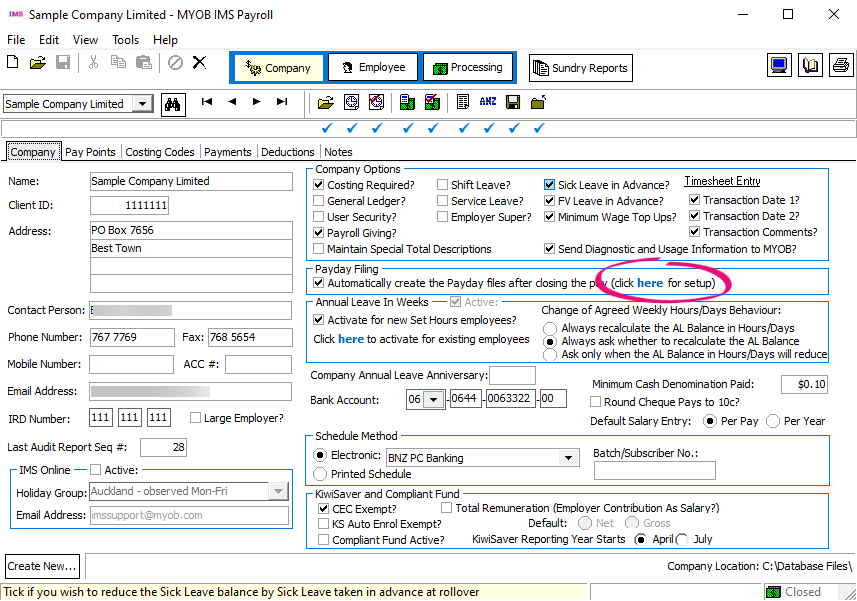
This opens the Payday Filing File Options window. Click Browse to choose where your payday files to be saved.
Changing Bank File Save Location
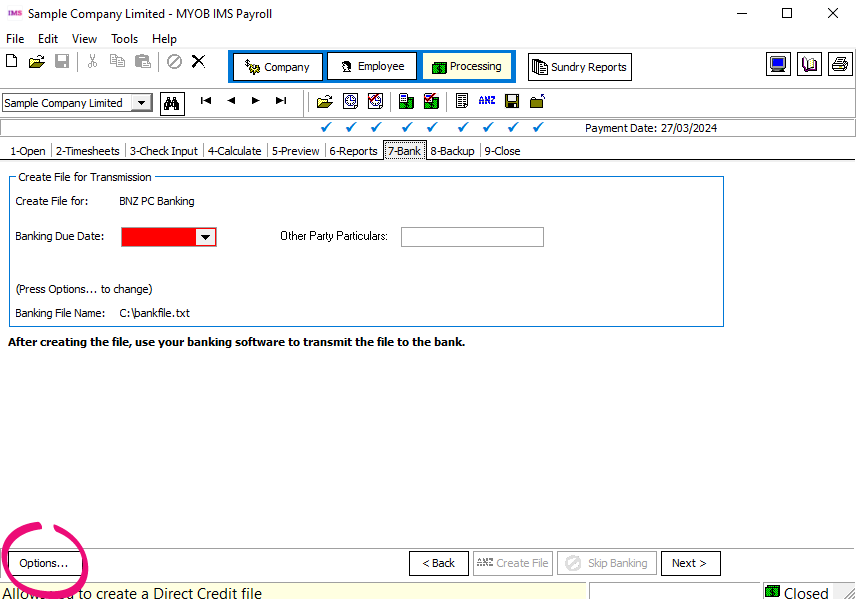
On the Processing page, on the 7-Bank tab, click Options. This lets you choose where your bank files are saved.
Removing a Company
To remove a company from IMS Payroll Cloud:
-
Select the company to remove and click the Remove Company button:
-
Read the confirmation notice to ensure that you want to go ahead with the company removal. If you do not want to remove the company, click Cancel.
-
If you are sure you want to remove the company, tick the Enable Remove box, then click OK.
Using the Toolkit
The Toolkit Maintenance Utility lets you perform the following maintenance operations on a company:
-
Repair a company file
-
Create a company backup
-
Restore a company backup
-
Download a company backup as a zip file
-
Upload a backup of the company from a local file
-
Delete old company backups
To open the Toolkit and perform maintenance on a company, select the company, then click the Toolkit button:
Repairing a Company
To repair a company file:
-
Select the company to repair and click the Toolkit button.
-
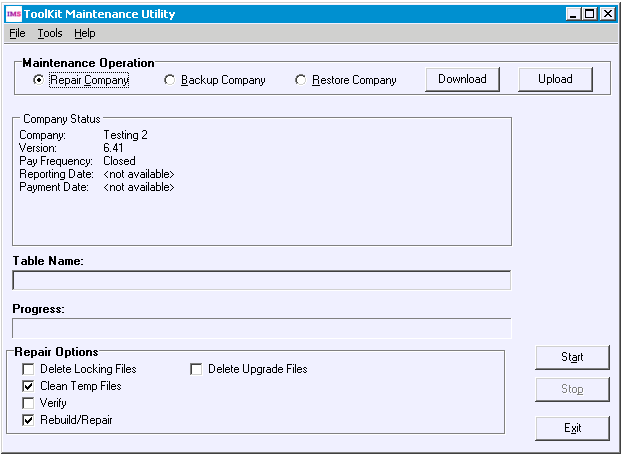
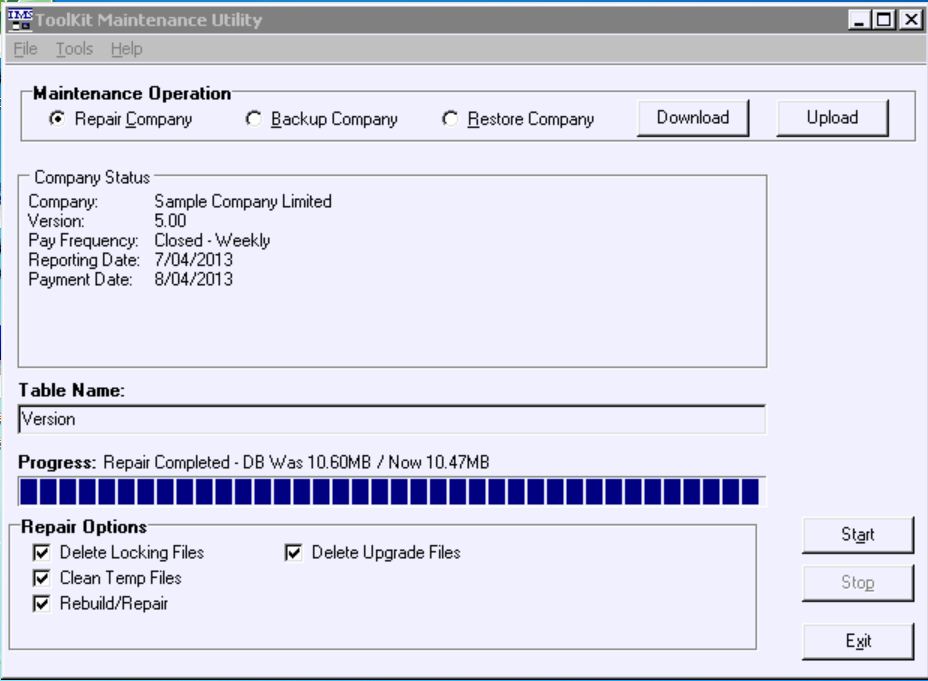
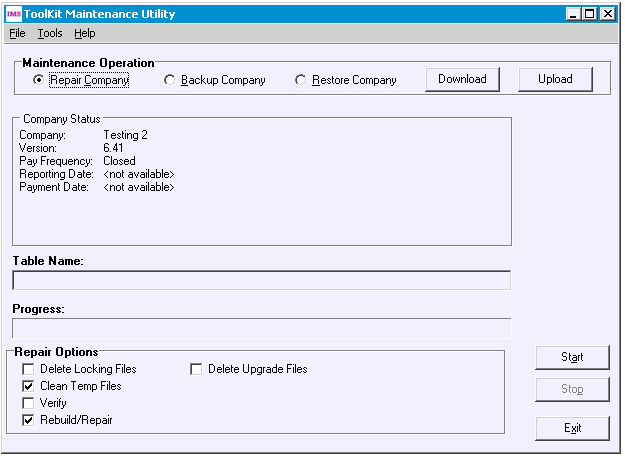
On the Toolkit Maintenance Utility window, select the Repair Company option and click Start.
-
A confirmation message appears. Click Yes or No as appropriate.
-
Select the repair operations to perform by ticking or clearing the boxes in the Repair Options section.
-
Click the Start button. The progress bar shows the status of the repair operation and will advise you when it is complete.
Creating a Company Backup
To create a backup of a company file:
-
Select the company to back up and click the Toolkit button.
-
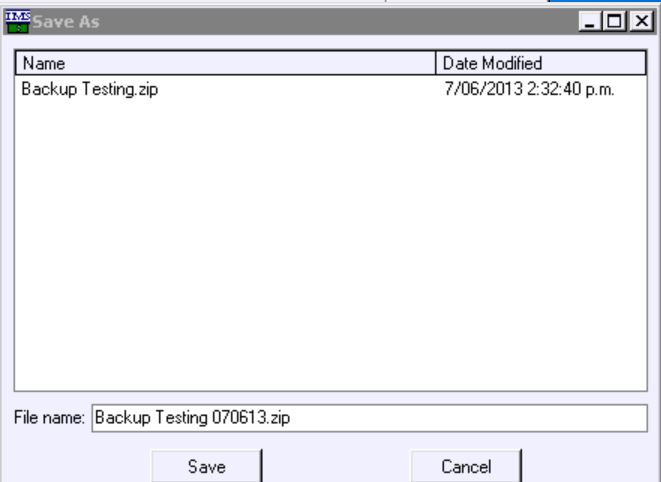
On the Toolkit Maintenance Utility window, select the Backup Company option and click Browse.
-
Enter a file name for the backup, then click Save.
-
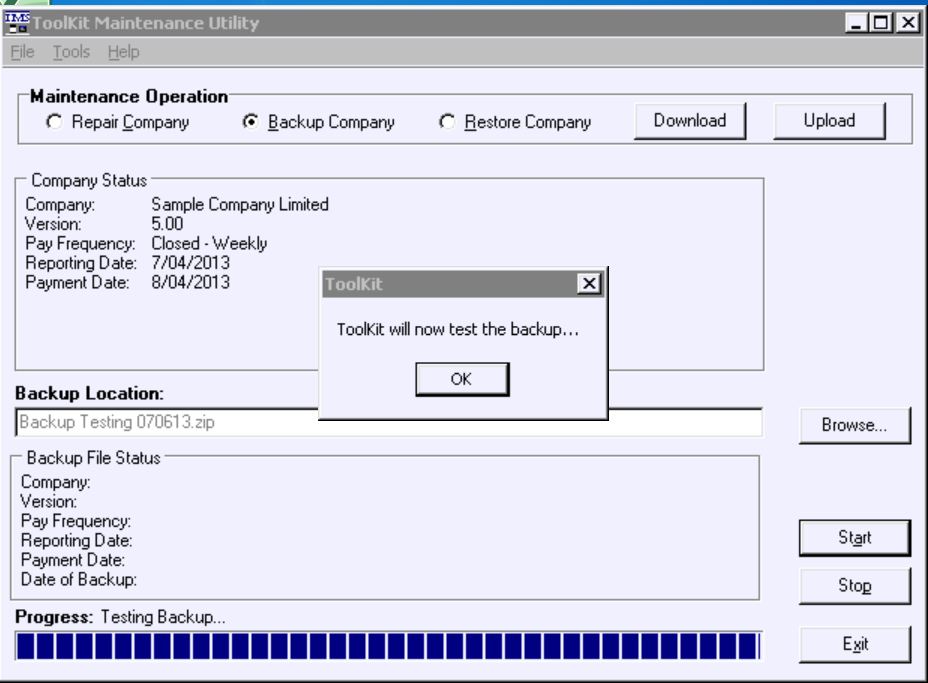
Click Start.
-
A confirmation message appears. Click Yes or No as appropriate.
-
The progress bar shows the status of the operation. Once the backup is created, a notification message appears. Click OK.
-
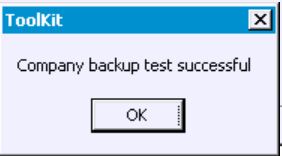
If the test is successful, a confirmation message appears. Click OK to close the message.
Restoring a Company Backup
To restore a company from a backup file:
-
Select the company to restore and click the Toolkit button.
-
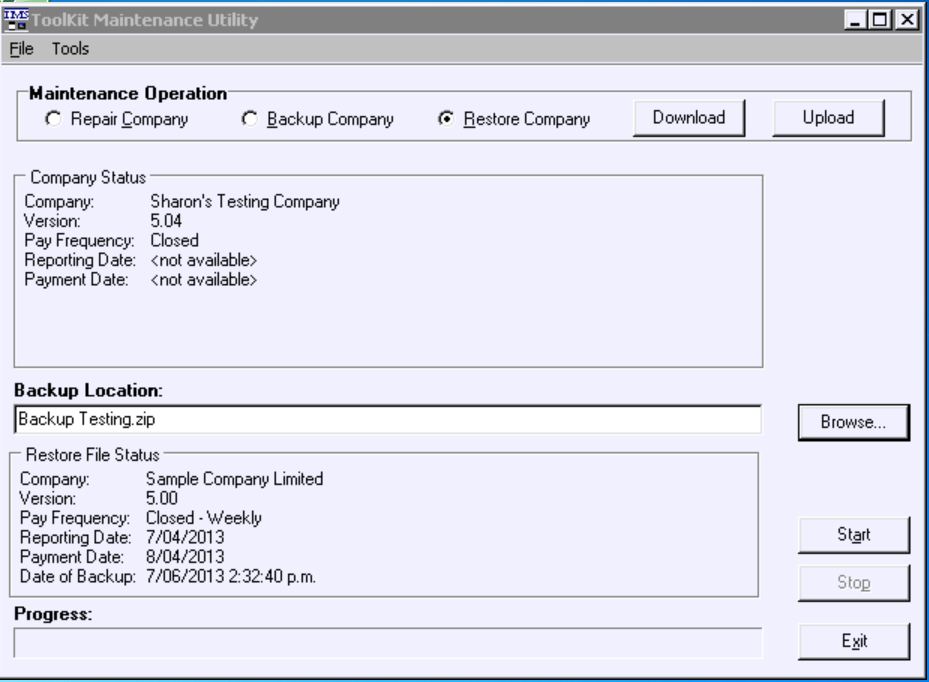
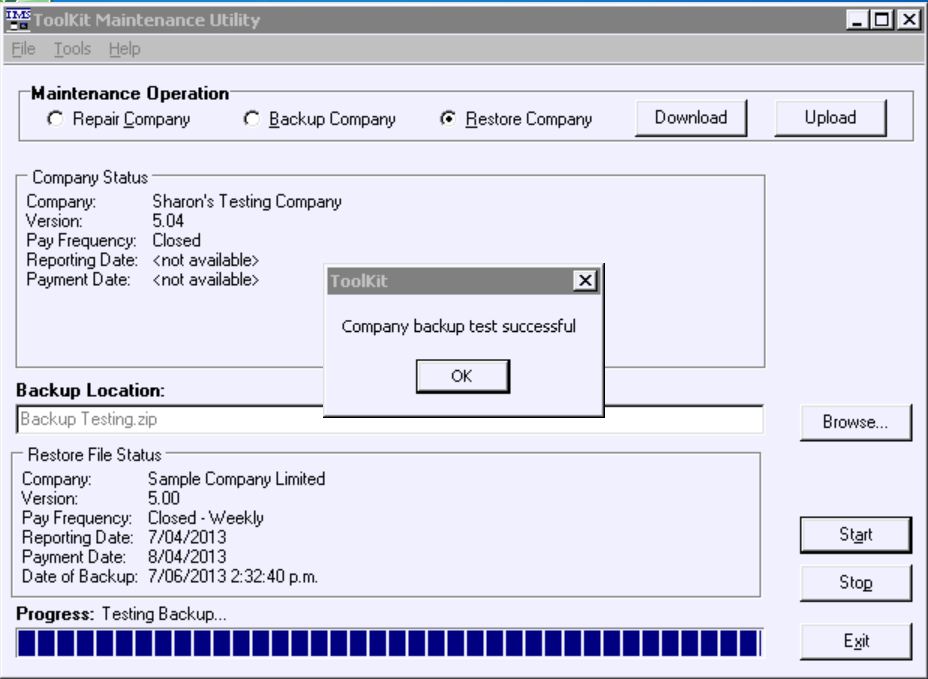
On the Toolkit Maintenance Utility window, select the Restore Company option and click Browse.
-
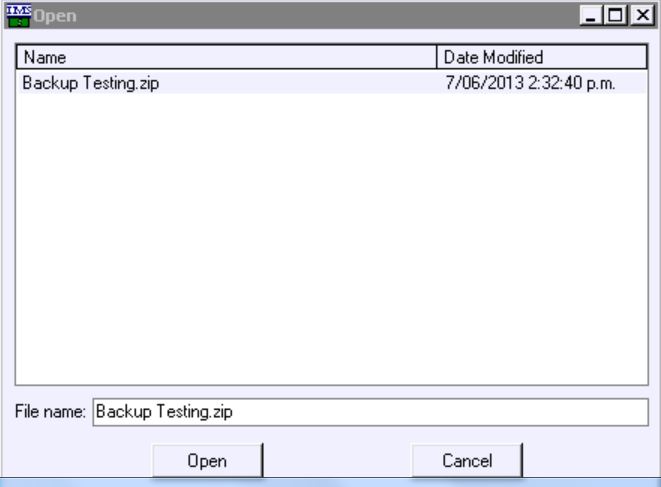
Select the backup to restore and click Open.
-
Click Start.
-
A confirmation message appears. Click Yes or No as appropriate.
-
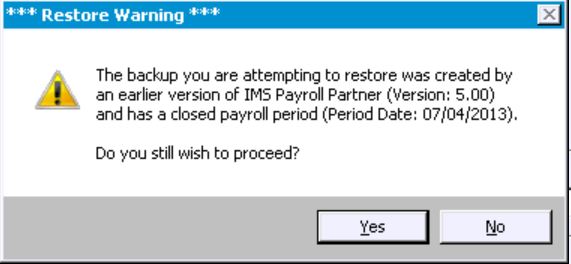
If you are restoring an earlier version, a warning will appear asking if you wish to proceed. Click Yes top continue or No to cancel the restore operation.
-
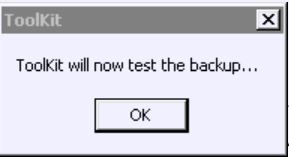
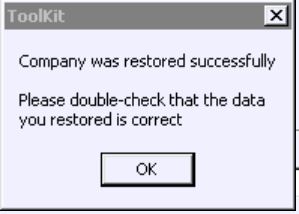
Toolkit tests the company backup. Click OK to continue.
-
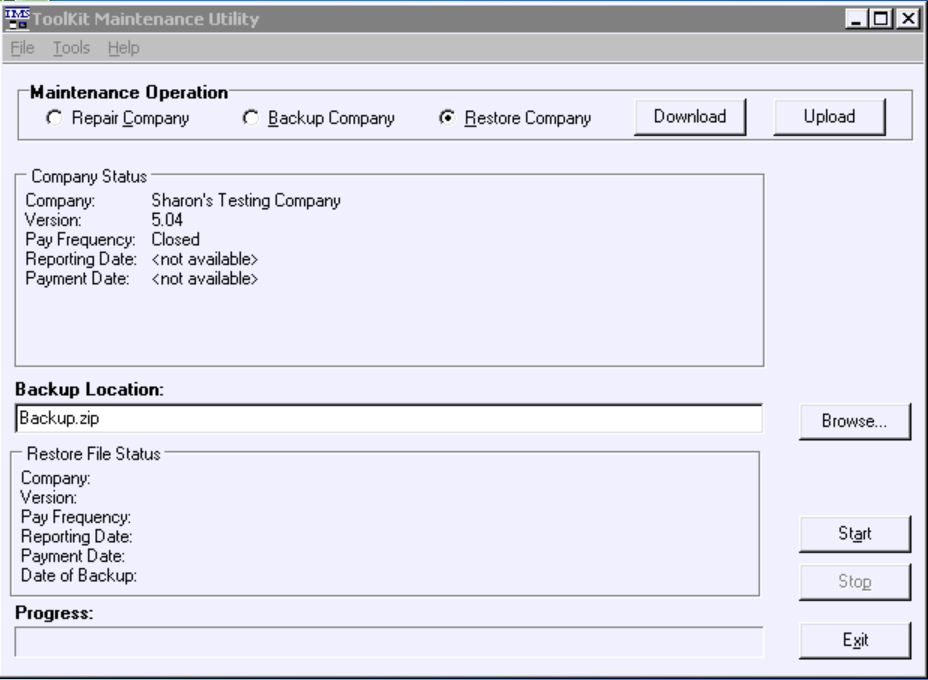
If the test is successful, a confirmation message appears. Click OK to close the message.
-
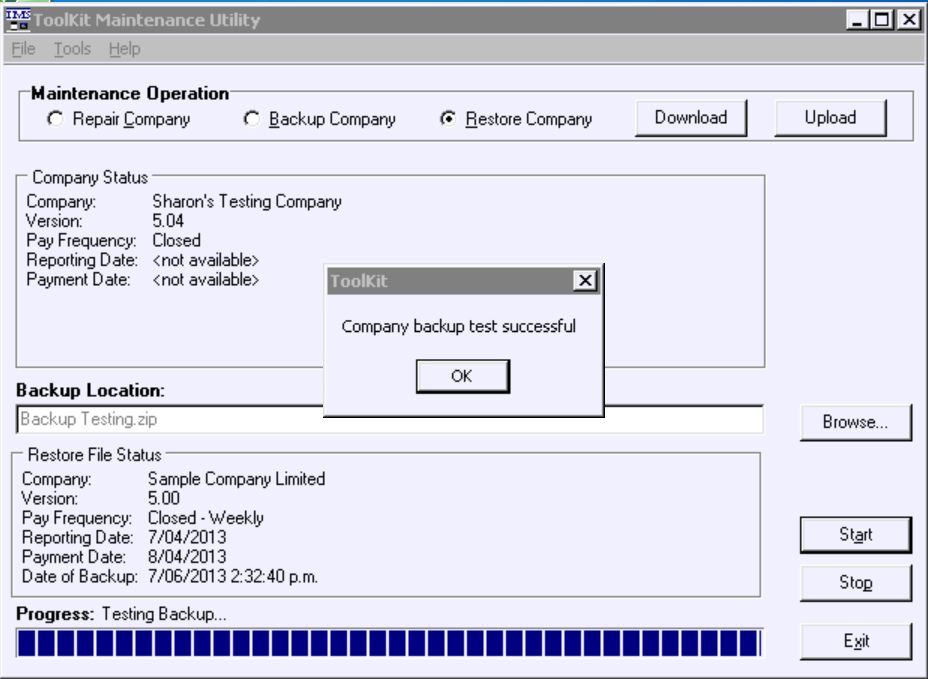
A confirmation message appears once the restore operation is complete. Click OK to close the message.
Downloading a Company Backup File
To download a company backup from IMS Payroll Cloud:
-
Select the company to remove and click the Toolkit button.
-
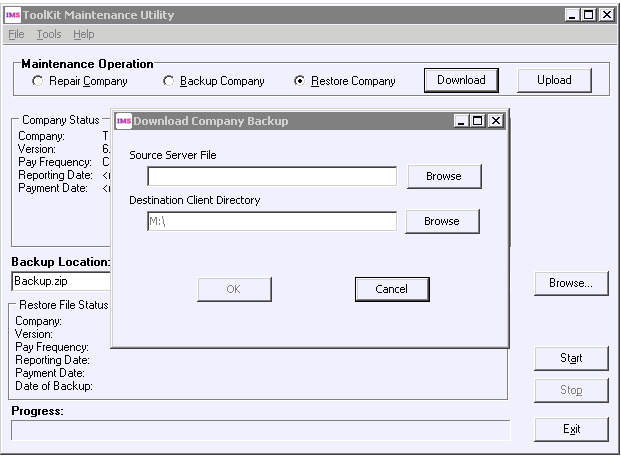
On the Toolkit Maintenance Utility window, click the Download button.
-
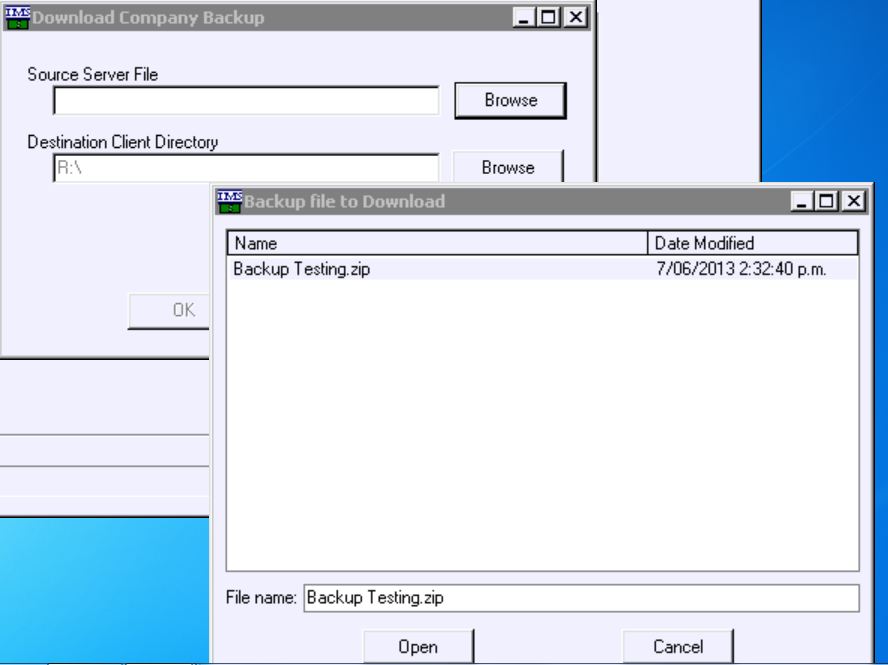
On the window that appears, click the Browse button next to the Source Server File field.
-
Select the back file that you want to download and click Open.
-
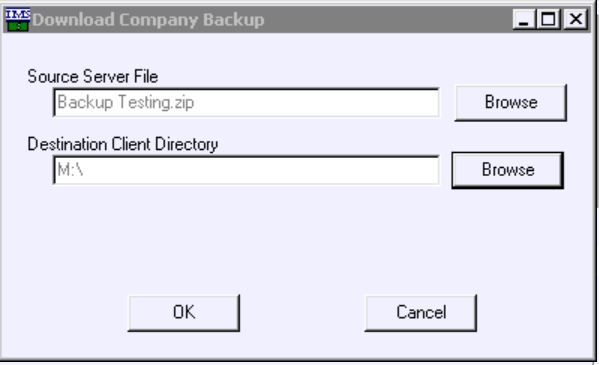
Ensure that the correct backup has been selected. The destination client directory will automatically default to M: (your local drive). Click OK.
-
A “Download completed” confirmation message appears. Click OK to close the message.
Uploading a Company Backup File
To upload a company backup to IMS Payroll Cloud:
-
Click the Toolkit button.
-
On the Toolkit Maintenance Utility window, click the Upload button.
-
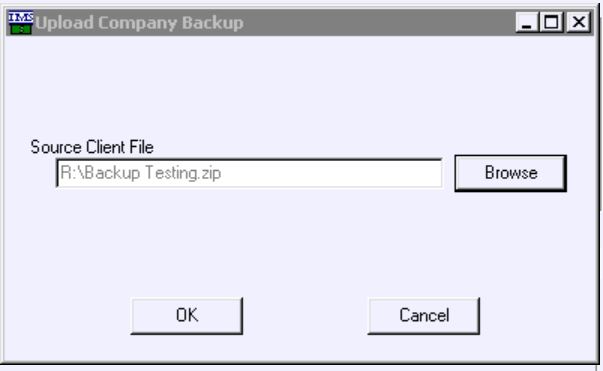
On the window that appears, click Browse.
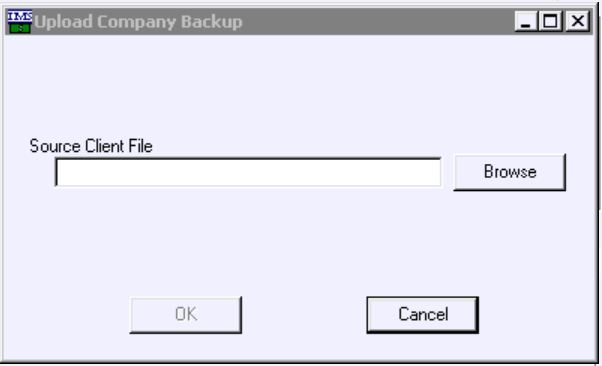
-
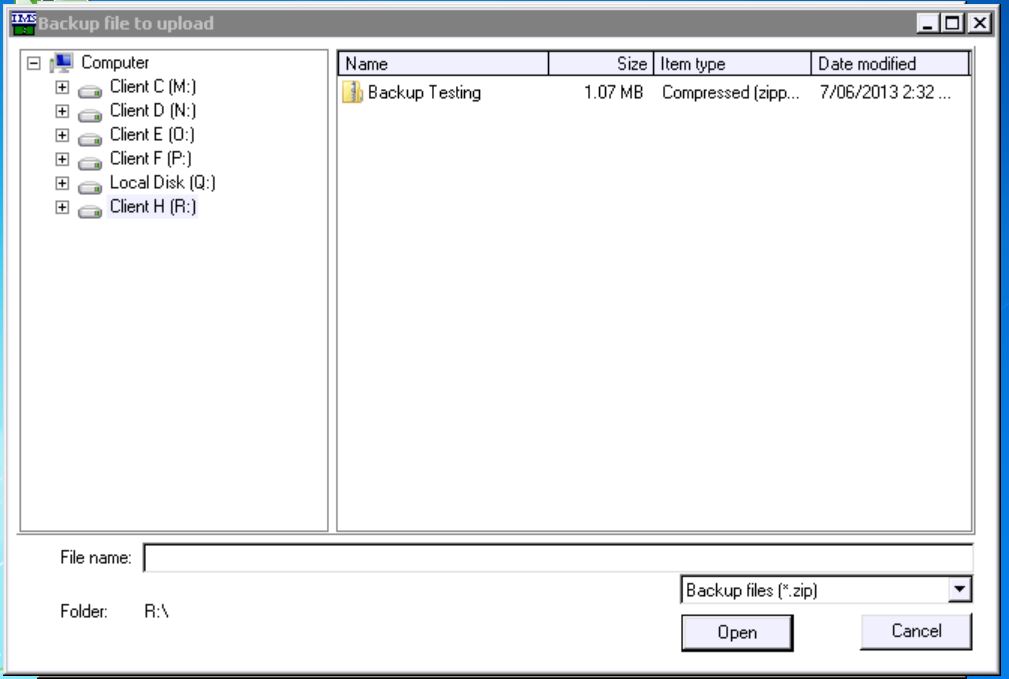
Use the browse window to select the backup file that you want to upload, then click Open.
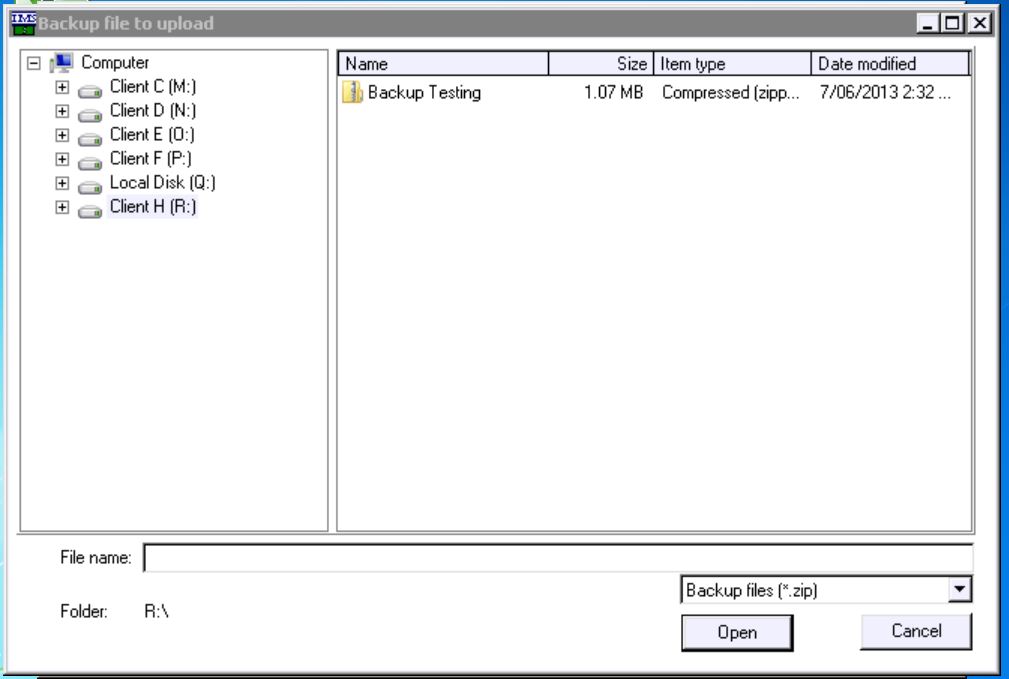
-
Confirm that you have selected the correct backup file, then click OK.
-
An “Upload completed” confirmation message appears. Click OK to close the message.
Deleting Old Backups
To delete old company backup files that are no longer needed:
-
Select the company whose backups you want to manage and click the Toolkit button.
-
On the Toolkit Maintenance Utility window, select Maintain Backups from the Tools menu.
-
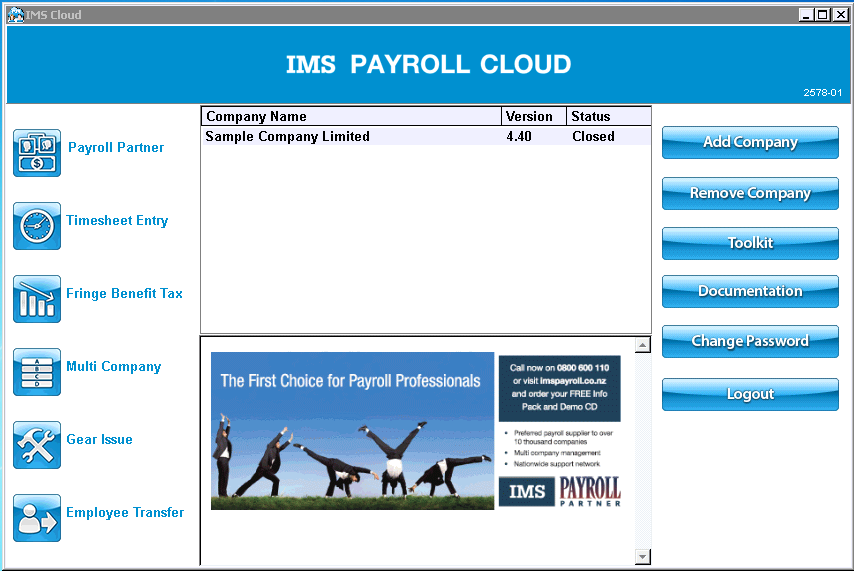
A window appears showing all saved backups for the company. Select the backup you want to delete, then click the Delete button.
-
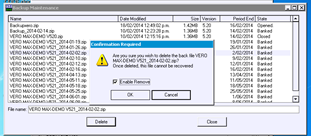
A confirmation window appears. Check that the backup you are deleting is the correct one, then tick the Enable Remove box and click OK.
-
Repeat steps 3 and 4 for all backups you want to remove. Once you have removed all of the backups that you want to, click the Close button to return to the Toolkit Maintenance Utility window.
Viewing Documentation
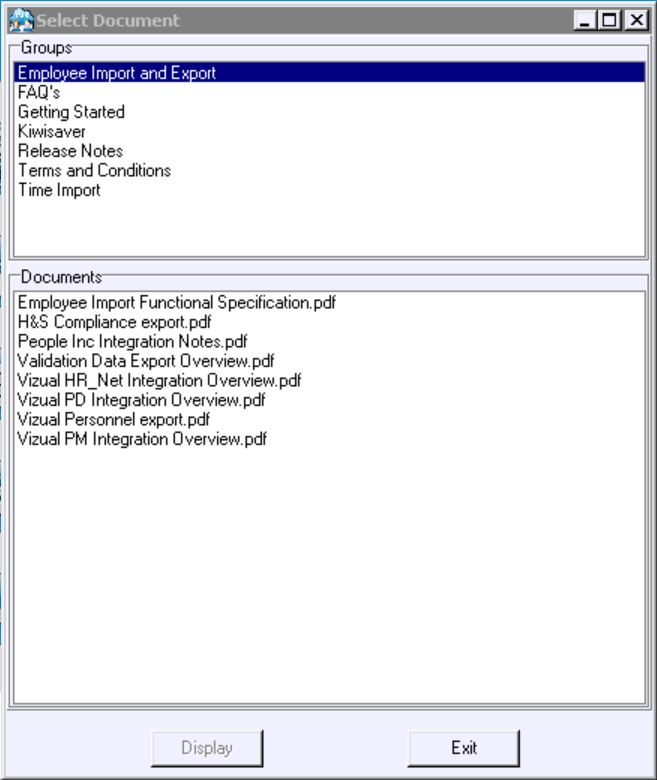
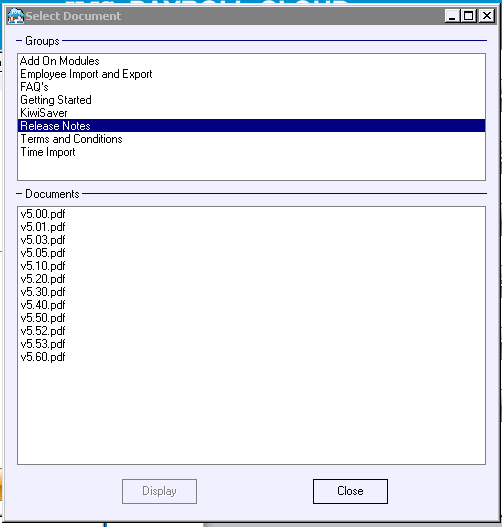
Documentation for IMS Payroll Cloud is available in PDF format. To access the documentation, click the Documentation button. This opens the Select Document window:
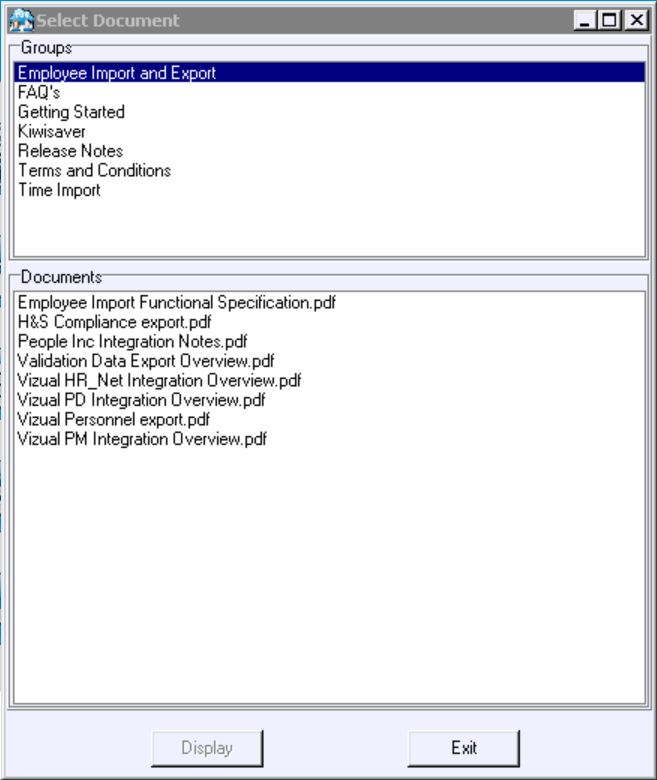
Documents are arranged in groups. Select a group, and all available documents in that group appear in the Documents section. Select a document and click Display to open the PDF.
Changing Your Password
To change your login password for IMS Payroll Cloud, click the Change Password button:
This opens the Change Password window:

Enter your old password, then enter a new password (twice for confirmation) and click OK.
Upgrading
When an upgrade of the software is available for the selected company, a gold Upgrade button appears at the bottom left side of the main window after you have closed the current pay period for that company.
It is extremely important that you upgrade when this button appears, but only after you have read the upgrade documentation.
For an overview of the changes in an upgrade, click the Upgrade Details button:
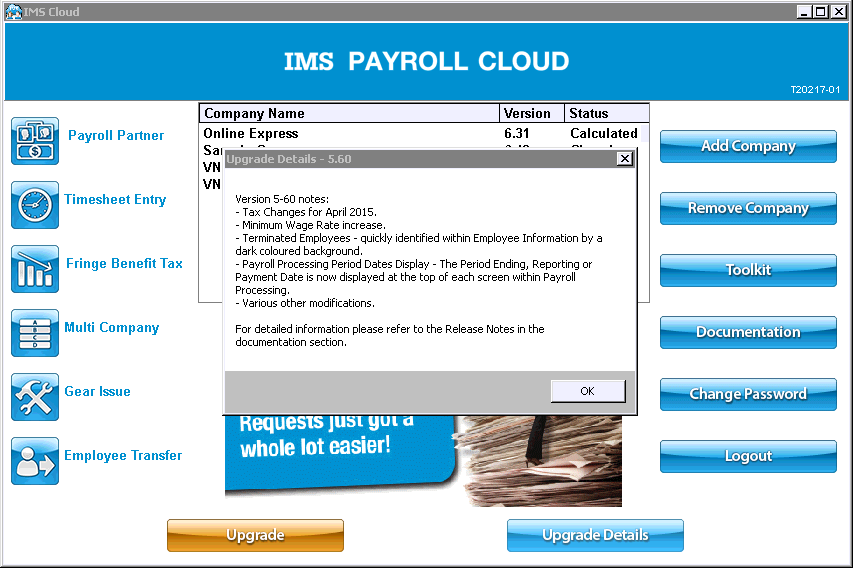
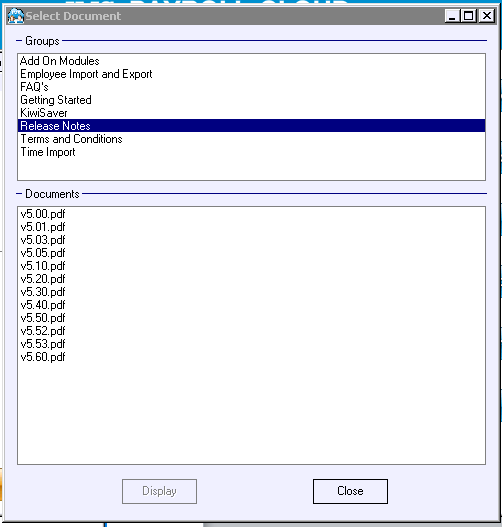
More detailed information is avaialble in the Release Notes document for each upgrade, which you can view in the Release Notes group on the Documents window.
Once you have read all upgrade information, click the gold Upgrade button to begin the upgrade.
Appendix: Browser Support
MYOB IMS Payroll Cloud has been designed to operate using the following web browsers:
-
Microsoft Internet Explorer – version 10 or later
-
Mozilla Firefox
-
Google Chrome
-
Apple Safari on Mac
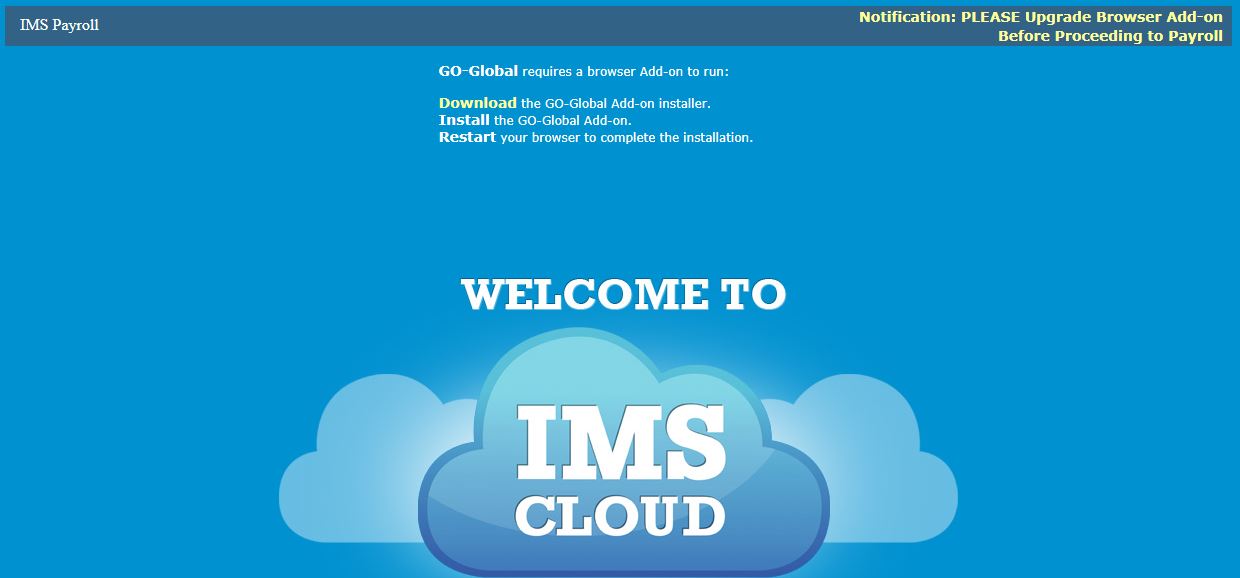
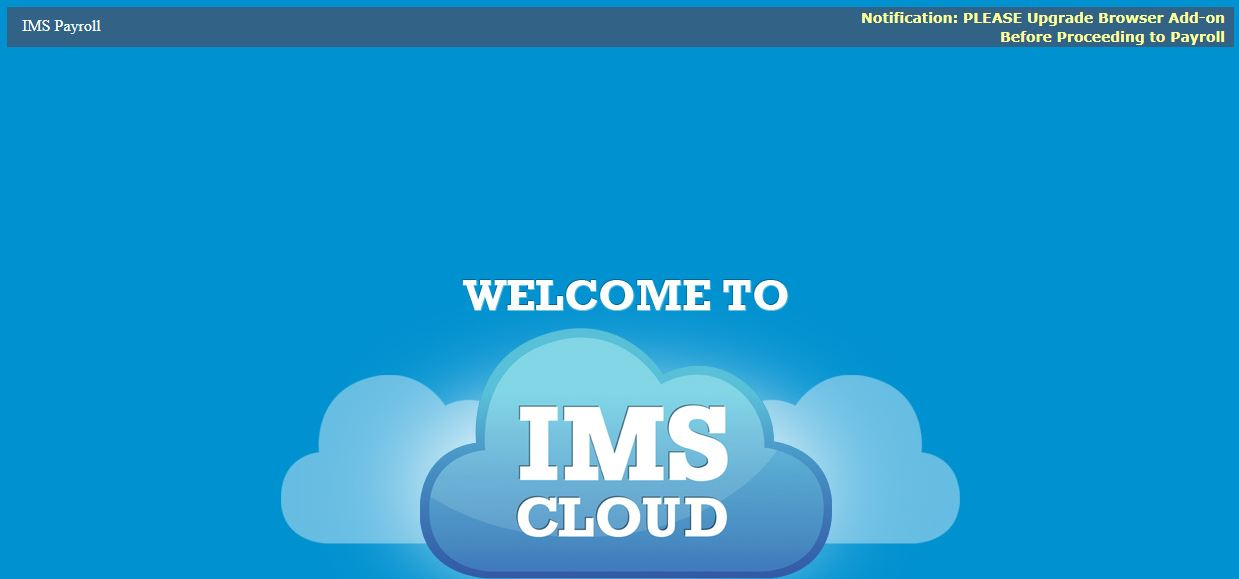
If you are running a version of Internet Explorer earlier than 10, a notification will appear at the top of the screen. If you get this notification, update your version of Internet Explorer or use either Firefox or Chrome.

The first time you access IMS Payroll Cloud, you’ll need to download and install the Browser GO-Global Add-on. The process of installing the add-on differs by browser.
Installing on Microsoft Internet Explorer
-
Click the Download the GO-Global Add-on Installer link at the top of the welcome screen.
-
Click Run and then Run again.
-
Click Allow.
After the installer runs, restart your browser. The add-on will be installed and you are ready to use IMS Payroll Cloud.
Internet Explorer 11
If the add-on will not install on IE11, you will need to run IE11 in Administrator Mode and try installing again. To run IE11 in Administrator Mode:
-
Open Windows Explorer and go to the C:\program files\Internet Explorer\ folder.
-
Right-click on iexplore.exe and select Run as administrator.
-
Download and run the GO-Global Add-on Installer again.
Installing on Google Chrome
-
Click the Download the GO-Global Add-on Installer link at the top of the welcome screen.
-
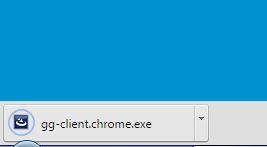
Run the downloaded installer gg-client.chrome.exe.

-
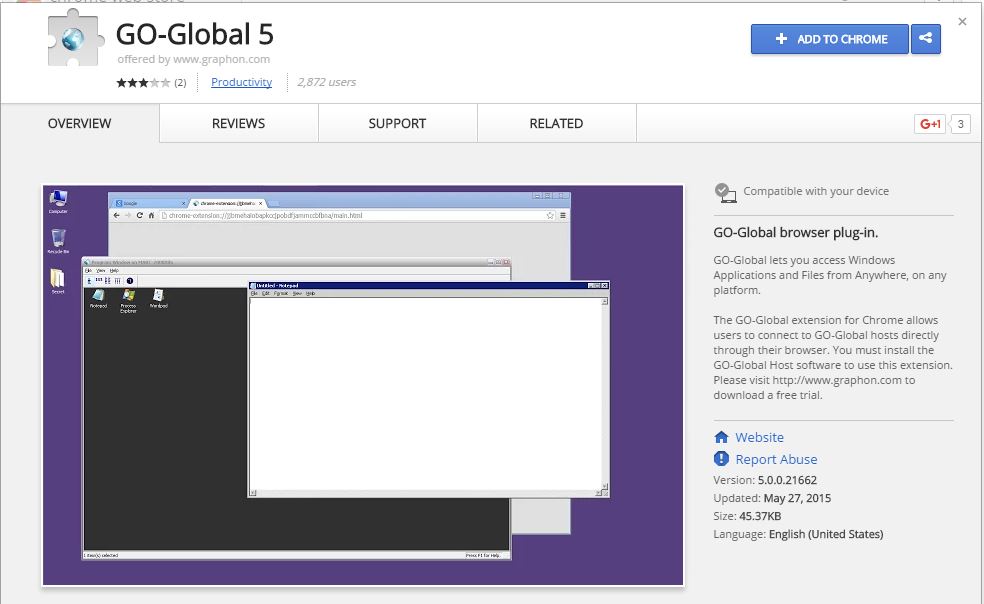
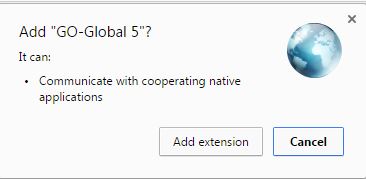
On the screen that appears, click Add to Chrome.
-
Click Add extension.
-
Once the screen displays Added to Chrome the add-on has been installed and you are ready to use IMS Payroll Cloud.

Installing on Mozilla Firefox
-
Click the Download the GO-Global Add-on Installer link at the top of the welcome screen.
-
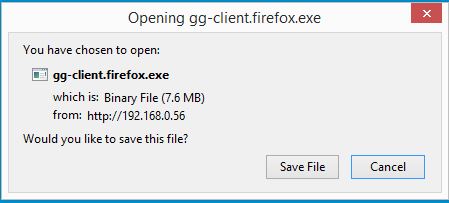
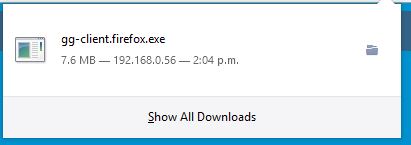
Click Save File.
-
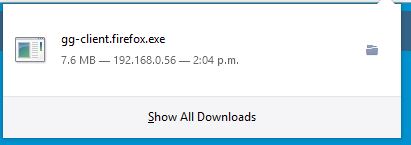
Click gg-client.firefox.exe.
-
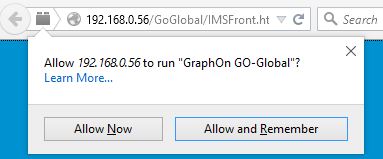
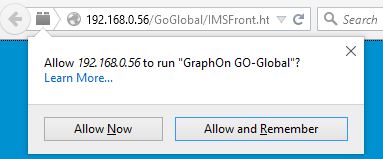
Click Allow.

-
Click Allow and Remember.
After the installer runs, restart your browser. The add-on will be installed and you are ready to use IMS Payroll Cloud.
Installing on Apple Safari
-
Click the Download the Mac OS X Client installer link at the top of the welcome screen.
-
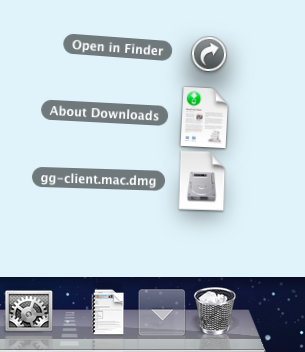
Click gg-client.mac.dmg.
-
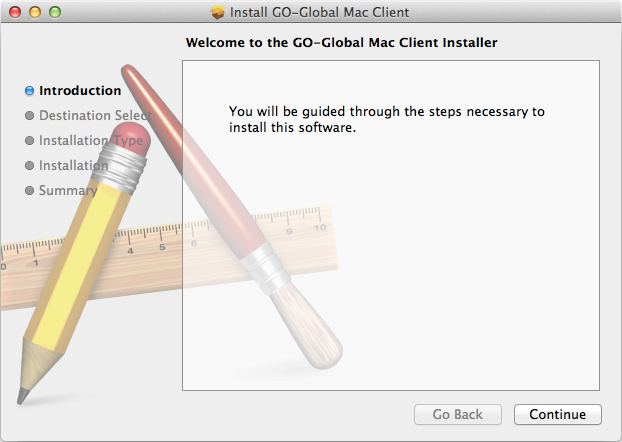
Click gg-client.mac.pkg. If a message is displayed stating that the file can't be opened then hold down the Control key, click the package and select Open from the displayed menu. An administrator password will be required (and user name if logged in as a non-administrator).
-
Click Continue.
-
Click Close.
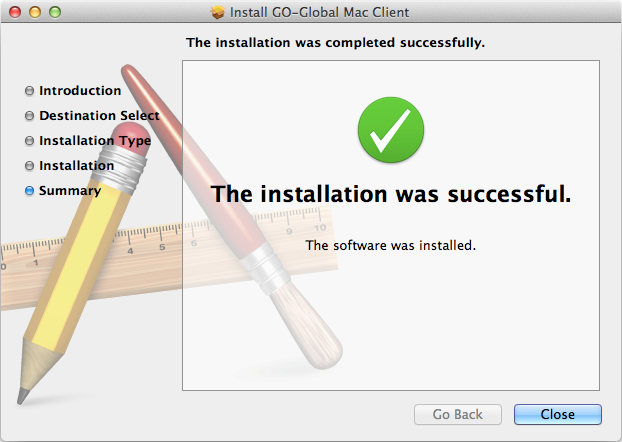
The add-on will be installed and you are ready to use IMS Payroll Cloud.
Upgrading the Add-On
If you have an older version of the GO-Global Add-on for your browser a notification message will appear at the top of the screen. Do not log in to IMS Payroll Cloud until you have upgraded the add-in.
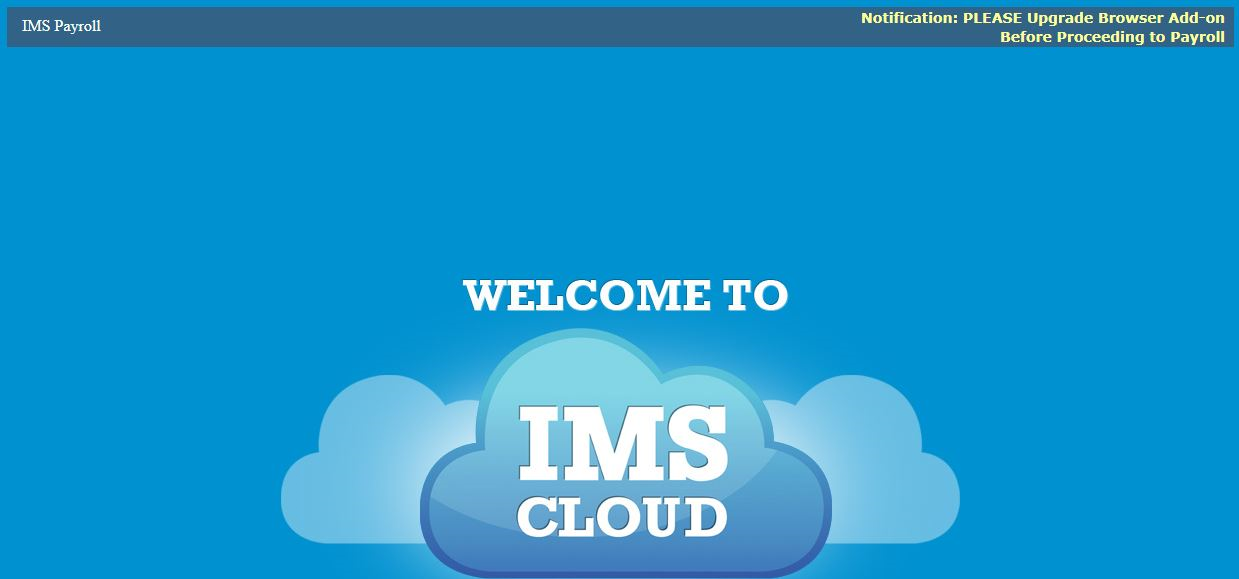
To upgrade, click on the notification message. This will take you to a screen containing a Download link—download and run the installer for your web browser in the same way as when you first installed it.