- Contents
- Index
- Search

Show results that include all search words
Enter Quantities
After you perform a physical count, you can enter hand written count quantities.
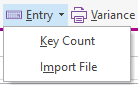
To import a stock take, click the dropdown next to the Entry button and choose Key Count.
The Enter Stock Take Count window displays:
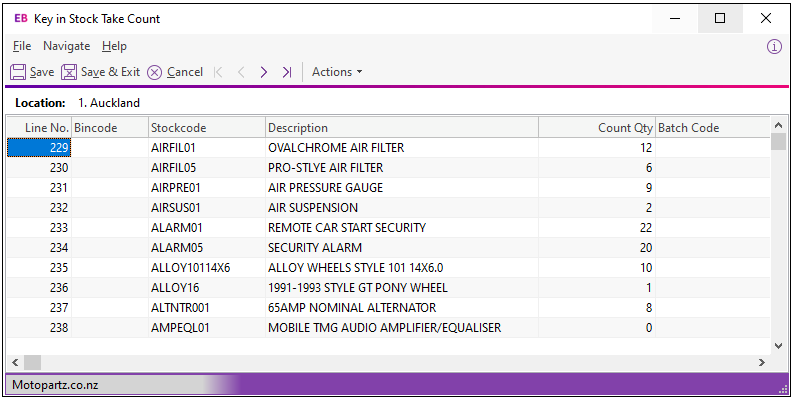
The grid is pre-populated with the stock items complying with the selection criteria used in the initialisation process. Exo Business quantities are the computer stock figures when the stock take was initialised.
Some columns and buttons, especially for batch codes and serial numbers, only display if their profile settings are enabled. There are also read-only columns that you can select from the Visible Columns list.
Note: If there were stock transactions since the stock take initialisation, the current stock figures may differ from Exo Business quantities in the Stock Take window. Only the stock take variance between Exo Business quantities and the counted quantities are posted there. Once the physical count has been completed, other processing (for example, sales and receipts) may continue even though the count quantities haven't been entered.
Enter the quantities from the count sheet into the Count Qty column. On the toolbar, click:
-
Zero Count Quantities – Click this button to set all counts quantities in the grid to zero. The system quantities are not reset.
-
Copy System Quantities – Click this button to set all counted quantities equal to Exo Business quantities (with no variances). If a visual check of the count sheets indicates that only a few items have variations, click this button and then amend the counted quantities which differ.
Click the Save button. This does not exit the window. Saving does not post the stock variance transactions or affect the live stock ledger. This happens when stock is uploaded to the ledger.