- Contents
- Index
- Search

Show results that include all search words
Import Stock Take
If the stock take has been prepared outside Exo Business (for example, using spreadsheet or from a portable scanning device), then you can import the counted figures.
Exo Business rejects rows in the import file for stock items that were not initialised. If you use selection criteria in the stock take initialisation, make sure that the criteria initialise all items being imported.
The quantity in the CSV file is added to any quantity for the item that may have been previously imported or entered to the stock take.
The file to import should be a CSV (comma separated variable) file containing fields Stockcode and Quantity (in that order). You can replace Stockcode with Barcode, which is resolved to Stockcode during the import.
Importing a stock take
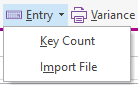
To import a stock take, click the arrow beside the Entry button and choose Import File.
The Stocktake File Import dialog displays:
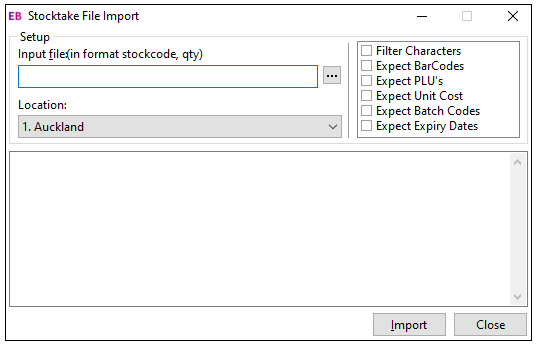
Enter the name of the CSV file to import the Input File field. Or, click the ellipsis button to find the file.
These options also display:
- Filter characters – Select this option to filter out from the import file any characters that are not permitted within a stock code (such as the \ character).
- Expect Barcodes – Select this option to indicated that the first field of an imported row may be a Barcode that must be resolved to a stock code.
- Expect PLU’s – Select this option to indicate that some rows may contain PLU codes. These are Stockcodes or Barcodes for lookup items that link to a stocked item.
- Expect Unit Cost – Select this option if unit costs are being submitted. This requires a column in the input file containing the unit cost.
- Expect Batch Codes Select this option to indicate that separate rows exist in the import file for stock batch codes. The file must have a third column for the batch codes. For non-batched items, this column should be blank.
- Expect Expiry Dates – Select this option if expiry dates are also submitted for batch-tracked items. This requires a column in the input file containing the expiry date.
You can't import serialised stock.
Note: If the
Expect Batch Codes or Expect
Expiry Dates options are checked then the file format caption above
the input file name changes to indicate the appropriate format. 
To import the file, click the Upload button.
Progress messages display in the notepad area at the bottom of the window.
After import proceed with printing a variance report and performing an upload as would occur for a entered stock take. Prior to uploading, The Key quantities function may be used to correct any imported quantities if required.