
Dashboards: Widget Location Within a Working Area
You can use widget coordinates to locate a widget on a dashboard.
Widget Coordinates
In the Modern UI, dashboards have a flexible layout. The number and position of widget placeholders vary depending on device screen size, resolution, and orientation.
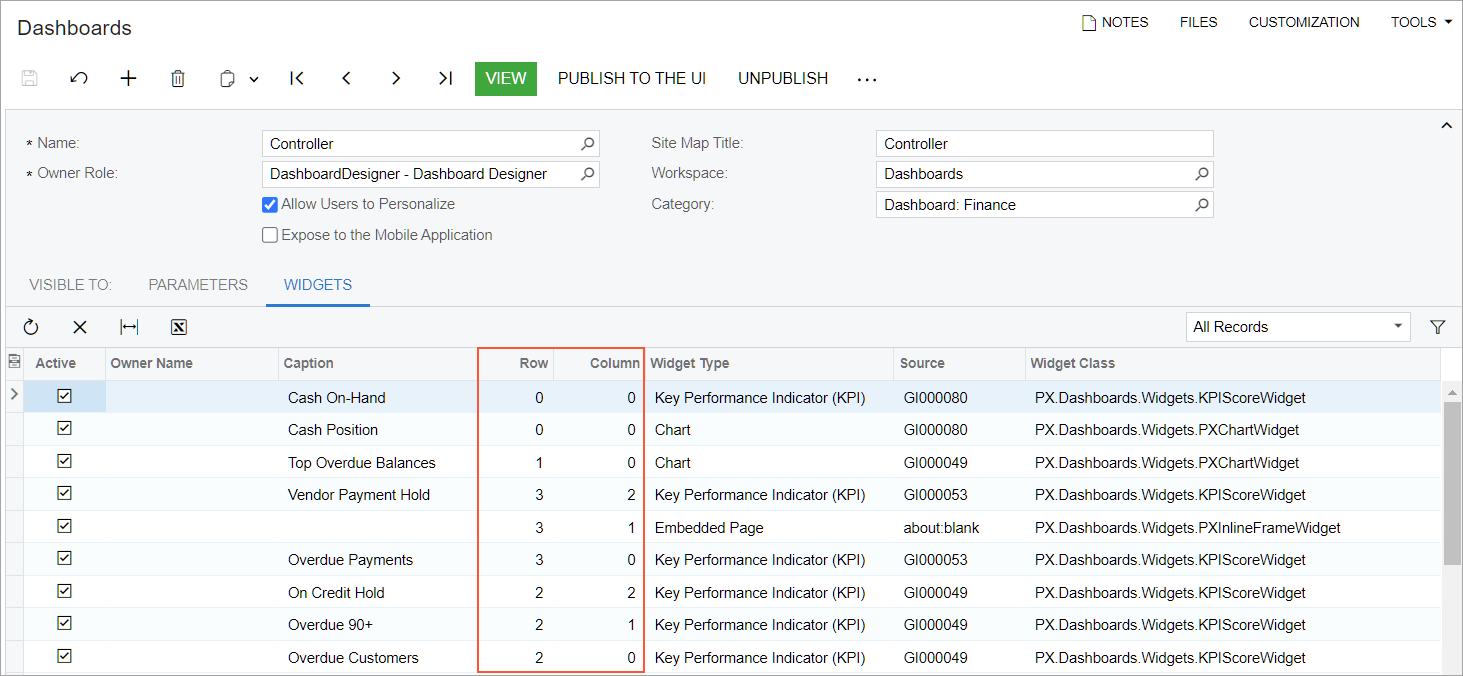
Widgets are organized in rows and columns (or both) within a working area. A widget's coordinates represent its location: the number of its row and the number of its column. For example, the widget in the top left corner has a location of 0, 0: the 0 row and the 0 column.
Widget coordinates are shown in the Row and Column table columns on the Widgets tab of the Dashboards (SM208610) form for a dashboard (see the following screenshot).
Finding of Deactivated Widgets
A widget that has the Active check box cleared on the Widgets tab of the Dashboards (SM208610) form is not shown on the dashboard in either view mode or design mode. A user with the dashboard owner role or a user that has created a personalized copy of the dashboard can drag another widget into the location of the inactive widget. If you then select the Active check box for this inactive widget, it may remain hidden on the dashboard. You can quickly locate the hidden widget by using its coordinates in the Row and Column table columns on the Widgets tab.
If you do not use a widget anymore, you can remove it from the selected dashboard. To do this, click the row with this widget, and then click Delete Row on the table toolbar.