Working with AI Assistant: General Information
In the following sections, you’ll learn how to solve various tasks with the help of AI Assistant. These tasks include starting a conversation, asking questions, reviewing results, drilling down into records, and organizing work with chats.
- AI Assistant User
- Administrator
- Acumatica Support
Applicable Scenarios
You use AI Assistant in the following cases:
- You need a fast answer to an operational question (for example, find what the totals are, review recent activity, or list open invoices).
- You want to move from a summarized answer to the underlying records without manually searching.
- You want to visualize results and turn them into dashboards or pivot-style analytics for further review.
- You’re doing multistep investigation and want to keep questions and follow-ups organized in separate chats.
AI Assistant Capabilities
With AI Assistant, you can do the following:
- Ask questions in everyday language: You can type a question using language you’d use with colleagues, such as What is this month's total income? or List 10 open invoices that were modified most recently.
- Drill down into records with just a click: If an answer includes the record ID or name, this ID or name is displayed as a link. Clicking the link opens the record in the main working area of the form—not in the chat window.
- Turn insights into dashboards and pivots: For certain answers, AI Assistant offers to performs actions for you, such as creating a widget from a chart or generating a pivot table and placing it on a new dashboard. These actions also occur in the working area of the form, so you can build tools for further analytics straight from your conversation.
- Keep related questions together: Conversations are grouped into chats. Each chat stores your previous questions and answers—so you can return to your research later or build on it.
Asking Your Questions
Behind the scenes, AI Assistant relies on a defined set of generic inquiries and their descriptions. Your system administrator can add generic inquiries to this set or remove them from it. They can also add descriptions—using business language that’s familiar to your users. By helping the AI Assistant associate users' language with specific generic inquiries, fields, and parameters, administrators can increase the likelihood of users getting high-quality answers. For details, see Exposing Generic Inquiries to AI Assistant: General Information.
To start working with your AI Assistant, click  in the
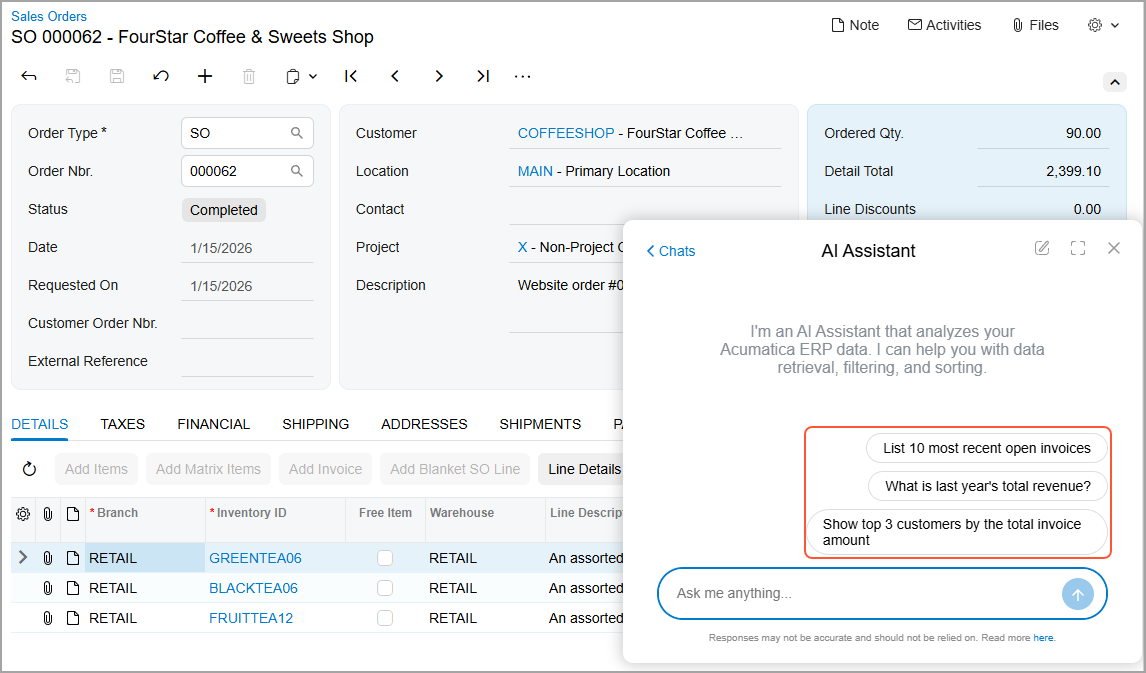
top pane. The chat window opens with the three predefined prompts (shown below). You can click
one of these prompts or type your own.
in the
top pane. The chat window opens with the three predefined prompts (shown below). You can click
one of these prompts or type your own.
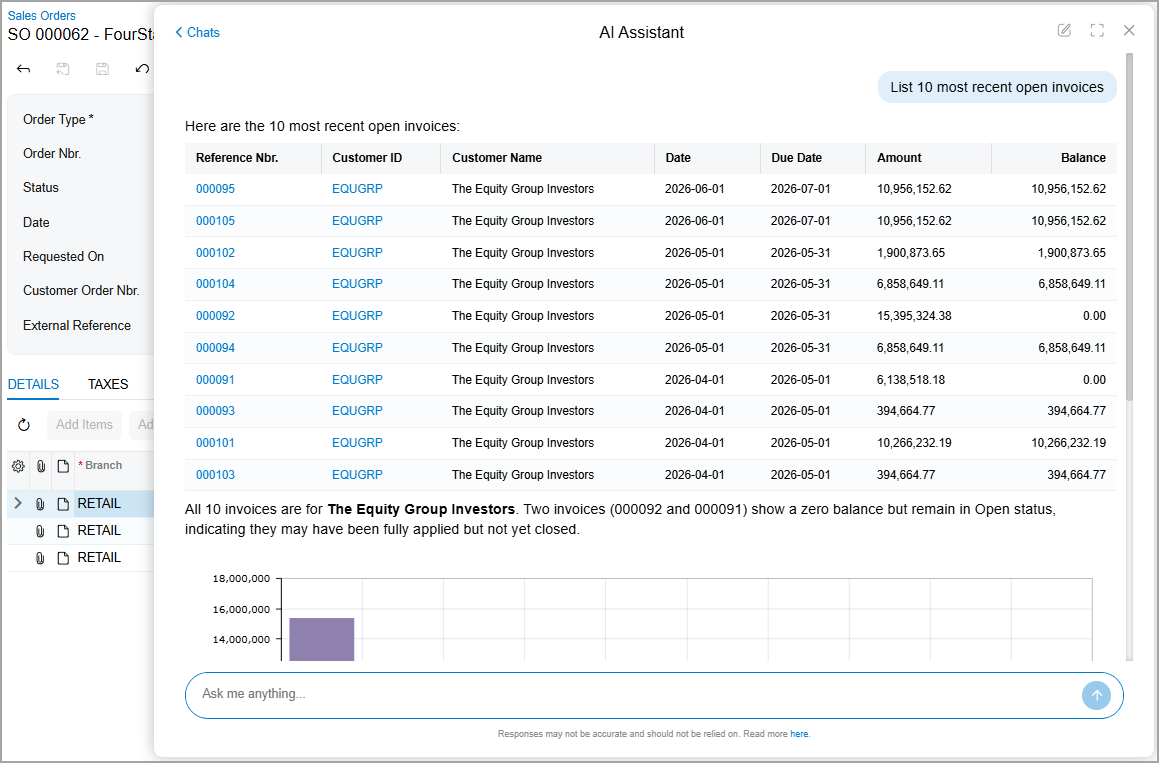
Suppose that you want to see the most recent open invoices. AI Assistant’s results are listed in a table (shown below).
You can click Customer Details (Item 1 below) to open the Customer Details (AR0010DB) list of records, which lists all customers documents; you can also select a customer to view only their documents. Alternatively, you can click another follow-up prompt (Item 2)
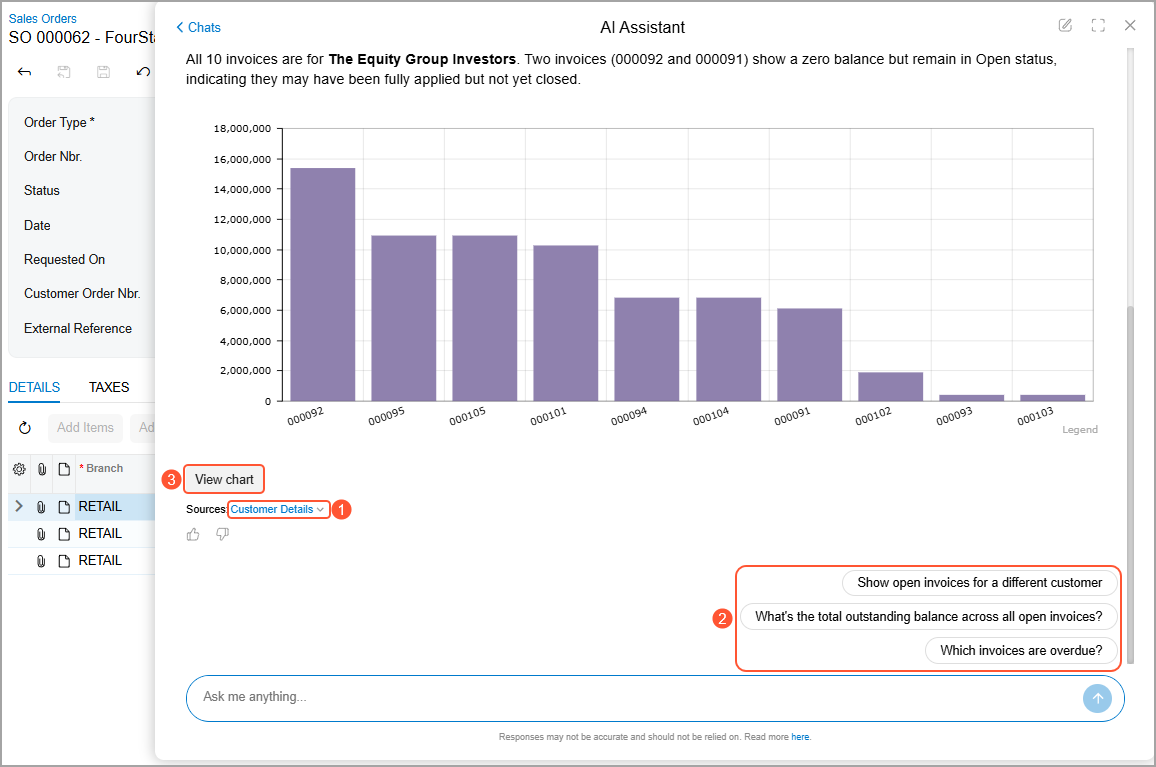
For the third follow-up prompt, notice in the next two screenshots that AI Assistant displays the results as text (Item 1), a table (Item 2), and a chart (Item 3). The columns in the chart are also links to the corresponding records. You can click View Chart (Item 4) to open a dashboard with this widget.
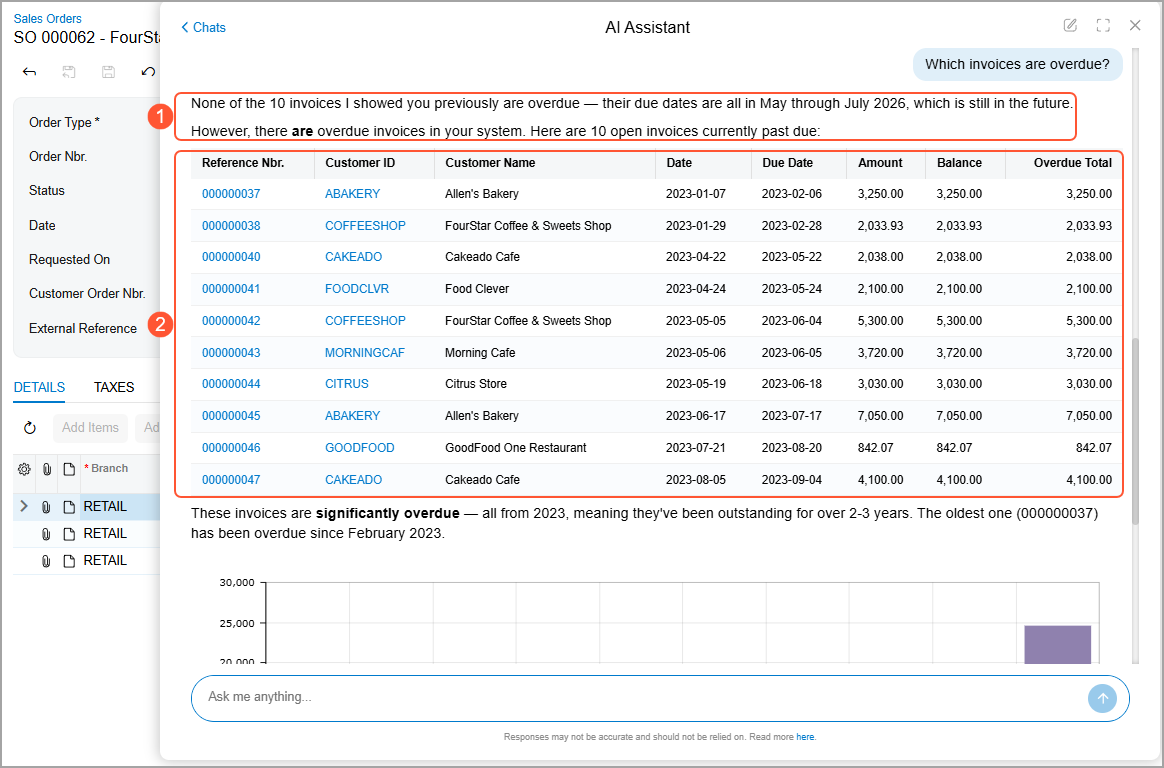
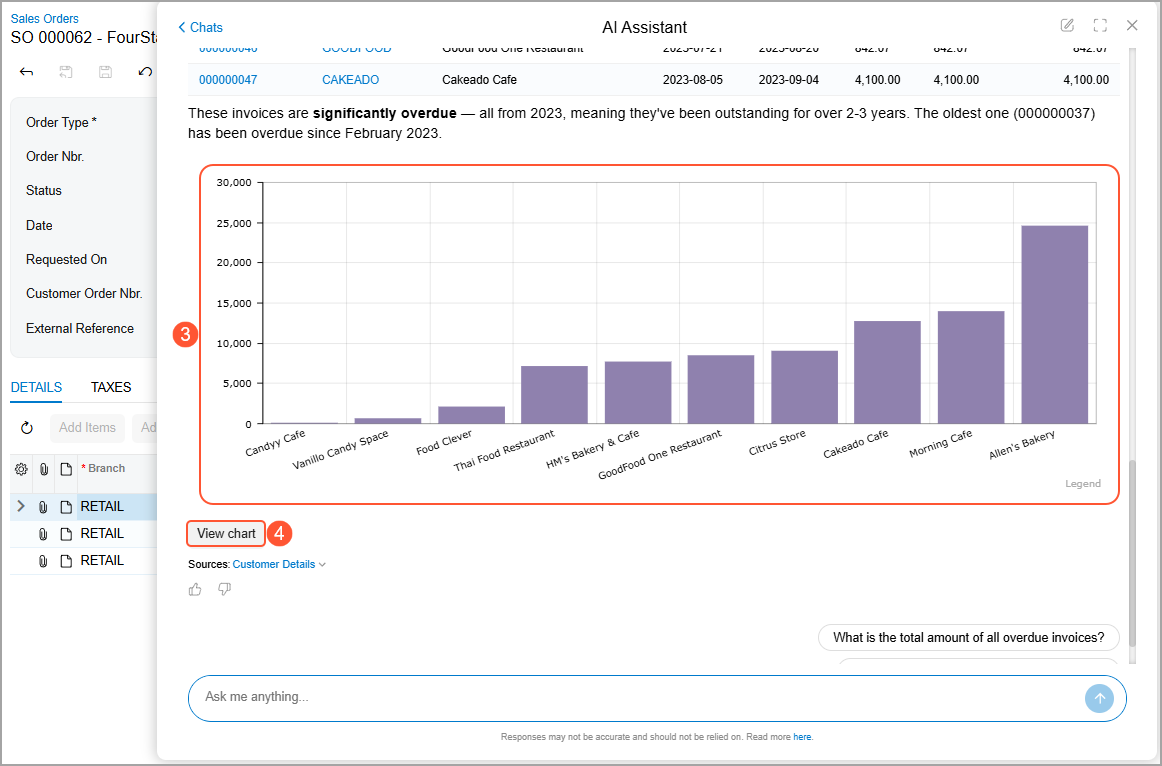
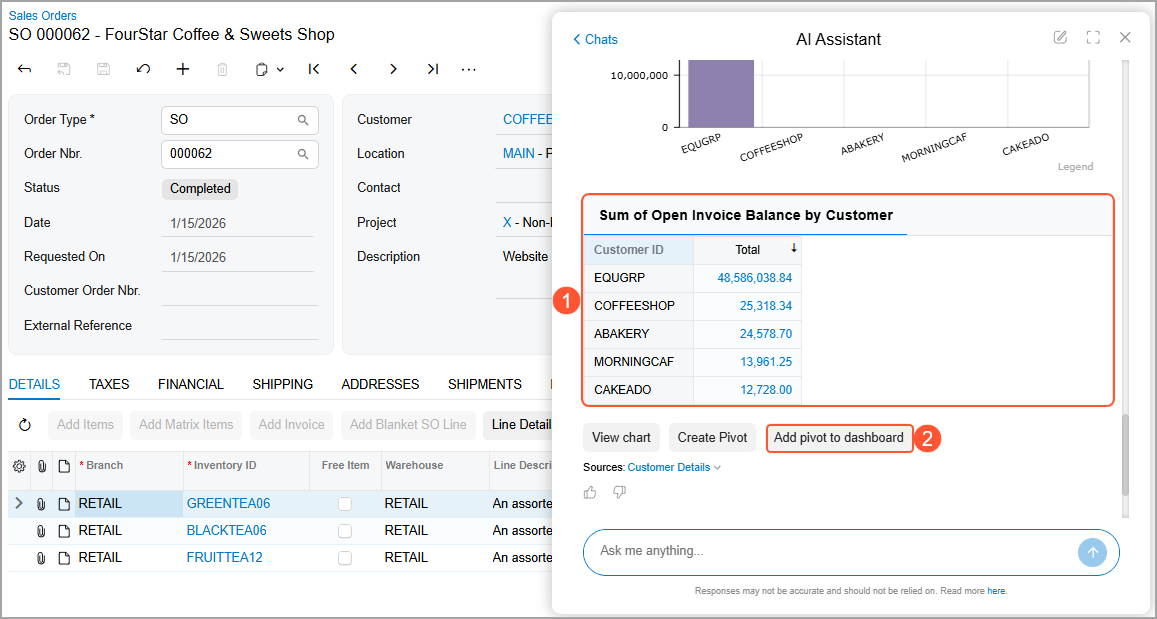
AI Assistant can also organize data into a pivot table (Item 1 below). Click the links in the table to open the corresponding records. You can add a pivot table from the response to a dashboard (Item 2).
Managing Your Chats
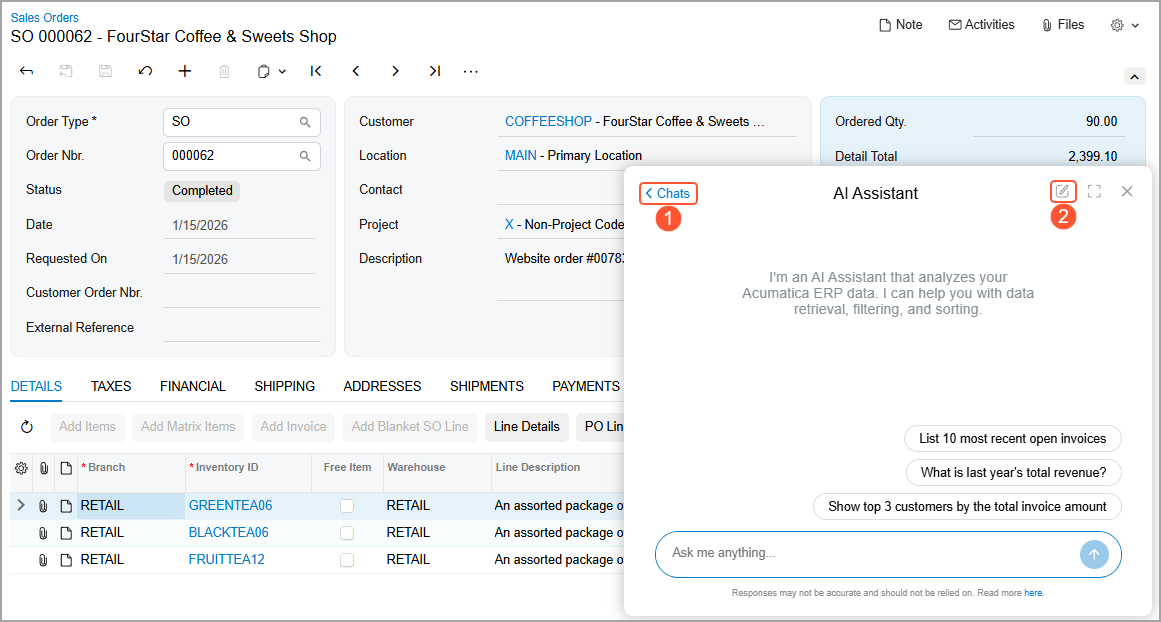
Each time you click a predefined prompt or type a new question, AI Assistant creates a chat. You can continue asking questions in this chat or go back to the list of chats, switch to another chat, or start a new one.
To get back to the list of chats, click the Chats link in the upper left corner of the window (Item 1 below). From this list, you can click another chat to switch to it. To start a new chat, click Create Chat (Item 2).
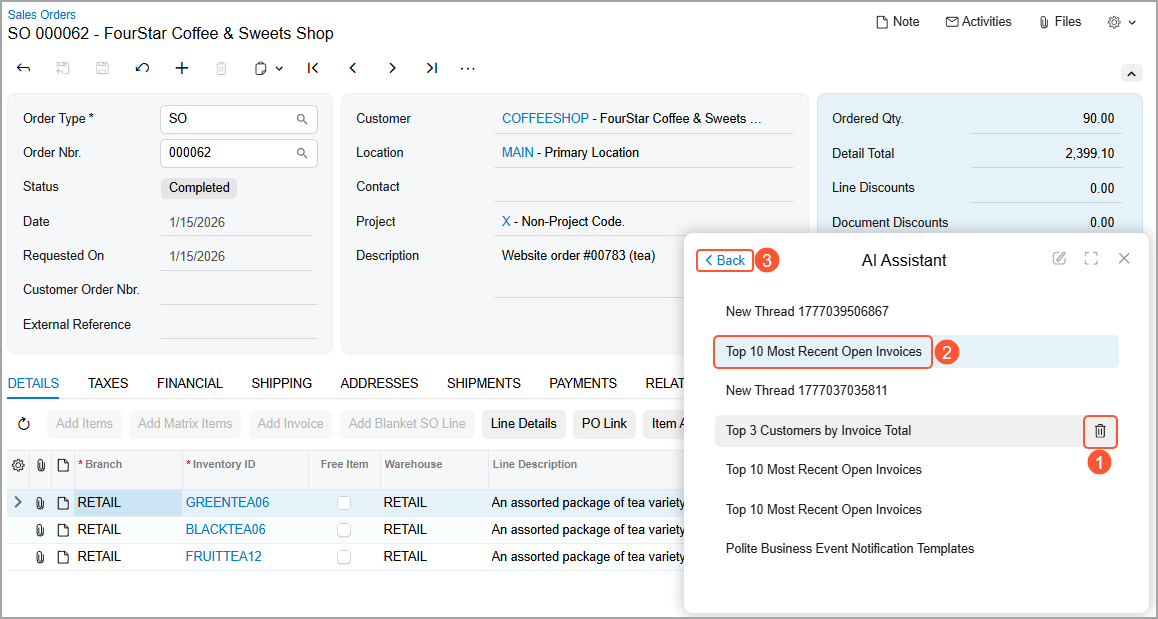
If you no longer need a chat, you can delete it (Item 1 below). Notice that the system has assigned a name to each chat based on your request (Item 2). Click the Back link to return to the previous chat (Item 3).