Processing Operations: To Implement a Processing Operation by Using the Workflow
The following activity will walk you through the process of implementing a processing operation by using the workflow. Usually you use this approach if a workflow is implemented for the records that you are going to process on a processing form.
Story
You’ve created the UI of the Assign Work Orders (RS501000) processing form. Now you need to implement the processing operation for this form. A user can assign a repair work order on the Repair Work Orders (RS301000) form, where a workflow is implemented for the records. Because repair work order records have a workflow implemented, you’ve decided to implement the processing operation for the Assign Work Orders (RS501000) processing form by using this workflow.
Process Overview
In this activity, you'll define the processing operation by using the workflow. You’ll also test the form.
System Preparation
Before you begin performing the steps of this activity, do the following:
- Prepare an MYOB Acumatica instance by performing the Test Instance for Customization: To Deploy an Instance with a Custom Form that Implements a Workflow prerequisite activity.
- Create a processing form without filtering parameters by performing the Processing Form: To Create a Simple Processing Form prerequisite activity.
Step 1: Specifying a Workflow Action for Processing
In this step, you'll specify the Assign action of the Repair Work
Orders (RS301000) form to be used for processing on the Assign Work Orders
(RS501000) form. You'll also adjust the workflow of the Repair Work Orders
(RS301000) form. Do the following:
- In the
RSSVAssignProcessgraph, make sure you have defined theCancelaction for the toolbar and theWorkOrdersdata view, which provides the data records to be processed on the form.public PXCancel<RSSVWorkOrder> Cancel = null!; public SelectFrom<RSSVWorkOrder>. // Inside the Where condition, use a fluent BQL statement // that selects only the repair work orders with // the Ready for Assignment status. Where<RSSVWorkOrder.status. IsEqual<RSSVWorkOrderEntry_Workflow.States.readyForAssignment>>. ProcessingView WorkOrders = null!; - In the
RSSVAssignProcessgraph, define the following RowSelected event handler.protected virtual void _(Events.RowSelected<RSSVWorkOrder> e) { WorkOrders.SetProcessWorkflowAction<RSSVWorkOrderEntry>( graph => graph.Assign); } - In the
RSSVWorkOrderEntry_Workflowclass, in the lambda expression for the WithActions method, adjust theAssignaction definition so that it can be used on the Assign Work Orders (RS501000) processing form as follows.actions.Add(graph => graph.Assign, action => action .WithCategory(processingCategory) .WithForm(formAssign) .WithFieldAssignments(fields => { fields.Add<RSSVWorkOrder.assignee>(field => field.SetFromFormField(formAssign, "Assignee")); }) .MassProcessingScreen<RSSVAssignProcess>() .InBatchMode()); - Rebuild the project.
Step 2: Specifying the Default Value for the Workflow Action
The Assign action of the Repair Work Orders (RS301000) form assigns
a repair work order to the employee selected in a dialog box displayed for the
action. Because a user cannot select the assignee for each record during processing
on the processing form, you need to assign the default value for the assignee in the
dialog box. The default value will be the assignee specified in the
Assignee box on the Repair Work Orders (RS301000) form.
The Assignee box will obtain its default value from the
default employee specified on the Repair Work Order Preferences (RS101000) form. A
user can change the assignee in the Assignee box.
In this step, you'll configure the RSSVAssignProcess graph, which
works with the Assign Work Orders (RS501000) form, and adjust the workflow of the
form. Do the following:
- In the
RSSVWorkOrderDAC, add the PXDefault attribute to theAssigneefield. The default value of theAssigneefield is the value of theDefaultEmployeefield of theRSSVSetupDAC, which is specified on the Repair Work Order Preferences (RS101000) form.#region Assignee [Owner(DisplayName = "Assignee")] [PXDefault(typeof(RSSVSetup.defaultEmployee))] public virtual int? Assignee { get; set; } public abstract class assignee : PX.Data.BQL.BqlInt.Field<assignee> { } #endregion - In the
RSSVWorkOrderEntry_Workflowclass, specify the default value for the field in the dialog box for theAssignaction as follows. The DefaultValueFromSchemaField method specifies that the default value is the value of theAssigneefield of theRSSVWorkOrderDAC.var formAssign = context.Forms.Create("FormAssign", form => form.Prompt("Assign").WithFields(fields => { fields.Add("Assignee", field => field .WithSchemaOf<RSSVWorkOrder.assignee>() .DefaultValueFromSchemaField() .IsRequired() .Prompt("Assignee")); })); - Rebuild the project.
Step 3: Testing the Processing Form
In this step, you'll test the Assign Work Orders (RS501000) form. Do the following:
- On the Repair Work Orders (RS301000) form, do the following:
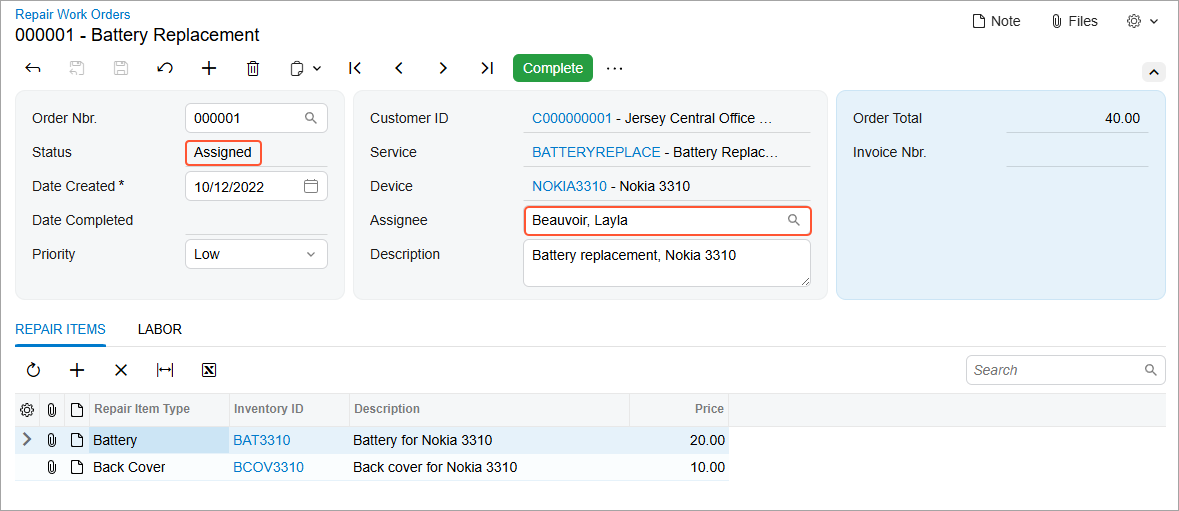
- Open the 000001 repair work order. Specify Beauvoir, Layla as the assignee and click Remove Hold.
- Open the 000002 repair work order. Specify Baker, Maxwell as the assignee and click Remove Hold.
- Open the Assign Work Orders (RS501000) form. Select the check box in the first
column for the 000001 work order and click Assign
on the form toolbar. The Assign dialog box opens (shown
below).
Figure 1. The Assign dialog box 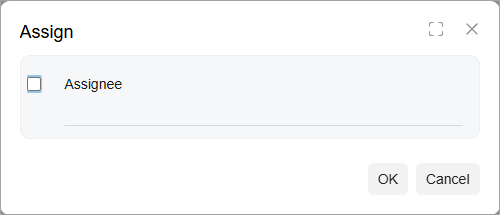
Leave the check box in the dialog box unselected, which indicates that the default value of the
Assigneefield should be used to process the record. In the previous step you have already specified that this field should use the value specified in theAssigneefield of theRSSVWorkOrderDAC by calling the .DefaultValueFromSchemaField() method.Click Ok.
- The Processing dialog box is displayed, which shows the
progress and then the result of the operation (see below). Close the dialog
box.
Figure 2. The Processing dialog box 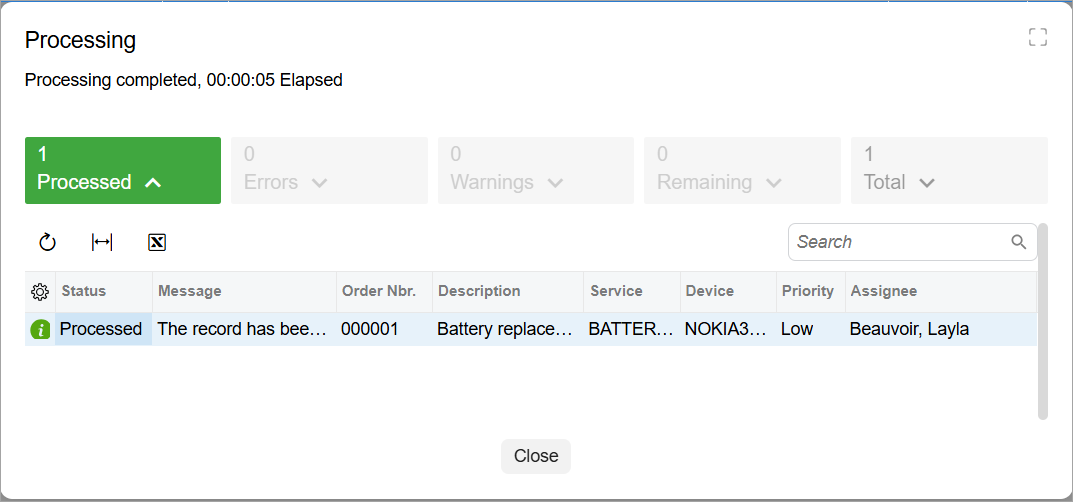
- On the Repair Work Orders form, make sure that the 000001 work order now
has the Assigned status and that the assignee is Beauvoir, Layla,
as shown below.
Figure 3. Assigned work order