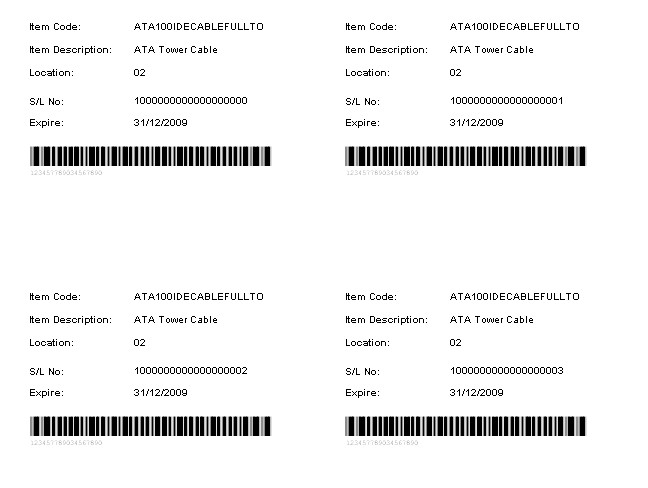
Receiving/Storage Labels by Item Report
This report prints item labels. It is not linked to a receipt batch or transaction. You can print labels for a specific item or location, or range of items or locations.
Parameters
You can set these parameters for the report:
Inventory Item From - To
Enter an inventory item code or valid range of item codes. An item only prints if printing receiving or storage labels are enabled for the item.
Locations to Print
This parameter is enabled if locations are used in the Inventory module.
If:
- This field is empty, no location code prints on the label.
- A location code is required on the label, you can enter a string of location codes.
The full path is required — for example, 03.Z02. A duplicate label prints for each item in the range for as many locations as specified if you have entered a location or locations, .
For example, if location A01 is entered, one label prints with location A01 output to the label. If locations A01,S01 are entered, two duplicate labels print. One displays location A01 and one displays location S01. The Quantity to Print applies by location. For example, if this is 10, 10 labels print for each location.
Quantity to Print
Enter the number of labels to print for each item. This applies:
- At a location level if more than one location is selected.
- By serial/lot if the next option is also selected.
Print per Serial/Lot
This option is enabled if serial/lot tracking is used in the Inventory module.
Select this option to output serial/lot numbers on each label based on a unique item or serial/lot number combination. For example, if an item has three lot numbers, three labels print if the Quantity to Print is one.
Expiry Dates
Serial/lot expiry dates on labels print if they exist for a serial/lot.
Barcodes
There's no option for printing barcodes on labels. Barcodes print if either the Barcode only or Barcode and price options are selected for the item.
The barcode printed is the one associated with the unit of measure assigned as the Barcode UOM to print for the item.
Report Output
The Greentree Desktop Receiving/Storage label form is designed based on the Avery standard four-per-form laser label - product code 5168.