- Contents
- Index
- Search

Display results with all search words
Create an Excel Spreadsheet
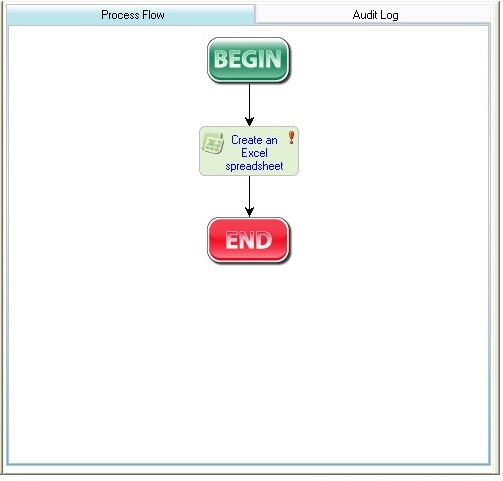
This task prompts the user to create an Excel spreadsheet as part of the process. When you drag this task into the process flow, these defaults:
Task Specific Attributes
These attributes are specific to this task:
Auto Close
If this is option is selected, the spreadsheet will close when it is saved. The option is enabled if a file bookmark is defined with the process, in which case when the spreadsheet closes, it is saved with the file bookmark.
Auto Print
Set this to None if you don't want the spreadsheet to print upon completion, otherwise select a default printer to which the spreadsheet prints.
Note: Use this setting if the spreadsheet is being created using a COM Interface — for example, the spreadsheet automatically prints when the interface updates it with data.
COM Interface
Optionally select the CRM COM Interface to use with the Record Bookmark and Template attributes. See the sample process which shows an example of this feature in use.
File Bookmark
If Auto Close is selected, you can select a bookmark to store the Excel spreadsheet that was created during the task. This enables the spreadsheet to be retrieved by another participant later in the process.
Record Bookmark
Select the bookmark to use in conjunction with the COM Interface and Template to generate the spreadsheet. See the sample process which shows an example of this feature in use.
Template
Optionally select an Excel spreadsheet template to use in conjunction with the Record Bookmark and COM Interface to generate the spreadsheet. See the sample process which shows an example of this feature in use.
Task Presentation to User
When this task runs within a process, an Excel spreadsheet opens on the user's desktop when the task commences. The exception to this is if the Execute attribute is set for the task, the user creating the spreadsheet must activate the task using a Workflow desktop pane.