To Register an MYOB Acumatica
Instance with Google
For your users to be able to sign in with their Google accounts, you first have to register
your MYOB Acumatica instance with Google and obtain[1]AVinsert2023/09/0119:11:18+02:00credentials[2]AVinsert2023/09/0119:11:19+02:00
for configuring the OpenID provider. This is a necessary step in
configuring single sign-on (SSO) for your MYOB Acumatica instance. For more information about registering applications in Google, see Google Developers Console Help.
Before You Begin
You should have a Google account that you will use to register your MYOB Acumatica instance.
Attention: This topic walks you through the
configuration of third-party software. Please note the following:
The procedure below is designed for the most common usage scenarios. If you are
implementing a more complicated scenario and you encounter difficulties, contact
MYOB Acumatica technical support.
The vendor of the third-party software may change the user interface and
settings. Therefore, the screen elements and setting names that you see may
differ from the ones described in the procedure.
The procedure will be updated to describe new common scenarios and changes in
the user interface and settings.
To Register an MYOB Acumatica Instance with Google
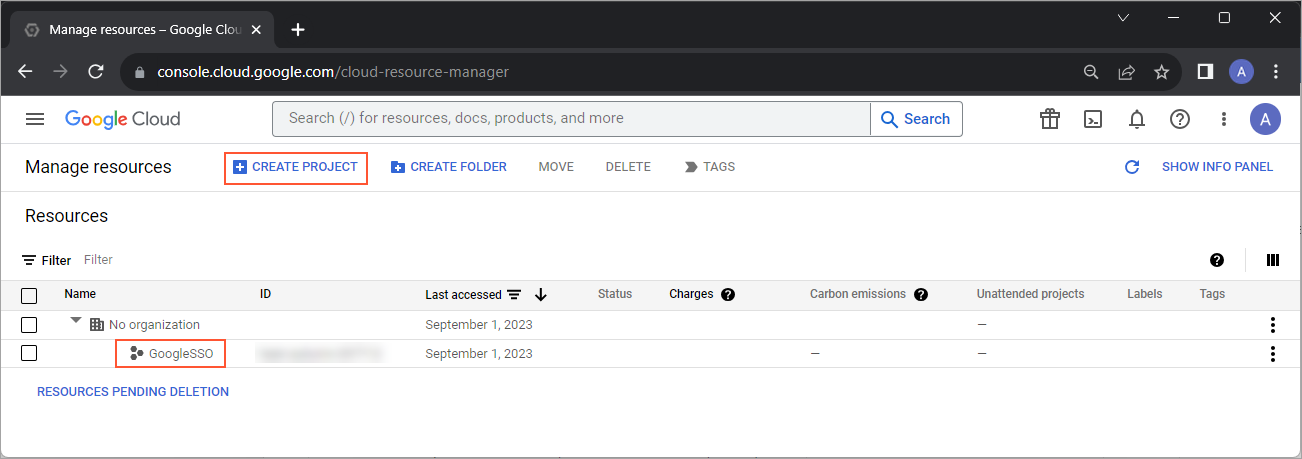
Optional: If you have not created any projects yet and you see the Manage
resources page of the Google Developers Console, as shown in the screenshot
below, click Create
project[3]AVinsert2023/09/0118:12:42+02:00.Figure 1. Active projects [4]AVsplit2023/09/0118:12:43+02:00
[5]AVinsert2023/09/0118:12:44+02:00In
the New Project box that appears, type the project
name[6]AVinsert2023/09/0118:13:03+02:00 and
c[7]AVinsert2023/09/0118:09:24+02:00lick
Create.
On the API & Services page that opens, click the Select
from drop-down list at the top of the page. In the Select from box that
appears, select the project.
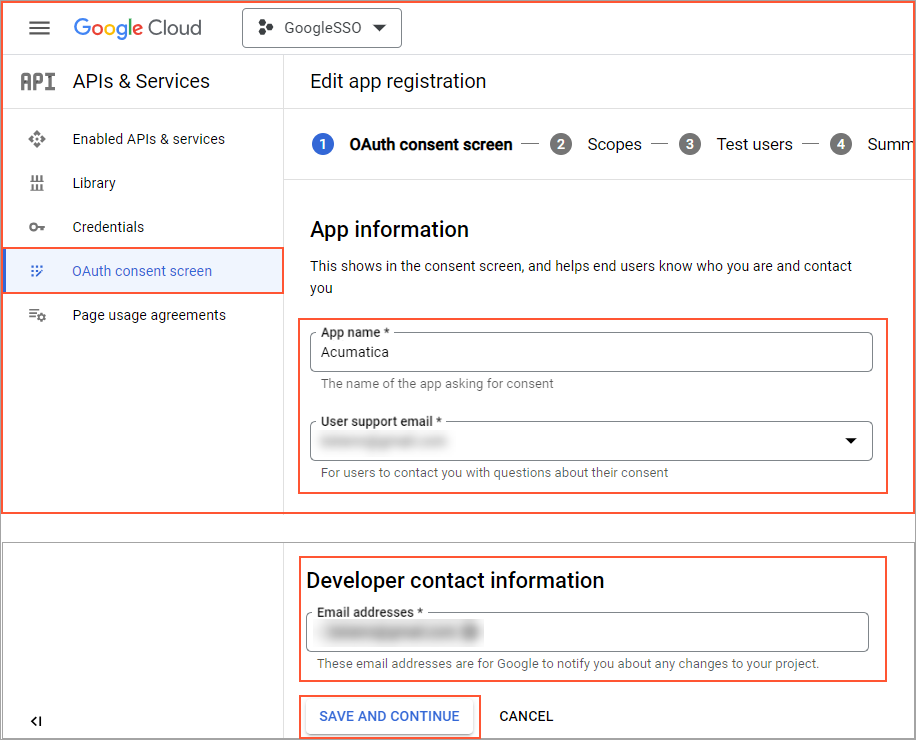
On the [9]AVinsert2023/09/0118:14:55+02:00API
& Services page, configure the settings of the consent
screen as follows:
In the sidebar on the left, click OAuth consent screen
tab.
Click
Save[14]AVinsert2023/09/0118:34:13+02:00 and
Continue.
Add credentials for the project as follows:
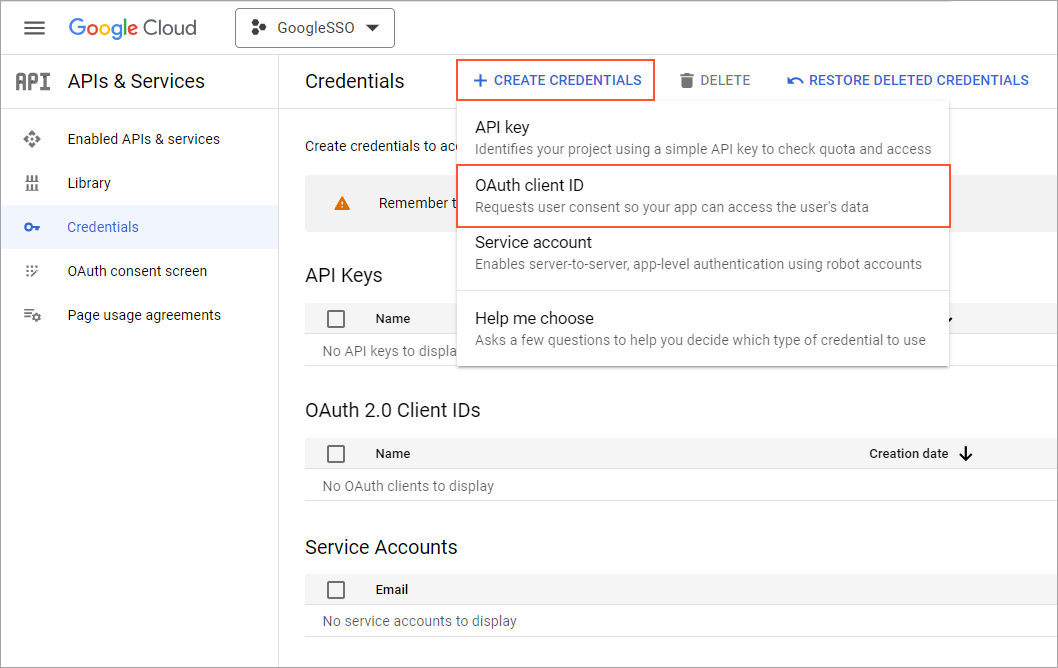
In the sidebar on the left, click
Credentials, select the <uicontrol>Credentials</uicontrol> tab [15]AV select the <uicontrol>Credentials</uicontrol> ta..
2023/09/0118:35:46+02:00and
then navigate to Create credentials > OAuth client ID, as shown in the screenshot below.Figure 3. Credentials creation
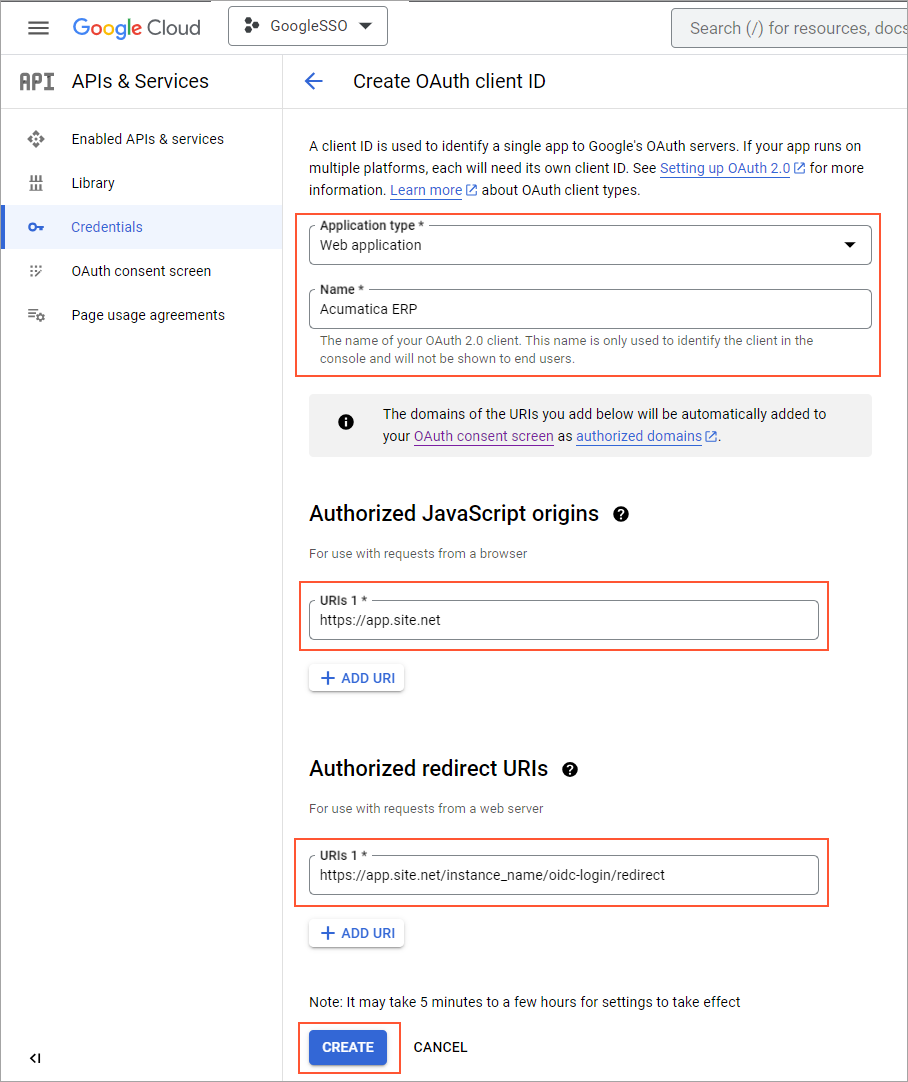
On the [16]AVinsert2023/09/0118:39:07+02:00Create
OAuth client ID page, shown in the screenshot below, enter the
information as follows, and then click Create:
Application type: Select Web application.
Name: Type your application name.
Authorized JavaScript origins: Type the root domain of
your application site—for example, https://app.site.net.
Authorized redirect URIs: Type the redirect URL of your
instance.
Attention: The box is case-sensitive.
This is the
full URL of your instance with
[17]AVinsert2023/09/0118:47:31+02:00/oidc-login/redirect
appended onto the end—for example,
https://app.site.net/instance_name[18]AVinsert2023/09/0118:47:44+02:00/oidc-login/redirect
Tip:To get this URL, in your MYOB Acumatica instance open the OpenID Providers (SM303020)
form and on the form toolbar, click View Redirect URI. In
the Redirect URI dialog box that opens click
Copy.
Figure 4. Create Client ID page
[20]AVinsert2023/09/0118:56:50+02:00In the dialog box that
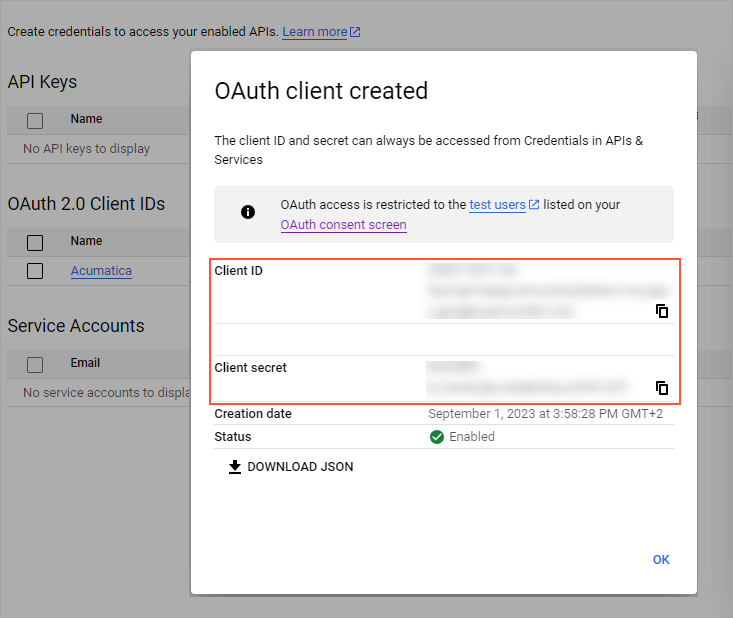
opens, copy the client ID and the client secret for later retrieval (see
the screenshot below). You have to register these credentials in your MYOB Acumatica instance.Figure 5. OAuth 2.0 credentials of the selected project
After you have registered your MYOB Acumatica instance with Google and obtained credentials, you have to
[21]AVinsert2023/09/0119:10:25+02:00configure OpenID provider
in your MYOB Acumatica instance using these credentials, as described in
[22]AVinsert2023/09/0119:10:41+02:00Configuration of an OpenID Identity Provider.