
2026–2027 Tax Year End Procedures
Before processing your first pays
Before you process your first pays with an Employee Payment Date on or after 1 April 2026, complete the below procedure. This pay run will be regarded as your first pay run for the 2026-27 tax year:
Ensure that MYOB IMS Payroll v7.20 has been installed. .
Generate Tax Year End reports and back up your payroll company (see below).
Update ESCT (Employer Superannuation Contribution Tax) rates (see page 2).
Update Minimum Wage rates (see page 3).
Open the first pay period for the 2026–27 tax year and reset accumulators (see page 6).
Generate Tax Year End reports and back up your payroll company
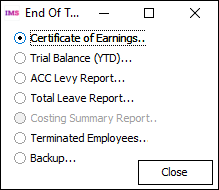
To generate the recommended reports and back up your payroll company, go to Tools > End of Tax Year. This opens the End of Tax Year window (see screenshot). Your last pay period processed for the current tax year must be in a ‘Closed’ state.
Generate Tax Year reports
We suggest you generate the following reports for your records. There might be other reports that you need to produce for your tax year. We recommend that you consult your tax agent or accountant for any additional reports which may be required.
To save these reports as PDFs:1. Preview the report.2. Click the Save button on the top left of the report page.3. On the Save Report tab, specify the location and file name for the report.4. In the Save as Type field, select PDF File (*.PDF).5. Click Save.
Prepare these reports by selecting the appropriate option from the End of Tax Year window:
Certificate of Earnings: (Optional) Produce a Certificate of Earnings for your employees.
Trial Balance YTD: Use this option to produce a Tax Year to Date Trial Balance report.
ACC Levy Report: Produce an ACC Levy Report for the 2025–2026 tax year. For the Do not include earnings above option, select 152790 (April 2025 to March 2026).
Total Leave Report: Produce a Total Leave report (Annual, Sick and Alternative Leave). To generate a report containing the Company Leave liability as at the end of the tax year, tick the Termination Value? option.
Costing Summary Report: Produce this report if you have Costings activated and if your company financial year begins on 1 April 2026.
Terminated Employees: If you intend to delete terminated employees (up to a nominated termination date) when opening the first pay period for the new tax year, you should produce a report listing the employee details. Enter your intended nominated termination date and select ‘Full Details’ (recommended) or ‘Name, Address & Termination Date listing’.
If you want to extract information about the terminated employees you intend to delete, you can use the ‘Employee Information – Find Record’ facility to select and extract the appropriate data required. The “Filtering records” section of the “Find Record Grid” document details how to select the appropriate terminated employees for the extract. This document can be opened from the . Terminated employees, once deleted, will no longer appear on any standard or historical report. Therefore, make sure you back up your payroll company prior to opening the first pay period for the new tax year, during which the deletion process can be undertaken.
Back up
Select Backup from the End of Tax Year window and do an ‘End of Tax Year’ backup. Choose a location and allocate a unique file name for each payroll company that can be easily identifiable should you require it in the future.
Update ESCT (Employer Superannuation Contribution Tax) rates
If you have any employees in KiwiSaver, a KiwiSaver Compliant Fund or a Company Superannuation scheme then this section applies to you.
Company Superannuation (if applicable), KiwiSaver and/or a Compliant Fund ESCT rates will need to be checked and updated for the new tax year. You need to do this immediately prior to starting a new Tax Year. This facility is available via the Tools > ESCT Rate Update option.
It is the employer’s responsibility, and therefore imperative, that ESCT rates for all employees who receive employer superannuation contributions are reviewed and adjusted, as required, prior to processing the first pay with an Employee Payment date on or after 1 April 2026 and at the start of every subsequent tax year.
Update Minimum Wage rates
If you have any employees on a Minimum Wage Rate, then this rate must be updated for the time worked starting 1 April 2026.
The new Minimum Wage rates applicable from 1 April 2026 are as follows:
-
Adult: $23.95 (was $23.50)
-
Start-Out / Training: $19.16 (was $18.80)
The rates may be updated manually on the employee’s Payment tab or Company Payments tab (whichever is applicable) or via the Hourly Rate Update window, which is available within the Tools menu.
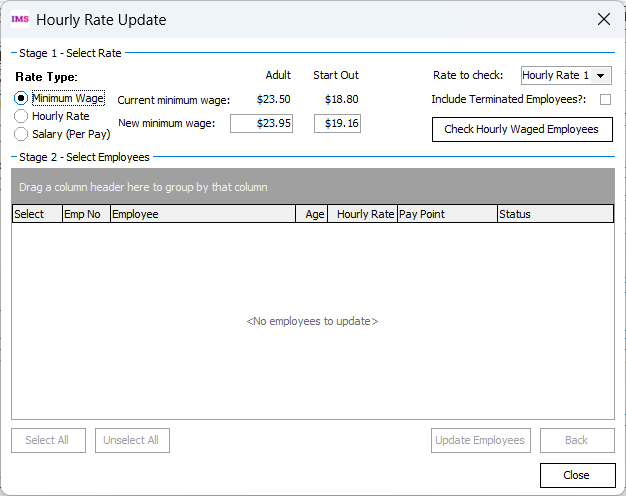
The Minimum Wage Rate Update facility is available to assist in identifying and updating employees who are either on the ‘Adult Minimum Wage’ or the ‘Start-Out / Training’ Minimum Wage Rate’.
Step 1 - Select the rate options:
Select the Minimum Wage Rate Type. The ‘New’ Minimum Wage Rates will be populated automatically.
Rate To Check: Nominate the Hourly Rate field (1 – 5) to check for either of the old rates.
Include Terminated Employees?: This option can filter terminated employees from the rate options. You may want to include terminated employees if they were on the Minimum Wage Rate and may be re-employed again later.
Check Hourly Waged Employees: Ensure your Minimum Wage Rate has been updated and matches the nominated rate field. This process applies to waged employees only.
Step 2 - Select the employees:
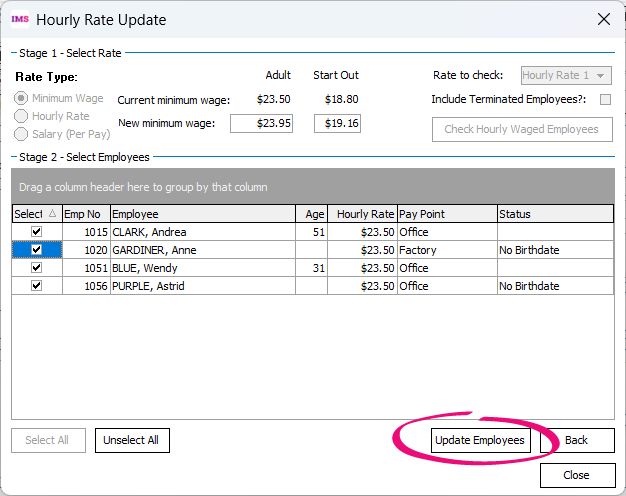
Select the employees you want to update, and then click Update Employees. The rate updates will be automatically audited.
Add KiwiSaver employer contributions to newly eligible employees
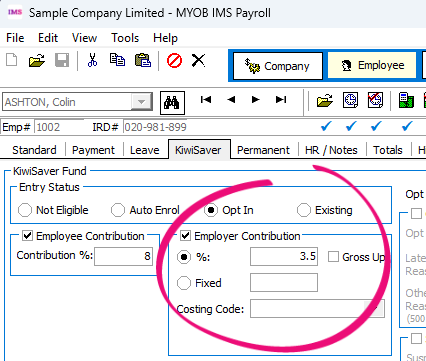
From 1 April 2026, employees aged 16 or 17 who have opted in to KiwiSaver are eligible for compulsory employer contributions.
After closing all pays for March 2026, make sure that these employees have the Employer Contribution checkbox selected on the KiwiSaver tab of the Employee screen, with a % of 3.5.
Update KiwiSaver minimum contribution rates
From 1 April 2026, the default minimum contribution rate for both employees and employers will increase from 3% to 3.5%.
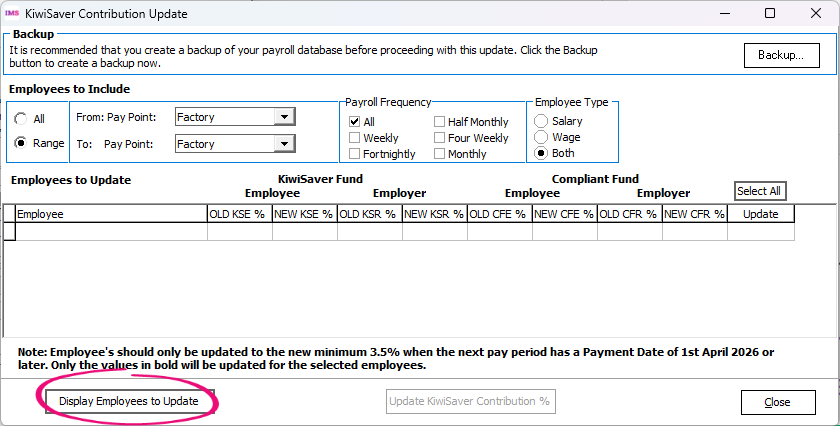
After making sure you’ve closed all pays for March 2026, you can use the KiwiSaver Contribution Update tool to update employee and employer contributions in bulk, including for employees who are members of a super complying fund.
The tool only lists employees who currently contribute 3% and haven’t received a rate reduction. Learn more about rate reductions in the MYOB IMS Payroll KiwiSaver guide.
To use the tool:
-
Go to the Tools menu and choose KiwiSaver Contribution Update.
-
Click Backup to create a backup copy of your payroll database. This makes it easier to undo changes if you need to.
-
In the Employees to Include section, use the filters to choose which employees to list, then click Display Employees to Update.
-
In the Update column, select the employees whose rates you want to update. You can also Select All.
-
Click Update KiwiSaver Contribution %.
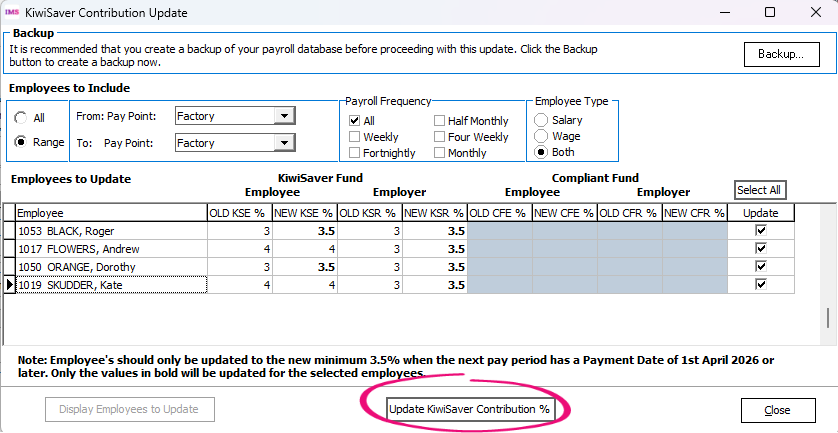
After you’ve updated rates, you can use the Employee Audit report to see which employees have been updated.
Open the first pay period for the 2026–27 tax year and reset accumulators
Only reset accumulators for the new tax year ONCE within a company. When this option is selected the accumulators for ALL employees within ALL pay period frequencies (selected or not) will be reset.
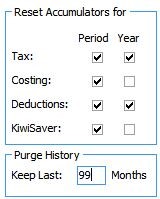 Tax: Ensure that the Period and Year indicators are selected. The ‘Open’ process will attempt to determine when a new tax year has started and set these indicators accordingly based on the first Employee Payment Date entered which is on or after 1 April 2026.
Costing: Ensure that the Period indicator is selected. If your company financial year begins on 1 April 2026 then also select the Year indicator.
The Year option should only be selected if you do not want to retain the Costing Period and YTD (year to date) totals past this point. If you want to retain Costing YTD totals at year end for specific Costing Codes, then via the ‘Company Controls – Costing Codes’ tab select the ‘Retain Costing YTD Total at Year End?’ indicator for each Costing Code concerned. The Reset Accumulator for the ‘Year’ can then be selected and those Costing Codes, as flagged, will retain their YTD totals.
Deductions: This applies to the deductions that are not flagged as ‘PAYE / KiwiSaver / Student Loan / Child Support (CSE, NCP)’ on the deduction master record, e.g., Social Club etc. Ensure that the Period indicator is selected and select Year to reset the YTD accumulators for these deductions.
KiwiSaver: Ensure that the Period indicator is selected. If your KiwiSaver reporting year starts in April (as indicated on the ‘Company Controls – Company’ tab) ensure that the ‘KiwiSaver - Year’ indicator is selected. You can select your KiwiSaver reporting year within the ‘Company Controls – Company’ tab. This is for YTD reporting figures such as on the Payslip YTD balances section.The KiwiSaver Reporting period can either be April or July. If July is selected on the ‘Company Controls’ tab then, for your first pay in July, the KiwiSaver ‘Year’ indicator will be automatically selected.
OPTIONAL: Delete ‘terminated’ employees
When you open your first pay for the new tax year, you can choose to delete employees who have a termination date. If you want to do this, enter a threshold date, such as 1 April 2025, so that all employees terminated before this date will be deleted.
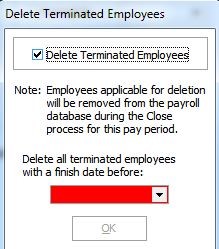
All information regarding the terminated employees will be removed from the payroll company (for example, Accumulators, Timesheet History) once the Pay Period is ‘Closed’. Make sure you have a copy of the Employee Listing or have generated an extract file of employees to be deleted prior to opening the first pay period, as detailed in Process 1 in this document.