
SMTP Mail Profile
E-mailing of Payslips and/or your Annual Registration Form - SMTP Mail Profile Settings
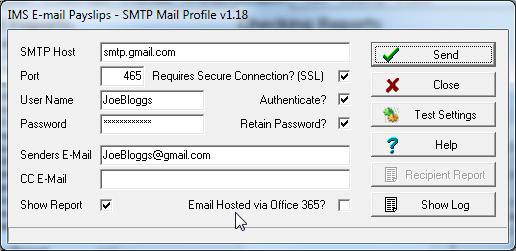
You will initially be required to setup information in the above fields before you will be able to proceed with emailing payslips and/or your annual Registration Form. The SMTP Mail Profile may initially be be set up within the Tools function, which is recommended, so that any connection issues can be addressed prior to ypur requirement to email from within the application. If no initial set up is performed then the set up may need to be done in either the Emailing of payslip or Registration process. If you are unsure of what values should go into these fields please check with your ISP (Internet Service Provider).
-
SMTP Host is the address of your SMTP Host mail server (eg. smtp.host.co.nz). This can be represented by the domain name of the server or by its corresponding IP address.
-
Port is the port on your email server that messages should be sent to (usually port 25 for standard connections and either 465 or 587 when the mail server requires a secure connection).
-
Requires Secure Connection? (SSL) tick this box if the SMTP Host mail server specified above requires a secure encrypted connection (using SSL or TLS security protocols).
-
User Name is the login name you use to access your email server.
-
Authenticate? should be selected if the mail server (SMTP Host) requires a valid username and password before the sending emails can be performed or if the SMTP host requires a secure connection.
-
Password available only after "Authenticate" is selected.
-
Retain Password? tick this box to avoid having to enter the password every time emails are to be sent.
-
Senders E-Mail is the email address that should appear in the 'From:" position of the recipients payslip message (eg payroll@admin.yourco.co.nz).
-
CC E-Mail is the E-Mail address of the recipient who should receive copies of all E-Mail payslips that have been sent in the current session. Leave this field blank if this feature is not required.
-
Show Report This checkbox will only display when emailing payslips - not for emailing Registration Forms. Untick this box if the 'Recipient Listing' is not required to be generated immediately after all E-Mail payslips have been sent. This report lists the names, email addresses and the status of the 'send' for all employees who have been sent an email payslip in the current session. The report will be generated into a preview window immediately after the last payslip has been processed (sent). You can deselected this option prior to clicking on the "Send" button if the report is not required.
-
Email Hosted via Office 365? Office 365 has a limit of 30 emails sent in one minute as a means to help combat some email spamming methods (this limit is not maintainable within Office 365). If your Emailing is hosted via Office 365 and you would send more than 30 emails (ie: Payslips) at a time then you should tick this box to force a 2 second delay between each email.
When you have completed the setup requirements on this screen you can click the Test Settings button to check the settings. This will create a dummy message and send it to the address as contained in the Senders E-Mail field.
If the setup has been previously completed and tested then click the Send button and the system will attempt to connect to the SMTP Host and send your payslips or Registration Form.
Internet Connection Failure & SMTP Server Connection Failure
If an internet connection cannot be detected or established, or if the SMTP server connection information provided is invalid, the following message will be displayed:
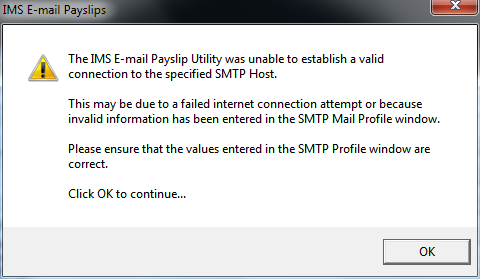
If this message appears, click the OK button and the SMTP Profile window will be displayed again. If the failure was due to an unavailable internet connection, establish a connection manually first then click OK. Otherwise, if the failure was due to invalid profile information, correct the error and proceed.
Message Delivery Progress
When delivery begins the SMTP Mail Profile window will display the progress. Optionally, the Show Log button can be selected to display messages received from the mail server as emails are being sent (see below):-
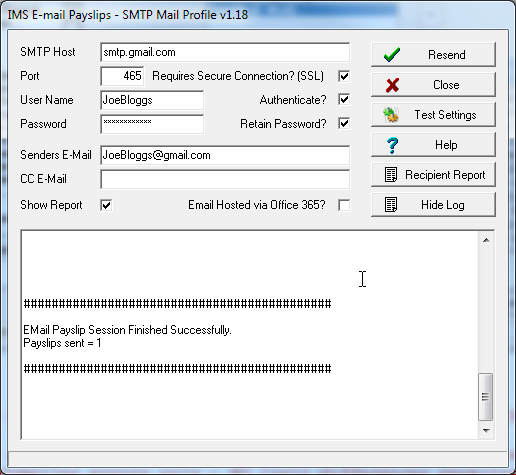
Regardless of whether the "Show Log" button is selected, the log is displayed after the registration form or last email payslip has been processed to display a summary of the email session. This log is saved into a file within the payroll application folder called "Mail_Log.txt". If the email session was successful the Close button can be selected to pass control back to MYOB IMS Payroll otherwise the "Resend" button can be selected if the email payslips are required to be sent again, e.g. in case of a connection error due to an unavailable internet connection). If the Recipient Report is required (for reprint or if the flag Show Report was not selected) then the button Recipient Report will generate this preview. If emailing/printing was initiated via the Print List button and there are other reports to print, the payroll application will submit any additional reports to the printer in the usual manner.
Message Delivery Failure
If an invalid employee (recipient) email address is encountered during payslip emailing one of two events may occur depending on the configuration of your internet connection and email server:
-
The email server will accept the incorrect email address but will send an email back to you informing you that the message was "undelivered" due to an invalid recipient address (always check you email "inbox" for these messages).
-
The email server will reject the incorrect email address and the email utility will record and report the error back to you.
If the email server cannot deliver the message successfully for any other reason (ie. the failure is not due to an incorrect recipient email address), the payslip email utility will record the failure and report the error back to you in the Log. The log can be viewed by moving the scroll bar on the right-hand side of the window.
If a message fails to be delivered for any reason, you may be required to re-send payslips by selecting the employee payslips individually (or use the from/to employee range feature found on the Payslip Options screen for the email payslip report entry). This would entirely depend on the nature of the failure and how many payslips were not successfully sent. If delivery failure is due to an invalid email address you will need to correct the addressing error before re-sending.
Further Troubleshooting
Refer to the document "E-Mail Payslip Support" for additional troubleshooting information specific to errors received while attempting to e-mail payslips and registrations. This document can be found under Frequently Asked Questions on the MYOB IMS Payroll Start menu item or if running in the cloud environment the document can be accessed from the IMS Payroll Cloud launcher screen via the Documentation button.