
Installing
Prerequisites
Ensure that all applications on your workstation have been closed down prior to performing the following installation procedures.
-
If you are installing MYOB IMS Payroll on a laptop with Synaptic Touchpad software installed, please ensure this software is not running during the installation.
If you are installing a new version of MYOB IMS Payroll over an existing version, do not complete the installation until: -
-
All payroll periods in all your payroll companies have been closed.
-
You have BACKED UP each of your payroll companies after closing the last payroll period processed in each company. Use the BACKUP function on the MYOB IMS Payroll TOOLS menu to create each payroll company backup, remembering to give each backup file a unique reference name.
Installation
-
To install from CD, place the CD in the drive and wait a few seconds. The IMS Installer Application should start automatically. To install MYOB IMS Payroll click on the "Install MYOB IMS Payroll" button and when the installation starts follow the setup instructions displayed on screen..
-
If you do not have CD AutoPlay enabled on your PC, open the Windows Control Panel and click the Add/Remove Programs icon. When the Add/Remove Programs window has opened click the Install button and follow the instructions on the screen.
Recommended Setups
|
How will IMS Payroll be installed? |
How many users? |
Where can the backups be saved? |
What size is the database? |
|
Local workstation – Both the application and data should be installed on the local windows computer |
Only a single user accesses/operates the payroll |
Backups within the payroll should be directed to either a file server or external media (external hard drive, flash drives, etc.) |
|
|
Network Installation via Remote Desktop (RDP) / Terminal Services (or similar) |
Multiple users require access to the payroll company(s) |
There is a requirement to have the payroll companies backed up at regular intervals (e.g. via windows server nightly backups) |
For larger payroll databases, the RDP/Terminal Server setup is recommended due to increased performance by eliminating network traffic between the Application and Database. |
|
Network Installation via Network Shares |
Multiple users require access to the payroll company(s) |
There is a requirement to have the payroll companies backed up at regular intervals (e.g. via windows server nightly backups) |
Recommended for smaller databases. There are known issues with embedded databases running on file shares with some versions of Windows Server – in most cases these issues can be rectified by downloading optional patches from Windows Update for the server if required. |
Operating the payroll through RDP/Terminal Server will only eliminate network traffic if both the Application and Database reside on the terminal server. Having the data on a file share accessible from the RDP login is effectively the same as having the payroll application installed on the local workstation with the database on a file share (3rd point above Network Installation via Network Shares).
Other Notes
-
For RDP/Terminal Server setups the terminal server needs to have a default printer defined, even if the client machines are being allocated a default printer at connect or logon time (this may depend on the version of the Terminal Server).
-
Directory Structure for Payroll Partner data - It is recommended that the Payroll Company folder not be placed in the root of a Terminal Server drive. (i.e. a structure like C:\Payroll Company\ is not recommended and the recommended setting as an example is: C:\IMSData\Payroll Company\).
Application Permissions
The following rules should be checked / applied for the following installation setups:
-
Local workstation where the user account logged into windows does not have full administrative privileges.
-
Remote Desktop (RDP) / Terminal Services (or similar) where the user logging in does not have full administrative privileges to both the application and data folders.
-
Network Installation where the Data folder resides on a shared network drive on a server somewhere and the application is installed on the local workstation.
To enable MYOB IMS Payroll to function correctly under the above setups the following needs to be checked:
-
All users of MYOB IMS Payroll need to have FULL CONTROL of the directory containing the Payroll Company Data. There are several sub-directories that IMS Payroll uses during processing, and lack of permissions on these sub-directories will result in run-time failure.
-
All users of MYOB IMS Payroll need to have FULL CONTROL of the application installation directory and all subdirectories. For example, if IMS Payroll is installed on a Terminal Services Server in "C:\Program Files\IMS\IMS Payroll Partner" or "C:\Program Files (x86)\IMS\IMS Payroll Partner", then the users need to have FULL Control of the "C:\Program Files\IMS\IMS Payroll Partner" folder and all sub-directories.
-
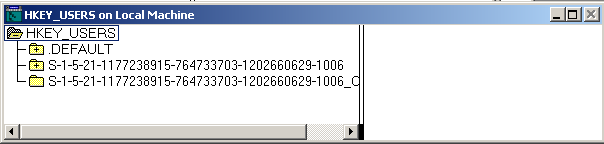
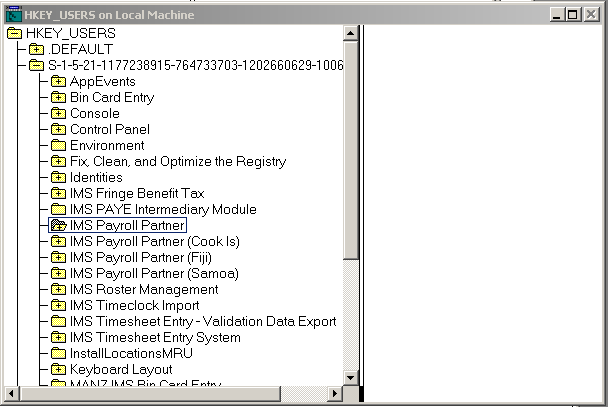
All users of MYOB IMS Payroll Partner need to have FULL CONTROL of the IMS Payroll Partner key and sub-keys in their registry profile as shown below. Alternatively run regedit as administrator under the user’s login and browse to the ‘HKEY_CURRENT_USER\IMS Payroll Partner’ and set the required Full Control permissions. Enter the admin credentials when prompted.
-
A temporary folder – ‘Temp’ – needs to exist for the user profile operating payroll, i.e. the user logging into a terminal server session should have a profile which has a standard Temp folder defined of which the user should have FULL CONTROL.
Profiles
Keys
FAQs
Does MYOB release fixes for bugs and security vulnerabilities? Are there release notes for these fixes?
We release fixes for bugs and security vulnerabilities as and when required.
If it’s safe to publish release notes, we’ll do so. However, sometimes we withhold information about security fixes so that no one can learn about the security vulnerabilities in previous releases. This helps keep our customers safe if they don’t regularly update their MYOB IMS software.
Do I need to exclude MYOB IMS Payroll from antivirus scans?
No, you don’t.
Do I need to open ports in my firewall for MYOB IMS Payroll?
MYOB IMS Payroll only has outgoing network traffic, so you only need to open outgoing ports. You don’t need to open any incoming ports.
The outgoing ports you need to open depend on which MYOB IMS Payroll functions and modules you use.
-
For standard MYOB IMS Payroll, you don’t need to open any ports.
-
For emailing payslips, if you use an external SMTP host, then you need a rule that allows MYOB IMS Payroll to bypass the host.
For more information, see on the MYOB IMS Payroll help site.
-
If you use any of the online general ledger interfaces (MYOB AccountRight or Xero), then you need to open ports 110 and 445.
-
If you use the People Inc module, you need to open ports 1433 (TCP) and 1434 (UDP) outgoing for your SQL server.