

- Contents
- Index
- Search

Show results that include all search words
Cost Group and Cost Type Defaults
Each Stock Item may also have its own default Cost Group and Cost Type. These defaults are used unless overridden at time of entry. Default settings may only be practical if stock items naturally fall into groups that reflect the way the jobs will be analysed.
A common technique is to create shortcut codes using "lookup only" stock items to allow single key entry of costs on the Cost tab.
The default Cost Type and Group for a stock item is determined by the values in the Cost Group and Cost Type fields on the Stock Item > Extra Fields tab.
COSTGROUP and COSTTYPE are added to the STOCK_ITEMS table automatically when Job Costing is installed, however by default they do not appear on the Stock Items screen. Add these fields as Extra Fields in EXO Business Configurator > System > Extra Fields. Set up the fields as follows:
|
Field |
Value for Cost Groups |
Value for Cost Types |
|
Table name |
STOCK_ITEMS |
STOCK_ITEMS |
|
Field name |
COSTGROUP |
COSTTYPE |
|
Display name |
Cost Group |
Cost Type |
|
Dialog type |
Drop-Down Edit |
Drop-Down Edit |
|
Lookup table |
JOB_COSTGROUPS |
JOB_COSTTYPES |
|
Key field |
SEQNO |
SEQNO |
|
Display field |
COSTDESC |
COSTDESC |
In Account > Stock Item select the item you wish to specify the cost group and cost type for and then navigate to the Extra Fields tab. Select the codes you require.
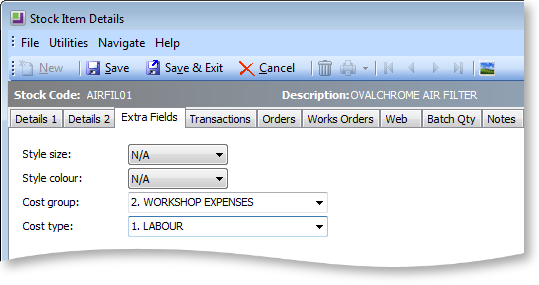
If there are no values in these fields, then the user is expected to choose the Cost Type (and Group if required) on each line in Job Costing.
Note: The Stock Items Details Screen can also be accessed from any Job Costing screen that has a stock code. Double-click on the stock item to access the Stock Items Details Screen.