- Contents
- Index
- Search

Show results that include all search words
Configuring Business Flow Menus
You can add and edit Business Flow Menus in Exo Business Configurator under Staff > Menus > Business Flow Menu.
You can copy default menus by clicking the Copy Menu button and use them as the basis for a new menu.
To add a Business Flow Menu:
-
Select a module from the Program box.
-
Click New. The Business Flow Menu editing screen displays:
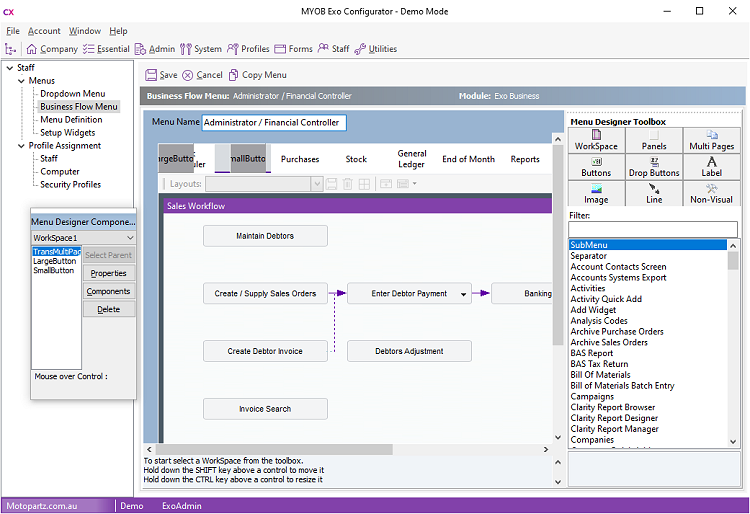
The left pane is the designer area where you create the menu. The right pane contains a toolbox of menu elements and a list of all menu procedures. Use the floating Menu Designer Component Browser window to configure the properties of the currently-selected item and its component items. The Component Browser also displays the name of the menu item that the mouse is current over.
-
In the Menu Name field, enter a name for the menu.
-
Click on the WorkSpace item in the Menu Designer Toolbox, then click on the design area on place it.
-
To change the size of the WorkSpace, hover the mouse pointer over it and hold down CTRL. Moving the mouse resizes the WorkSpace. You can also double click on the WorkSpace to view its Properties dialog and enter Width and Height values.
-
To position the WorkSpace, hover the mouse pointer over it and hold down SHIFT. Moving the mouse resizes the WorkSpace. You can also double click on the WorkSpace to view its Properties dialog and enter Top and Left values.
Tip: To make the WorkSpace resizable, double click on it and set the Custom property to R and the Align property to Client.
The WorkSpace forms the base of the Business Flow menu, defining its size and shape. All other menu items are placed on it.
Tip: You can place Panel items on the WorkSpace, then place other items on the panel. This allows you to position multiple items at once.
Add a Text Link
To add a text link to a Business Flow Menu:
-
Enter text into in the Filter field to filter the list of available procedures.
-
Drag a procedure from the list to the WorkSpace. A window displaying the link’s parameters displays.
-
Enter parameters in the window.
-
Click OK.
Tip: You can add links to an external file or executable by dragging the External Program procedure onto the WorkSpace. Change the name and enter the filename of the file/executable into the Parameters field. You can also add a link to a Clarity report by dragging the Run Clarity Report procedure onto the WorkSpace, then specifying the report.
Add a Button
To add a button to a Business Flow Menu:
-
Click on the Buttons item on the Menu Designer Toolbox.
-
Select the style of button (Standard, Focus or Transparent), then click anywhere on the WorkSpace to place it.
Note: You can specify more than one image with transparent buttons. The images correspond to the various states of the button — for example, inactive, active, hover.
-
Enter parameters.
-
Click OK.
-
Size and position the button.
-
Enter text into in the Filter field to filter the list of procedures.
-
Drag a procedure from the list onto the button. This is the procedure that is activated when you click the button.
-
Enter parameters.
-
Click OK.
Tip: You can add links to an external file or executable by dragging the External Program procedure onto the WorkSpace. Change the name and enter the filename of the file/executable into the Parameters field.
Add a Dropdown Menu
To add a dropdown menu to a Business Flow Menu:
-
Click on the Drop Buttons item on the Menu Designer Toolbox.
-
Select the style of button (Standard, Focus or Transparent),
Note: You can specify more than one image with transparent buttons. The images correspond to the various states of the button — for example, inactive, active, hover.
-
Enter any parameters that may be required, then click OK.
-
Size and position the button using the CTRL and SHIFT keys.
-
Enter some text into in the Filter field to filter the list of available procedures.
-
Drag a procedure from the list onto the button. (To add a sub-menu, drag .)
-
Enter any parameters that may be required, then click OK.
-
Repeat steps 5 – 7 for all other procedures you want to be available from the dropdown menu.
Note: You can add sub-menus by dragging the SubMenu item onto the dropdown button. To add items to the submenu, select it so that its components appear on the Component Browser, then drag items onto its name at the top of the Component Browser.
Add Graphical Elements
To add graphical elements to a Business Flow Menu:
-
Click on the Label, Image or Line item on the Menu Designer Toolbox, then click anywhere on the WorkSpace to place the item.
-
Enter parameters:
-
For labels, this includes the label text.
-
For images, this includes the image file to display.
-
For lines, this includes the line style and orientation.
-
-
Click OK.
-
Size and position the item.
Add a Tabbed Layout
You can add a Standard or an Enhanced layout. Enhanced layouts support transparency and mouseover effects. Standard layouts don't support these effects, but offer more options for positioning tab buttons.
To add a tabbed layout to a Business Flow Menu:
-
Select MultiPage > Standard > MultiPage or MultiPage > Enhanced > MultiPage in the Menu Designer Toolbox.
-
Click anywhere on the WorkSpace to place it.
Tip: Use the TabPos property in Standard MultiPages to set which side of the MultiPage tabs appear. Enhanced MultiPages can only have tabs at the top.
-
Size and position the MultiPage.
-
Select MultiPage > Standard > Tabsheet or MultiPage > Enhanced > Tabsheet from the Designer Toolbox
-
Click on the MultiPage.
-
Enter a name and, optionally, an image.
-
Click OK. This adds a tab to the top of the MultiPage.
Note: You can add more than one image to Enhanced Tabsheets. The images correspond to the states of the tab button — for example, inactive, active, hover.
-
Repeat steps 3 to 7 to add more tabs to the Multipage.
-
Click on a tab, then drag other items such as links and buttons onto the MultiPage. These items only appear when you click the tab.
-
Click on another tab. The items you added to the previous tab will disappear. Drag more items to the MultiPage for this tab.
-
Repeat steps 9 and 9 for all tabs.
Add a Dashboard Interface
You can drag a procedure called Dashboard onto a Business Flow Menu to add a Dashboard interface to a module. You can customise the Dashboard add widgets to it. Enter D into the Custom field for the procedure to indicate that you can dock it in the WorkSpace, so that it displays as part of the core Exo Business interface. Enter DR to indicate that it is dockable and resizable. The Align property should be set to Client.
To add a Dashboard interface to a Business Flow Menu:
-
Select Panels > Dock Panel in the Menu Designer Toolbox.
-
Click anywhere on the WorkSpace to place it. A Dashboard interface displays in the WorkSpace.
-
Size and position the Dashboard.
-
Select Panels > Panel in the Menu Designer Toolbox.
-
Click on the Dashboard to add a panel and convert it to a Dashboard widget.
-
Repeat steps 4 and 5 to add more widgets to the Dashboard.
-
Click on a widget, then drag other items such as links and buttons onto the widget. Repeat this for all widgets.
Menu Definition
A menu definition is a set consisting of a Dropdown Menu and a Business Flow Menu. Menu definitions are associated with users under Staff > Users, and determine which menus are enabled for that user.
Tip: The definition assigned to the current user is highlighted in green.
To set up a menu definition:
-
Click New to create a definition, or Edit to change an existing one.
-
Enter a Name for the definition.
-
Select the Drop Down Menu for this definition.
-
Select a Business Flow Menu for this definition.
-
Click Save.